People > Team
How can I add a new team member?
Want to add a new team member? You can do this quickly from the Team section in the app. This lets you keep your team updated while including all necessary details like name, number, and designation. The feature is only available to the owner, and you can decide whether to assign the member to a single property or all properties.
Here’s how you can add a new team member efficiently:
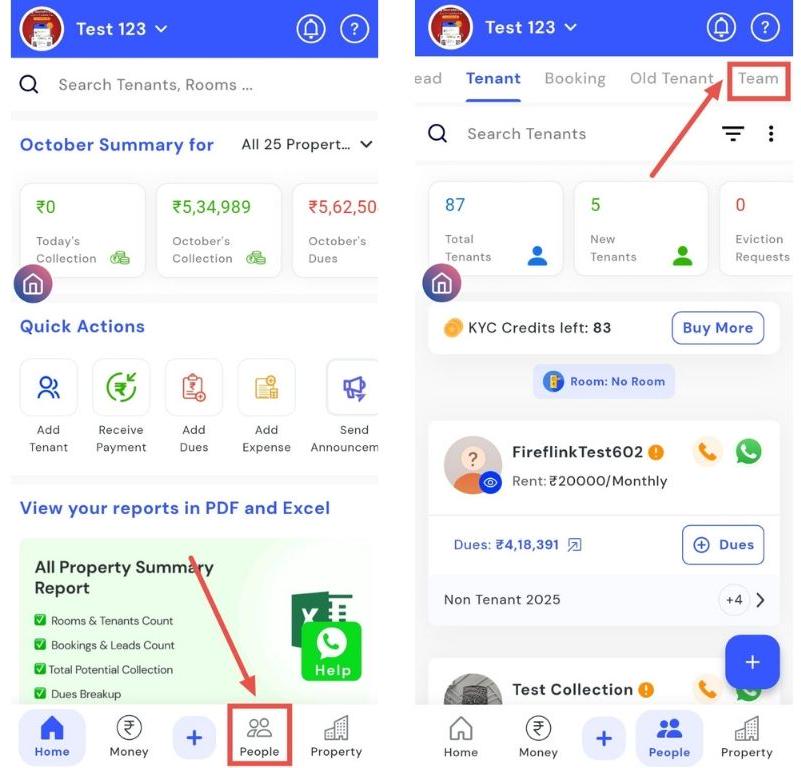
- Step 1: Open the Team section Tap the People icon in the bottom navigation menu, then select Team.
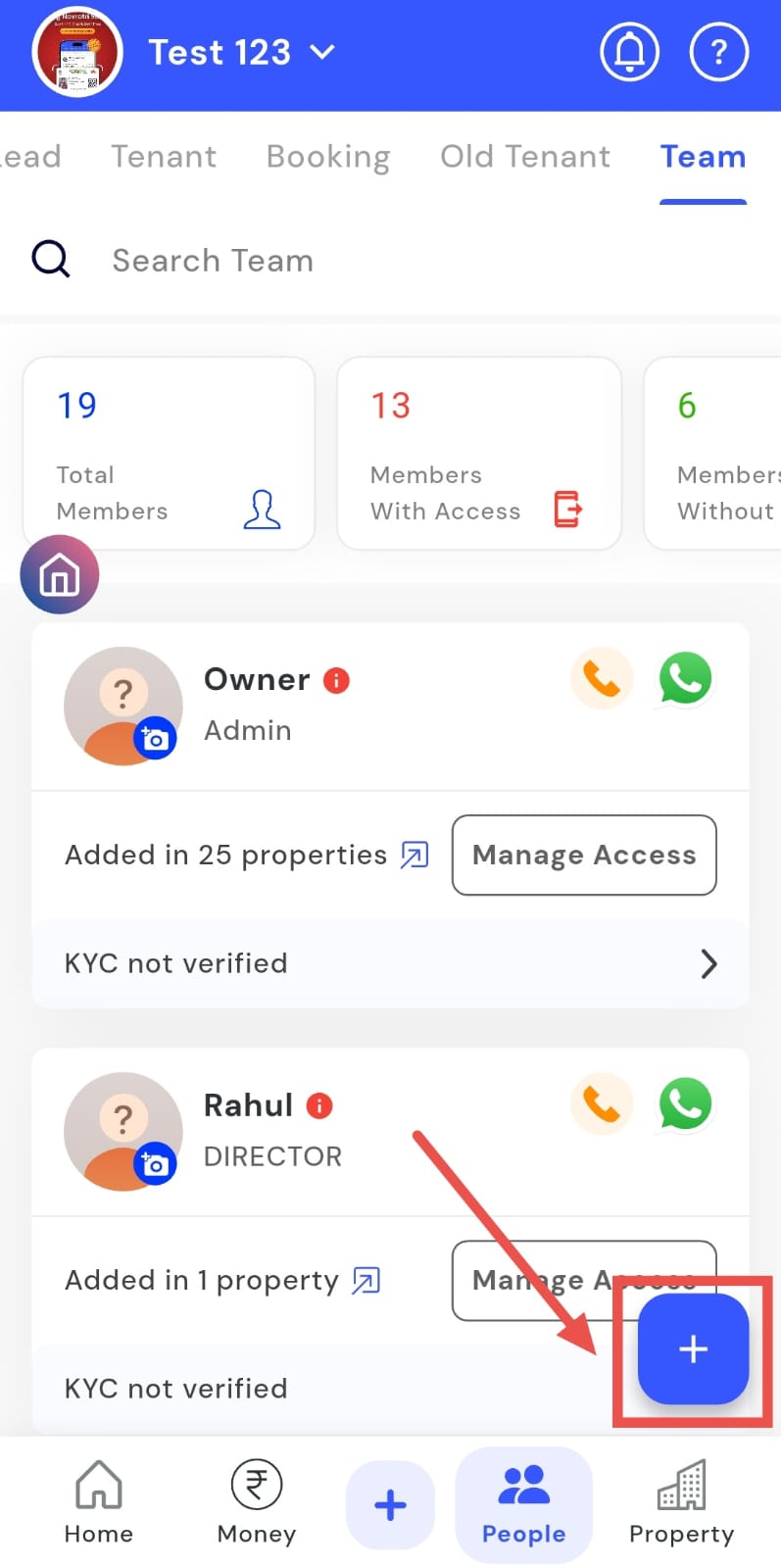
- Step 2: Add a new member Click on the plus (+) sign to start adding a team member.
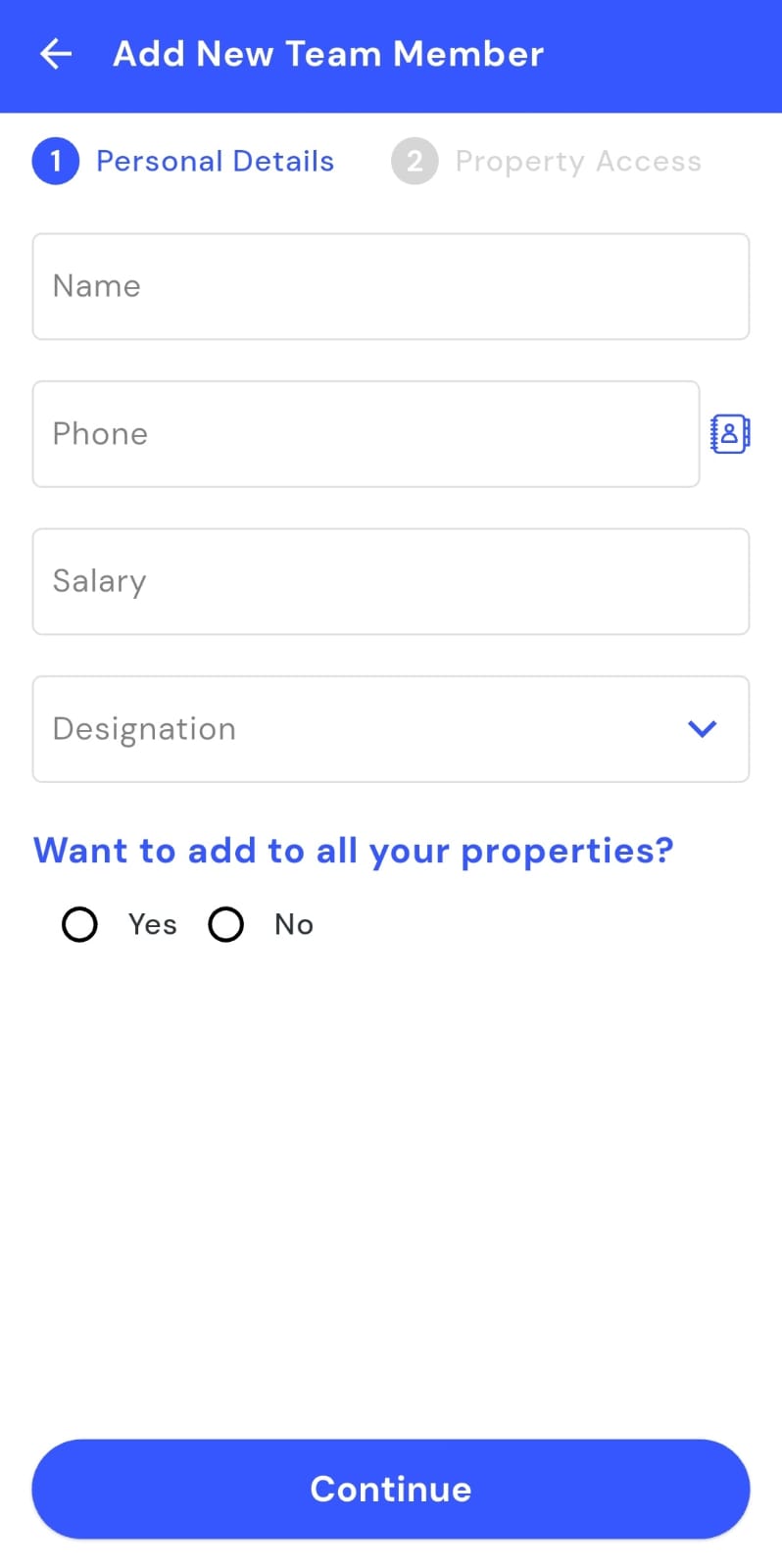
- Step 3: Enter details Fill in the member’s name, phone number, and designation.
- Step 4: Assign property access Select “Yes” if you want to add the member to all properties, or select “No” to add them to a single property. Then click Continue.
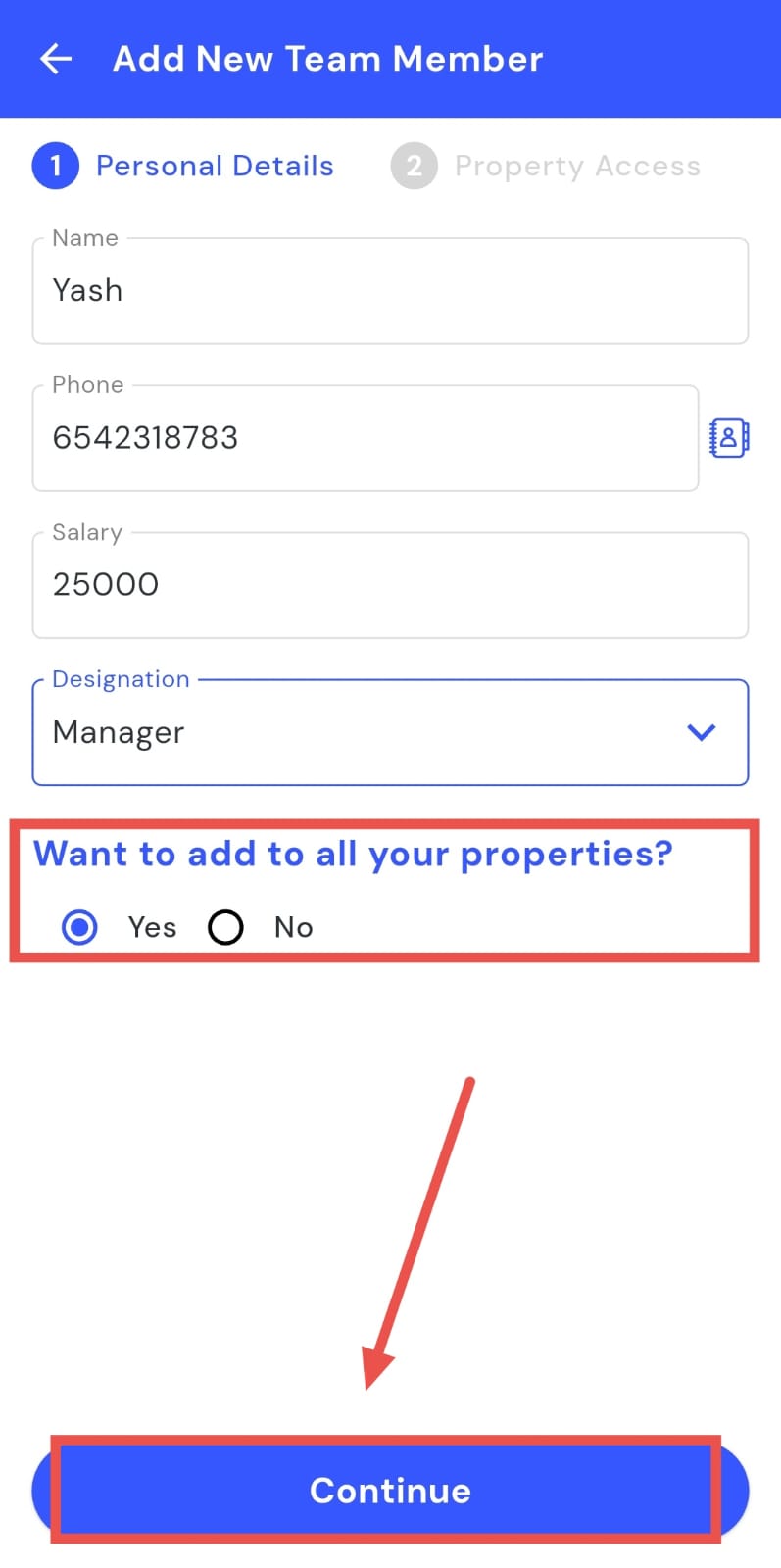
| Tip: Only owners have access to add team members. Choose “Yes” for full access across all properties or “No” to restrict the member to one specific property. |
|---|
How can I edit team member personal details?
Need to update a team member’s personal information? You can easily make changes directly from their profile in the Team section. This allows you to correct details like name, contact number, or designation while ensuring all records stay accurate and organized.
Here’s how you can edit a team member’s information quickly and efficiently:
- Step 1: Open the Team section Tap the People icon in the bottom navigation menu, then select Team.
- Step 2: Search for the member Use the search bar or scroll to find the team member whose details you want to edit.
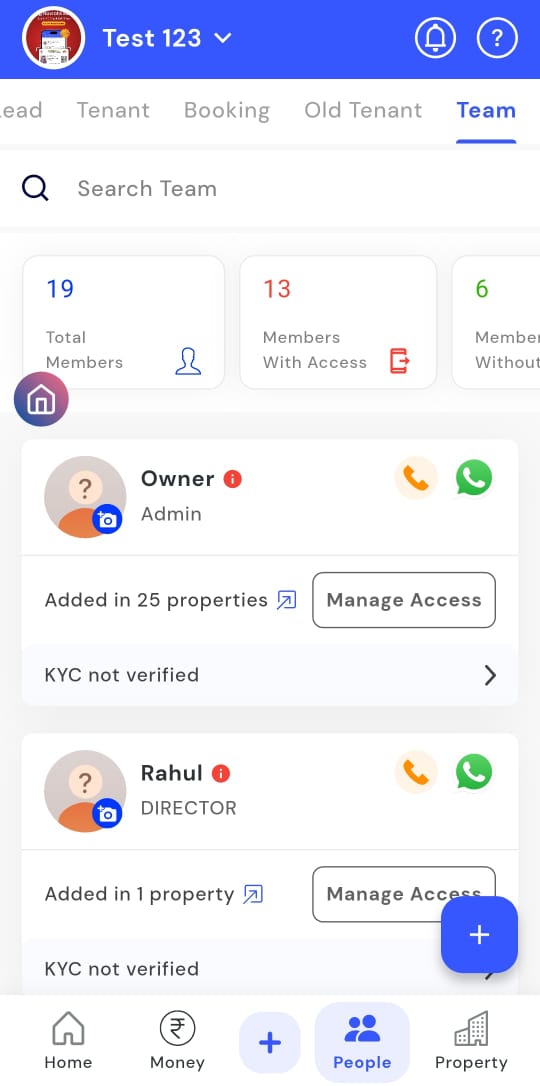
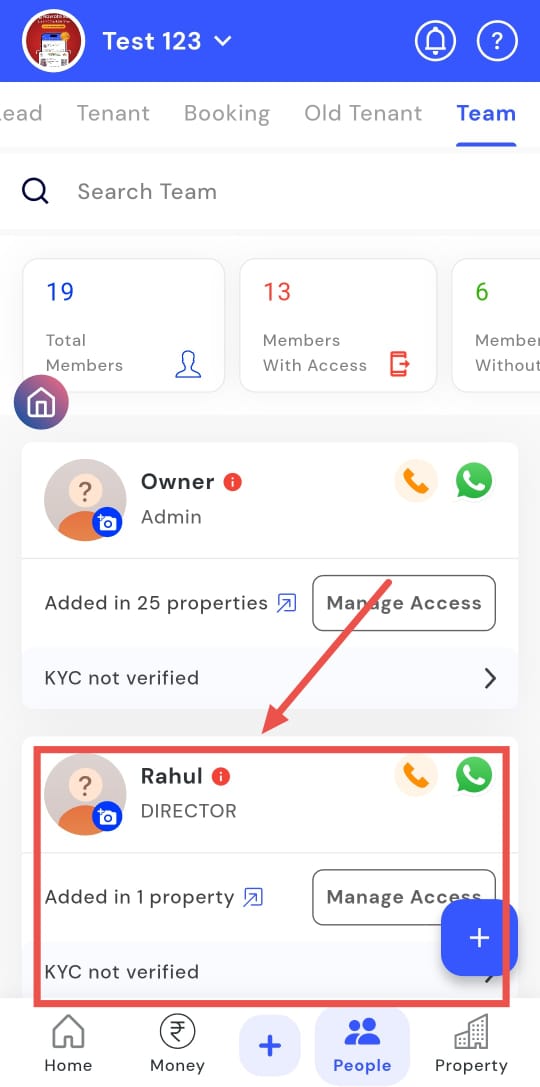
- Step 3: Open member profile Tap on the team member’s card to open their profile.
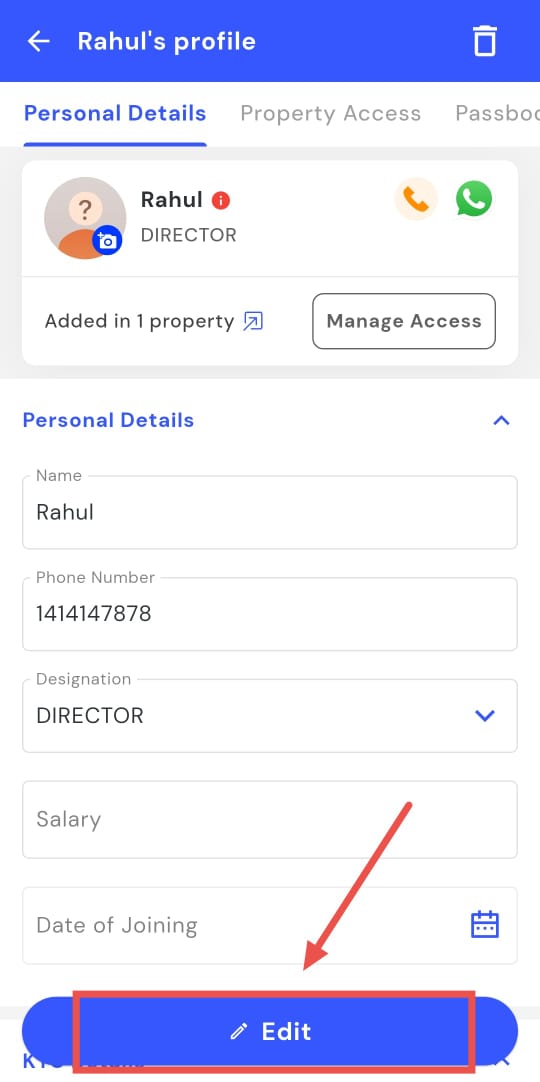
- Step 4: Enable edit mode Tap the Edit button to enable editing.
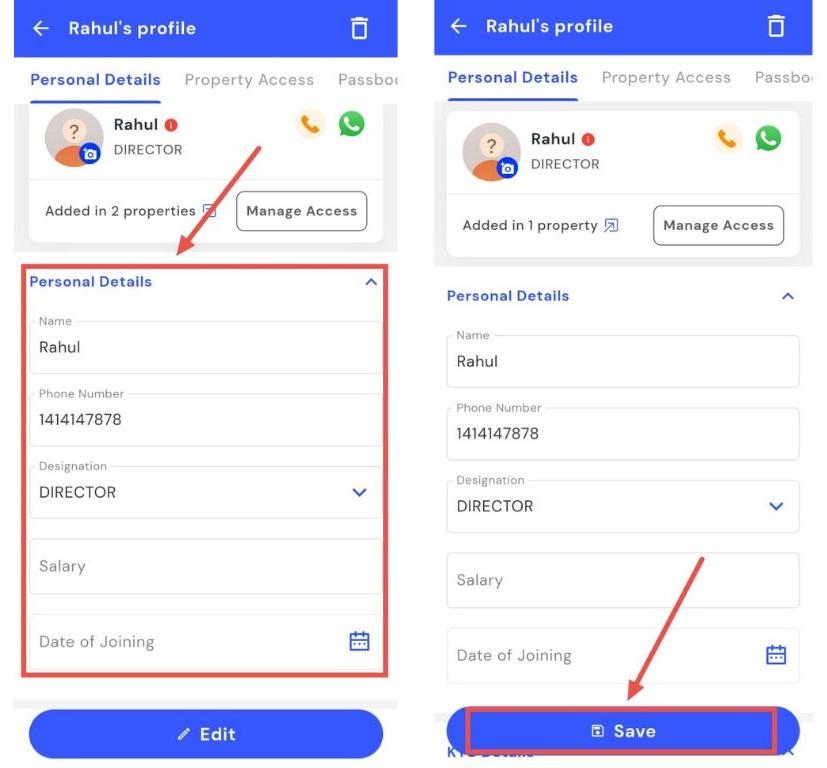
- Step 5: Update personal details Locate the Personal Details section, update the required fields, and then tap Save to confirm the changes.
How can I upload team member documents?
Need to upload documents for a team member? You can add important files directly from their profile using the KYC section. This allows you to store ID proofs, certifications, or other necessary documents by taking a picture or selecting from the gallery. Keeping all team documentation organized ensures records remain complete and accessible.
Here’s how you can upload team documents efficiently:
- Step 1: Open Team section Tap the People icon in the bottom navigation menu, then select Team.
- Step 2: Search for the member Use the search bar to locate the team member whose documents you want to upload.
- Step 3: Open member profile Tap the team member’s card to open their profile, then tap Edit to enable editing.
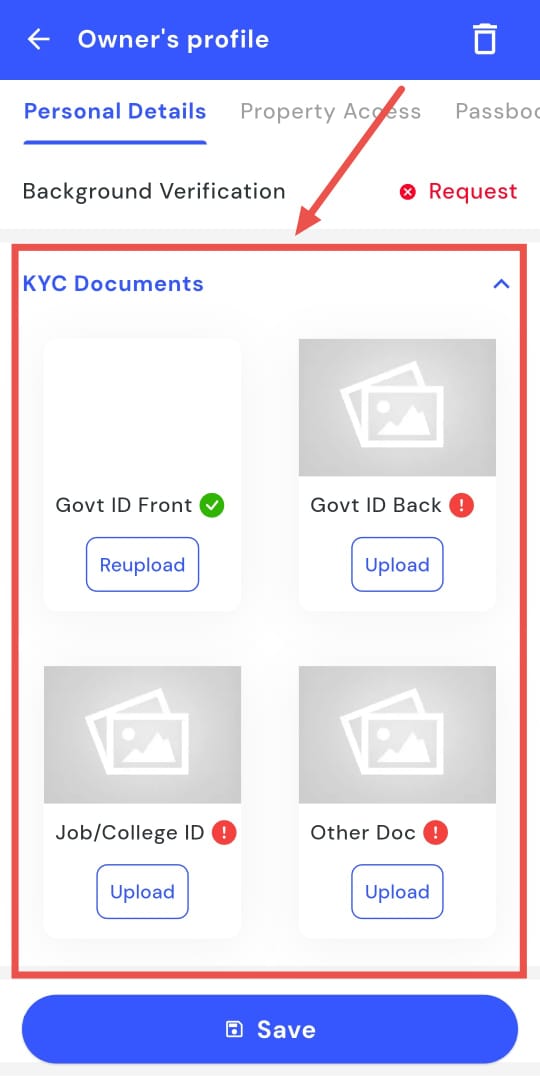
- Step 4: Upload KYC documents Find the Personal Details section, then scroll down to the KYC Documents area. Tap Upload to add the document.
-
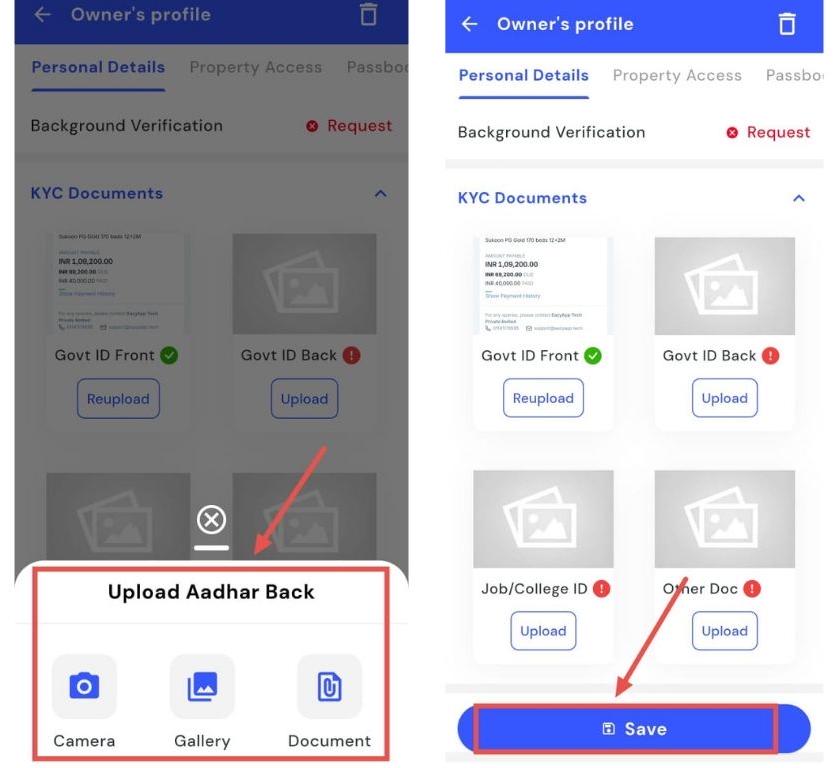
Step 5: Choose upload method Select either:
-
Camera – take a picture of the document, then tap Save
-
Gallery – select a picture of the document from your device, then tap Save
-
Document – select the document from your device, then tap Save
-
- **How can I add team member bank details? **
Need to manage payroll efficiently? You can add or update bank details for each team member directly from their profile. The Bank Details section lets you securely store and manage payment information, ensuring accurate salary transfers and complete financial records.
Here’s how you can enter or update team bank details quickly and efficiently:
- Step 1: Open Team section Tap the People icon in the bottom navigation menu, then select Team.
- Step 2: Search for the member Use the search bar to locate the team member whose bank details you want to add.
- Step 3: Open member profile Tap the team member’s card to open their profile.
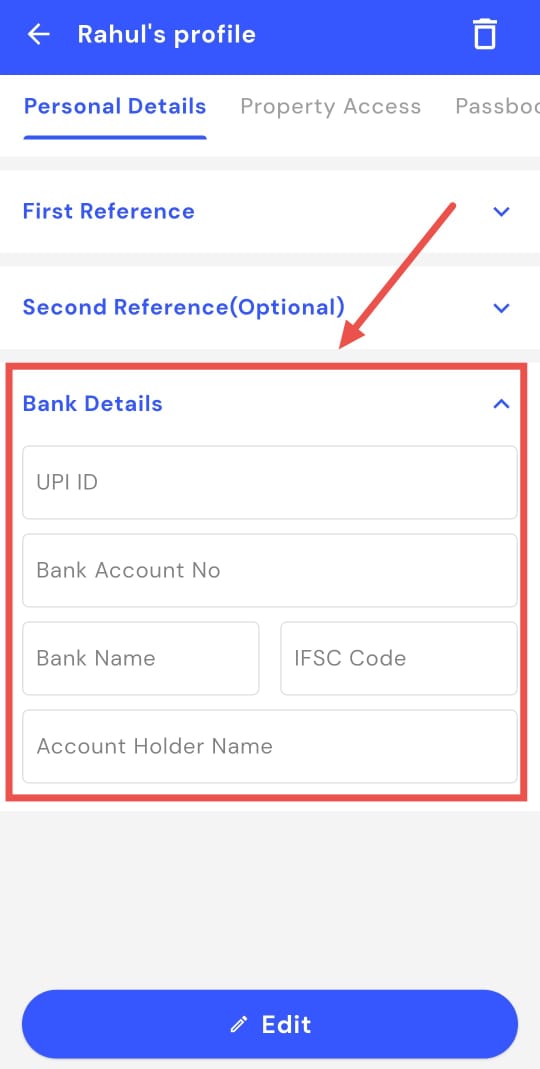
- Step 4: Access bank details Find the Personal Details section, then scroll down and tap the Bank Details option.
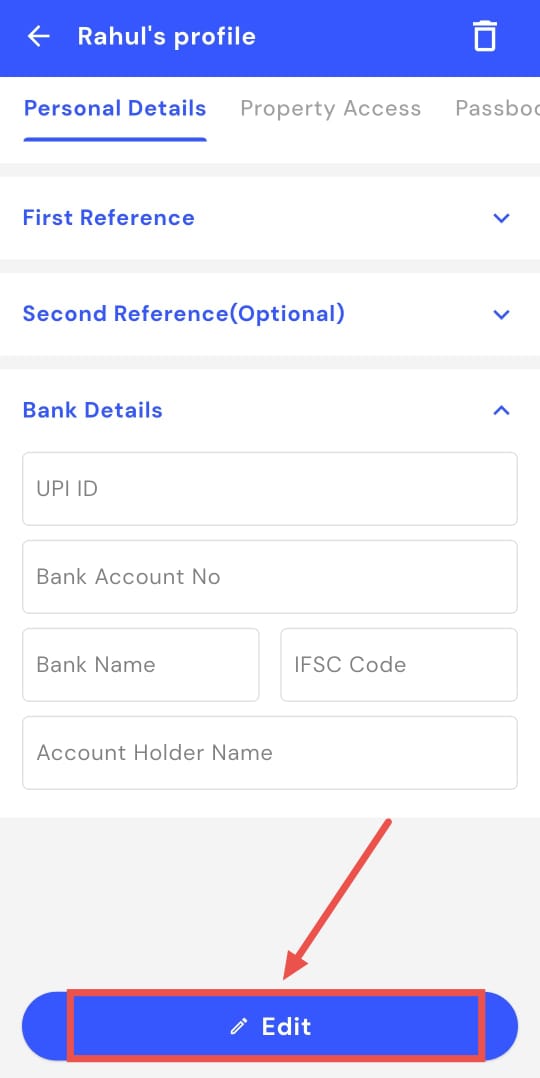
- Step 5: Enable edit mode Tap the Edit button to enter or update bank information.
- Step 6: Enter details Fill in the required bank details, such as account number and IFSC code.
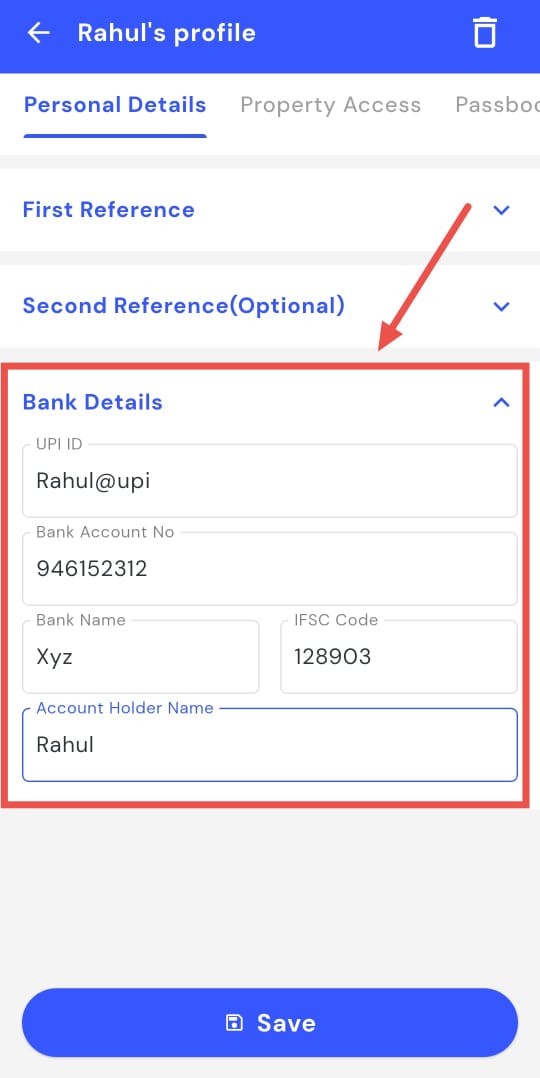
- Step 7: Save changes Tap Save to update the team member’s bank information.
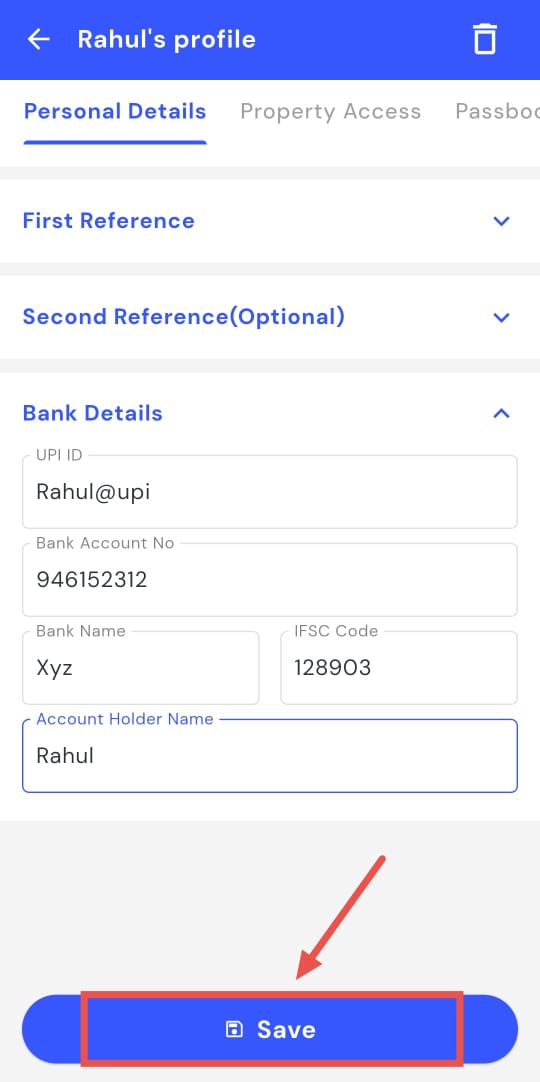
How can I update or remove a team member’s app access?
Manage team member permissions quickly to ensure only authorized access to the app. You can grant or revoke app permissions for any team member directly from the Team section. Updating or removing a member’s access from their profile helps maintain proper control over property data and ensures secure app usage.
Here’s how you can manage team permissions efficiently:
- Step 1: Open Team Tap the People icon in the bottom navigation menu, then select Team.
- Step 2: Find the team member Search for the team member’s name and tap on their card.
- Step 3: Open profile and property access The team member’s profile will open. Tap Property Access.
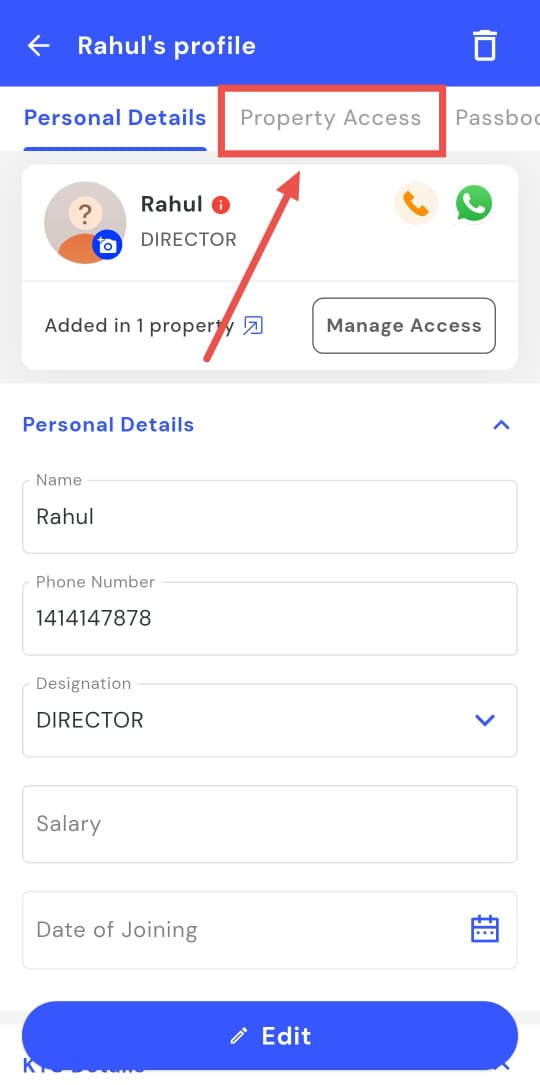
-
Step 4: Manage app access
-
To add access: On the PG card, tap the Add button next to the property name.
-
To remove access: Tap the Disable button to revoke the member’s permissions.
-
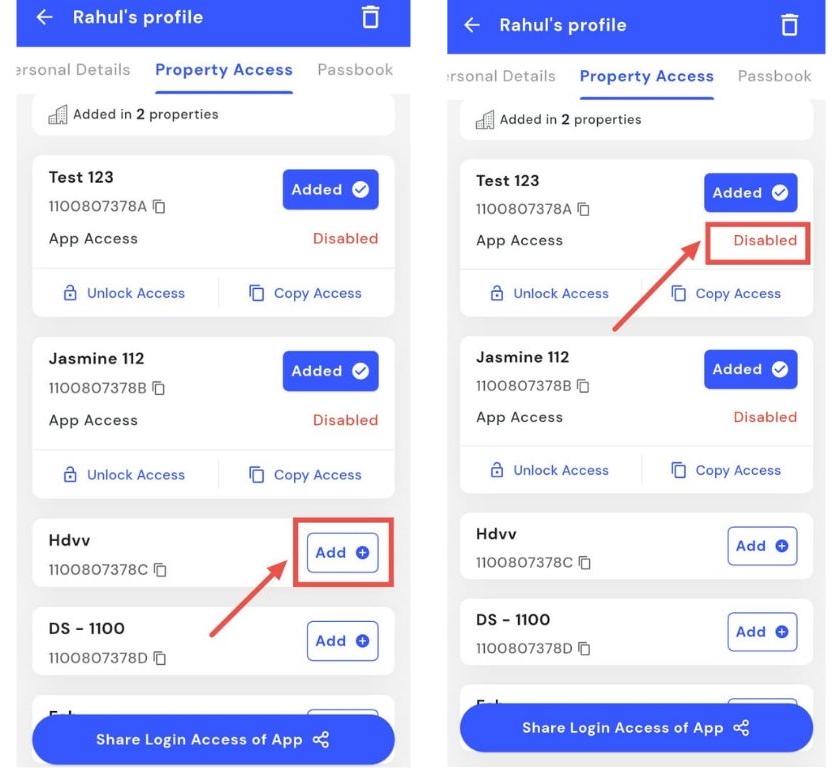
| Tip: Each team member’s card also has an Unlock Access option. Tapping it lets you view the specific permissions that a member has, such as managing rooms, editing room details, or handling inventories. It helps owners easily review and control what different team members can access within the app. |
|---|
How can I share login access of app with the team member?
Grant app access to your team by sharing their login credentials through the Share Login Access feature. This allows team members to securely access the app and manage properties. You can share access directly from their profile, ensuring they have the necessary permissions to perform their duties.
Here’s how you can provide app access to your team efficiently:
- Step 1: Open Team section Tap the People icon in the bottom navigation menu, then select Team.
- Step 2: Find the member Search or scrool for the team member’s name and tap on their card.
- Step 3: Open profile The team member’s profile will open.
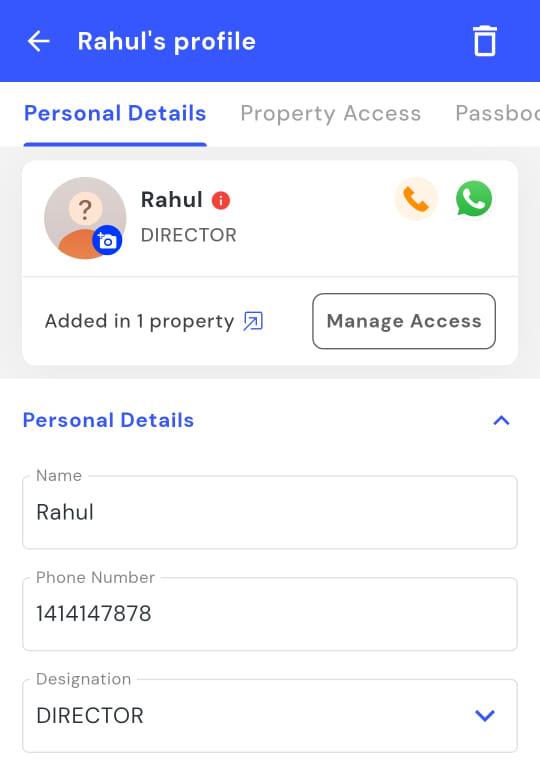
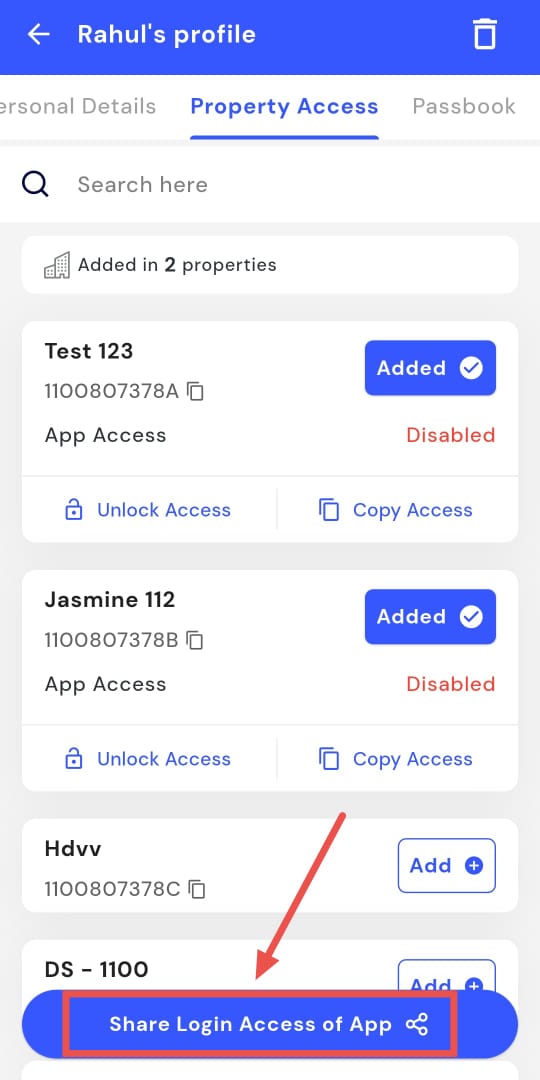
- Step 4: Access property settings Tap Property Access.
- Step 5: Share login access Tap Share Login Access of App to enable the team member to log in.
How do I edit the admin account?
You can update the admin account details directly from the Team section. The Edit feature lets you make changes quickly and securely, ensuring that all information remains accurate. This allows you to update details such as name, contact information, and other relevant fields.
Here’s how you can edit the admin account efficiently:
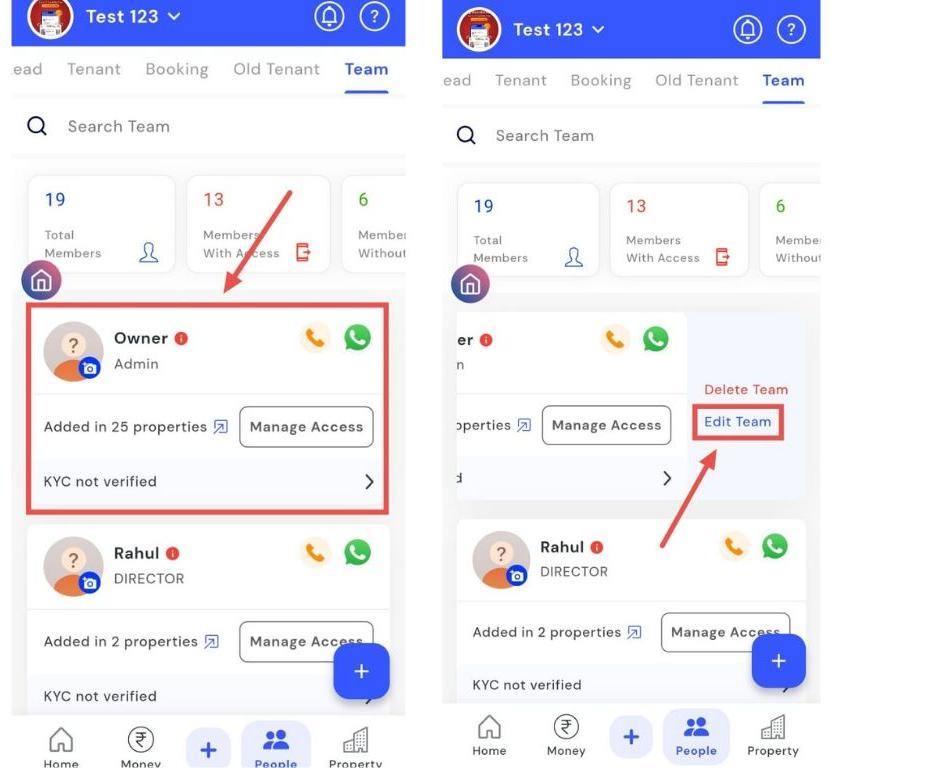
- Step 1: Open Team section Tap the People icon in the bottom navigation menu, then select Team.
- Step 2: Locate the admin card Swipe left on the admin card and tap Edit.
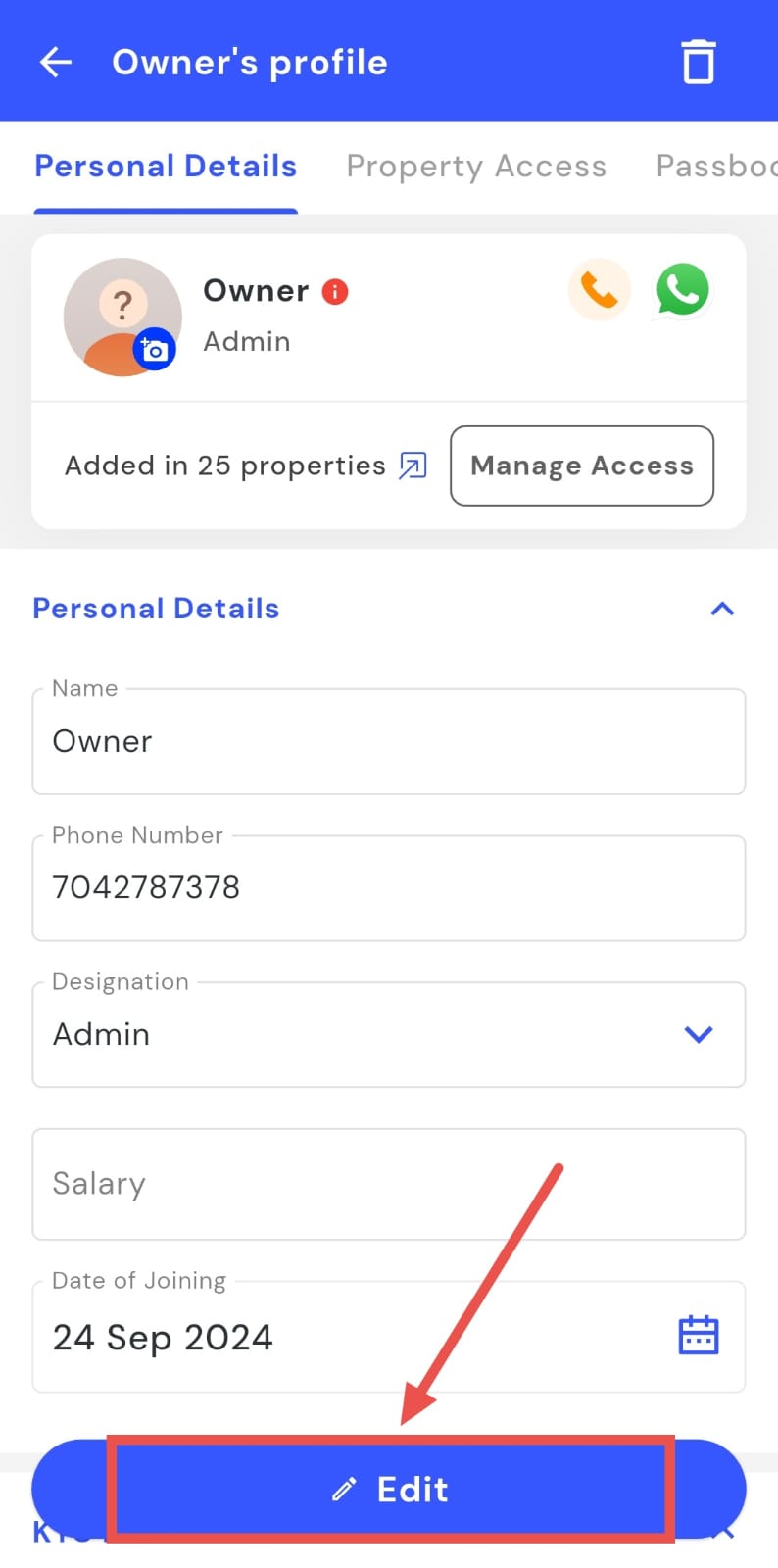
- Step 3: Enable edit mode On the page that opens, tap Edit again to enable editing.
- Step 4: Update information Enter or modify the relevant admin details as needed.
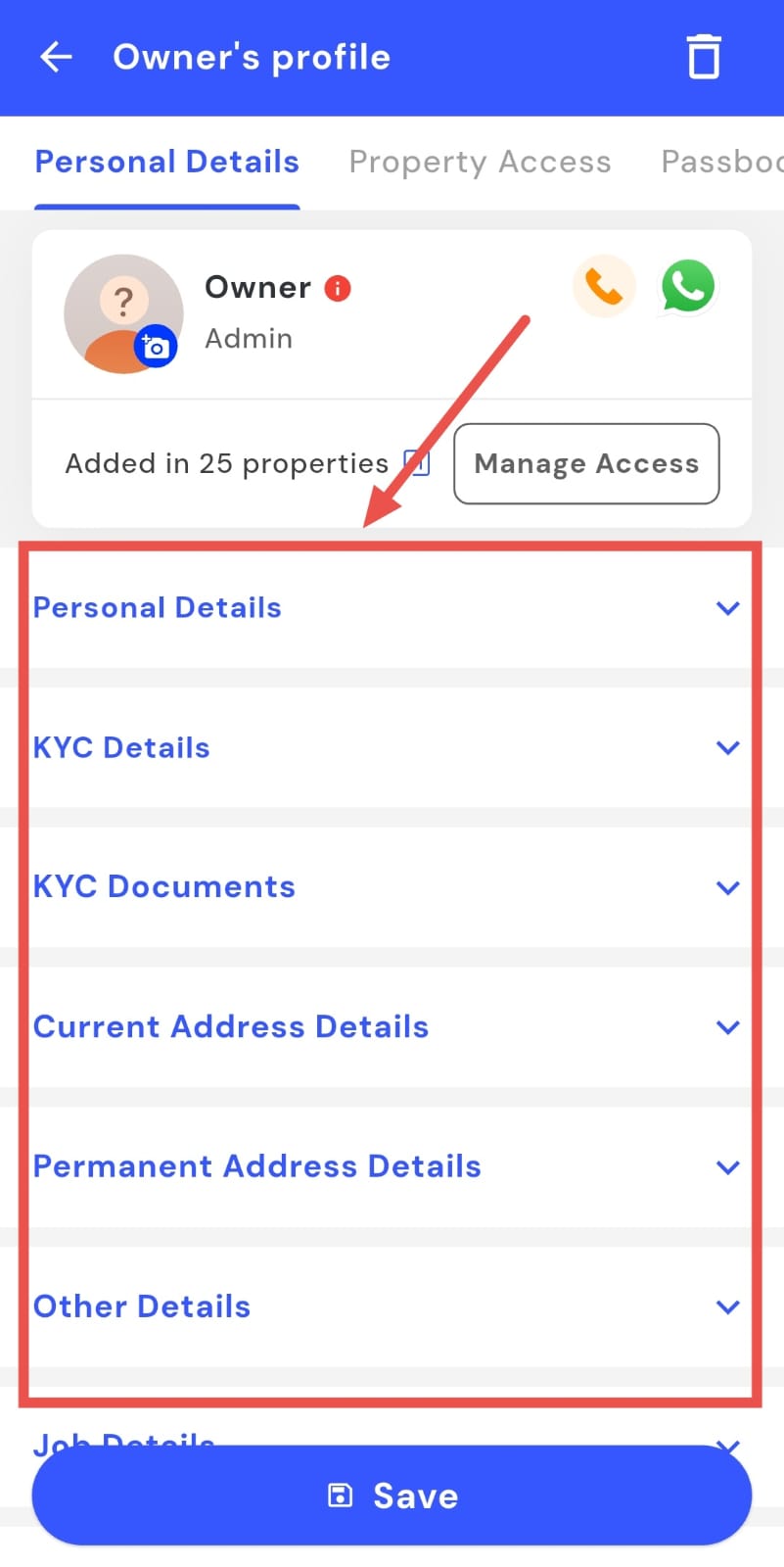
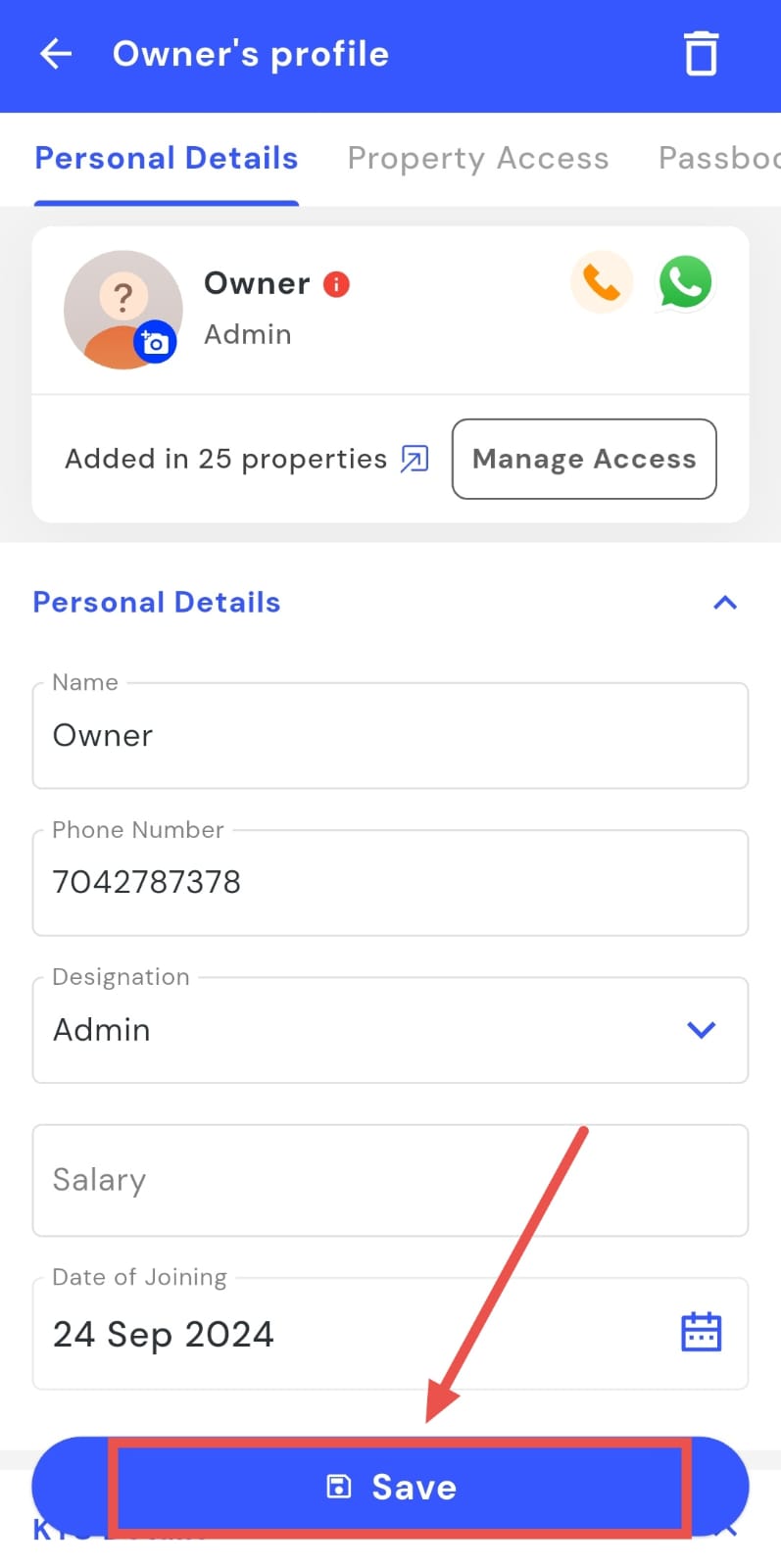
- Step 5: Save changes Tap Save to update the admin account information.
How do I delete team members?
Easily manage your team by removing members who are no longer part of your organization. The Delete feature ensures inactive or former team members are cleared from the system. This helps keep team records accurate and up to date.
Here’s how you can delete a team member efficiently and safely:
- Step 1: Open Team section Tap the People icon in the bottom navigation menu, then select Team.
- Step 2: Find the member Search for the team member’s name.
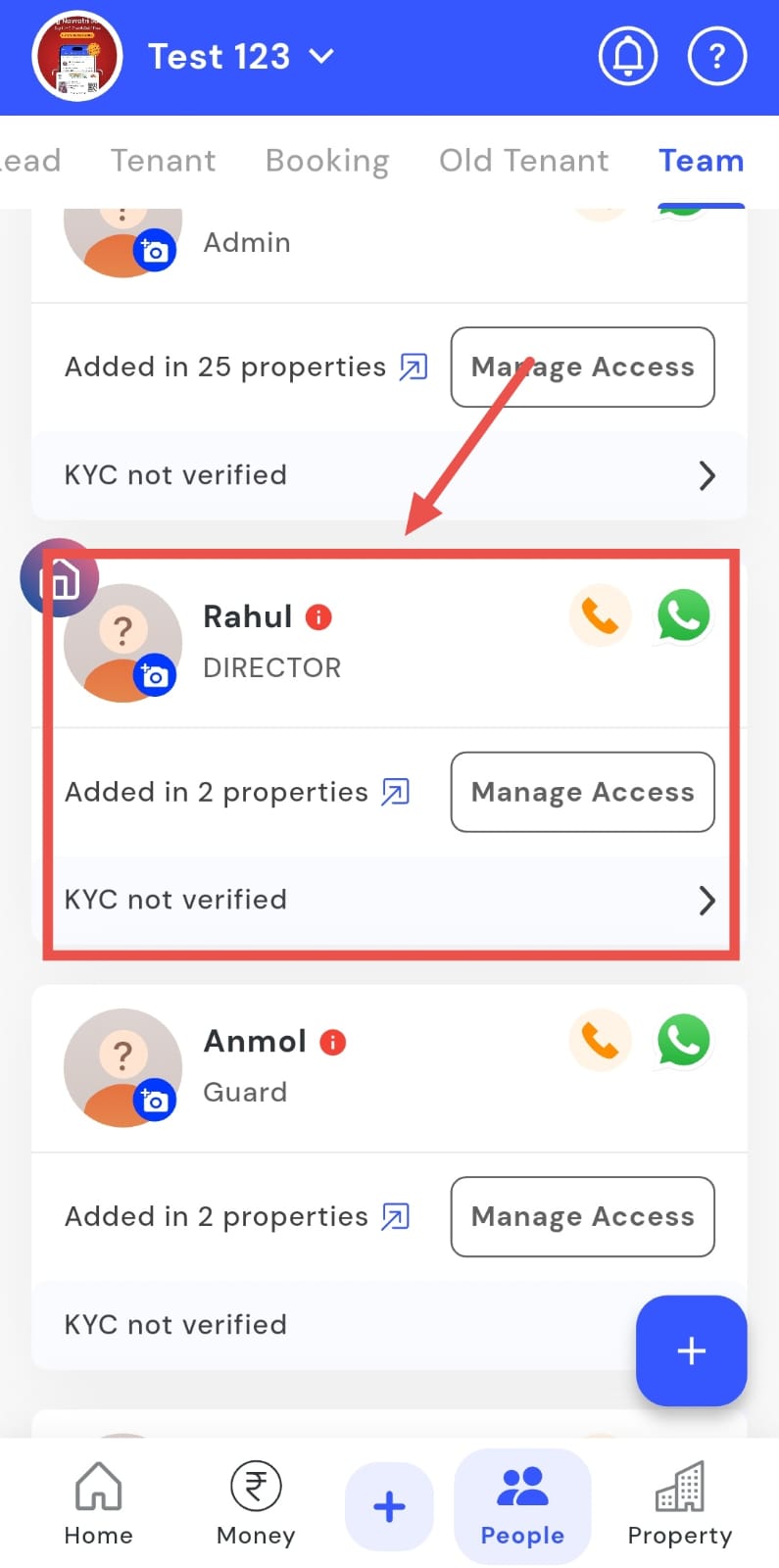
- Step 3: Swipe to delete Swipe left on the member’s card to reveal the Delete option.
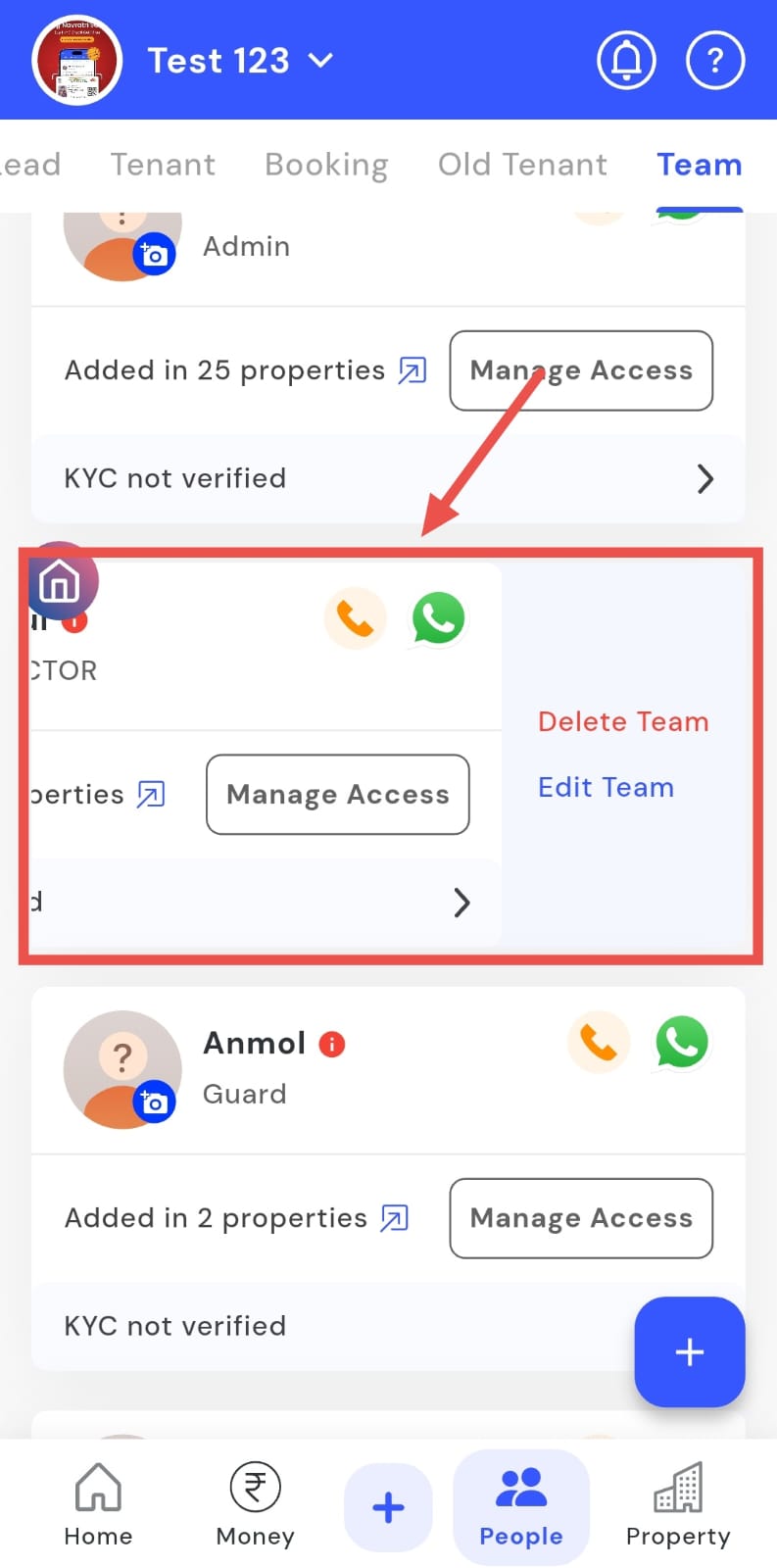
- Step 4: Delete member Tap Delete.
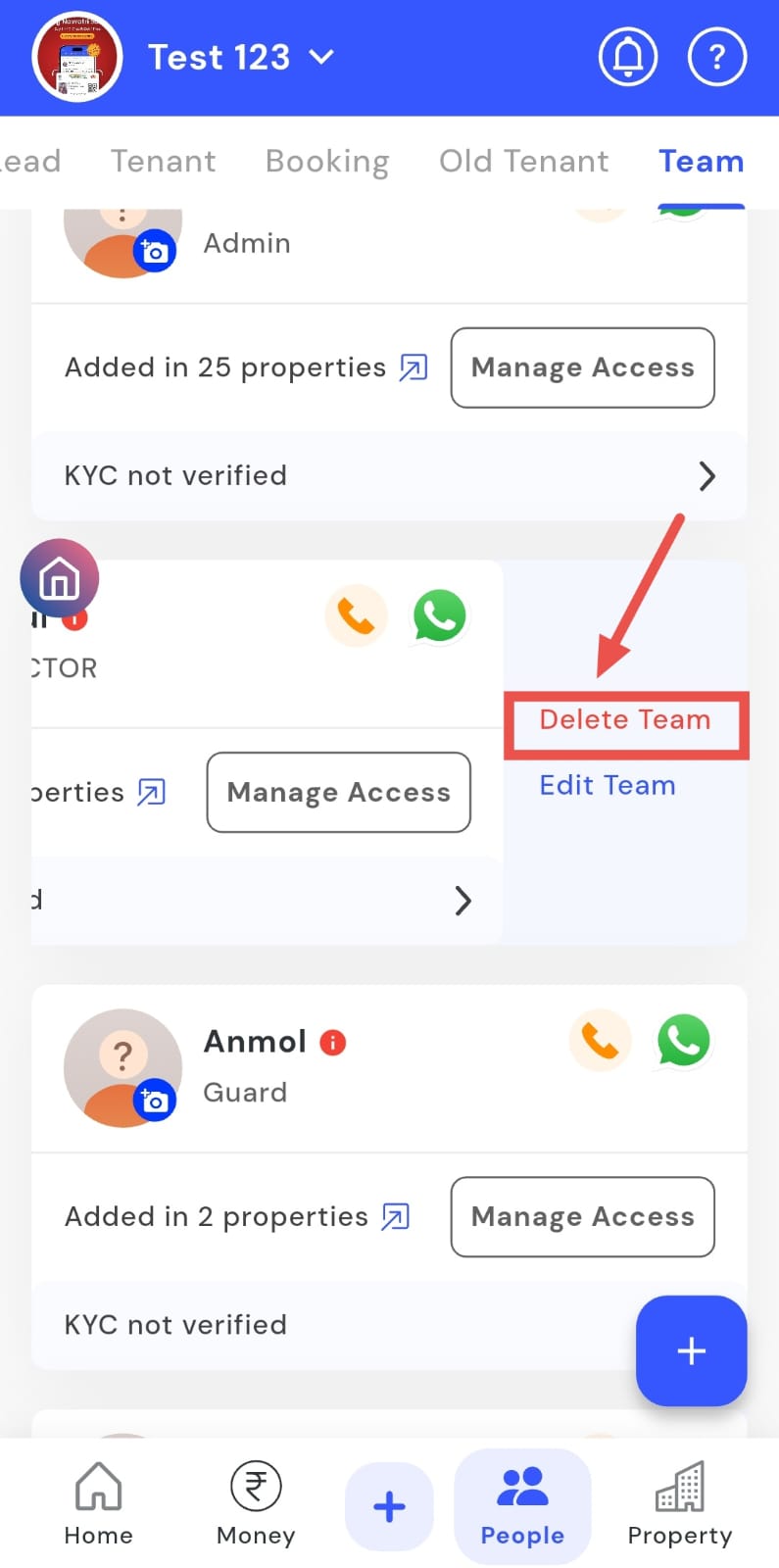
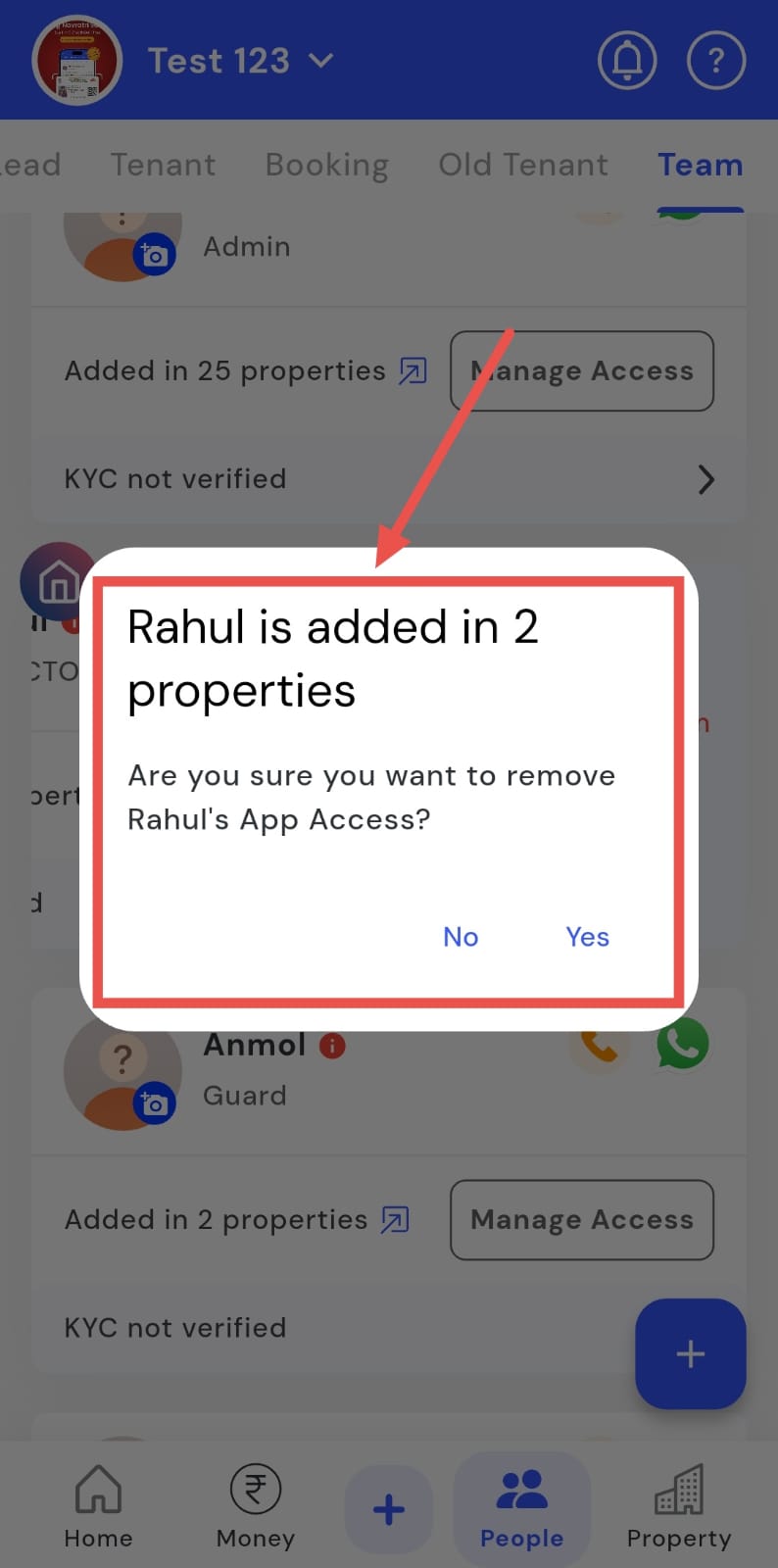
- Step 5: Confirm deletion A confirmation screen will appear. Tap Yes again to permanently remove the team member.
How do I communicate with my team members?
Keeping in touch with your team is easy with the built-in call and WhatsApp options. From the Team section, you can quickly reach out to members for updates, coordination, or urgent matters. This ensures communication remains seamless and all team interactions are documented.
Here’s how you can contact your team members efficiently and stay connected at all times:
- Step 1: Open Team Tap the People icon in the bottom navigation menu, then select Team.
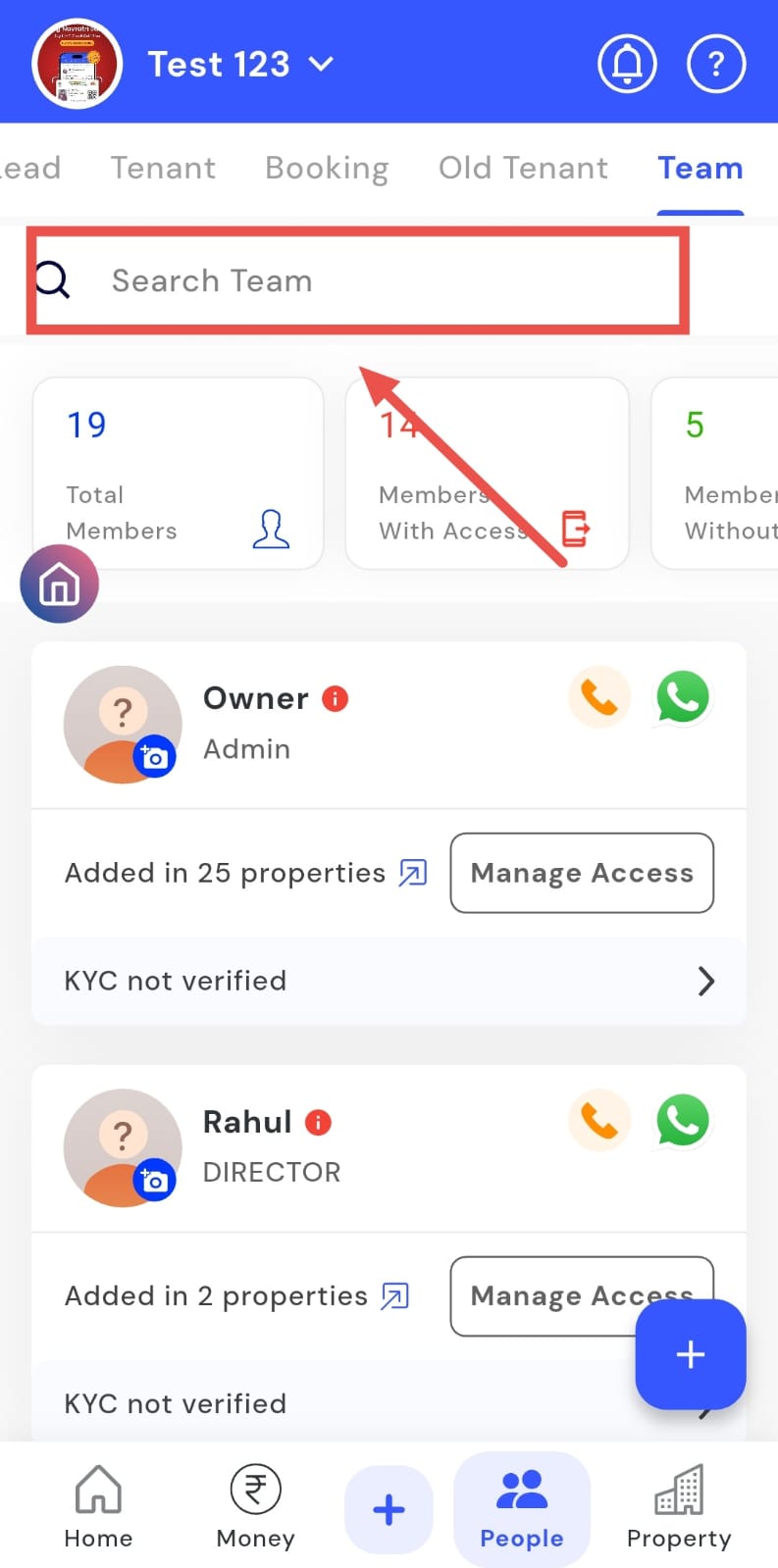
- Step 2: Find the team member Search for the team member’s name using the search bar.
-
Step 3: Choose a communication method
-
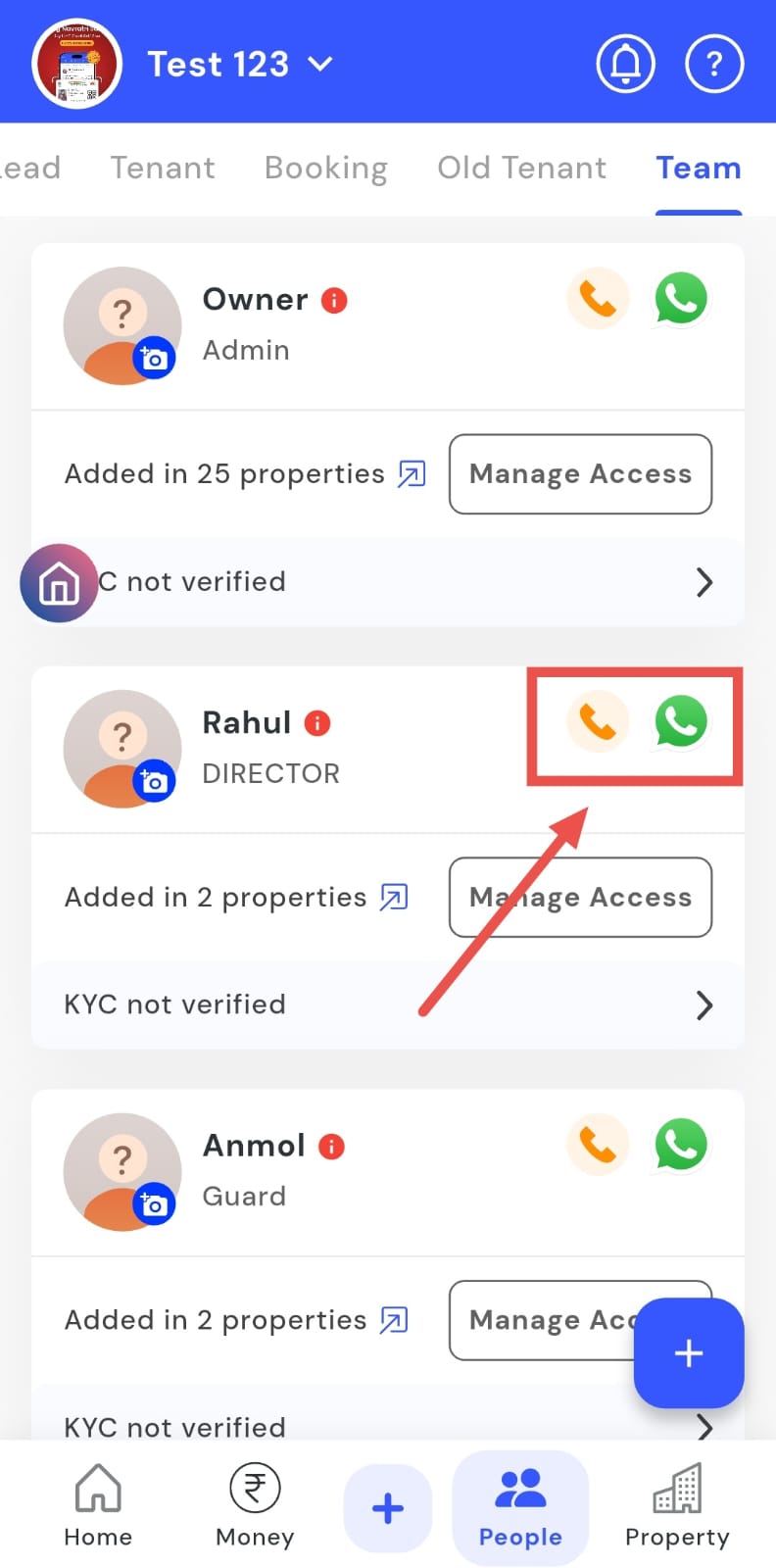
Call: Tap the Call option on the member’s card to initiate a phone call.
-
WhatsApp: Tap the WhatsApp option on the card to start a chat via WhatsApp.
-
| Tip: Using these built-in options keeps communication quick and organized, without needing to switch apps. |
|---|