People Lead
** People > LEAD**
How do I add a new lead?
Want to quickly register a new lead? The People section makes it simple to add leads and capture all relevant information for follow-up and record-keeping. You can record everything from contact details to visit type, property preferences, rent range, and remarks, ensuring that every lead is properly documented and easy to manage.
Follow these steps:
- Step 1: Open the People section Tap the People icon in the bottom navigation menu and select the Lead option.
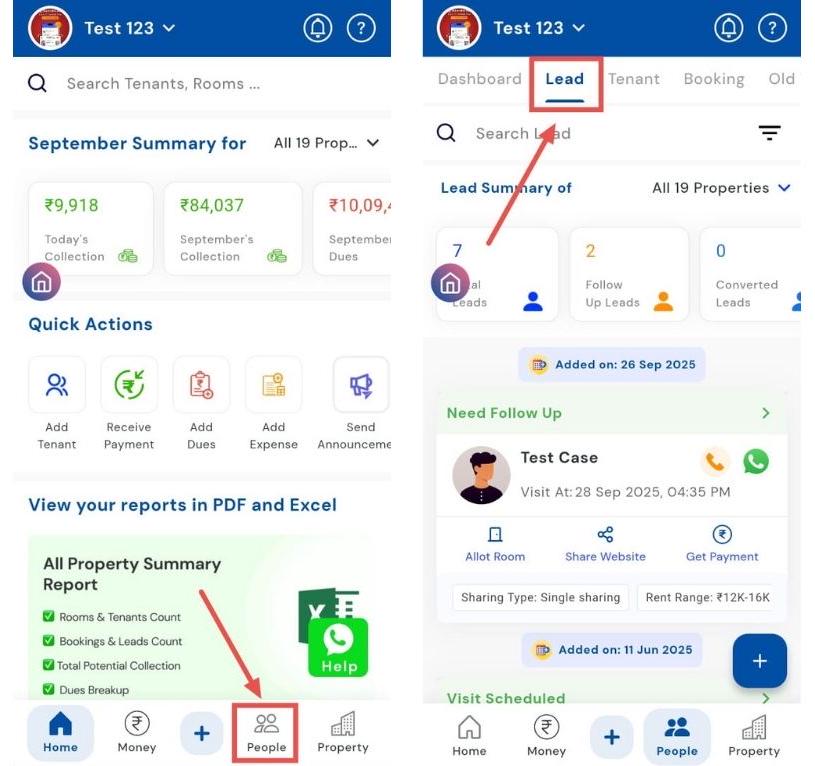
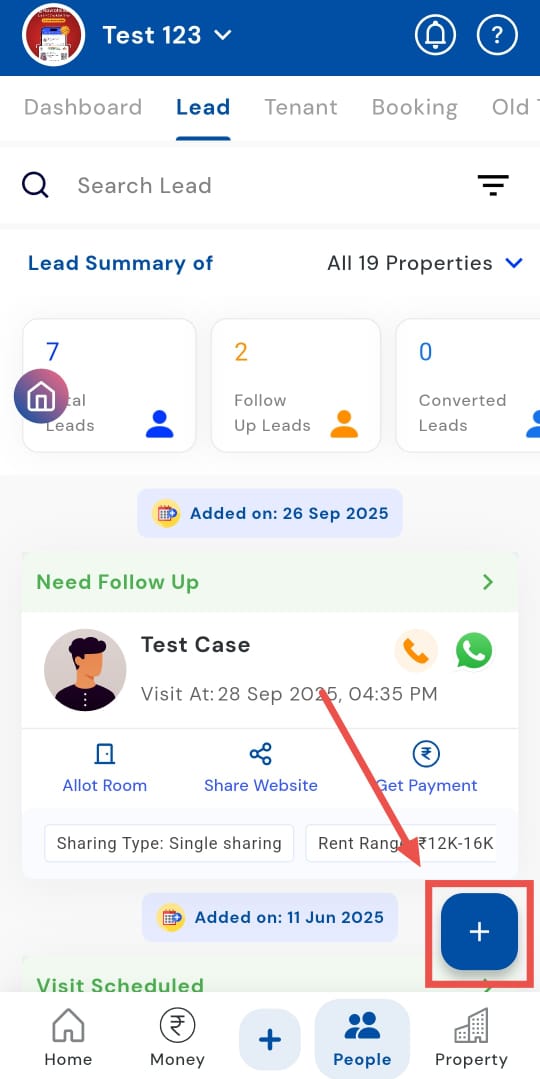
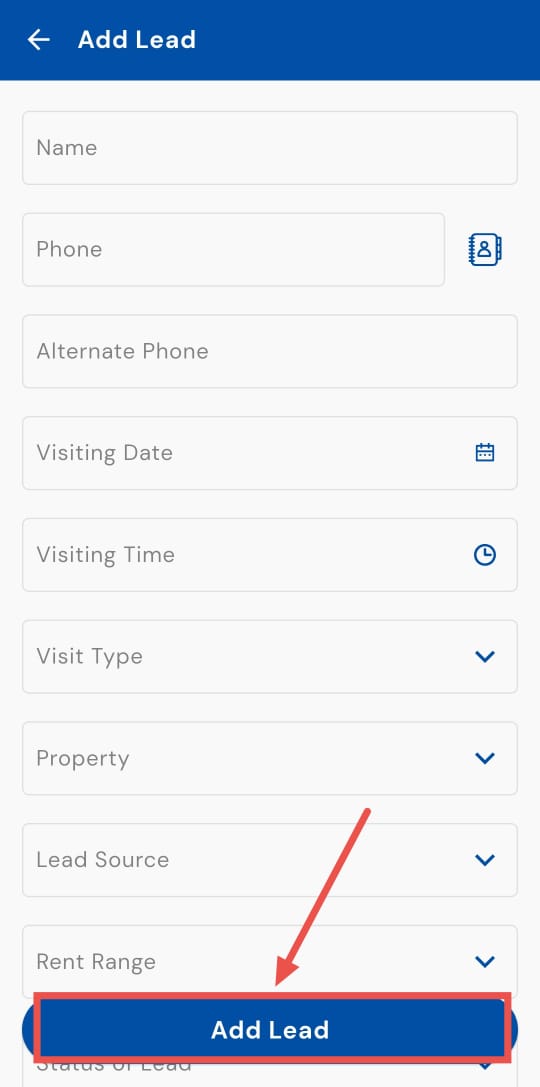
- Step 2: Access the Add Lead screen Click on the + button. A screen titled Add Lead will appear.
-
Step 3: Enter all lead details On the Add Lead screen, enter the following information:
-
Name
-
Phone Number
-
Alternate Phone Number
-
Visiting Date
-
Visiting Time
-
Visit Type (options: video call, property visit, phone call, other)
-
Property visited
-
Lead source
-
Rent range
-
Status of lead
-
Token amount (if any)
-
Remarks
-
Gender
-
Preferred Room Type
-
Facilities opted for
-
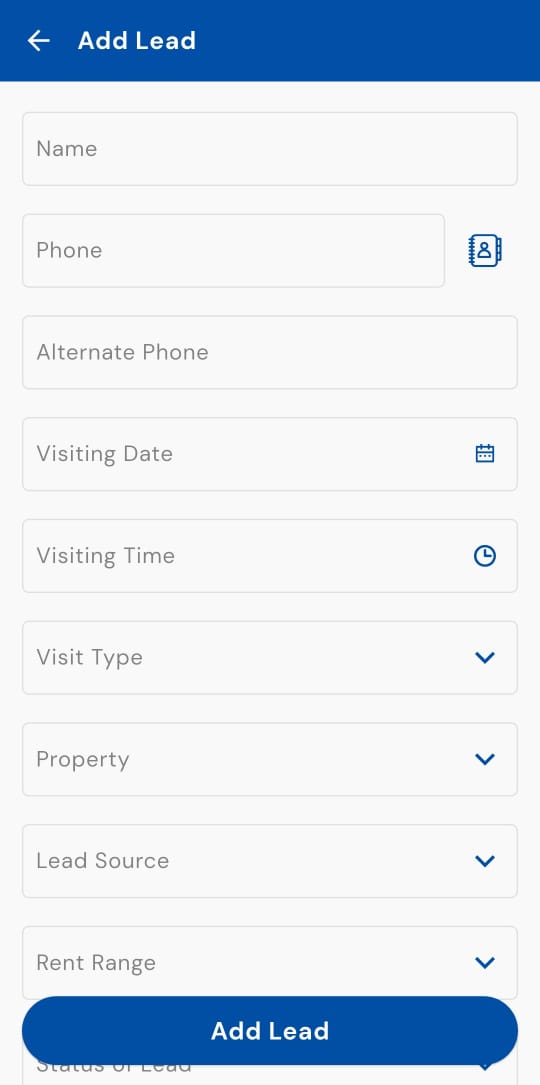
- Step 4: Save the lead Click Add Lead to complete the process.
How can I edit lead details?
Keeping tenant and lead records accurate is simple with the People section. From contact information to property details, the Edit Lead feature allows you to update all essential fields quickly. Whether you need to make a contact update, adjust rental terms, or reflect a property change, this ensures your records remain organized, accurate, and up-to-date, making tenant management seamless.
Follow these steps:
- Step 1: Open the People section Tap the People icon in the bottom navigation menu and select the Lead option.
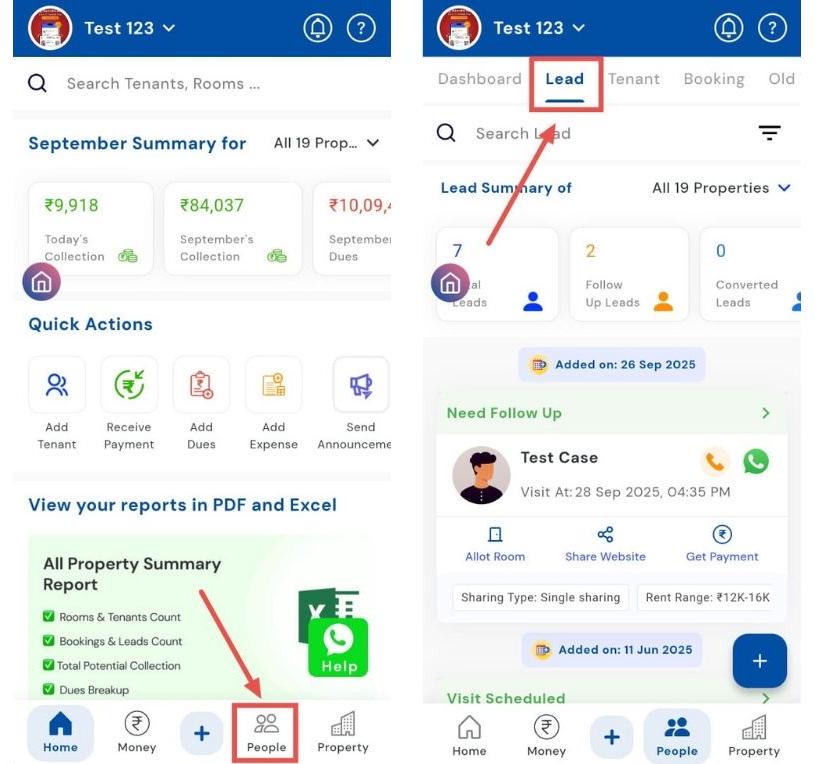
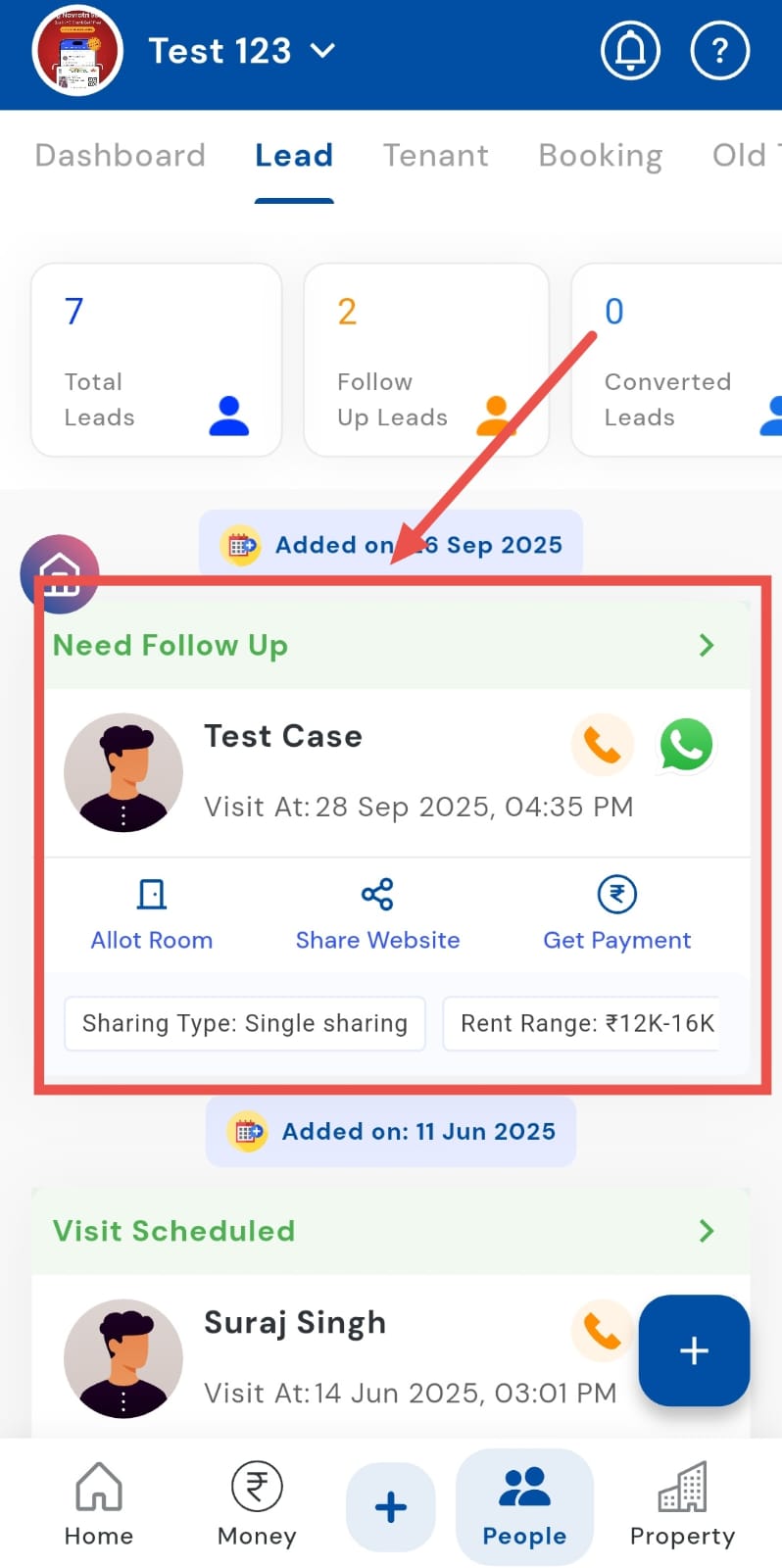
- Step 2: Access the tenant card Click on the tenant card for the lead whose details you want to edit.
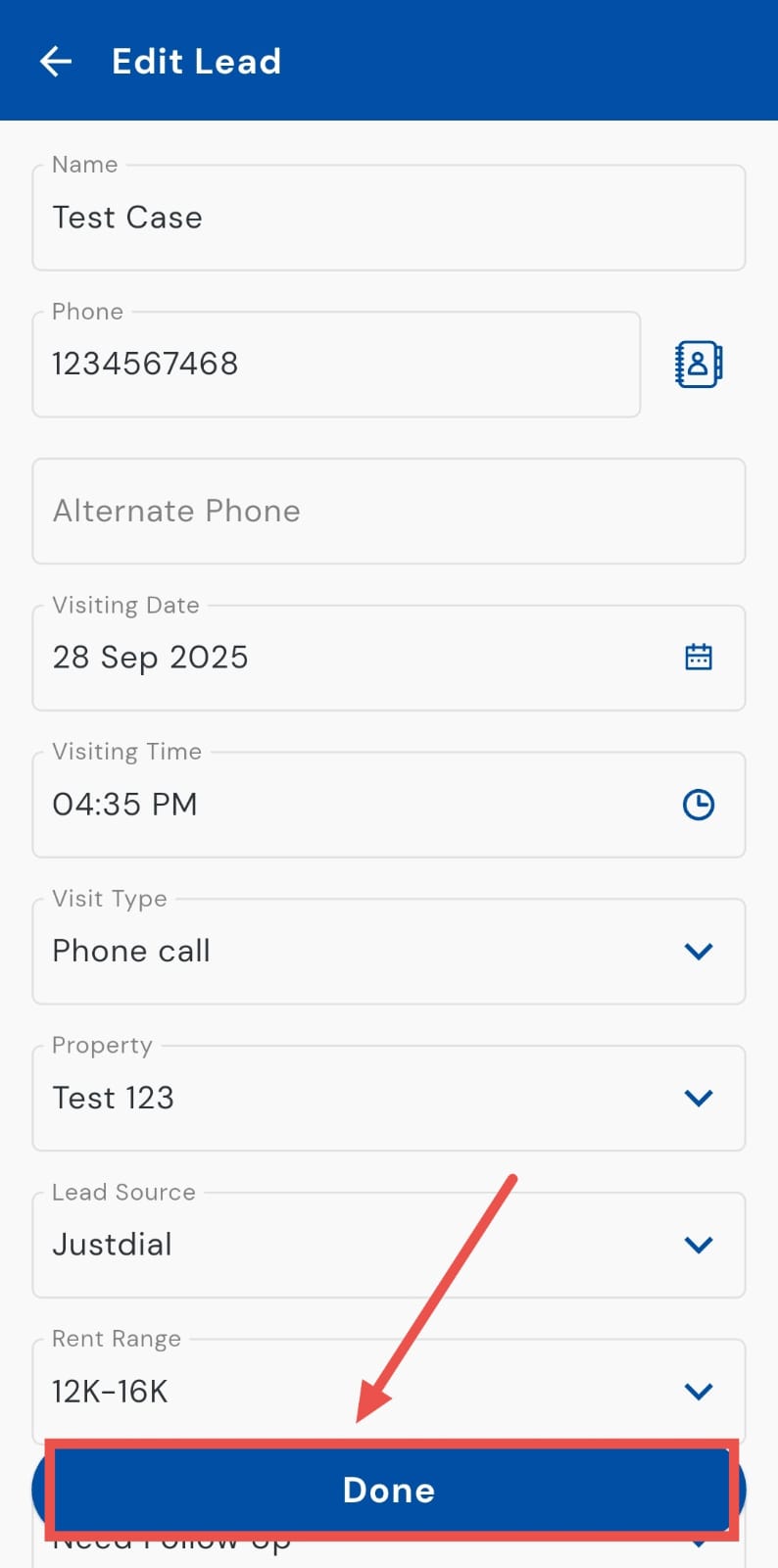
- Step 3: Edit the lead details The Edit page will appear. Update any necessary information using the available fields. This could include contact info, property details, visiting dates/time, rent range, or other important details.
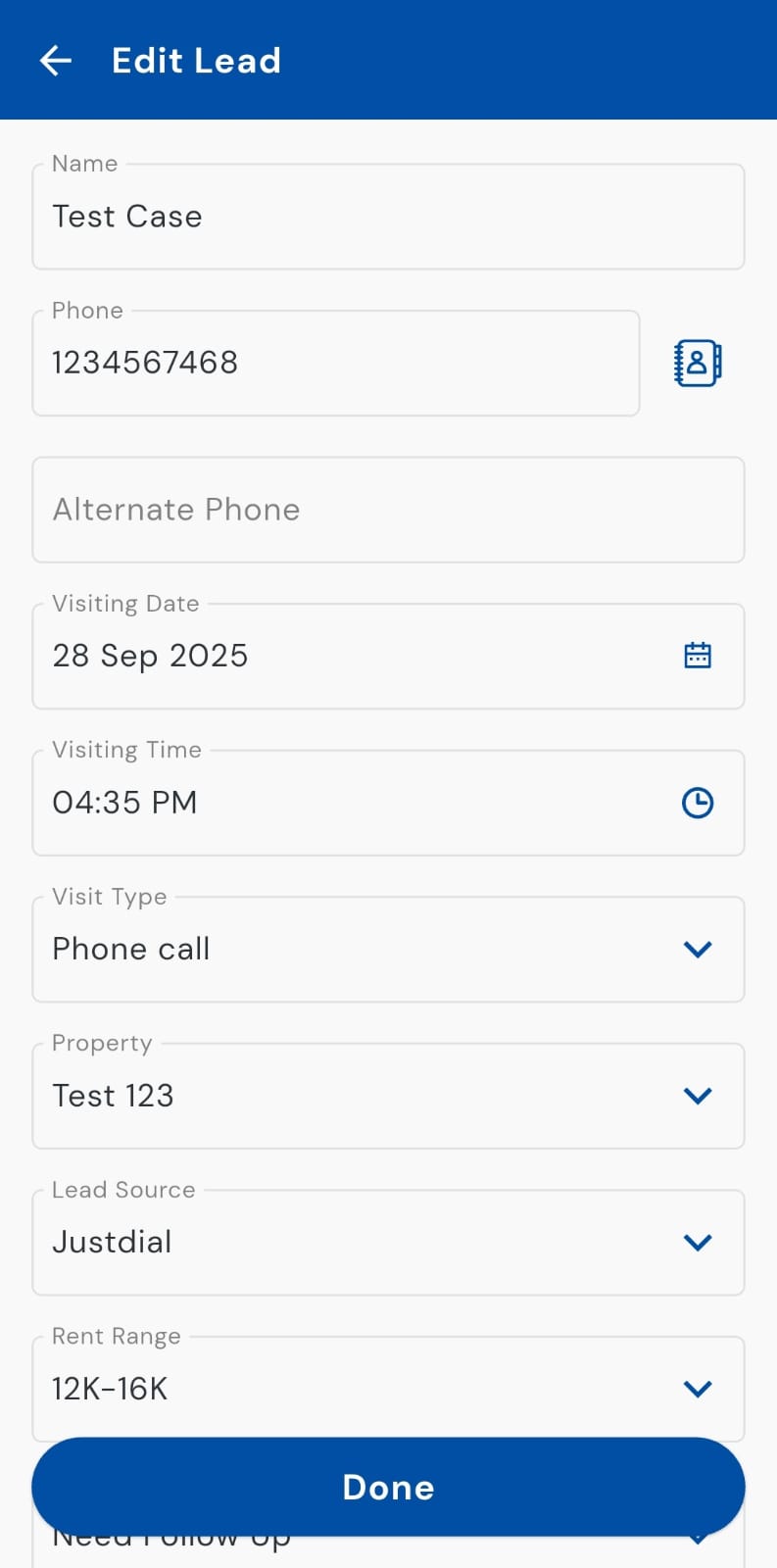
- Step 4: Save changes Click Done to save your updates.
How can I delete the tenant lead card?
Need to remove a lead? The Delete Lead feature in the People section makes it quick and easy to keep your records clean and up-to-date. You can efficiently track your leads by viewing the summary of individual properties or all properties at once, ensuring that your database stays organized and accurate.
Simply follow the steps to remove any lead card with ease:
- Step 1: Open the People section Tap the People icon in the bottom navigation menu, then select Lead to view all tenant leads.
- Step 2: Locate the lead card Swipe left on the tenant lead card you want to delete. This will reveal the delete option.
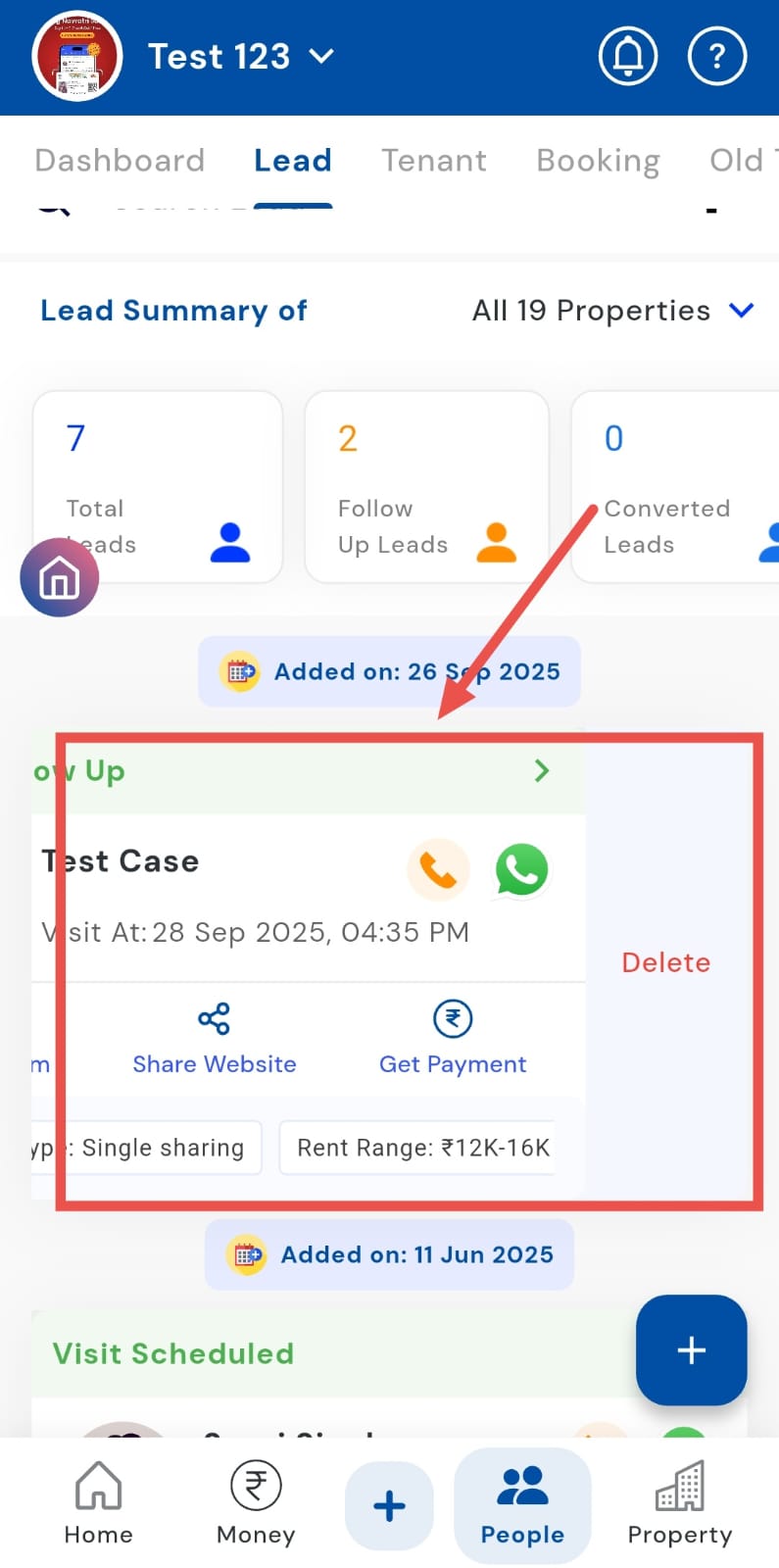
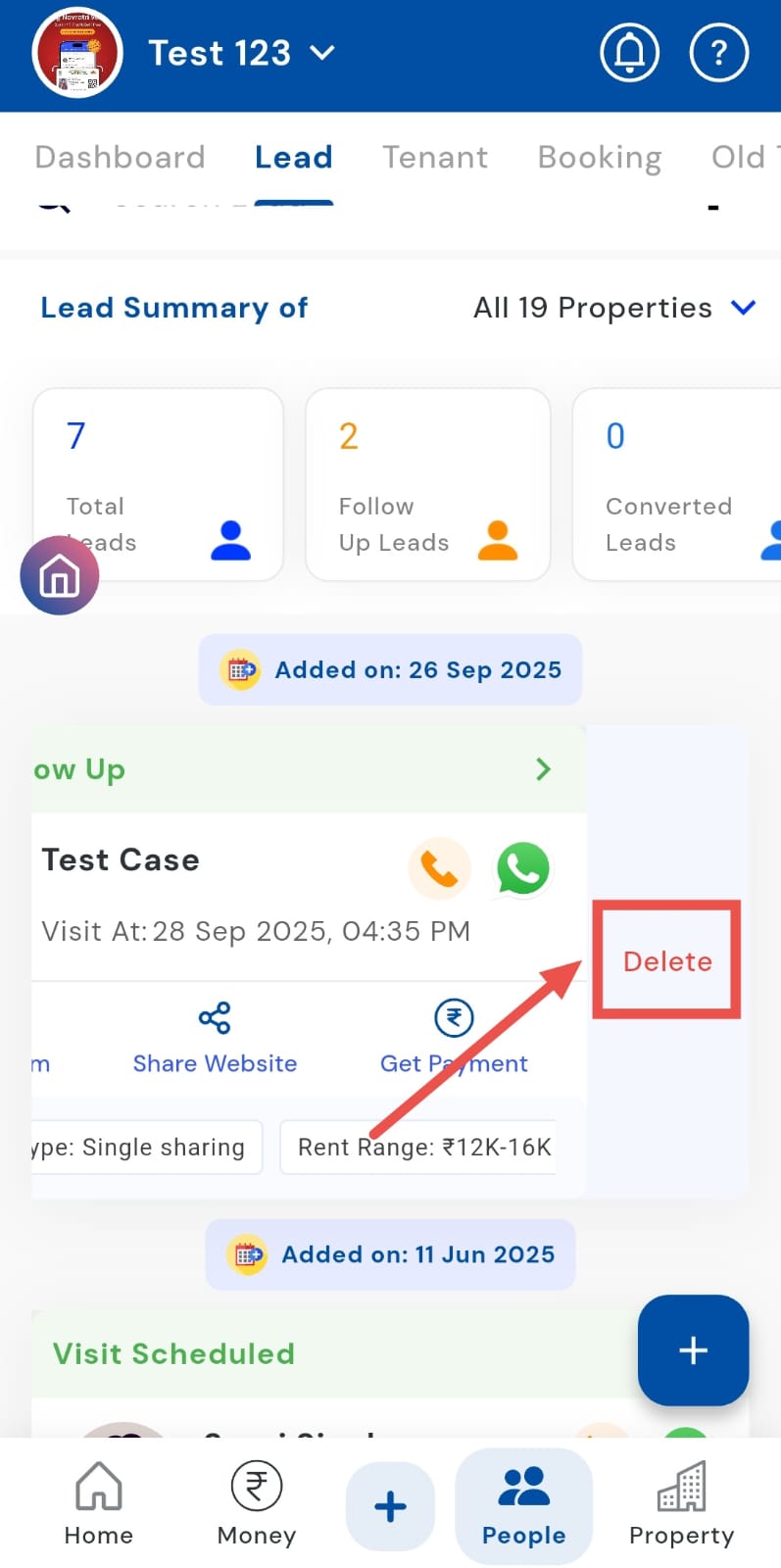
- Step 3: Delete the lead Tap Delete to remove the card from your list.
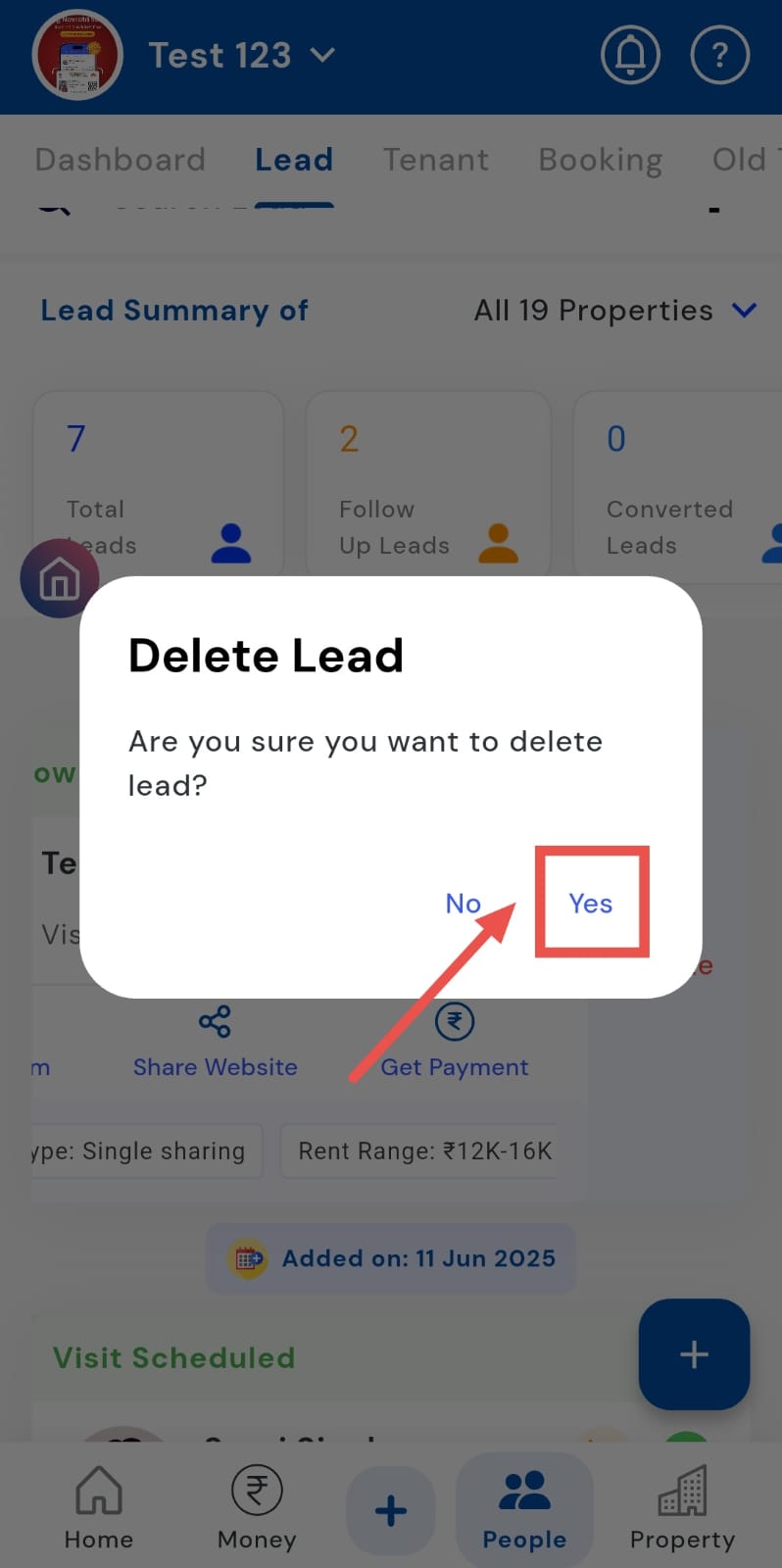
- Step 4: Confirm the deletion Click OK in the confirmation window to finalize the deletion.
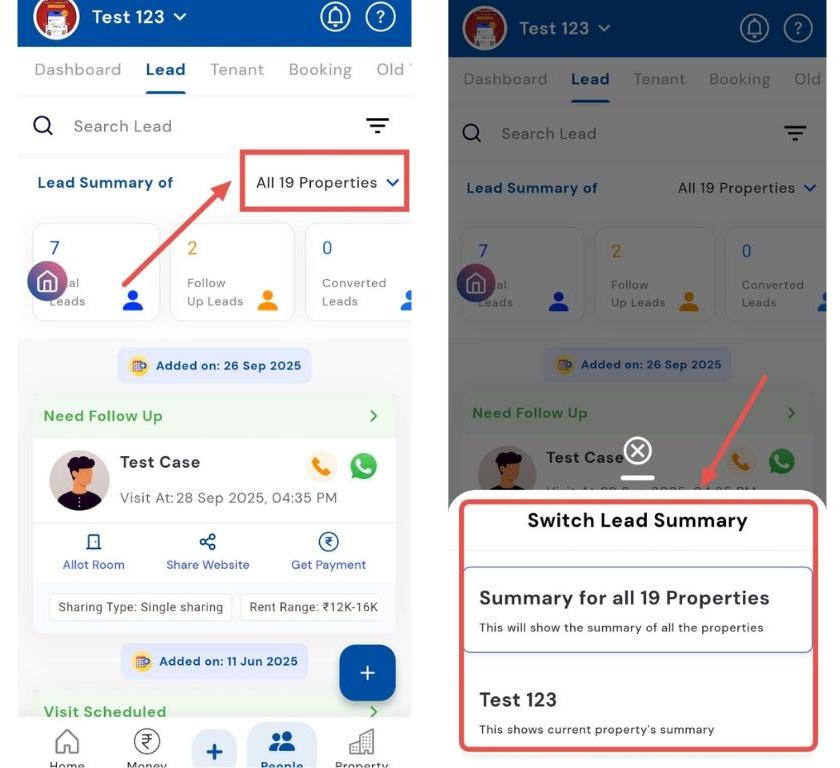
How can I view the lead summary for all properties?
The Lead Summary feature lets you understand lead activity across all your properties or focus on a specific property. It provides a comprehensive snapshot of lead engagement, helping you track performance, monitor follow-ups, and make informed decisions. Whether you’re reviewing overall trends or analyzing a single property, this feature ensures you have all the insights you need at a glance.
Follow these steps:
- Step 1: Open the People section Tap the People icon in the bottom navigation menu, then select Lead to access all tenant leads.
-
Step 2: View the lead summary Refer to the Lead Summary section. Here, you can choose between viewing:
-
All Properties: Get a complete summary across all 19 properties.
-
Current Property: Focus only on the leads related to your selected property.
-
How can I share a website with the tenant?
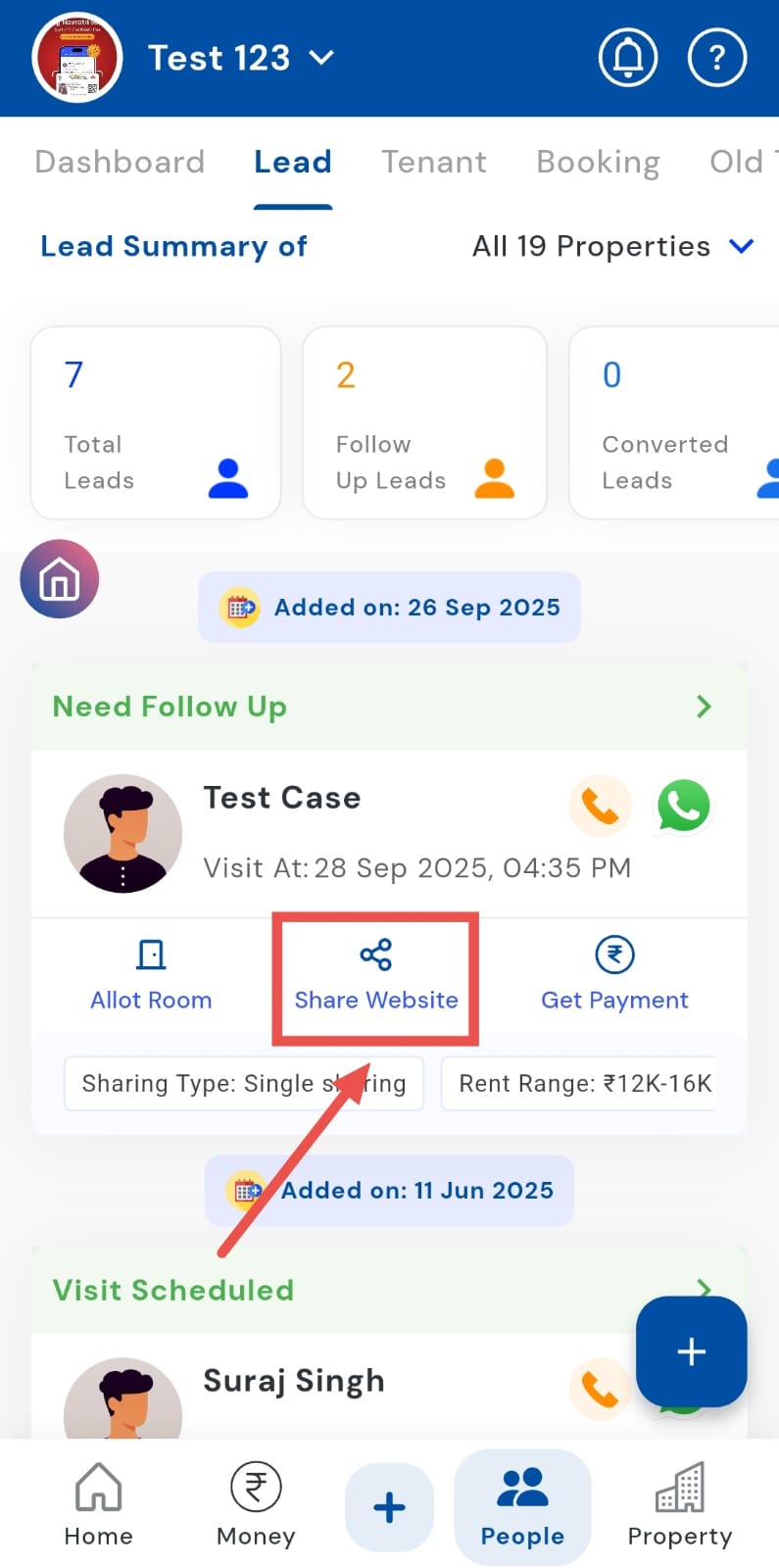
The Share Website feature lets you send the property link directly from the tenant lead card, providing listings, images, floor plans, and other relevant information in just a few clicks. This efficient approach saves time for both you and the tenant, ensures smooth communication, and helps maintain a professional follow-up process without delays.
- Step 1: Open the People section Tap the People icon in the bottom navigation menu, then select Lead to see all tenant leads.
- Step 2: Access the tenant lead card On the tenant lead card, tap Share Website. Make sure to select the tenant you want to share the website with.
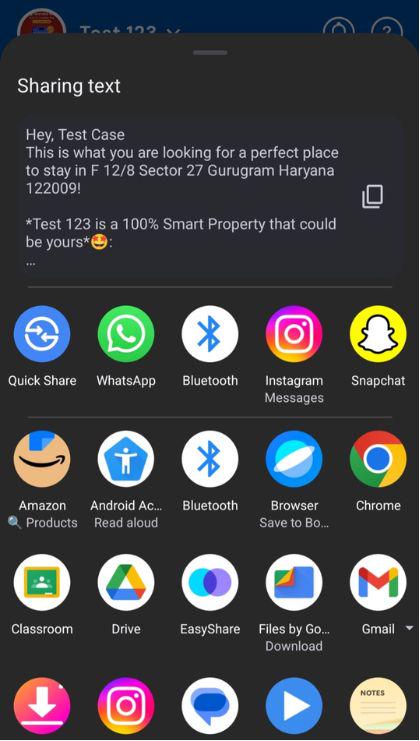
- Step 3: Choose the sharing method Select a mode to share the website, or copy the link to send it manually.