People > Booking
How do I add a booking?
Need to track tenants who will be moving in soon? You can add them as a booking to record their rent and other details before they join. This helps you organize upcoming tenants, link their rent due to the joining date, and have everything ready in advance.
Here’s how you can add a booking and manage future tenants efficiently:
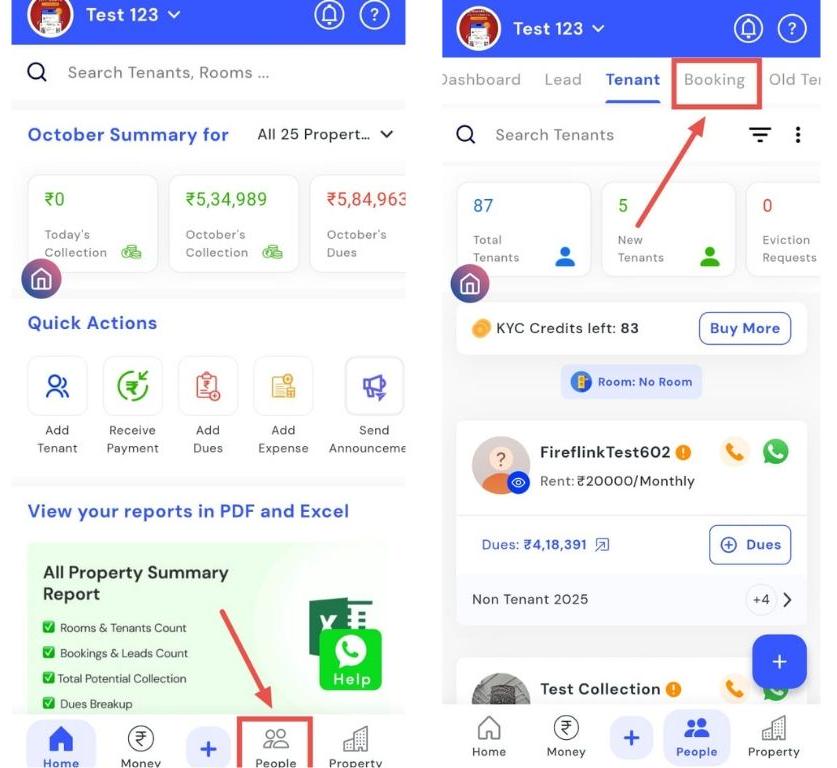
- Step 1: Open Bookings Tap the People icon in the bottom navigation menu, then select Booking.
-
Step 2: Add a new booking Tap the Add Booking button to open the booking form.
-
Step 3: Enter tenant details Fill in all required rental details just as you would for any tenant. Remember, the date of joining (DOJ) for a booking must always be set to a future date. Rent dues will start automatically from the Date Of Joining.
-
Step 4: Review and confirm Check all the details you’ve entered. Once ready, tap Add Tenant to save the booking.
How can I update the tenant's Date of Joining (DOJ)?
If a tenant’s move-in date changes, you can easily update their Date of Joining (DOJ) to keep all records accurate. Updating the DOJ in the booking section ensures that rent dues and other records remain aligned with the tenant’s new start date. This helps avoid confusion and keeps your tenant management organized. Here’s how you can update a tenant’s DOJ quickly and efficiently:
- Step 1: Open Bookings Tap the People icon in the bottom navigation menu, then select Booking.
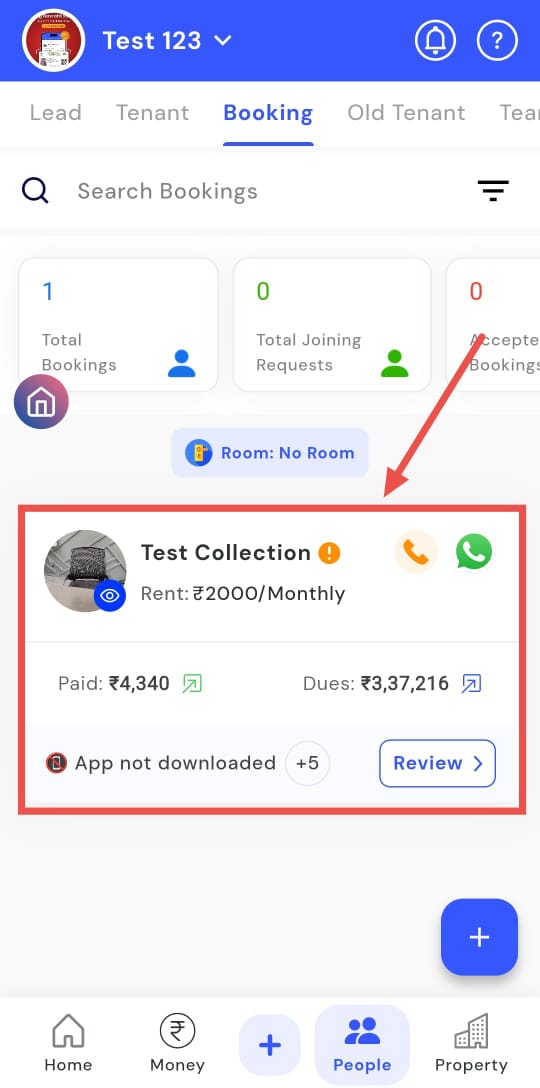
- Step 2: Find the tenant Scroll through the list or use the search to locate the tenant whose Date of Joining needs updating.
-
Step 3: Open Change Date Of Joining (DOJ) Tap the Change DOJ option for the selected tenant.
-
Step 4: Access renting details The tenant’s profile will open. Go to the Renting Details section.
-
Step 5: Update DOJ Click on the Date of Joining, select the new date, and tap OK.
-
Step 6: Save changes Tap Save to confirm the updated Date of Joining.