26th Sep, 2026
Hello!
Our new release is here, and there's something in it for everyone – you, your team, and your tenants. Your tenants get a beautiful new payment page, your agreements can now carry every co-owner, co-tenant and parent, and complaints finally get their own analytics. WhatsApp updates are now sorted by topic, signing up takes a single tap, and Gold members get an app that looks as premium as their plan.
What Is New In This Release
- A Payment Page Your Tenants Will Enjoy Using - A fully redesigned payment page with dues, receipts, tenant details and electricity recharge – all in your property's branding.
- A Separate WhatsApp Number for Every Kind of Update - Payments, tenants, complaints, move-outs and more now arrive from their own clearly named numbers – mute what you don't need, never miss what you do.
- Multi-Party Agreements - Co-owners, co-tenants and parents of under-18 tenants can now all sign one rent agreement, with Aadhaar e-Sign.
- Issue Analytics - See Where Every Complaint Gets Stuck - Backlogs, ageing, response times, SLA, costs and team performance for your complaints, in one screen.
- Clickable WhatsApp Auto-Replies - Add buttons to your Genie auto-replies and build step-by-step chat flows that guide leads on their own.
- Complaint Bot - "Escalated to Me" & "Assigned by Me" - Managers and staff can check the complaints that need them, right from WhatsApp.
- One-Tap Sign-Up - No OTP Needed - Sign up and log in with Truecaller on Android or Apple on iOS, and get your OTP on WhatsApp if you prefer.
- RentOk Gold - Now It Looks as Premium as It Is - Gold members get a whole new look, a digital plan pass, and a Gold app icon.
A Payment Page Your Tenants Will Enjoy Using
The payment page is where your tenants – and very often their parents – pay rent without opening an app. We've rebuilt it from scratch. It's cleaner, easier to read on a phone, and it now shows everything a tenant needs around their payments in one place: what's due, what's been paid, and their electricity balance.
If you're a white-label customer, the page still carries your property's name and theme – it just looks a lot better doing it.
Highlights
- Your property, front and centre - The top of the page shows your property's name and details, in your branding if you're white-label.
- Changes with the time of day - The page switches between a light theme during the day, a dusk theme in the evening, and a dark theme at night.
- Clear dues cards - Each due has its own card. Tap it to see the full breakup and pay. Your existing rules – like whether partial payments are allowed – work exactly as before.
- Receipts in one tab - Every payment shows up under Receipts. Tap one to see its details and download or save the receipt.
- Tenant details at a glance - A tenant profile sheet shows the tenant's photo, room, and since when they've been staying.
- Electricity, right on the payment page - For properties with prepaid electricity meters, tenants see their remaining balance and units, their usage trend, and every past recharge. They can recharge from here using quick-select amounts.
How To Try
- Step 1: Open the Payment Link
You will be shared a payment link by your property owner. Click on the link to view your dues and bill details, and then click Pay All to pay the dues shown on your bill.
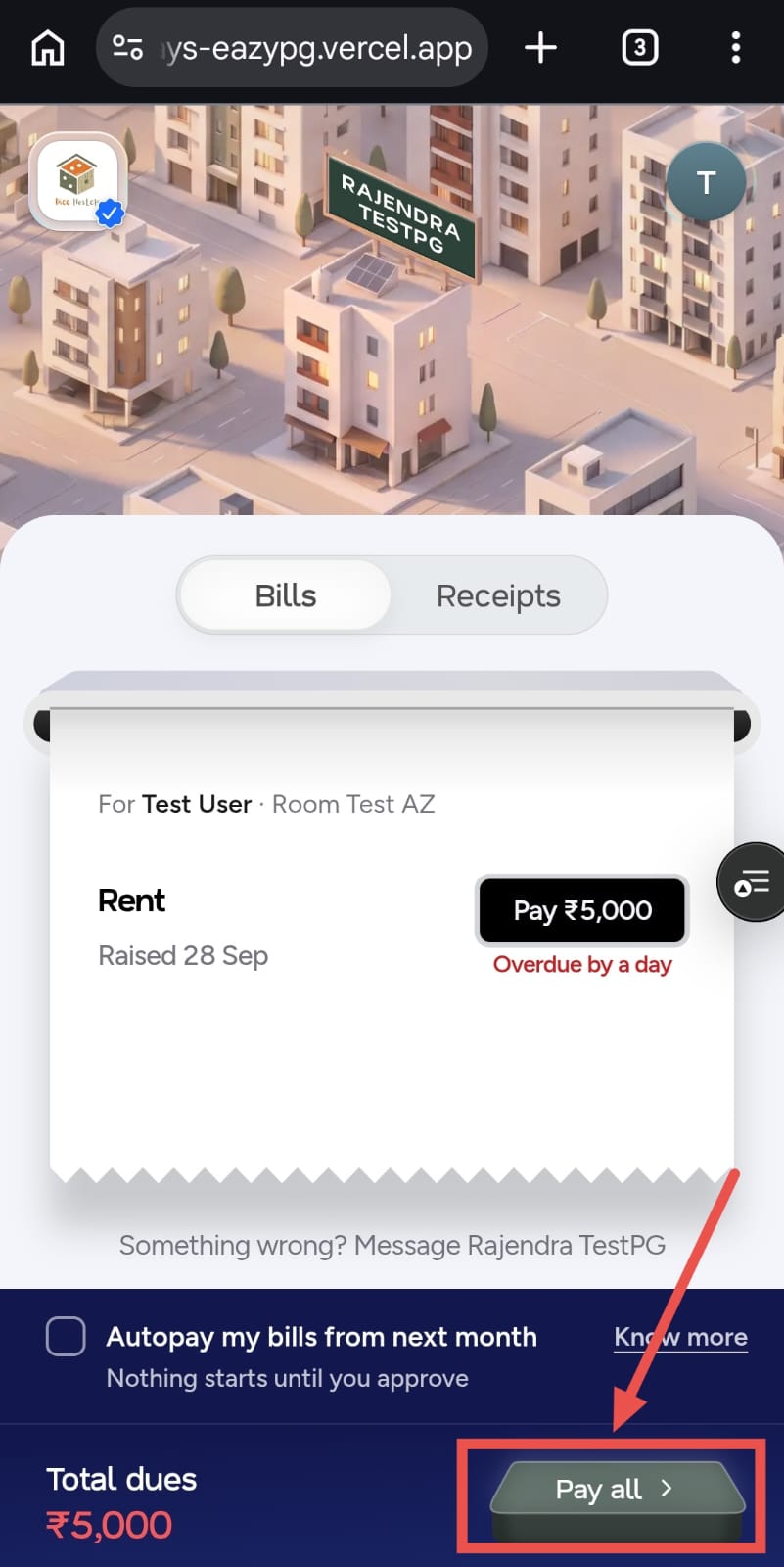
- Step 2: Click on Pay All
You will be taken to the payment screen, where you can view the total amount you are about to pay.
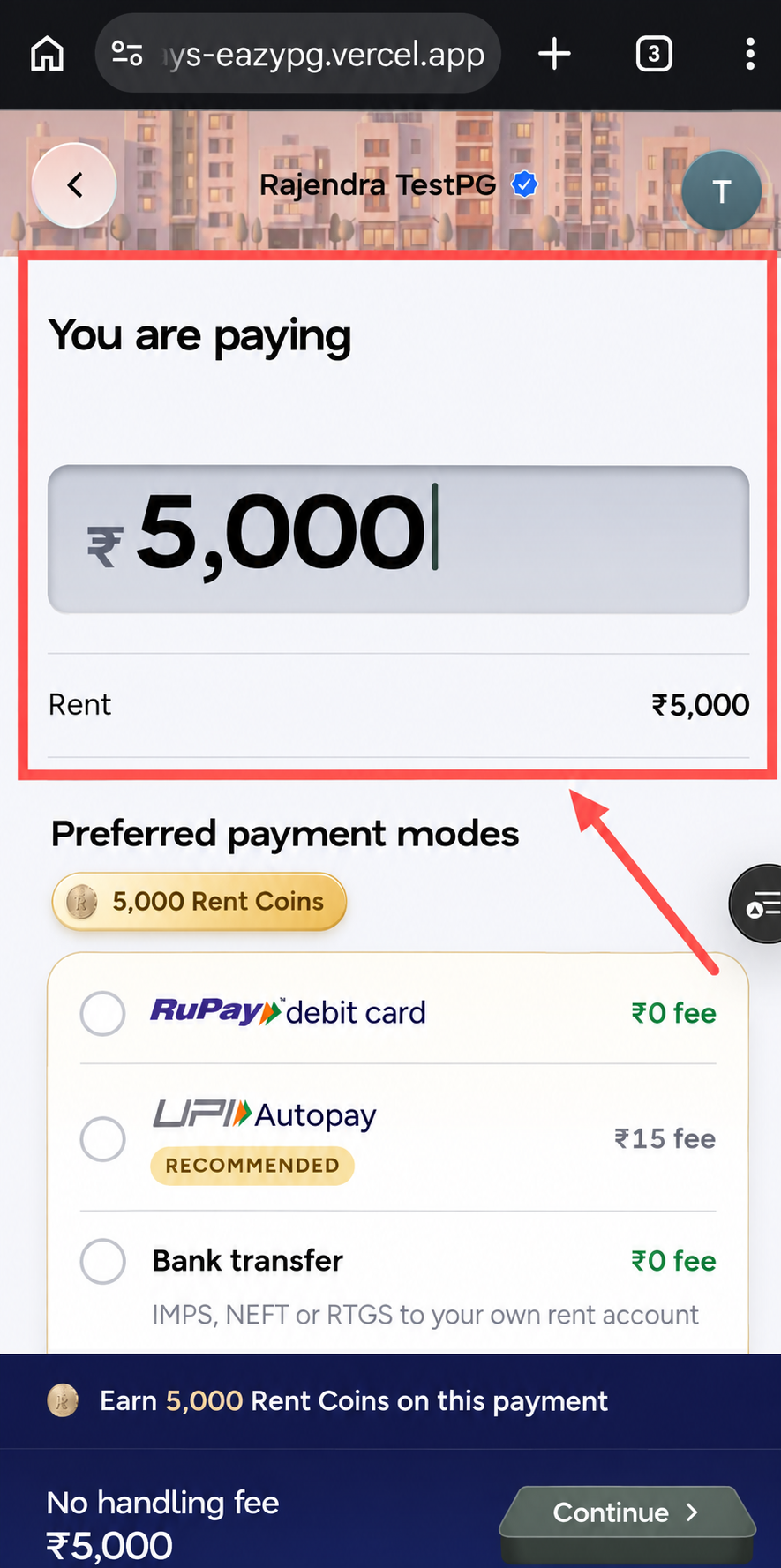
- Step 3: Choose a Payment Method
Scroll down to view the available payment methods. Select the method you prefer to use for the payment.
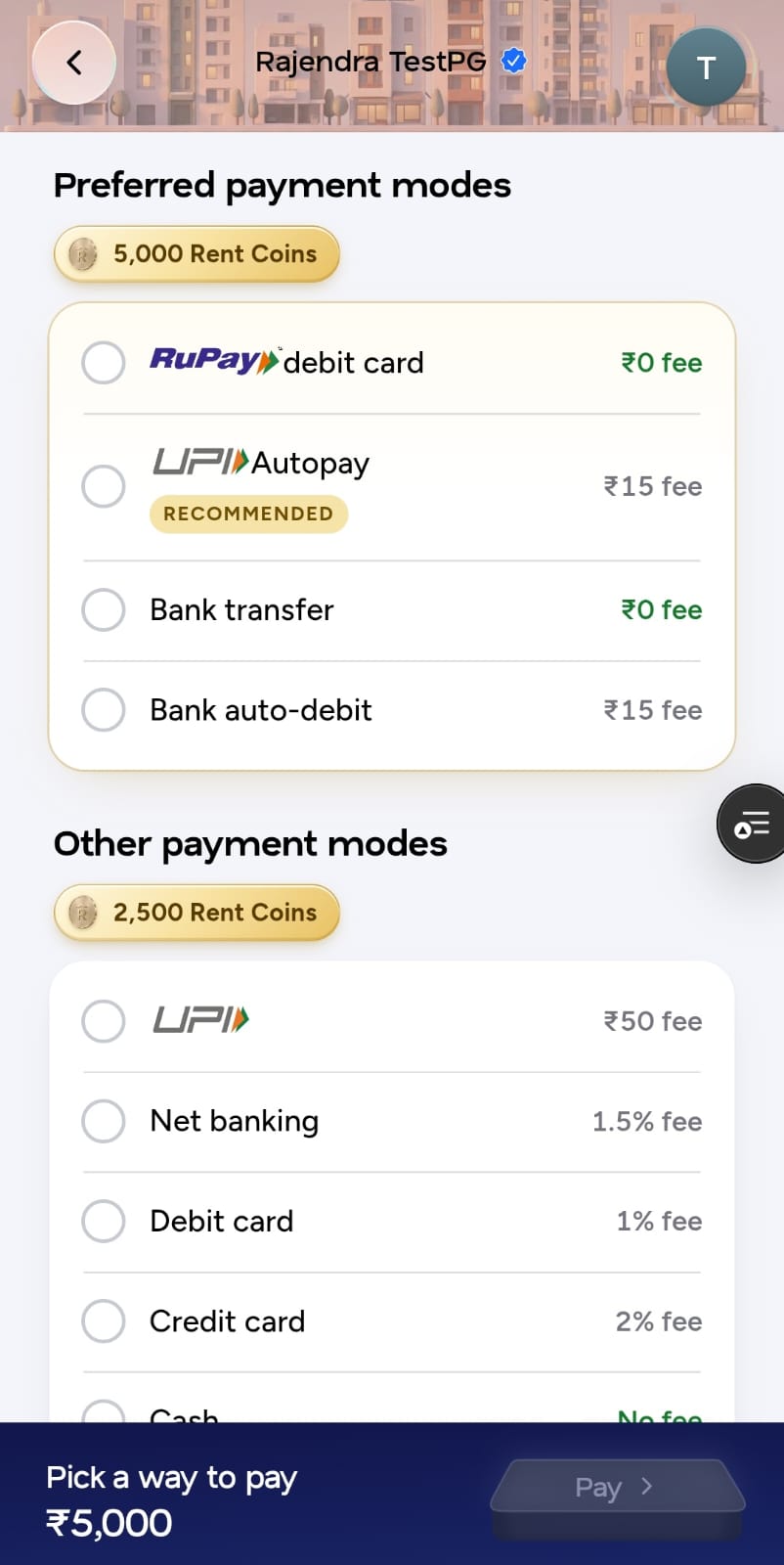
- Step 4: Complete the Payment
Once you have selected your preferred method, click Pay. You will be redirected to the selected payment method to complete the transaction.
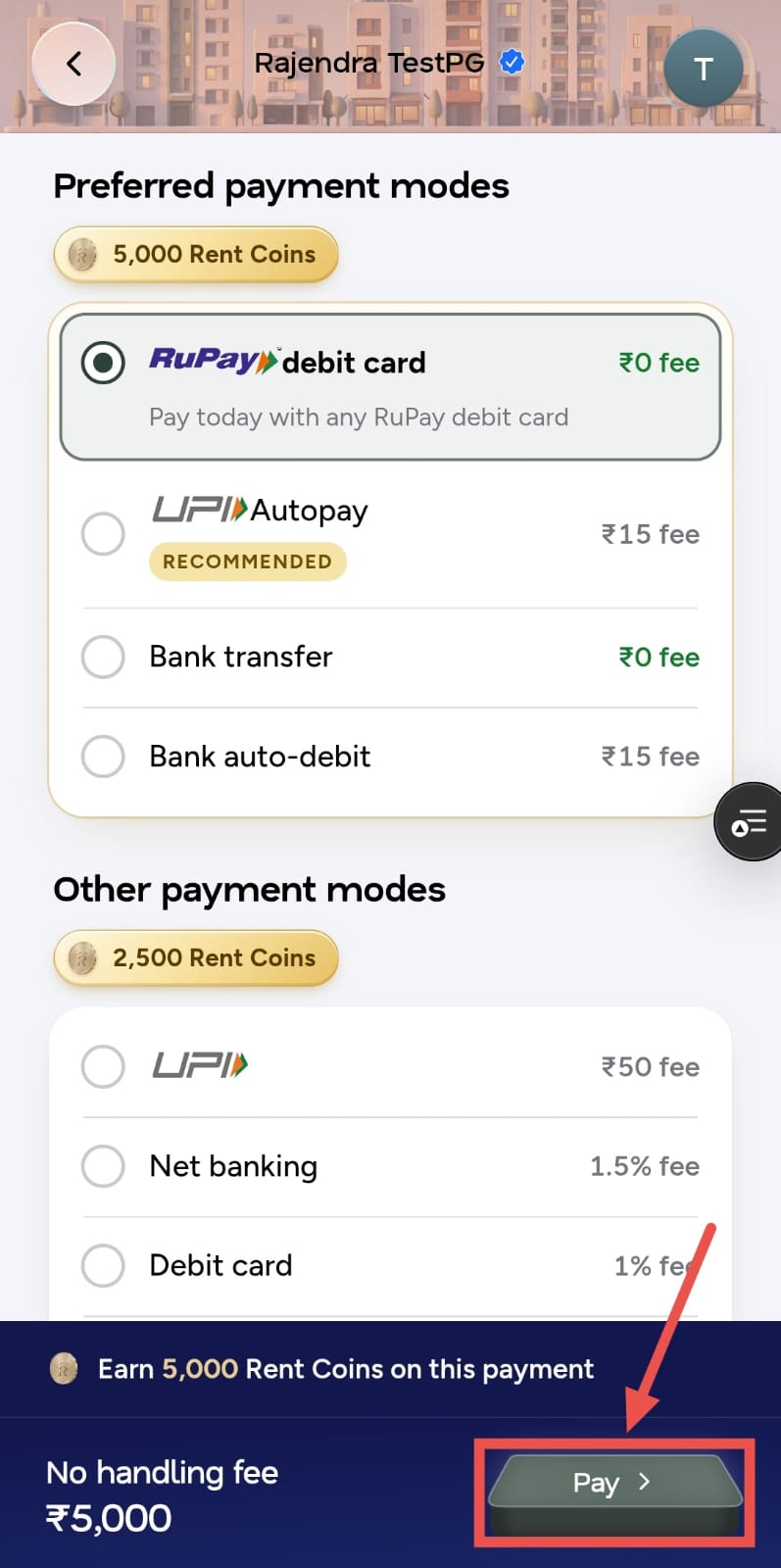
For a tenant on a prepaid electricity meter, tap the electricity card to see the balance, units left, usage trend and recharge history. Choose an amount and complete the recharge.
Note: The electricity section is a first version, and we'll keep improving it based on your feedback.
💡 Why it matters: The payment page is often the only part of RentOk a parent ever sees. A clean, trustworthy page that clearly shows what's due – and what's already been paid – means fewer "how much do I owe?" calls and faster collections.
A Separate WhatsApp Number for Every Kind of Update
Until now, every RentOk update – payments, new tenants, room changes, move-outs, attendance – reached you from a single WhatsApp number. With so many messages in one chat, important ones got buried. And if you muted that number to cut the noise, you muted everything.
RentOk updates now come from separate, dedicated WhatsApp numbers, each with a clear name. You'll know what a message is about before you even open it – and you can mute the chats you don't need without missing the ones you do.
Highlights
| WhatsApp name | Number | What it sends you |
|---|---|---|
| RentOk Money | [+91 XXXXX XXXXX] | Payments received, receipts, refunds and dues adjustments |
| RentOk Property | [+91 XXXXX XXXXX] | Rooms added or edited, settings changes and property feedback |
| RentOk Tenants | [+91 XXXXX XXXXX] | Bookings added, confirmed or cancelled, and new leads |
| RentOk Complaints | [+91 XXXXX XXXXX] | New complaints and complaint updates |
| RentOk Eviction | [+91 XXXXX XXXXX] | Notices raised or cancelled, evictions completed and handovers |
| RentOk Ops | [+91 XXXXX XXXXX] | Tasks, checklists, agreements and stamp papers |
| RentOk Attendance | [+91 XXXXX XXXXX] | Daily attendance summary and entry/exit updates |
| RentOk FlexiPay | [+91 XXXXX XXXXX] | Expenses, settlements and payouts |
- One tap to the right screen - Messages carry buttons like "View Room" that open exactly that room or tenant in your Manager app – no searching.
- Official RentOk numbers - All numbers are Meta-approved WhatsApp business accounts, so you can trust that every update is genuinely from RentOk.
- Nothing to set up - Once this is on for your account, updates start arriving from the right number automatically.
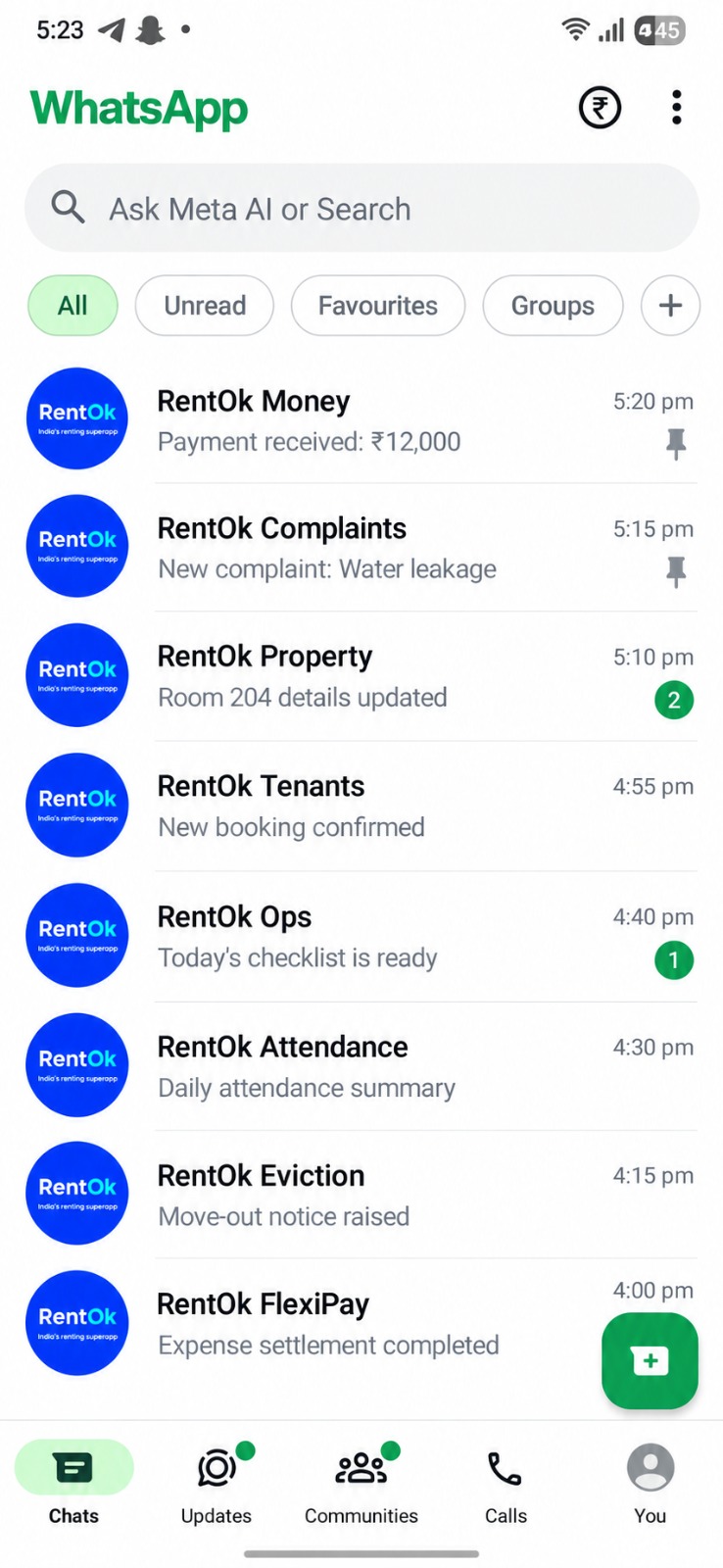
Note: This is rolling out gradually across accounts. Coming next: a screen in the Manager app that lists every number and what it sends, and the option to add your team members to the numbers relevant to their work.
💡 Why it matters: Your payments chat stays a payments chat. Mute what you don't need, keep an eye on what you do, and never miss an important update because it was buried under fifty others.
Multi-Party Agreements
Until now, a rent agreement on RentOk could carry only one tenant's signature. Real life isn't that simple. Three friends share a flat and all of them sign. A flat has two or three co-owners. A PG or hostel has students under 18, whose signature alone isn't legally valid.
Multi-party agreements handle all of these. One agreement can now have multiple first parties (owners) and multiple second parties (tenants), and for under-18 tenants, a parent signs alongside them.
Highlights
- Multiple co-owners - Add more than one first party to the same agreement, and each signs separately.
- Co-tenants on the same agreement - Add co-tenants while preparing the agreement. Everyone living in the unit can sign the same document.
- Parent signature for under-18 tenants - Mark a tenant as under 18 and add their parent's or guardian's details. The tenant still signs, and the parent signs too. You can make this question mandatory for your property from settings.
- Mixed rooms work too - In a room with one tenant under 18 and one over 18, only the under-18 tenant needs a parent added.
- Witnesses - Add a witness for each side, either from your staff list or by entering custom details.
- Aadhaar e-Sign - Signatures can be done with Aadhaar e-Sign, which is legally valid. You can enable it property-wise; the regular digital signature remains the default.
- New "Agreement Parties" tab - A tenant's profile now shows every party on their agreement – primary tenant, parent, co-tenants and first parties – and who has or hasn't signed yet.
- One agreement, one stamp paper - Adding more parties doesn't create more agreements, so you still need only one stamp paper.
- Final PDF - Once everyone has signed, the final agreement PDF is available from the tenant's profile. Owner signatures appear on the left and tenant signatures on the right.
How To Try
Case 1: Add a Parent
- Step 1: Open Add Tenant
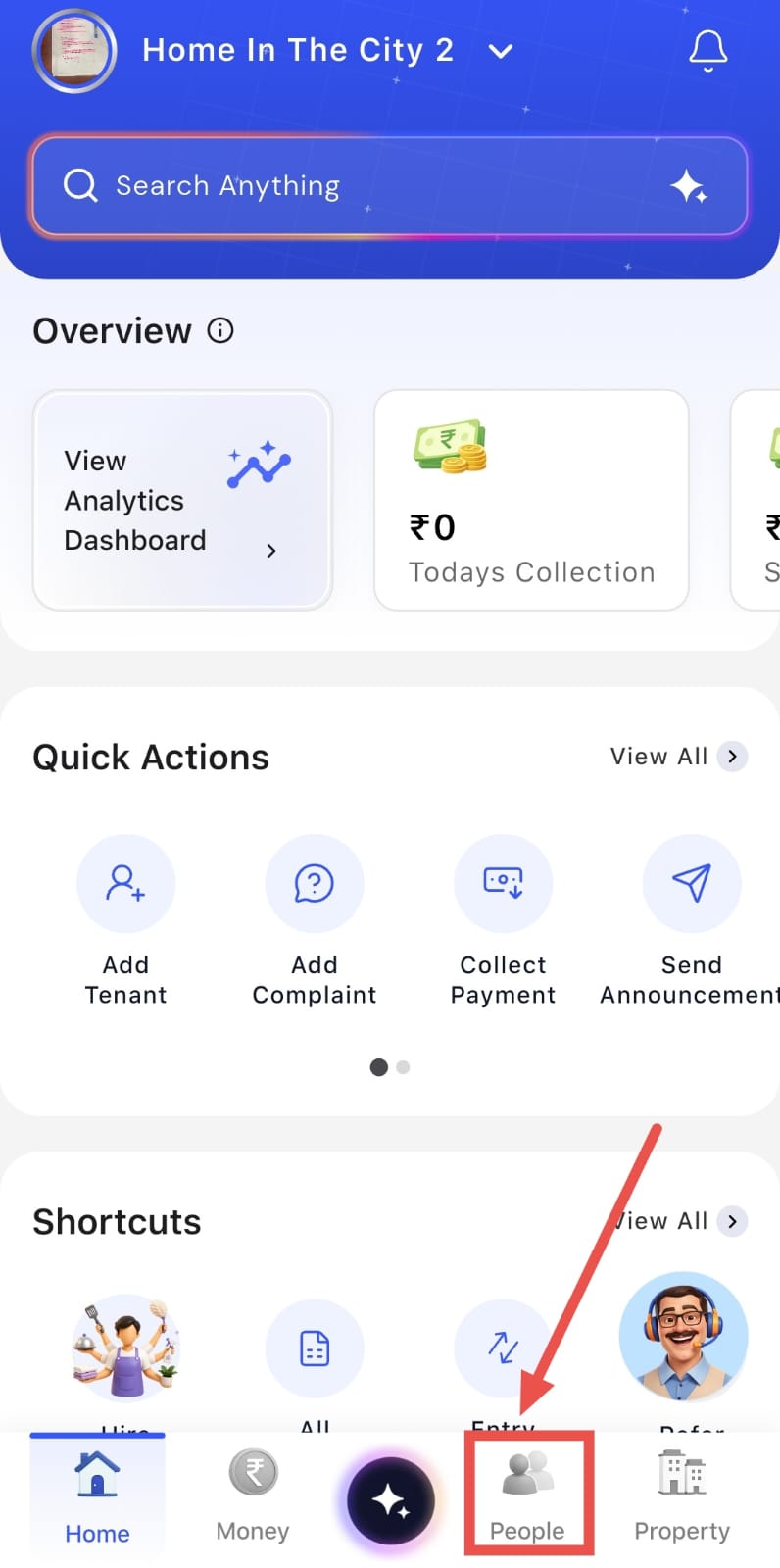
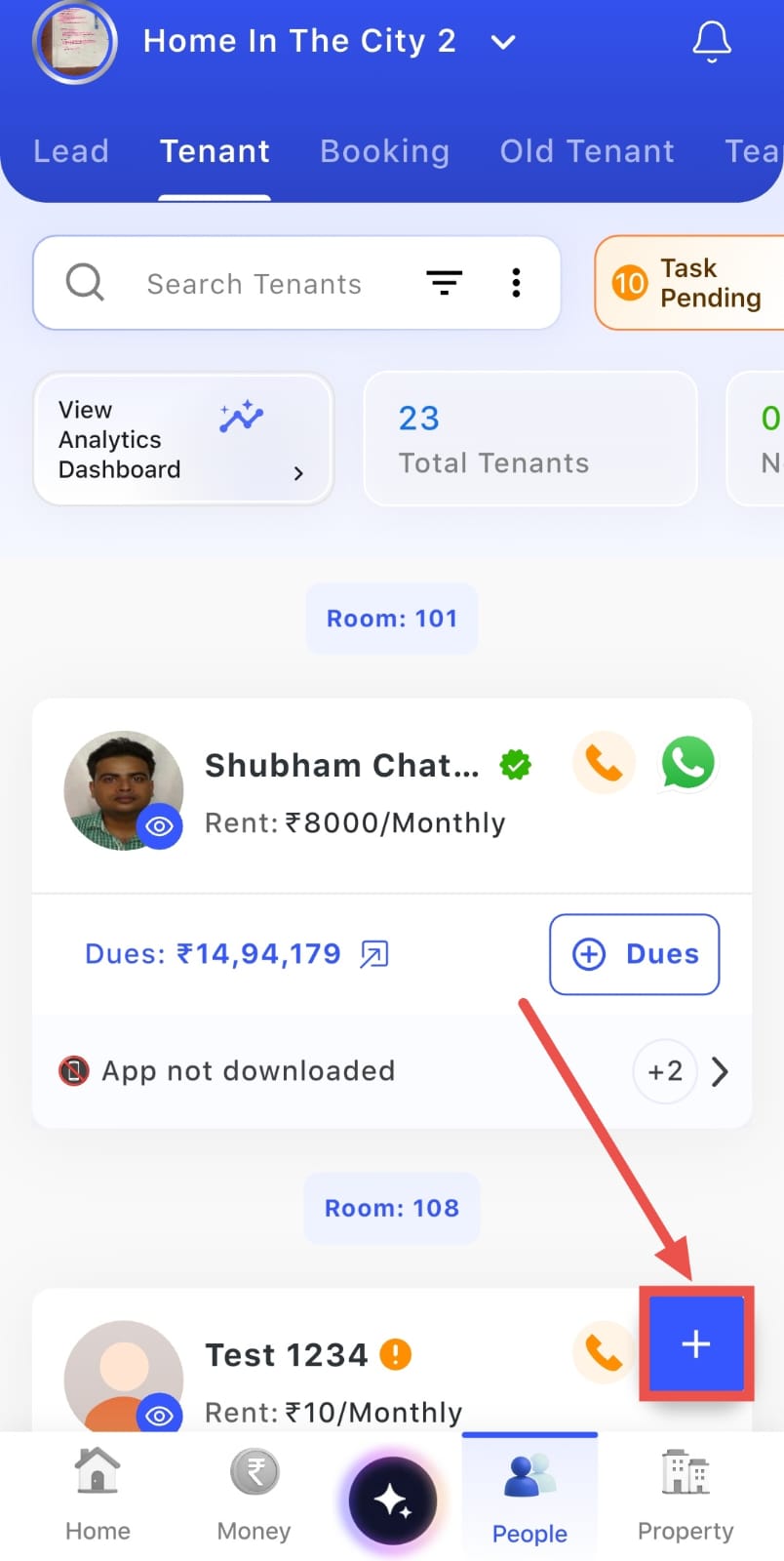
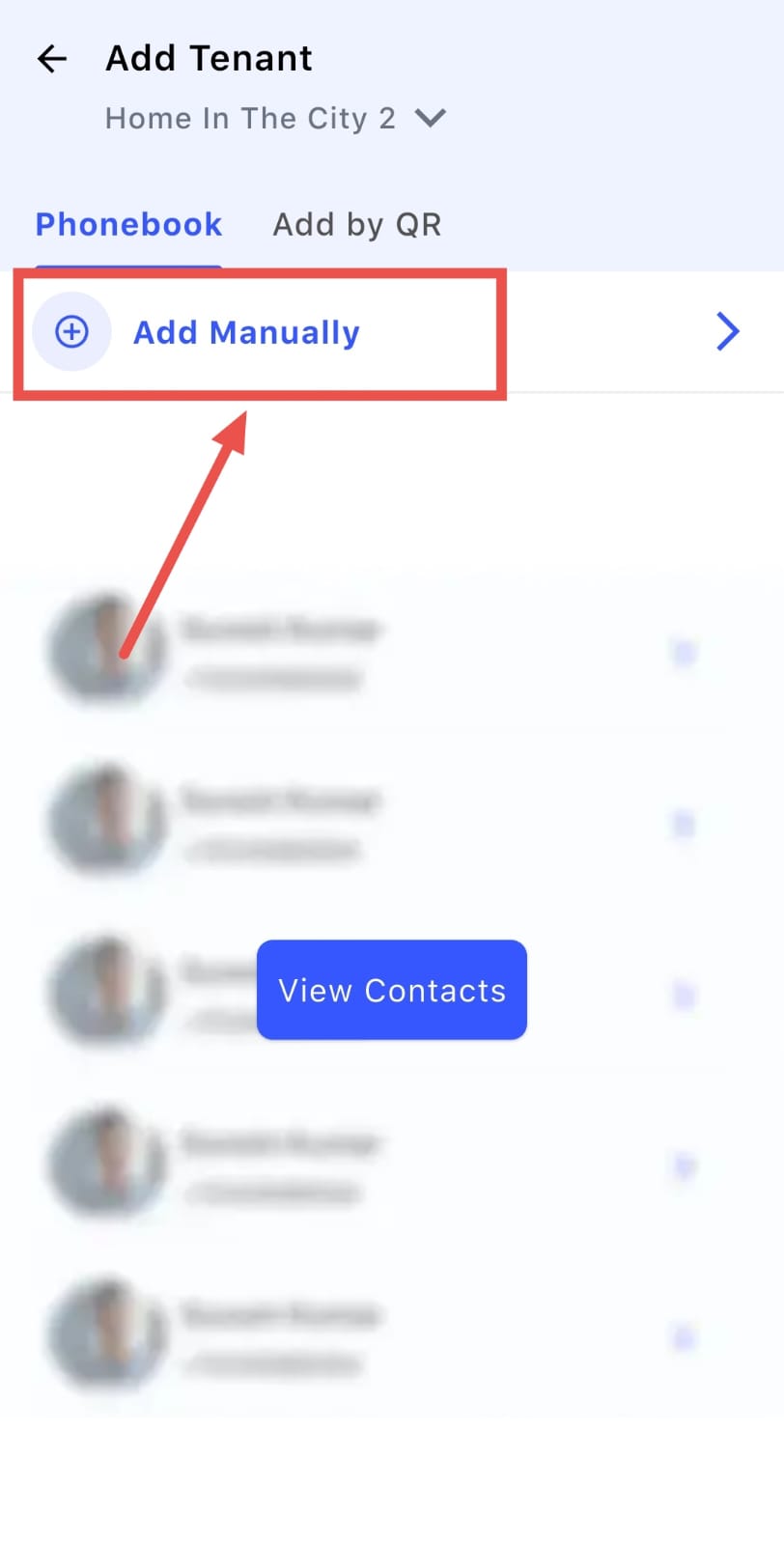
Go to People from the Dashboard, click on the + sign, and select Add Manually.
- Step 2: Enter Tenant Details
Enter the tenant's basic details and fill in the required information as you normally would.
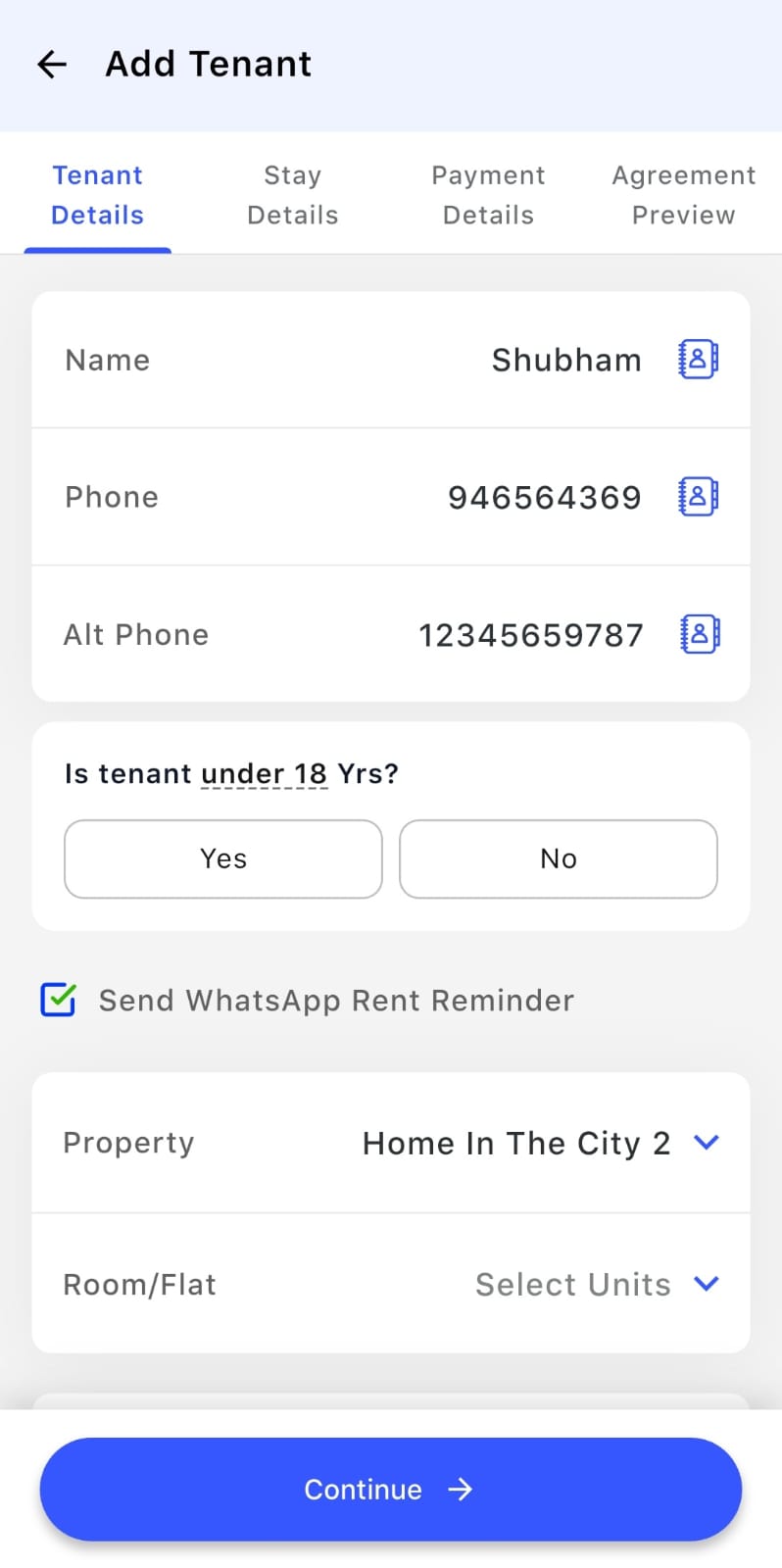
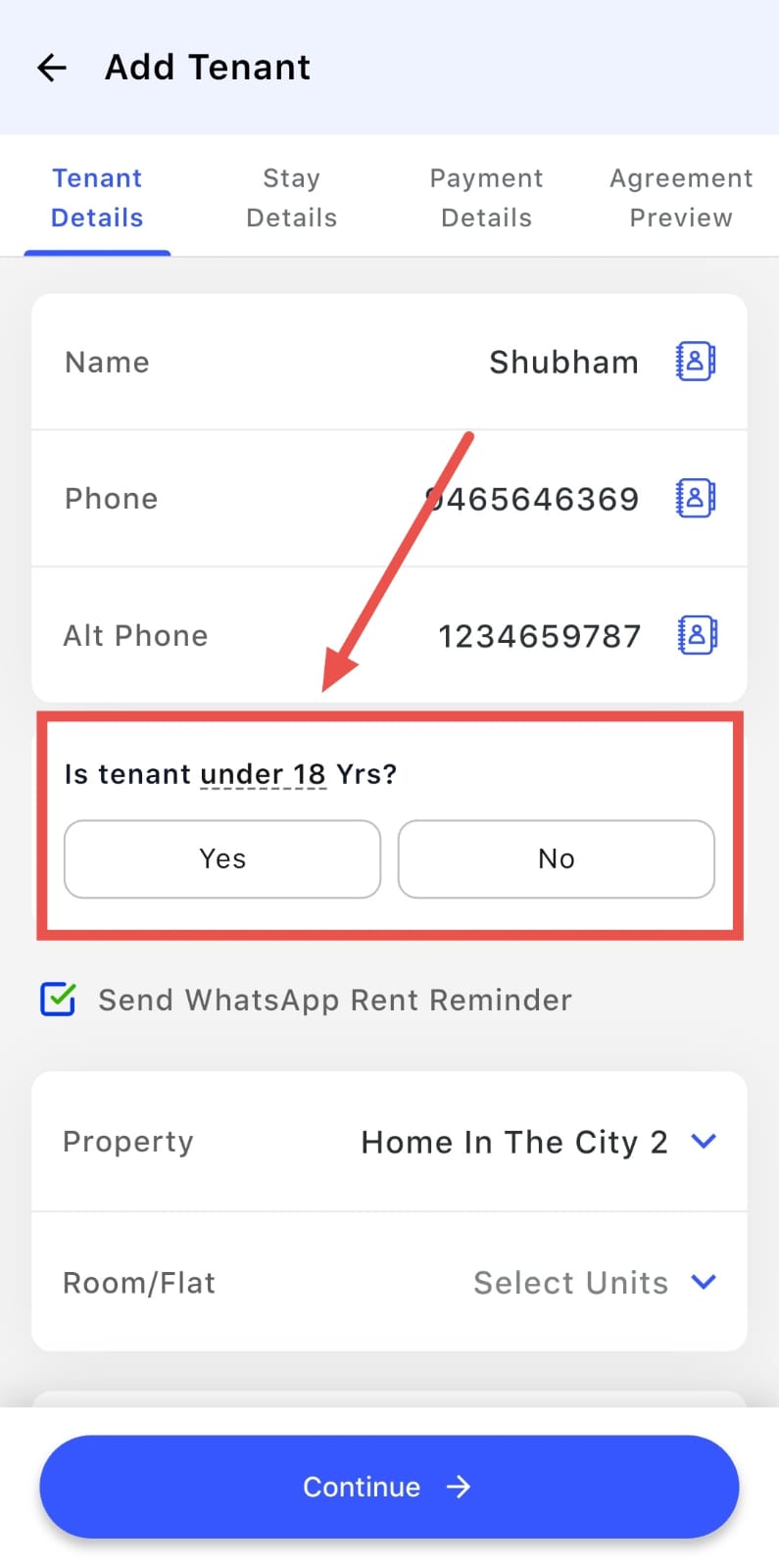
- Step 3: Select Under 18
When asked if the tenant is under 18, select Yes to continue with the parent details.
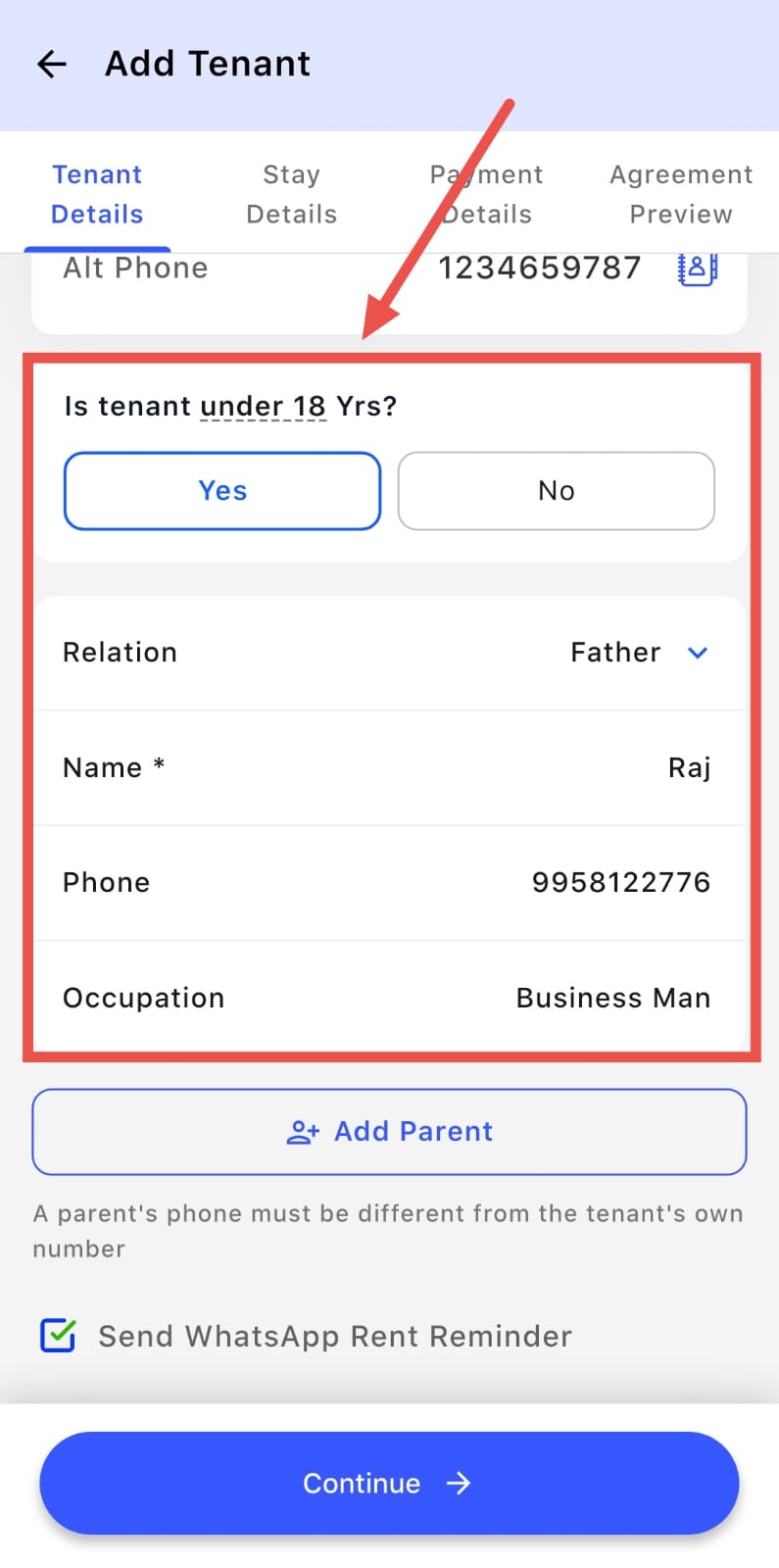
- Step 4: Add Parent Details
Enter the parent's Name, Phone Number, Occupation, and other required information.
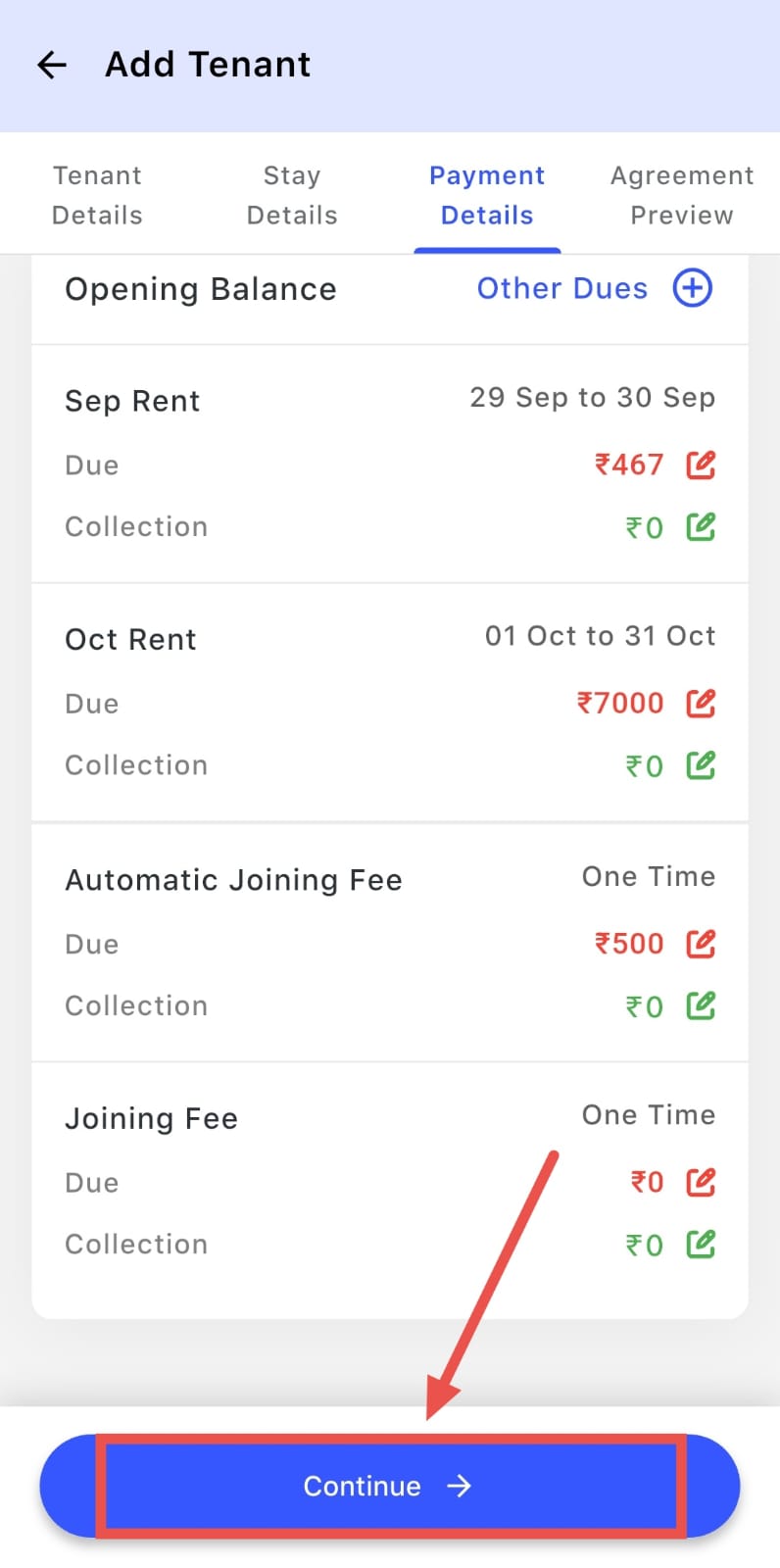
- Step 5: Continue to Agreement Review
Complete the remaining tenant details and click Continue. You will be taken to the Agreement Review page.
- Step 6: Review and Sign
Review the agreement details, terms, and conditions, then click Approve and Sign.
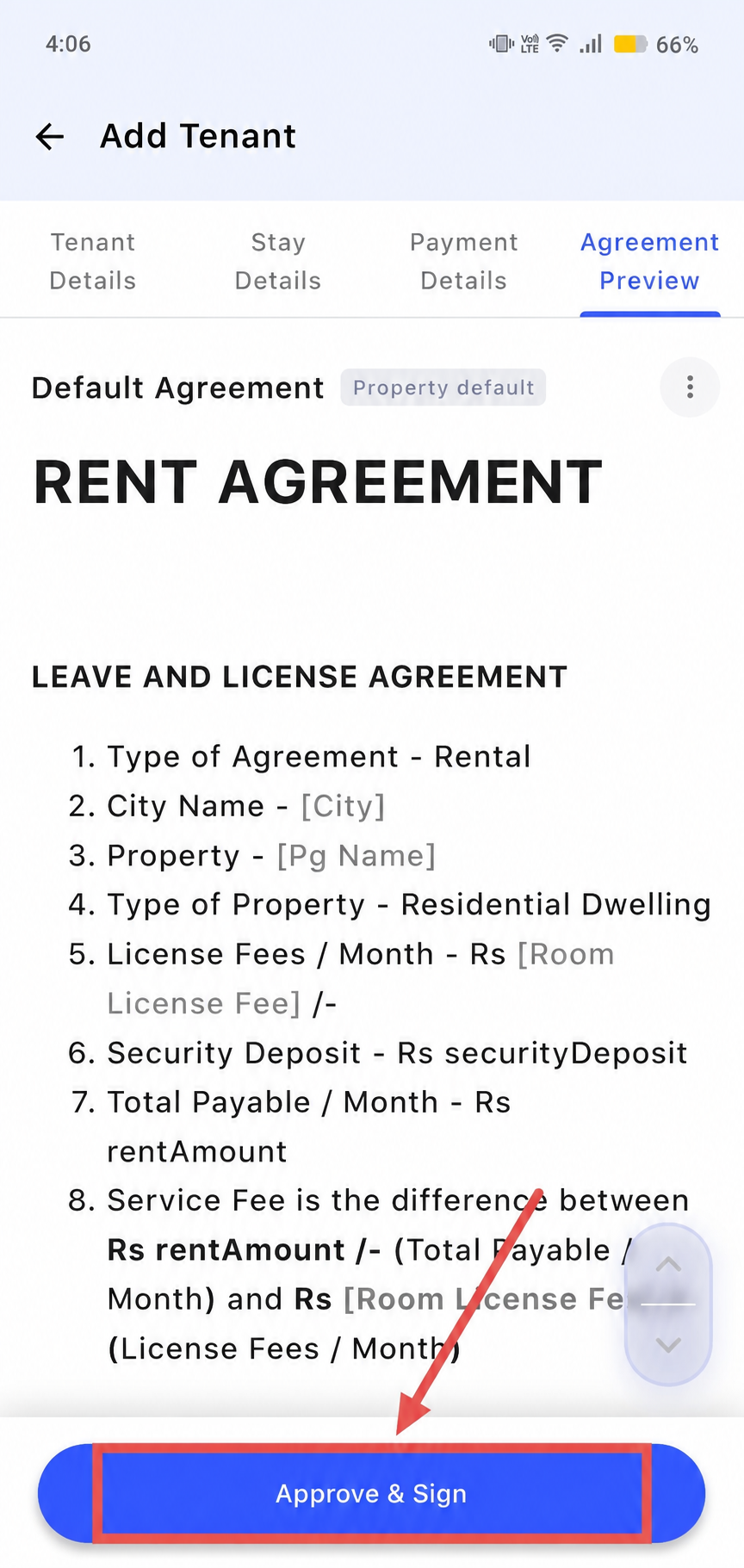
- Step 7: Complete the Agreement
The parent will be automatically added to the Agreement Parties. Complete the signing process and click Add Tenant.
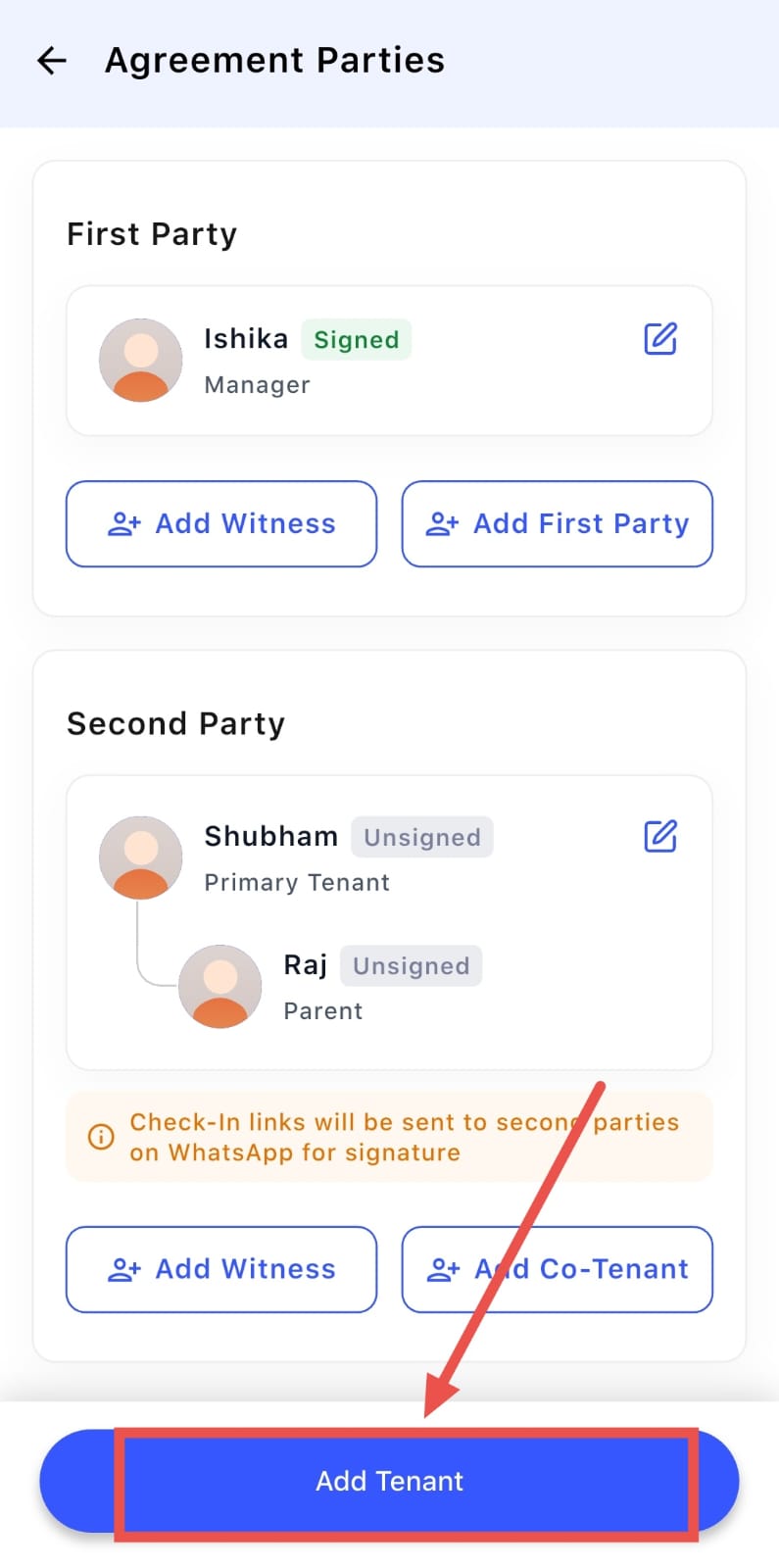
Case 2: Add a Co-First Party
- Step 1: Open Add Tenant
Go to People from the Dashboard, click on the + sign, and select Add Manually.
- Step 2: Enter Tenant Details
Enter the tenant's details and complete the required information as you normally would.
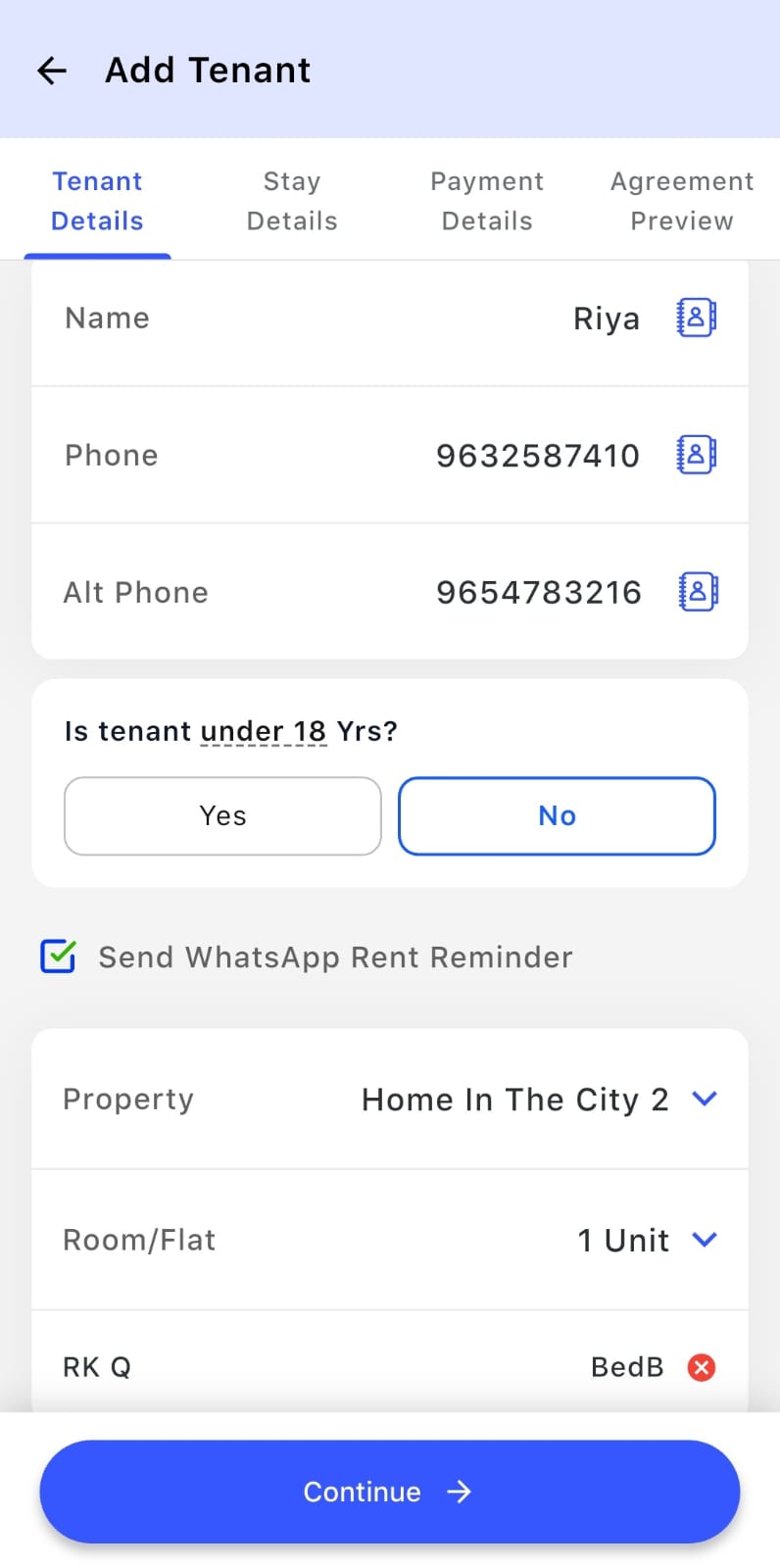
- Step 3: Continue to Agreement Review
Once all the required details are entered, click Continue. Review the agreement details and click Approve and Sign.
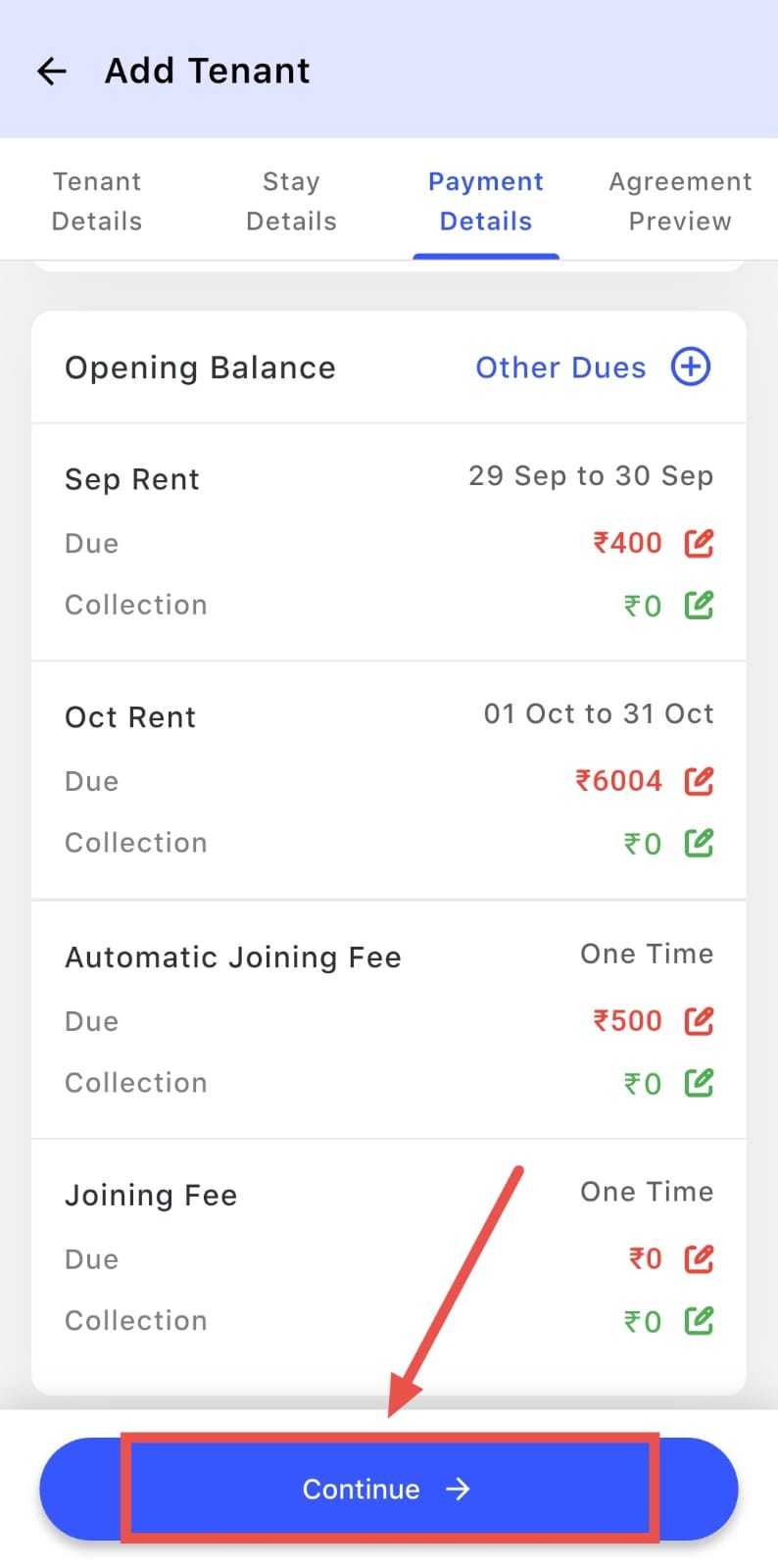
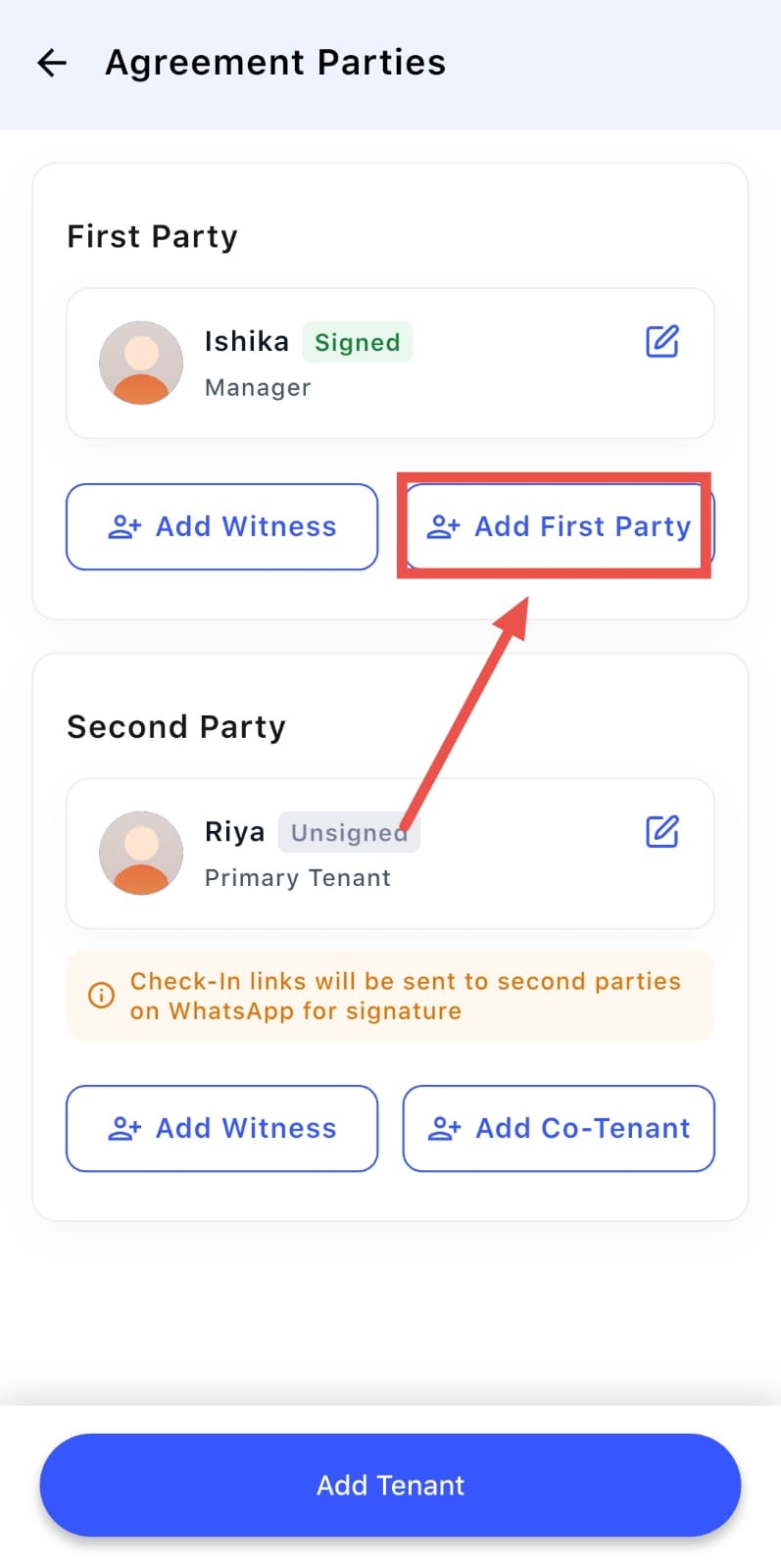
- Step 4: Open Agreement Parties
On the Agreement Parties page, click Add First Party to add another person to the agreement.
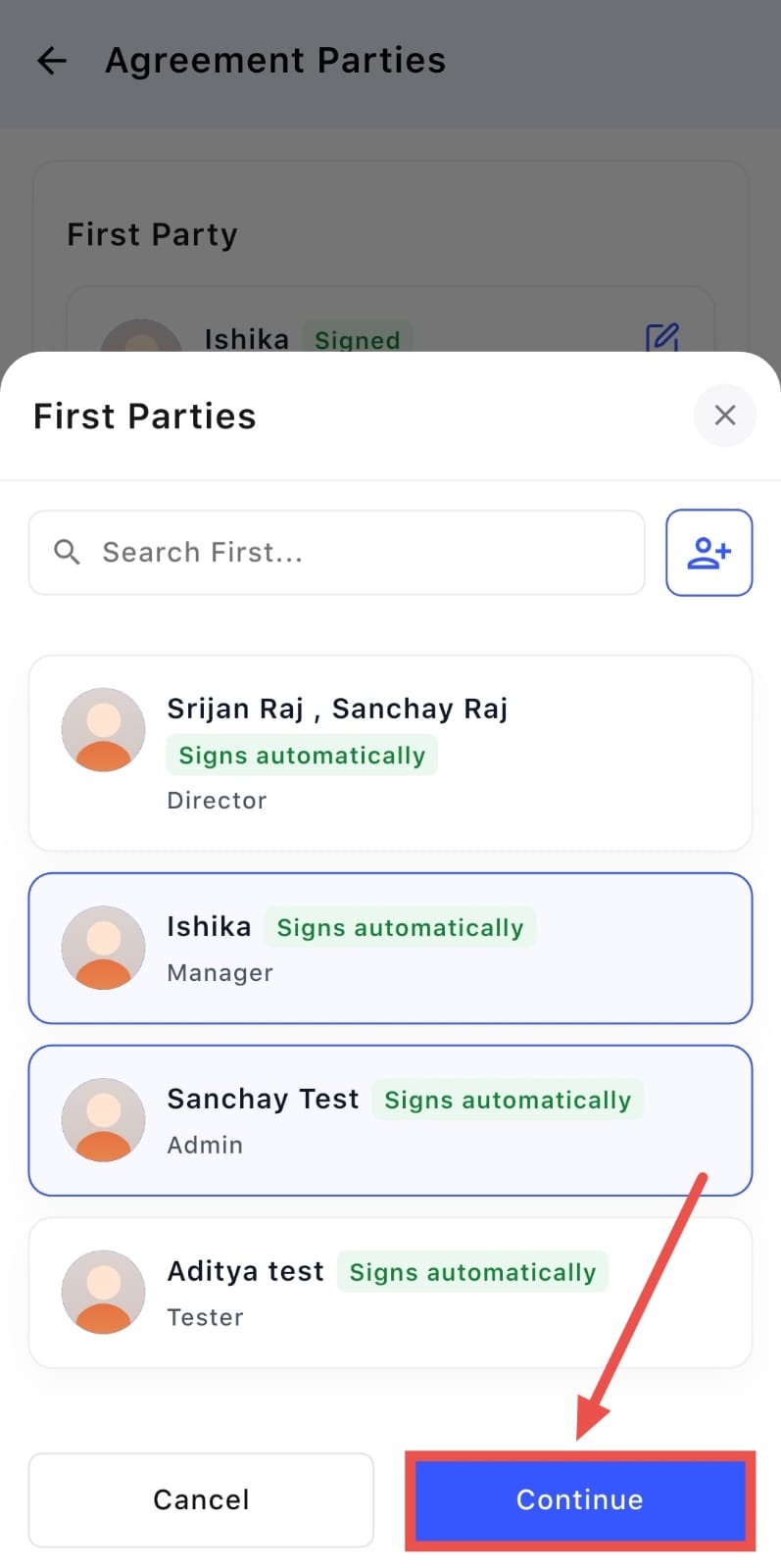
- Step 5: Select the Co-First Party
Choose the required person from the list of existing team members or authorities, such as a Director, Admin, Manager, or other relevant person, then click Continue to complete the agreement setup.
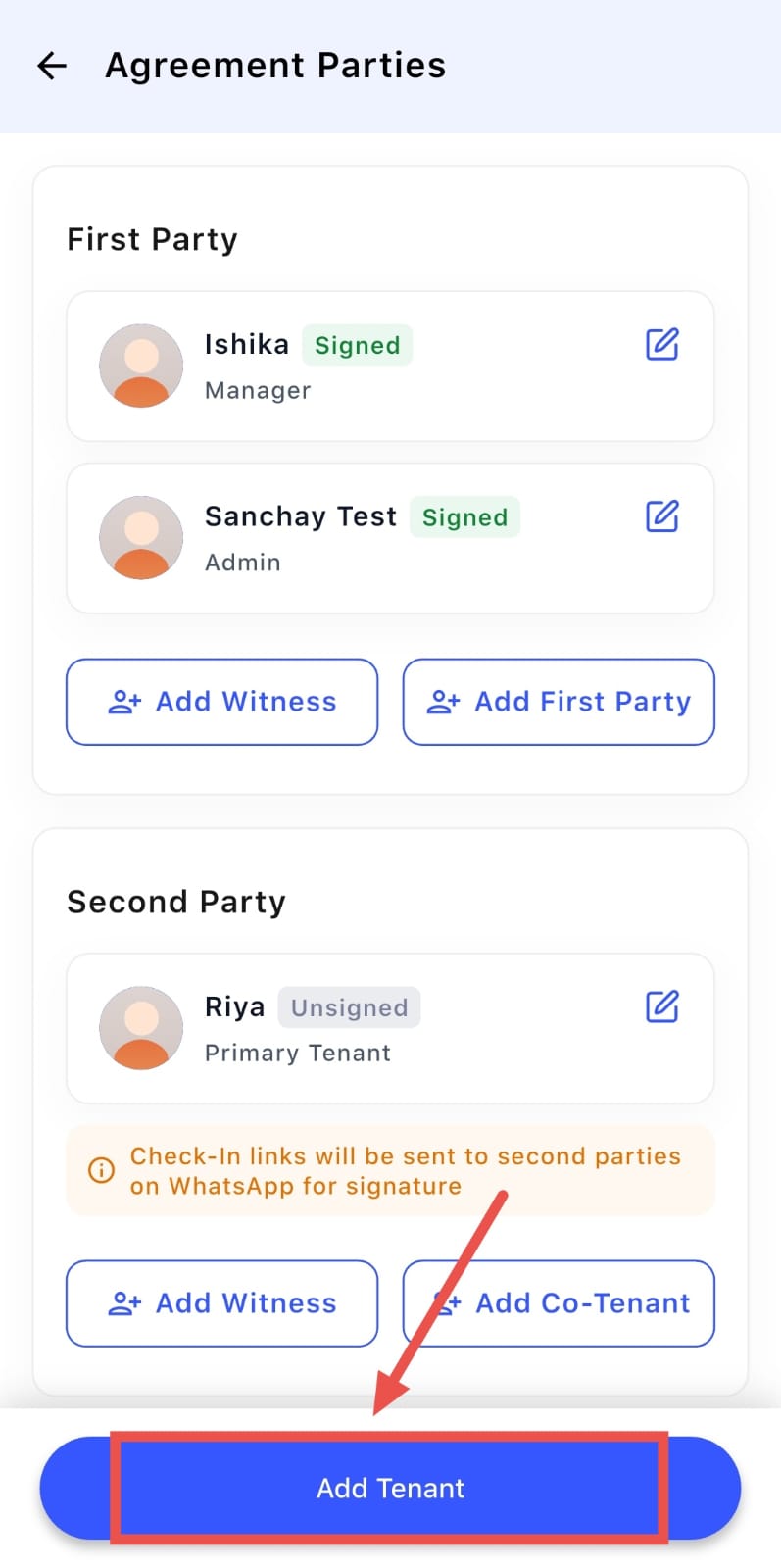
- Step 6: Complete the Agreement
The selected person is now added as the Co-First Party. Click Add Tenant to add the tenant.
Case 3: Add a Co-Tenant
- Step 1: Open Add Tenant
Go to People from the Dashboard, click on the + sign, and select Add Manually.
- Step 2: Enter Tenant Details
Enter the primary tenant's details and complete the required information.
- Step 3: Continue to Agreement Review
Click Continue to open the Agreement Review page. Review the agreement and click Approve and Sign.
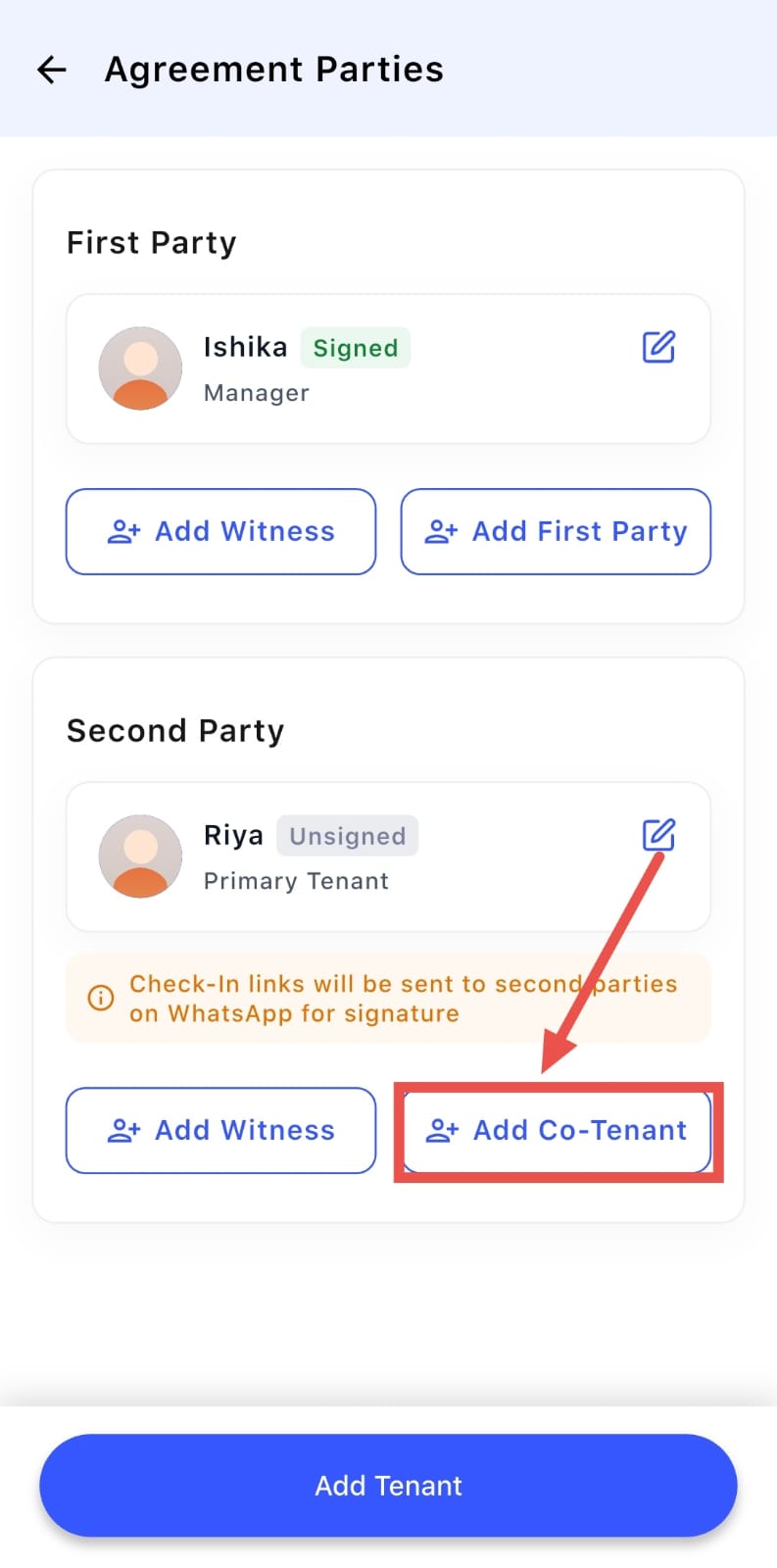
- Step 4: Open Agreement Parties
On the Agreement Parties page, click Add Co-Tenant to add another person to the agreement.
- Step 5: Add Co-Tenant Details
Enter the required details for the second person and add them as the Co-Tenant.
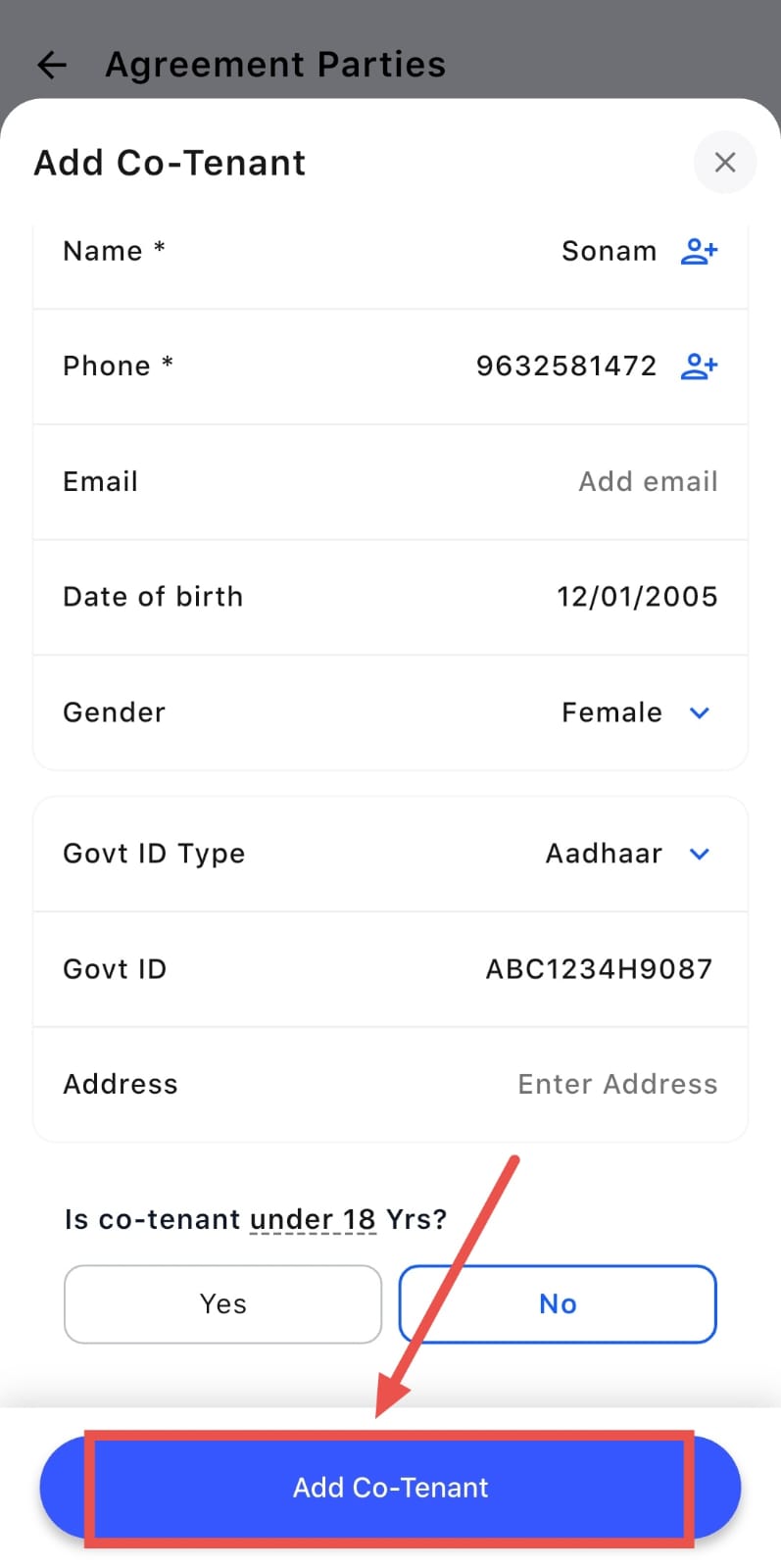
- Step 6: Complete the Agreement
After adding the Co-Tenant, click Add Tenant. The first person will remain the Primary Tenant, while the second person will be listed as the Co-Tenant.
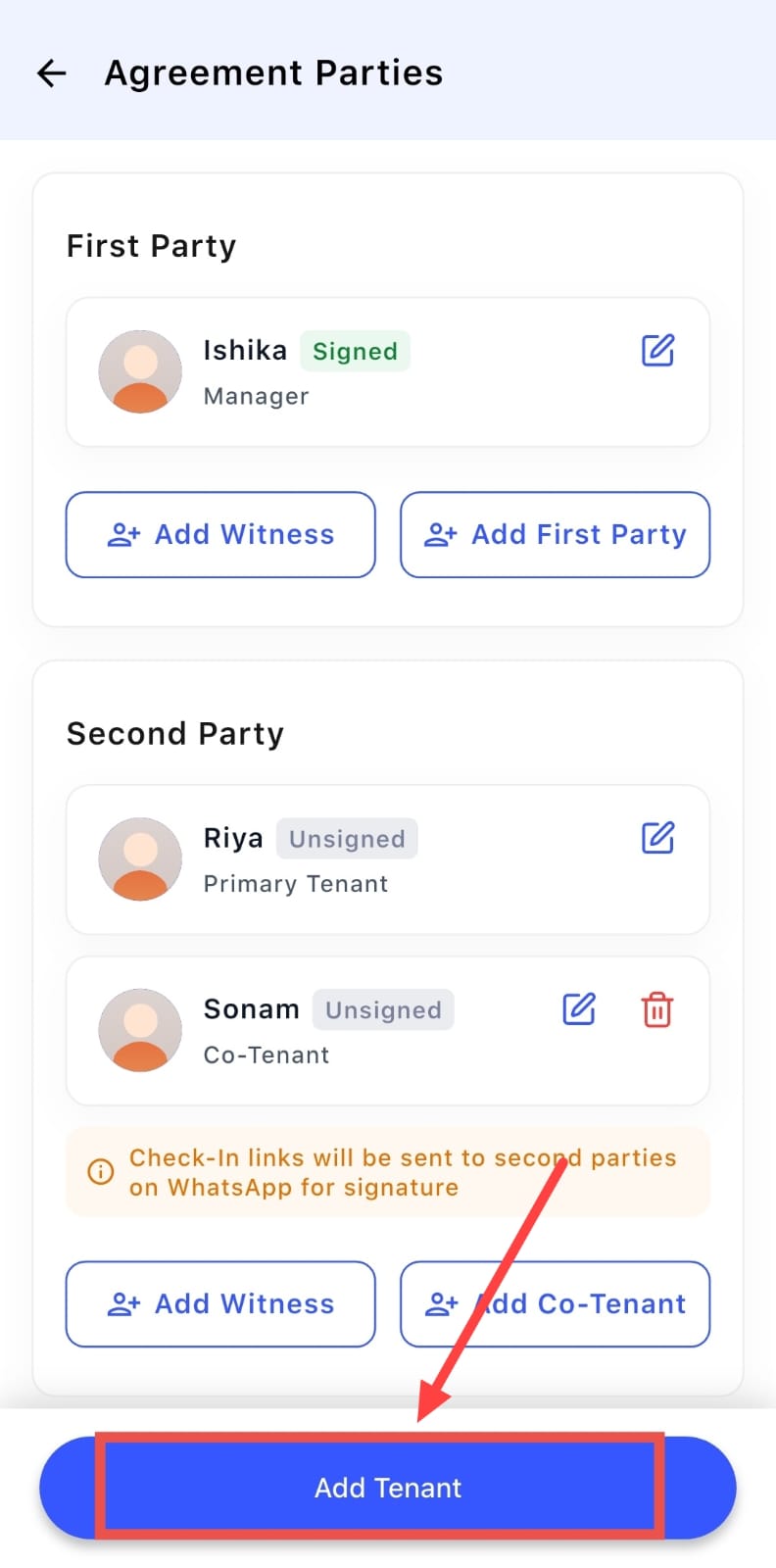
Note: In this first version, co-tenants are added to the agreement for signing. The primary tenant still holds the account – dues, passbook, tenant app login and payments stay with them. Rent split, deposit split and tenant app access for co-tenants are on the way. If you'd like multi-party agreements enabled for your property, message us in-app.
💡 Why it matters: An agreement is only as strong as its signatures. With every co-owner, co-tenant and parent signing the same document – with Aadhaar e-Sign – your agreements hold up legally, and you no longer need a separate e-signing tool to get there.
Issue Analytics - See Where Every Complaint Gets Stuck
Last release, we brought you analytics for dues, collections, expenses, tenants and occupancy. Now complaints get their own section too. Issue Analytics shows you how many complaints came in, how fast your team responds, which ones are stuck, what they cost you, and how happy tenants are with the result.
Highlights
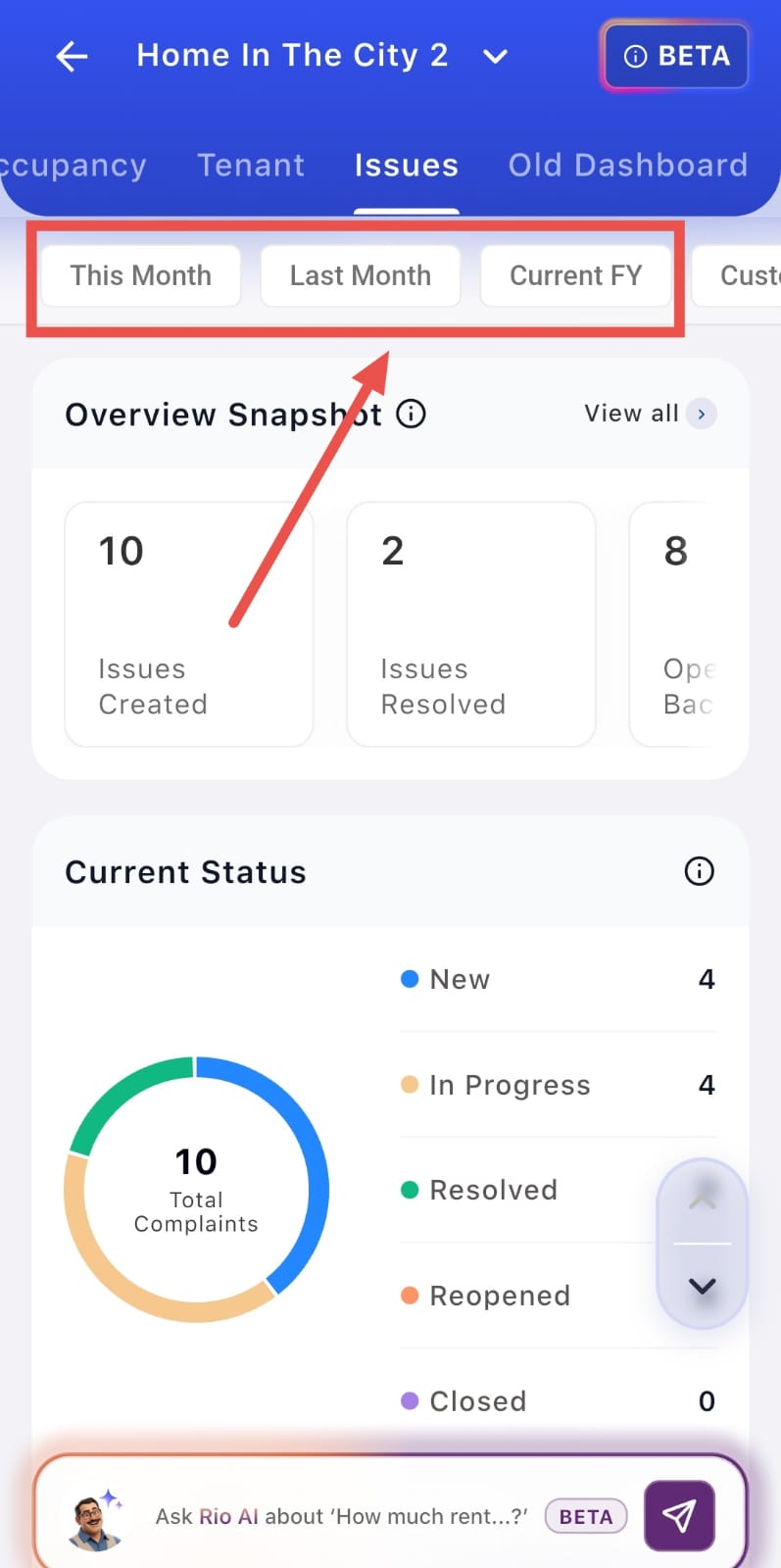
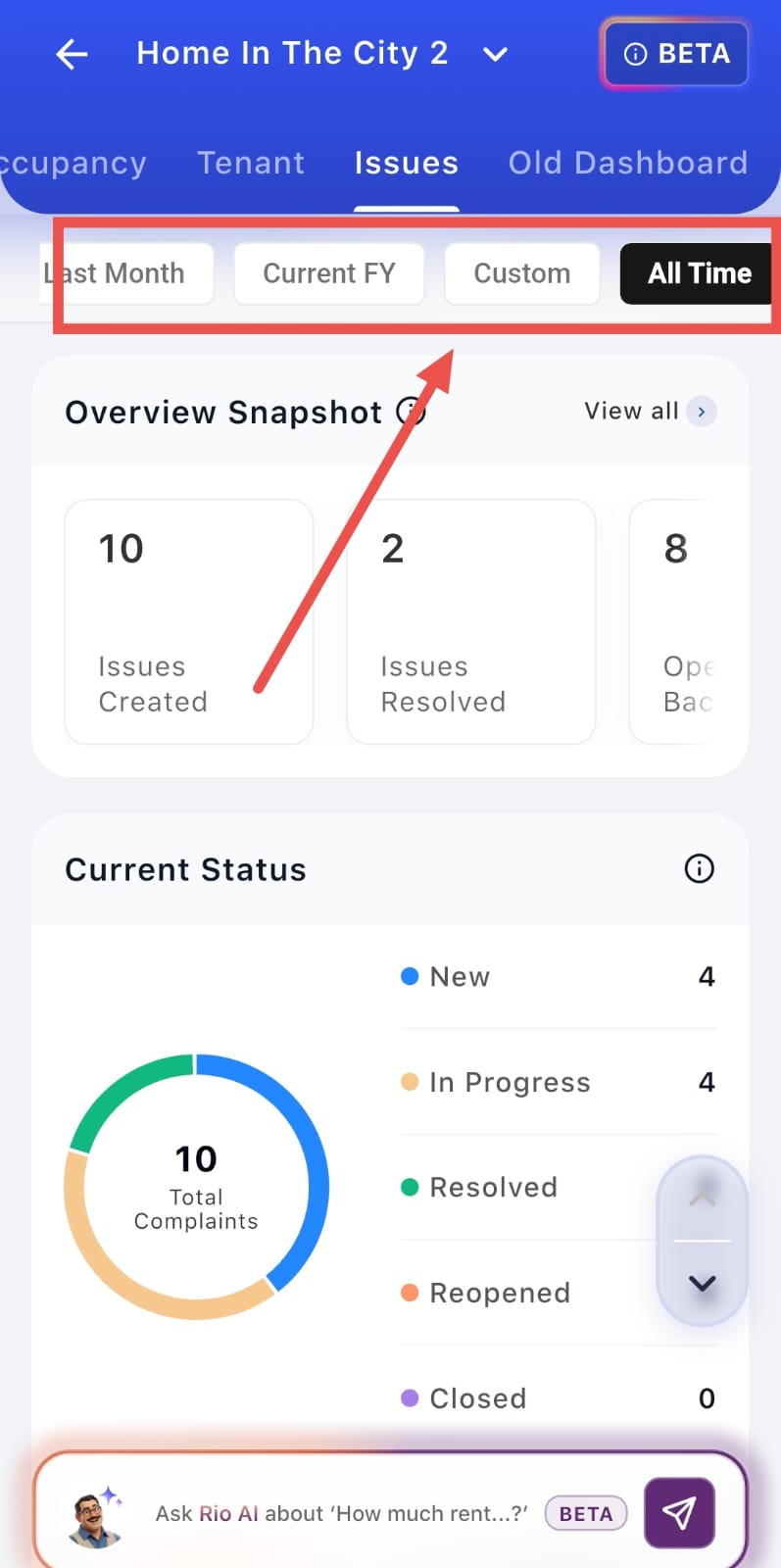
- Time filters - View data for this month, last month, the current financial year, a custom range, or all time.
- Overview snapshot - Issues created, issues resolved, backlog (still open), reopened issues, and average resolution time in days.
- Current status - New, in progress and resolved, plus a split of urgent and non-urgent issues.
- Ageing - See how long open complaints have been waiting: 0–7, 8–15, 16–30 and 31+ days.
- Response time - Time to assign (how long before someone is put in charge) and time to first response (how long before anything happens on the complaint).
- Cost of issues - For complaints linked to expenses or dues, see how many were financially impacted, how much was spent, what's still pending, and the average cost per issue.
- Efficiency & quality - Average resolution time, escalation rate, and SLA rate – how often complaints are resolved within the target time for their category.
- Team performance - Top performers, and for each team member, how many issues are assigned and how many are resolved.
- Sources & categories - Where complaints come from (tenant app, team members and more) and which categories they fall into.
- Issue trend - Raised vs resolved, month by month, over 6, 12 or 24 months.
- Ratings & feedback - Average rating and the split of 1 to 5-star ratings on resolved complaints.
- Property-wise view - Properties ranked by number of complaints, highest first.
- Every metric has a definition you can check right on the screen.
How To Try
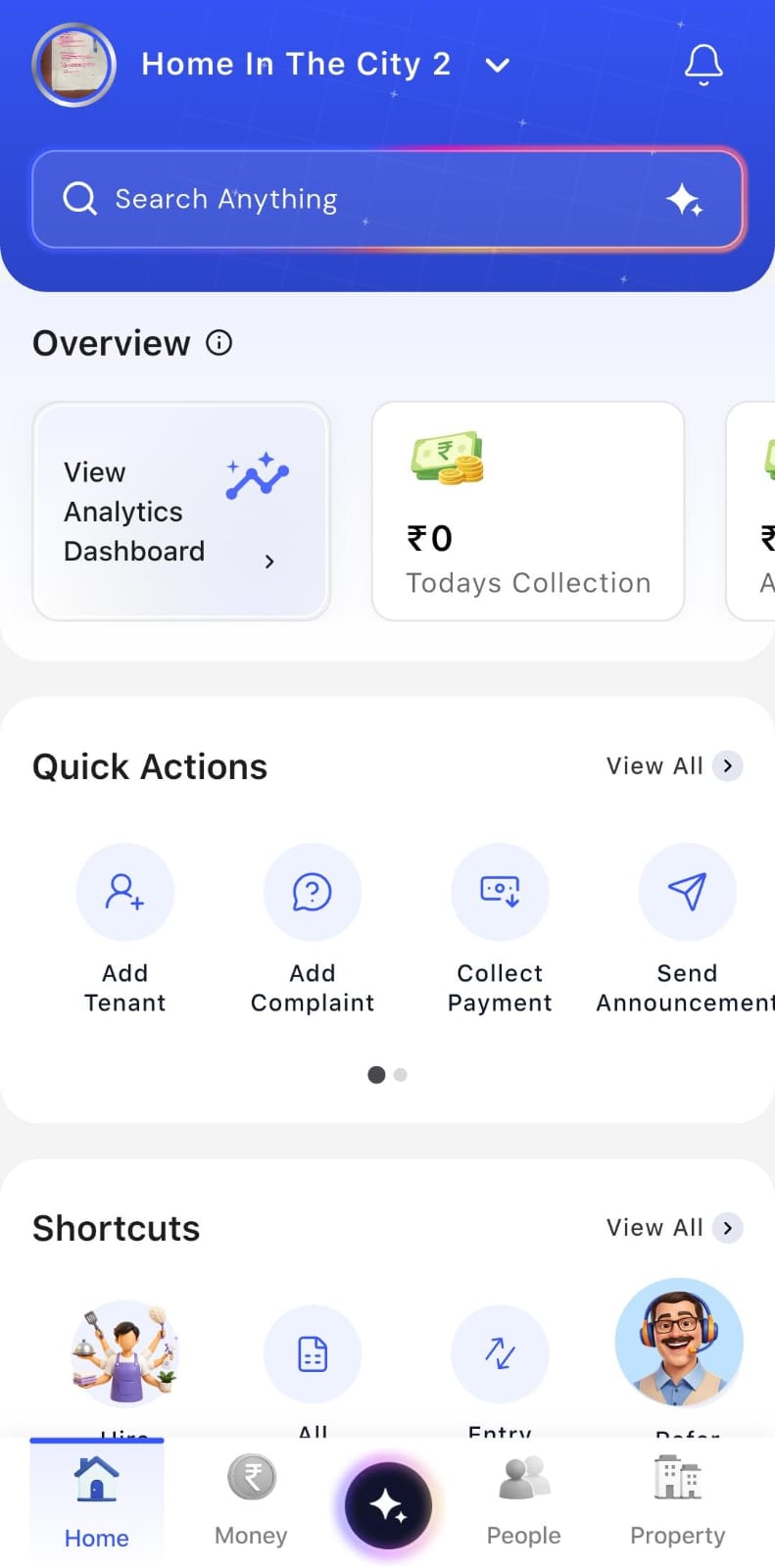
- Step 1: Open the Dashboard
Log in to the app and make sure you are on the Dashboard screen. Look for the View Analytics Dashboard option.
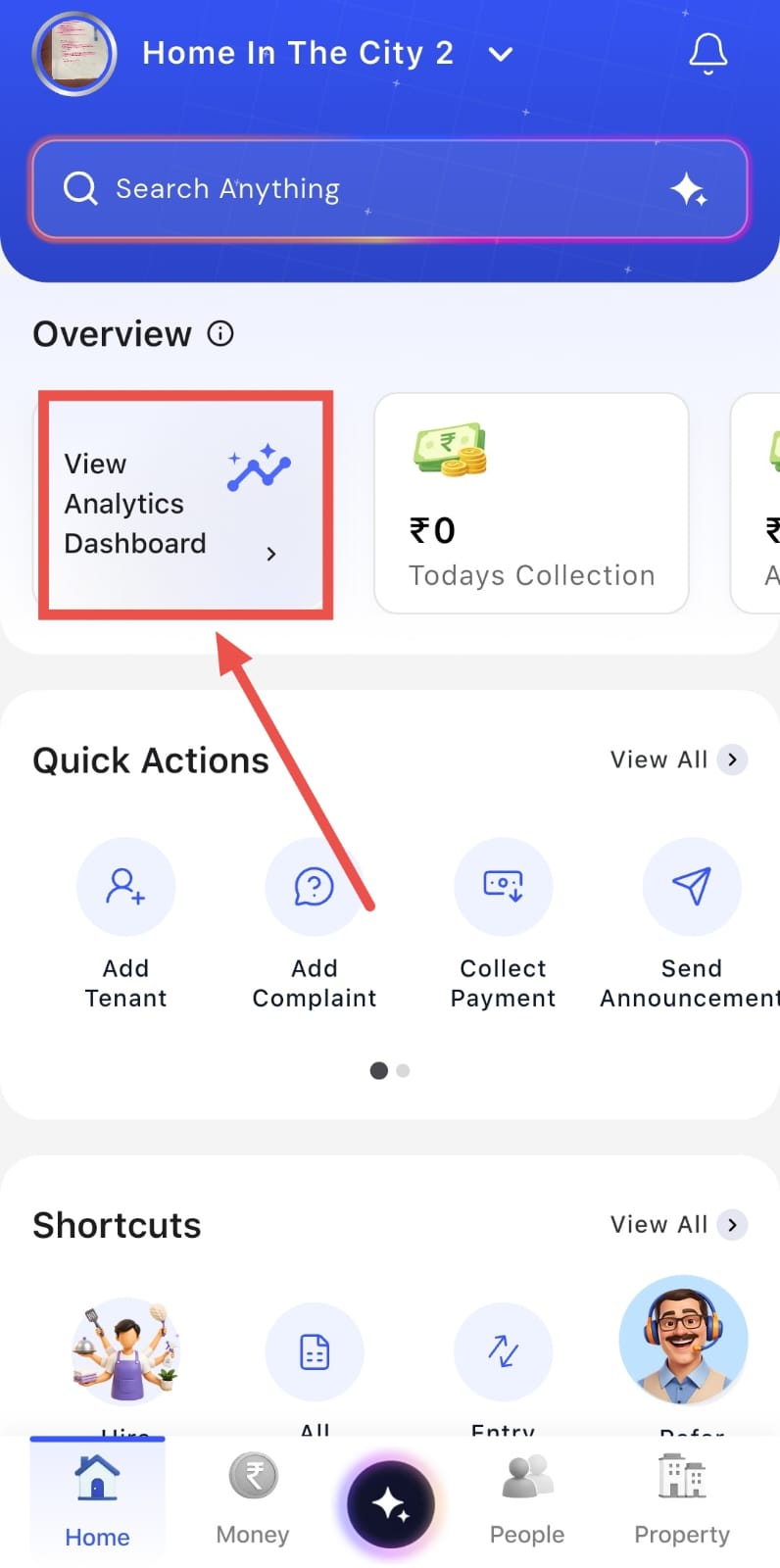
- Step 2: Open the Analytics Dashboard
Tap on View Analytics Dashboard to open the analytics screen. You will see different analytics sections arranged in a single line at the top of the screen.
- Step 3: View Issue Analytics
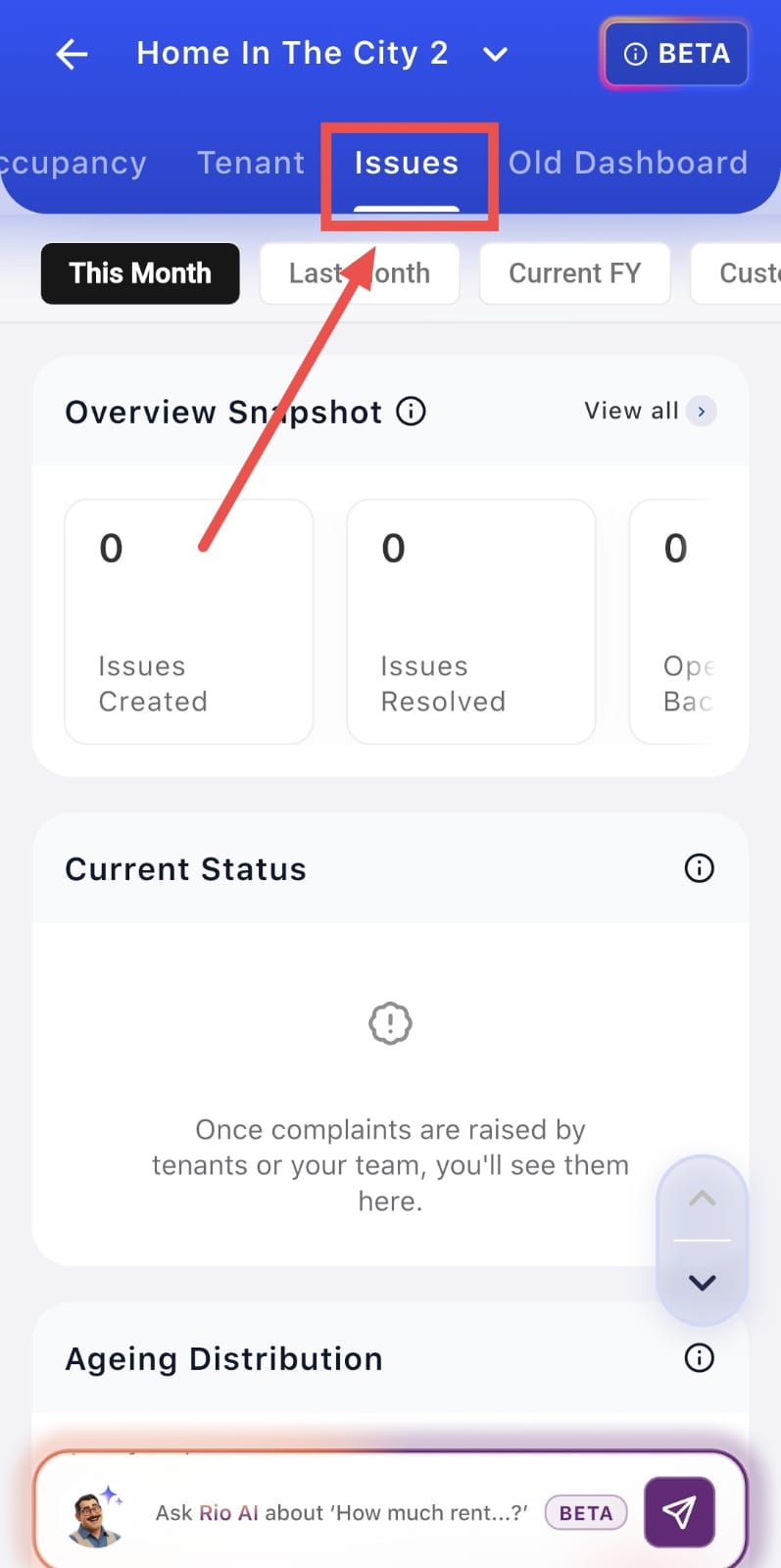
Swipe to the right until you find Issues and tap on it. Here, you can view all the issues reported for your property.
- Step 4: Select the Time Period
You can choose the time period for which you want to view the issue data. The available options include This Month, Last Month, Current FY, Custom, and All Time.
Note: To see data under Cost of Issues, link expenses or dues to your complaints when you add or update them.
💡 Why it matters: Complaints are the fastest way to lose a tenant. Now you can see which complaints are ageing, which staff member is falling behind, and which property needs attention – before a tenant decides to move out.
Complaint Bot - "Escalated to Me" & "Assigned by Me"
When you set up escalations in the Complaint Bot, unresolved complaints move up to the next person. Now that person can see exactly what's landed on their plate – right from WhatsApp.
Highlights
Escalated to Me - Managers and staff can see every complaint that has been escalated to them.
- Assigned by Me - See every complaint you've assigned to someone else – say, a plumber – so you can follow up on it.
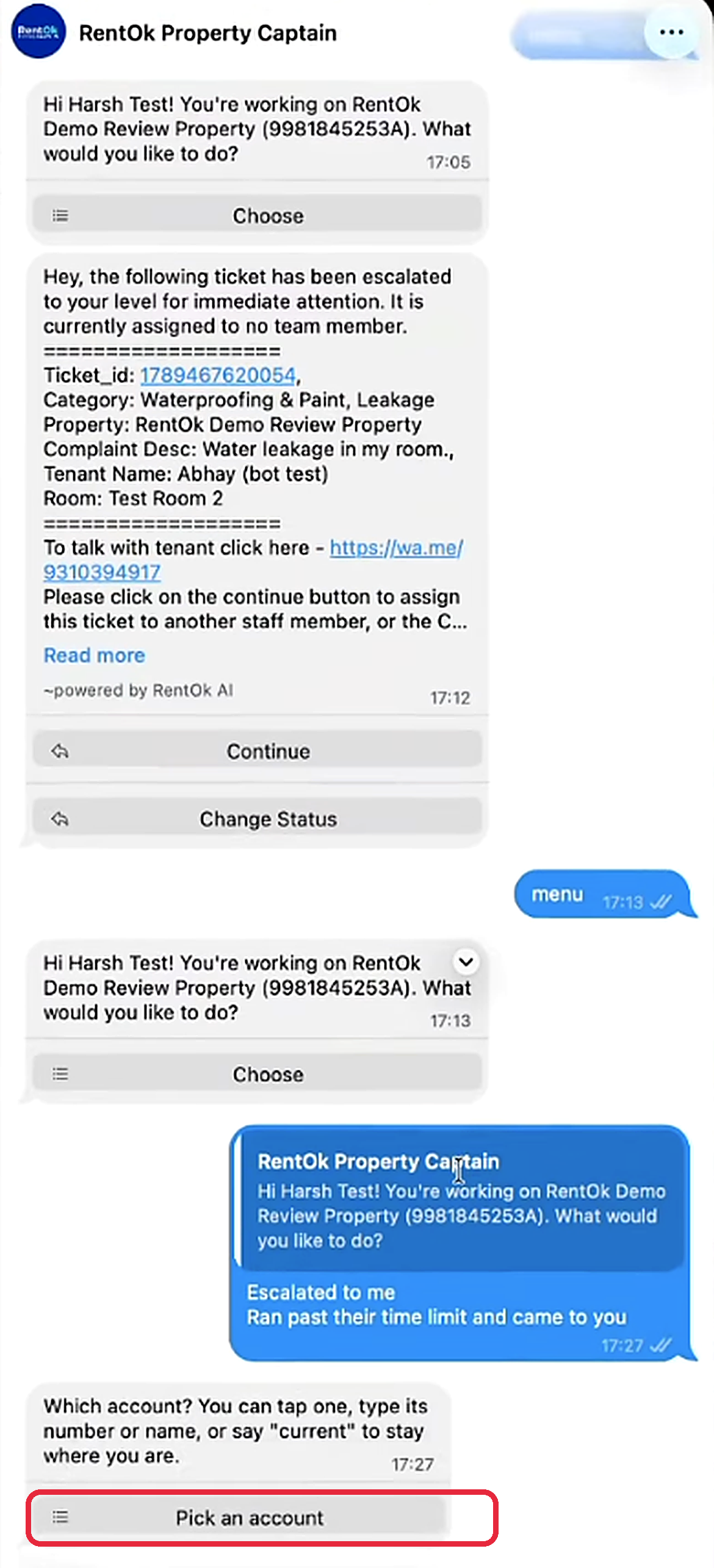
- Works across accounts - If you're part of more than one account, the bot asks which account you want to see.
- Better voice notes - The bot is now better at understanding complaints sent as voice notes.
- Smarter duplicate checks - The bot is better at spotting when the same issue has already been reported.
How To Try
- Step 1: Open the Complaint Bot
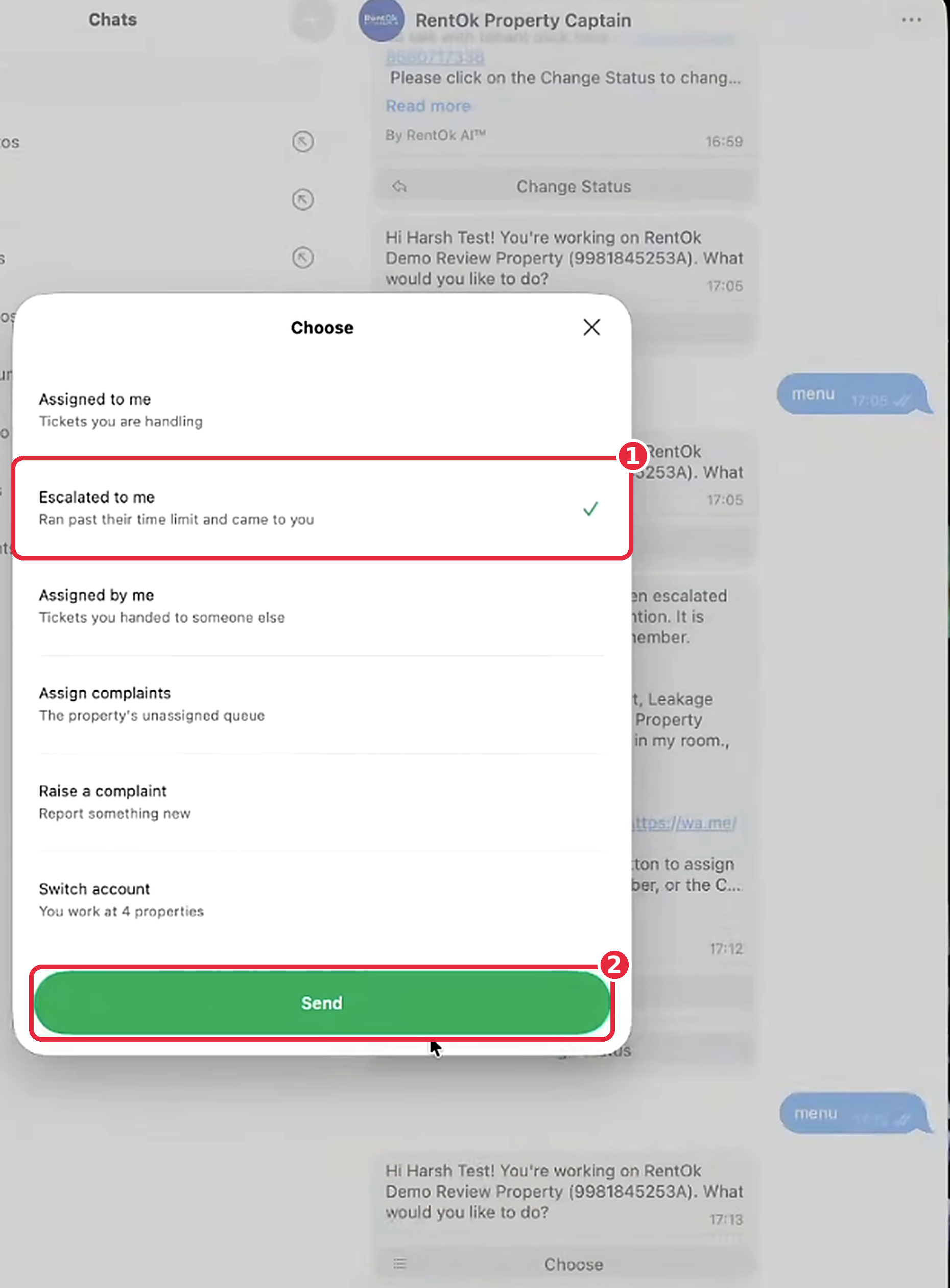
Go to the Complaint Bot chat and write menu. You will see a Choose option that lets you select the type of complaints you want to view.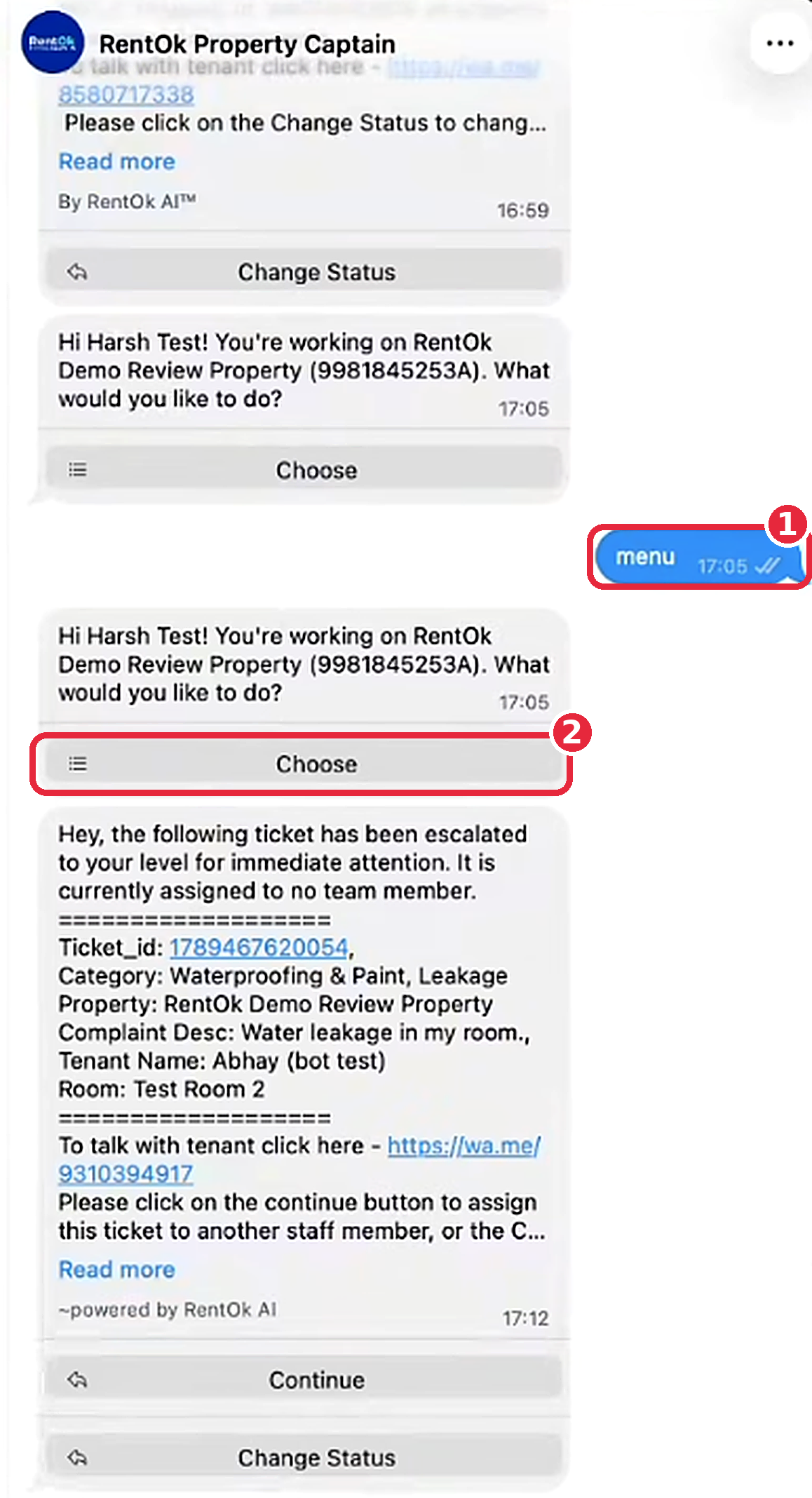
- Step 2: Select the Complaint Type
Click on Choose and select either Escalated to Me or Assigned to Me from the menu. Escalated to Me shows tickets that have crossed their time limit and were moved to you, while Assigned to Me shows tickets that were assigned to you by another staff member. Select the option you want to check, and your choice will be sent to the bot.
- Step 3: Select an Account
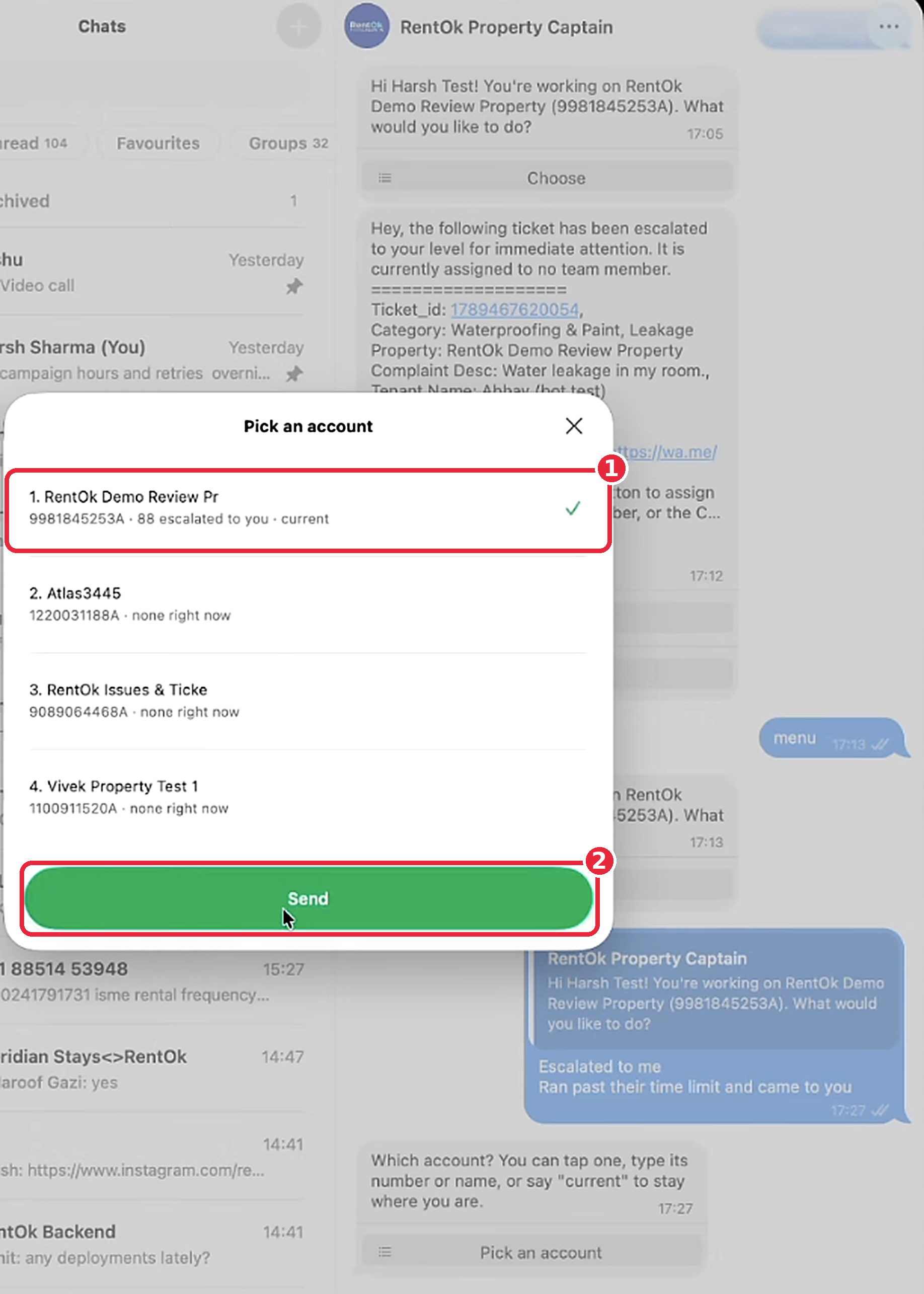
The bot will ask you to select a Property. Choose the property for which you want to view the complaints and click Send to submit your selection.
- Step 4: Send the Selection
Once you have selected the required property, click Send to submit your selection.
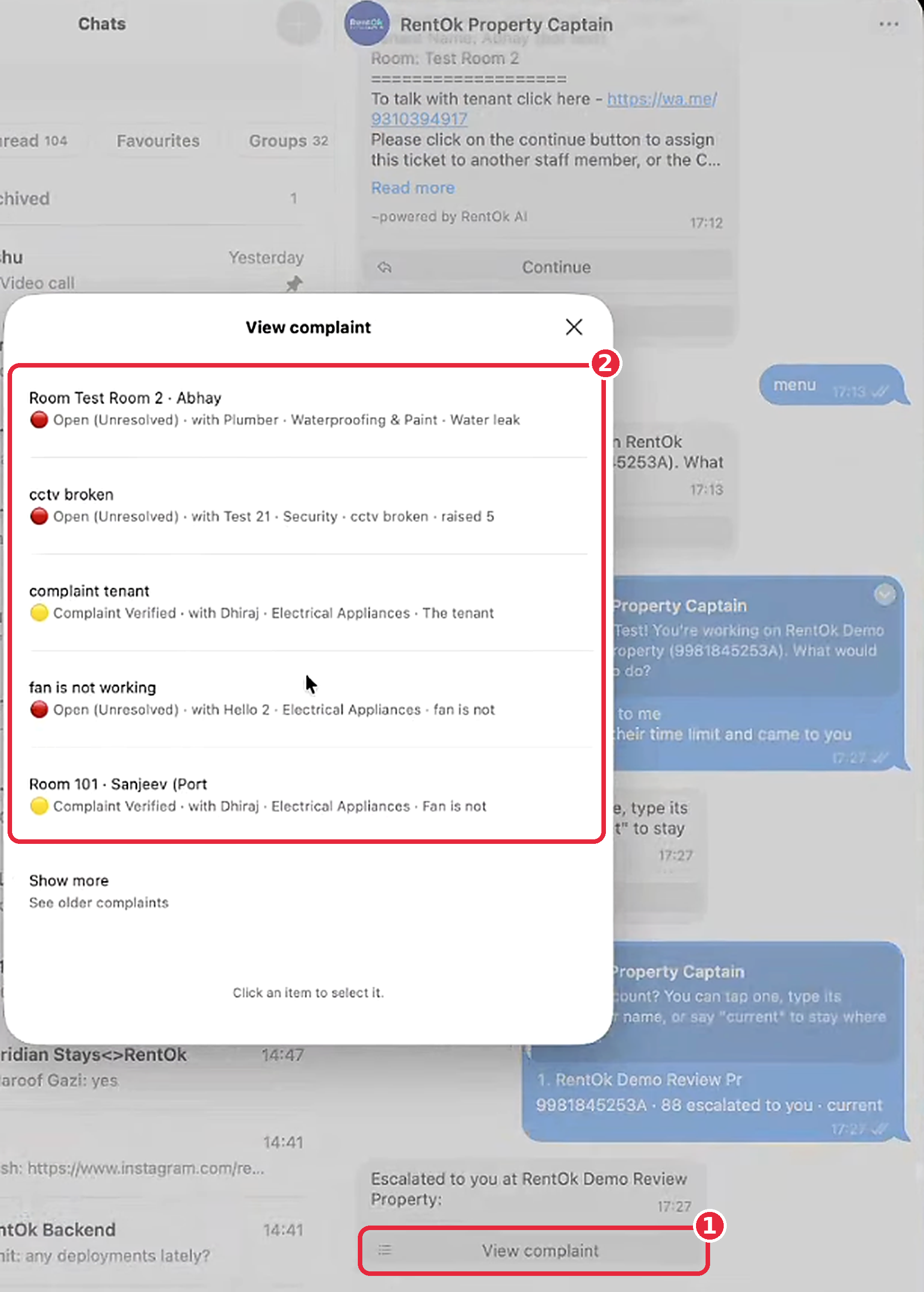
- Step 5: View the Complaints
The bot will reply with “Escalated to you at [Property Name]”. Tap View Complaint to open the list of complaints. Each complaint will show the Room or Tenant, its Status such as Open/Unresolved or Complaint Verified, the person it is Assigned To, and the Category. Tap any complaint to view its details, or select Show More to view older complaints.
Clickable WhatsApp Auto-Replies
Auto-replies in Genie used to be plain text. Now you can add buttons to them and chain replies together, so a single "Hi" can turn into a guided conversation – without anyone on your team typing a word.
For example: a lead sends "Hi" and gets your welcome message with a Find a PG button. They tap it and are asked Boys or Girls. They pick one and see your options for that location, with the right manager's contact to take it forward.
Highlights
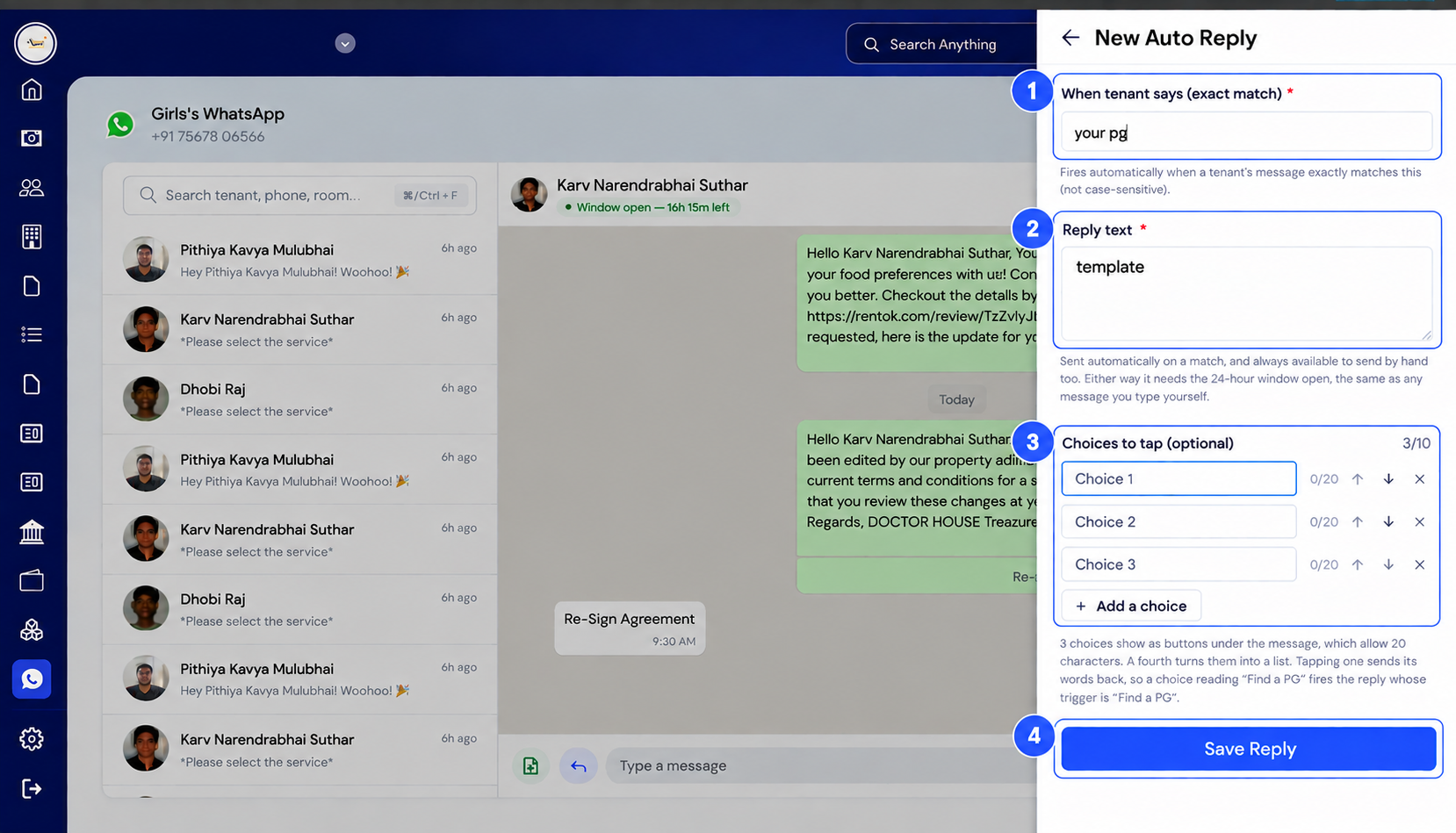
- Buttons on auto-replies - Add up to 10 buttons to any auto-reply.
- Reorder buttons - Arrange buttons in the order you want them to appear.
- Build chat flows - Each button can trigger its own reply, so you can build step-by-step flows that route leads to the right property and person.
- Enable, disable or pause - Turn any auto-reply on or off, or pause it, whenever you need.
- Gap warnings - If a button has no reply set up yet, you'll see a "no reply is triggered" warning, so no flow is left half-built.
- Templates go through the same WhatsApp approval as before, so there's no added risk to your number when you use it responsibly.
How To Try
- **Step 1: Open Auto Reply in Genie **
Log in to the RentOk web app and open the WhatsApp (Genie) tab from the left menu. Open the Auto Reply panel for your property's WhatsApp number to see all your saved replies.
- Step 2: Create a new reply
Tap + New Reply. In When tenant says, type the message that should trigger it (for example, "hi"). In Reply text, type what your tenant should receive.
- Step 3: Add choices (optional)
Under Choices to tap, tap + Add a choice and type each option. Choices show as buttons (up to 3) or as a list (4 or more). Leave this empty to send a plain text reply.
- Step 4: Save and connect the flow
Tap Save Reply. For every choice you added, create another auto reply whose trigger is that choice's exact words. That reply is what the tenant receives when they tap the button.
Note: Auto replies follow WhatsApp's 24-hour rule. They're only sent while the tenant's chat window is open, the same as any message you type yourself.
💡 Why it matters: Leads get an instant, guided answer at any hour, and reach the right manager for the right property – without anyone on your team typing the same replies again and again.
One-Tap Sign-Up - No OTP Needed
Signing up for RentOk and logging in is now faster, with fewer steps and no waiting for an OTP.
Highlights
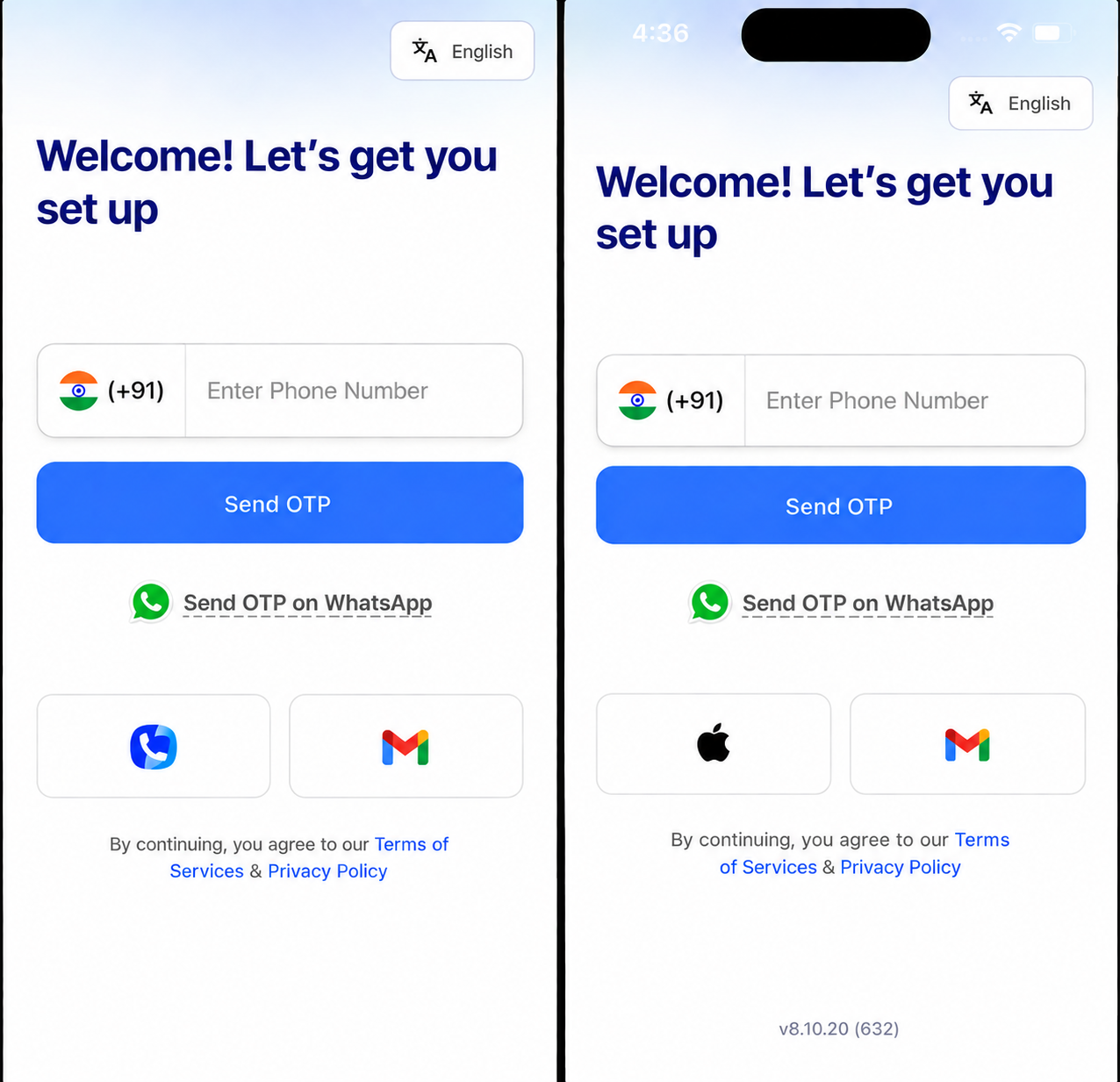
- Truecaller on Android - If you have Truecaller installed and logged in, sign up or log in with one tap. No OTP needed.
- Sign in with Apple on iOS - Use Face ID, Touch ID or your Apple ID to sign up or log in.
- Google on both - Google sign-in continues to work on Android and iOS.
- OTP on WhatsApp or SMS - Prefer OTP? Choose to receive it on WhatsApp or by SMS.
- A fresh onboarding - The "who are you" screen (owner, broker, tenant) has a cleaner new design.
- Find your business on Google - During sign-up, search for your business as it appears on Google Maps. We pick up your Google business details and location, so you type less while setting up your property.
How To Try
- Android users: log in with Truecaller. Tap the Truecaller option to log in instantly. This works if the phone number on your Truecaller account is the same as your registered RentOk number.
- iOS users: log in with Apple ID. Tap the Apple ID option to log in instantly. This works if the email ID on your Apple ID is the same as your registered RentOk email ID.
- No OTP, no typing, just one tap.
💡 Why it matters: Every extra step during sign-up is a chance for a new team member – or a new owner – to give up. One tap is all it takes now.
RentOk Gold - Now It Looks as Premium as It Is
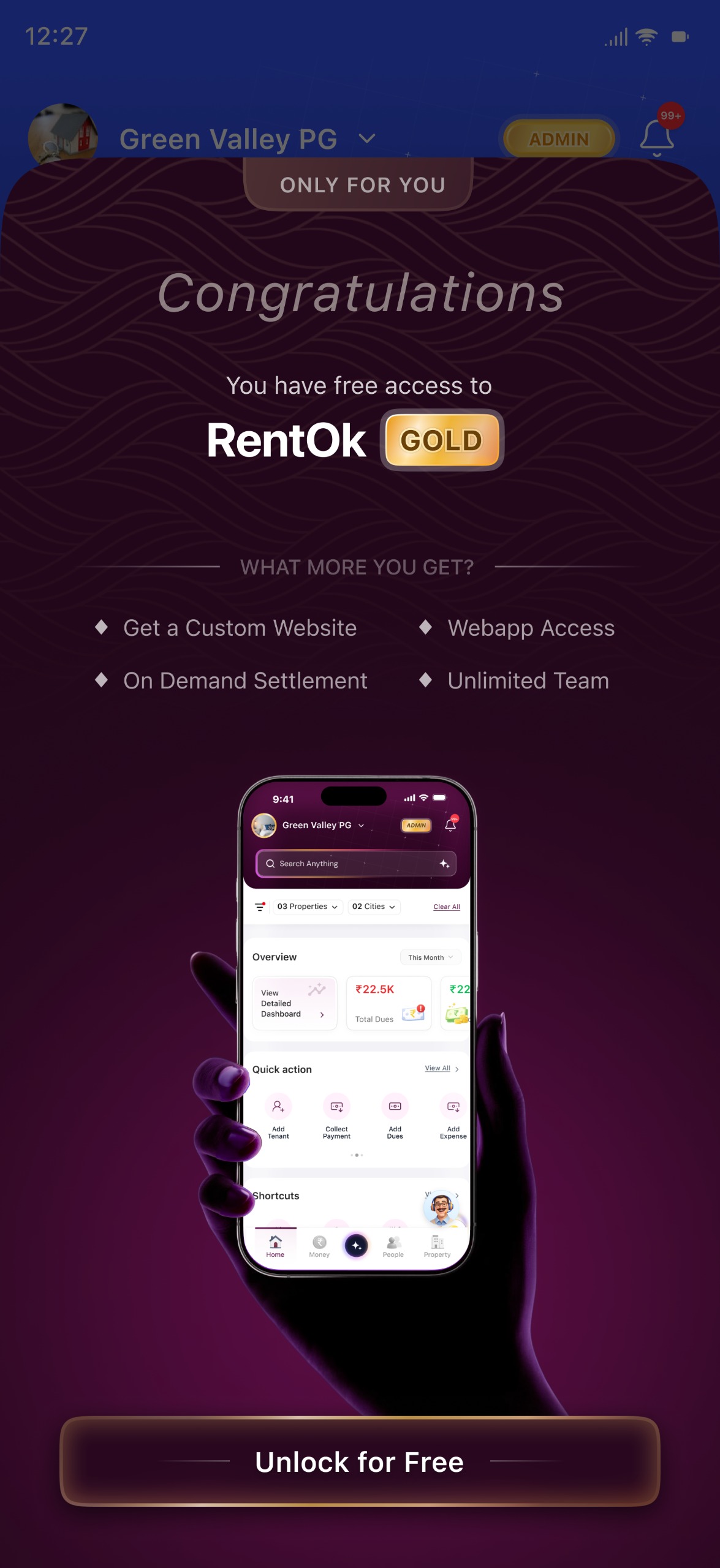
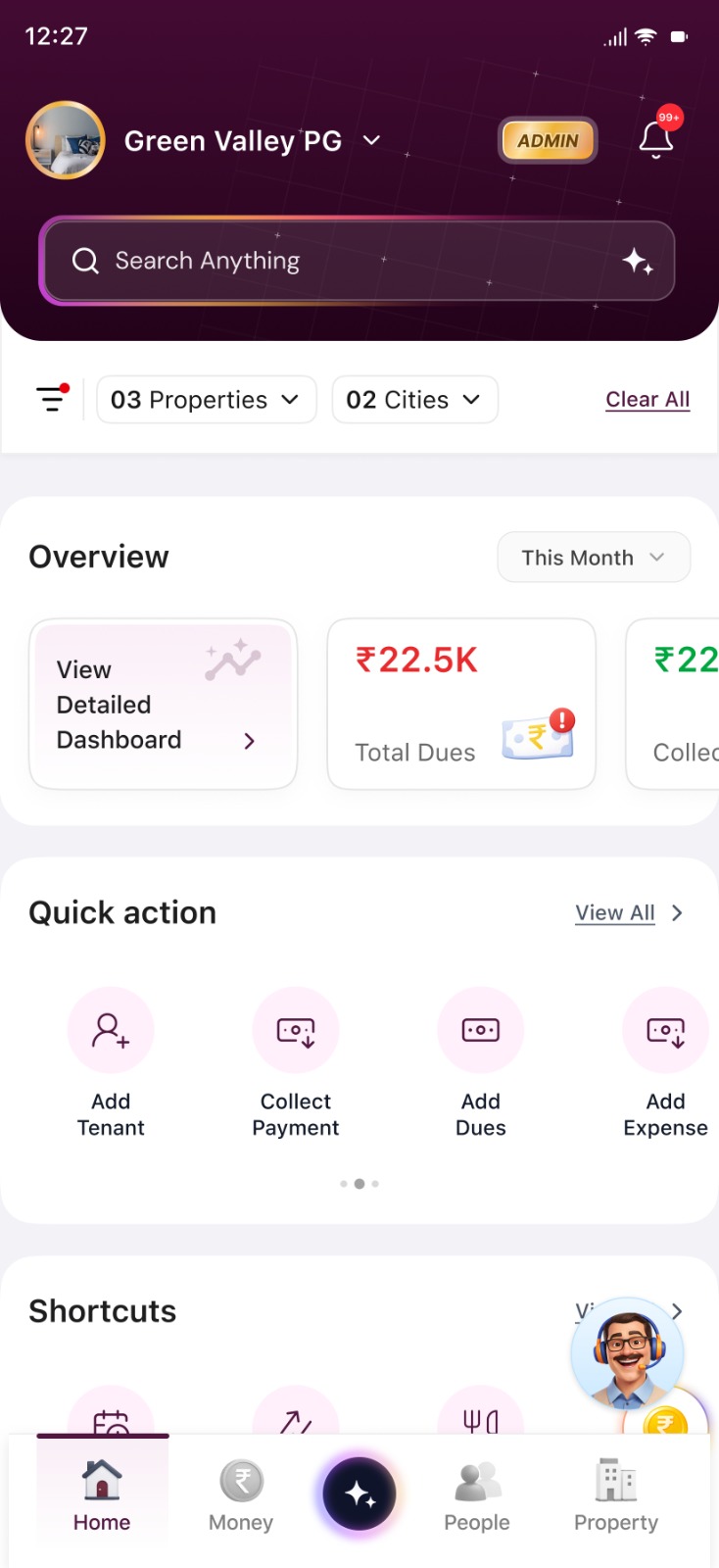
Gold members get the most out of RentOk, and now the app shows it. When you're on Gold, the entire app switches to an exclusive Gold look.
Highlights
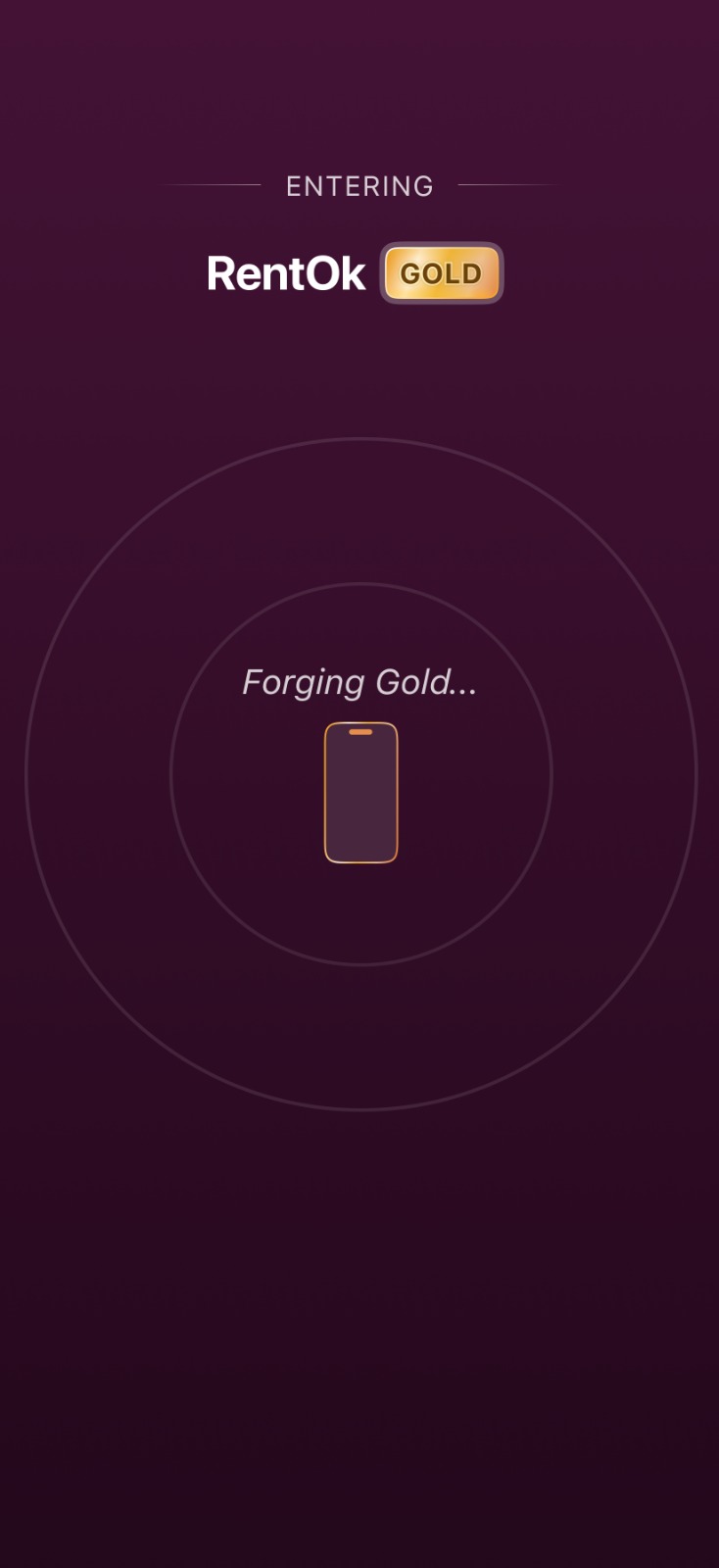
- A one-time unlock moment - The first time you open the app on Gold, you'll see a short animation as your app changes to the Gold theme. Every team member sees it once.
- A new look throughout - Colours, theme and splash screen change for Gold members.
- Gold app icon - Your app icon changes to RentOk Gold. You still find it by searching "RentOk".
- Your plan pass - In Settings, see your Gold pass with plan validity, features included in your plan, and your RentOk team contacts.
- On the web too - The Gold colours appear on the web app as well.
How To Try
- Step 1: Open the App
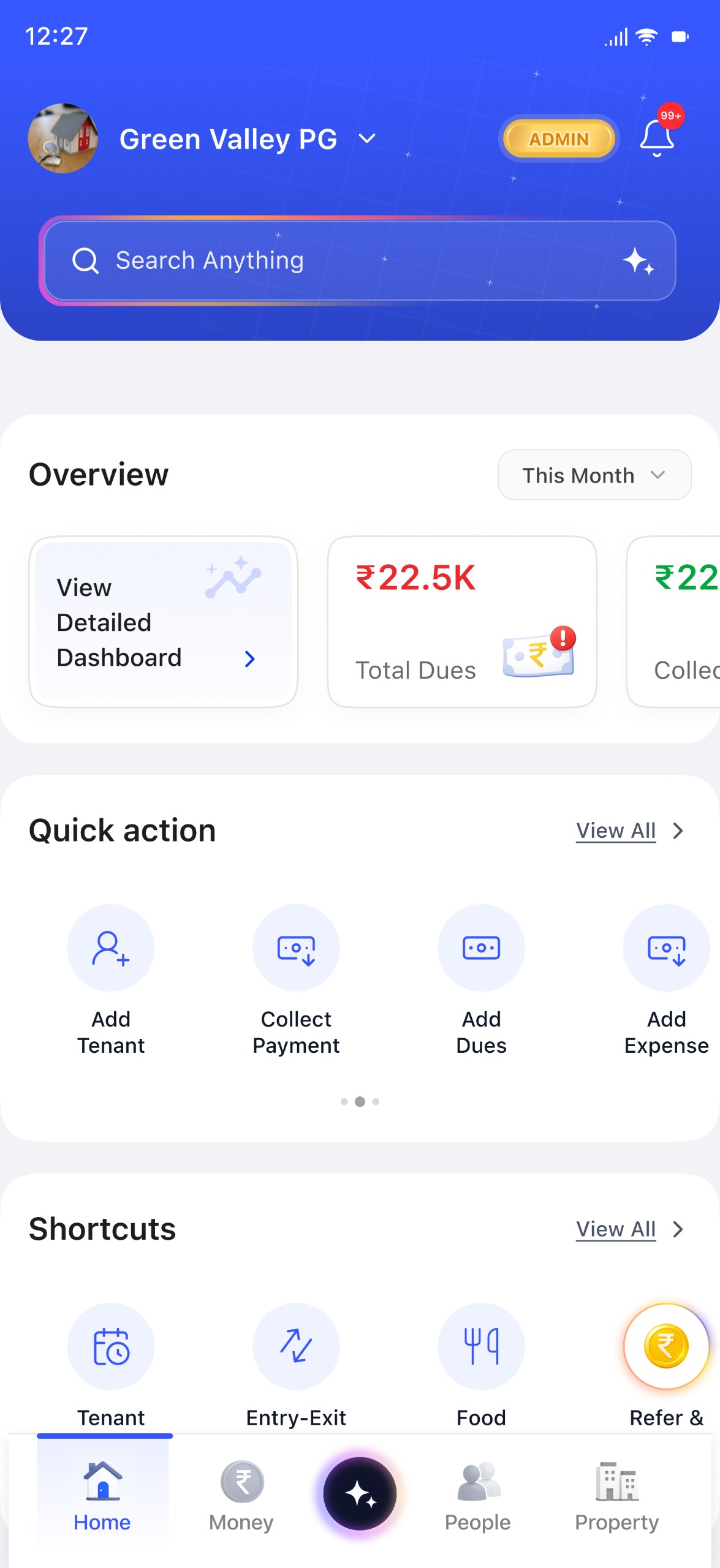
Open the RentOk app and you will land directly on the Dashboard screen.
- Step 2: Entering RentOk Gold
A screen will appear showing that you are entering the RentOk Gold package. The app will automatically take you to the RentOk Gold package.
- Step 3: View the RentOk Gold Package
Once the package opens, you can view the RentOk Gold package and explore the features included in it.
Note: Receipts and rent agreements keep their usual look – they only change for white-label customers. A renewal option inside the plan pass is coming soon.
💡 Why it matters: Your plan now shows up in every screen you use – with your plan details, validity and RentOk team one tap away.
Fixes & Polish
- Complaint Bot voice notes - Better detection of complaints sent as voice messages.
- Complaint Bot duplicates - Improved checks for complaints that were already reported.
- Refreshed onboarding screens - The persona selection screen during sign-up has a cleaner design.
Availability & Rollout
- Issue Analytics is live on the mobile app and the web app. Update your app to the latest version to see it.
- The new payment page is rolling out to tenant payment links.
- Clickable auto-replies are live in Genie on the web app.
- Complaint Bot updates are live on WhatsApp.
- Multi-party agreements are in beta on the mobile app and can be enabled for your property on request.
- One-tap sign-up (Truecaller on Android, Apple on iOS) and WhatsApp OTP are in beta and rolling out.
- Separate WhatsApp numbers are rolling out gradually across accounts.
- The Gold look is rolling out on the mobile app; Gold colours are live on the web app.
Thank You!
Have doubts or any feedback? Chat with us in-app (Help → send us a message).
We're building for you, and every suggestion counts.