Money Dashboard
Money >DASHBOARD
- Dashboard
How can I view the Money Dashboard for all months on one screen?
If you want to check all your properties’ finances without switching screens, the Money Dashboard is where you’ll find everything in one place. It brings everything together on a single screen, clearly and separately displaying each property’s details.
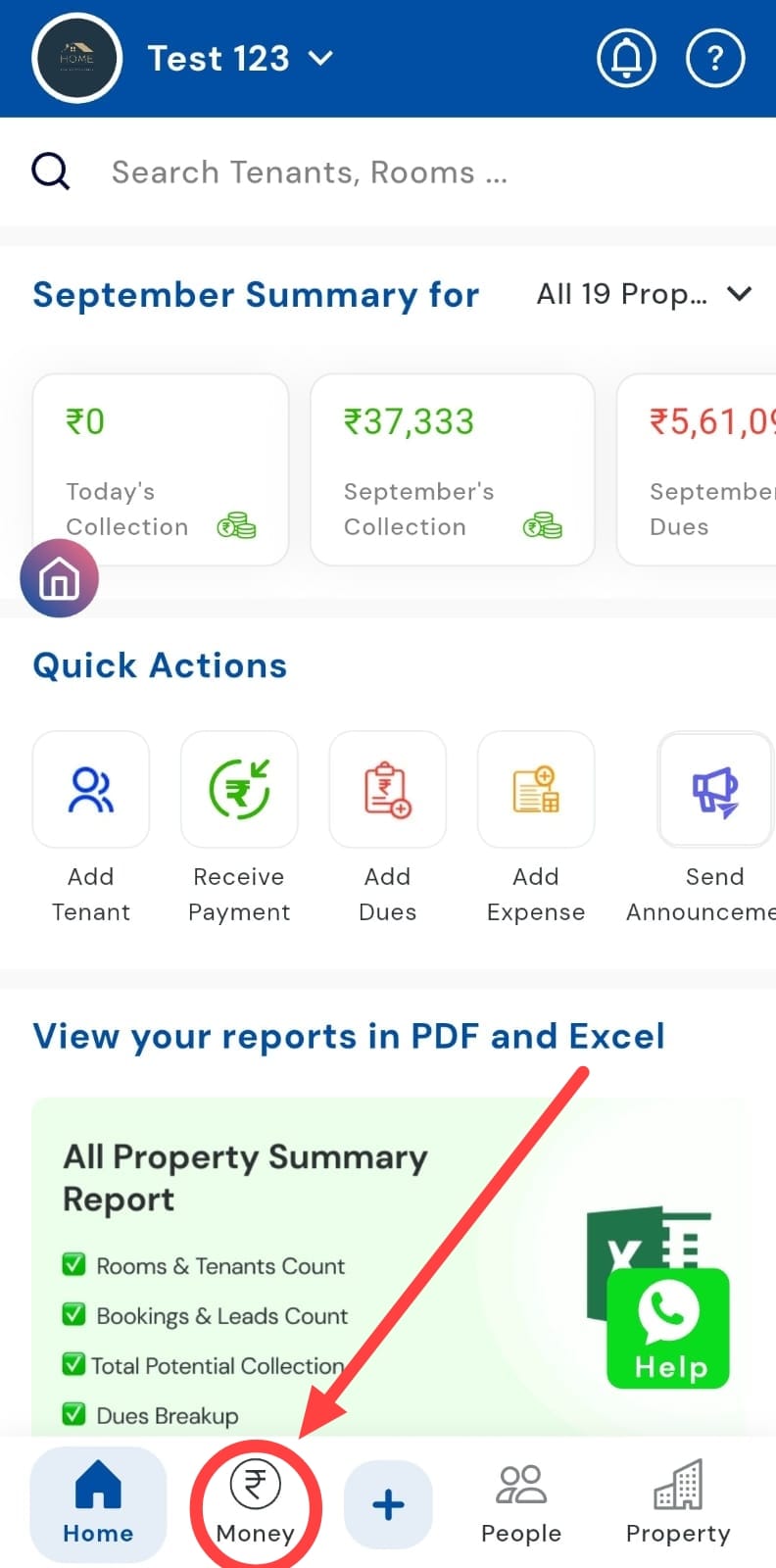
- Step 1: Tap on the Money icon At the bottom of your app screen, tap the Money icon. This opens the payments section, where you can view and manage all your financial details.
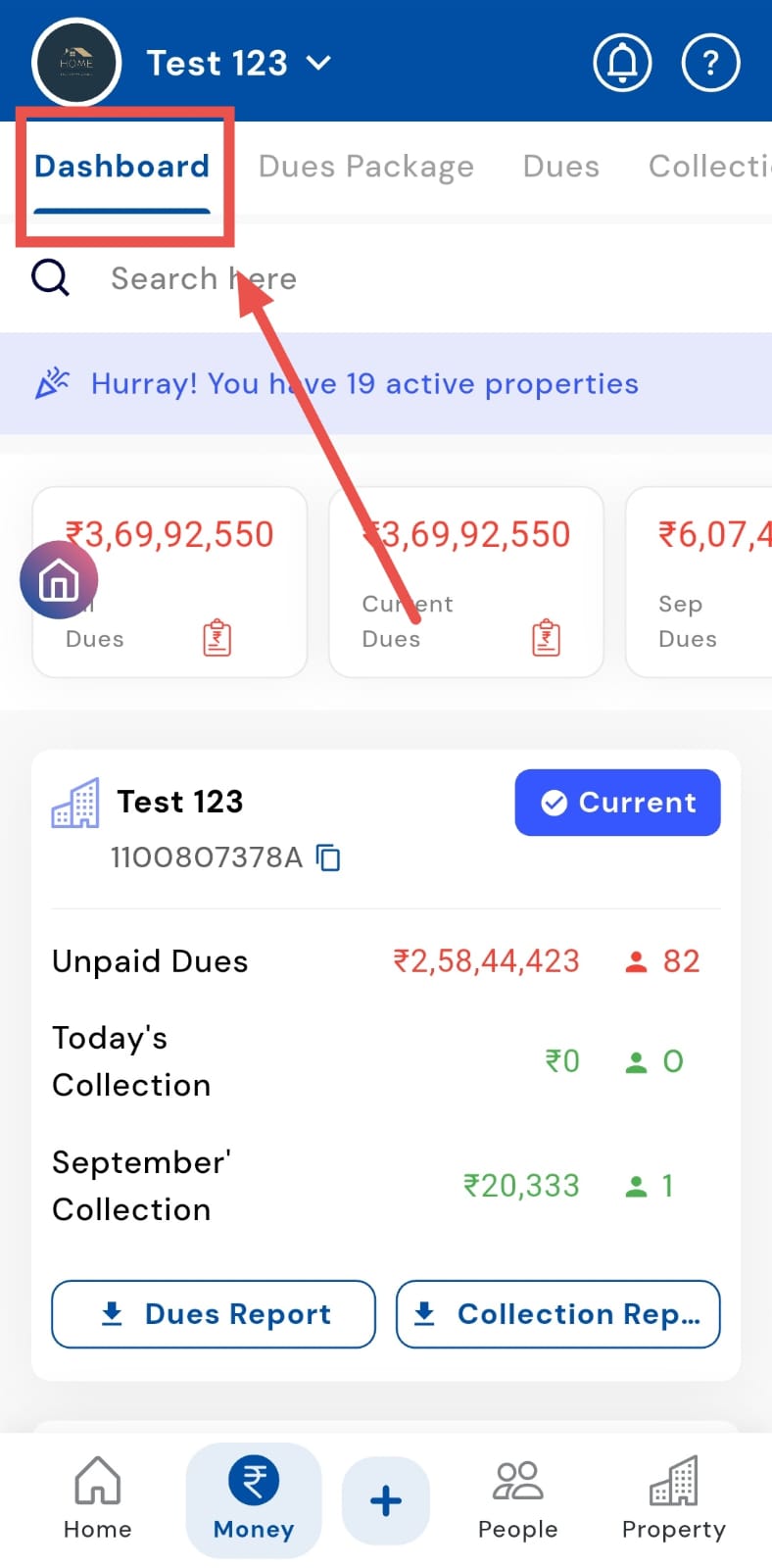
- Step 2: Open the Dashboard tab Inside the Money section, select the Dashboard tab to access the month-wise summary of collections and expenses.
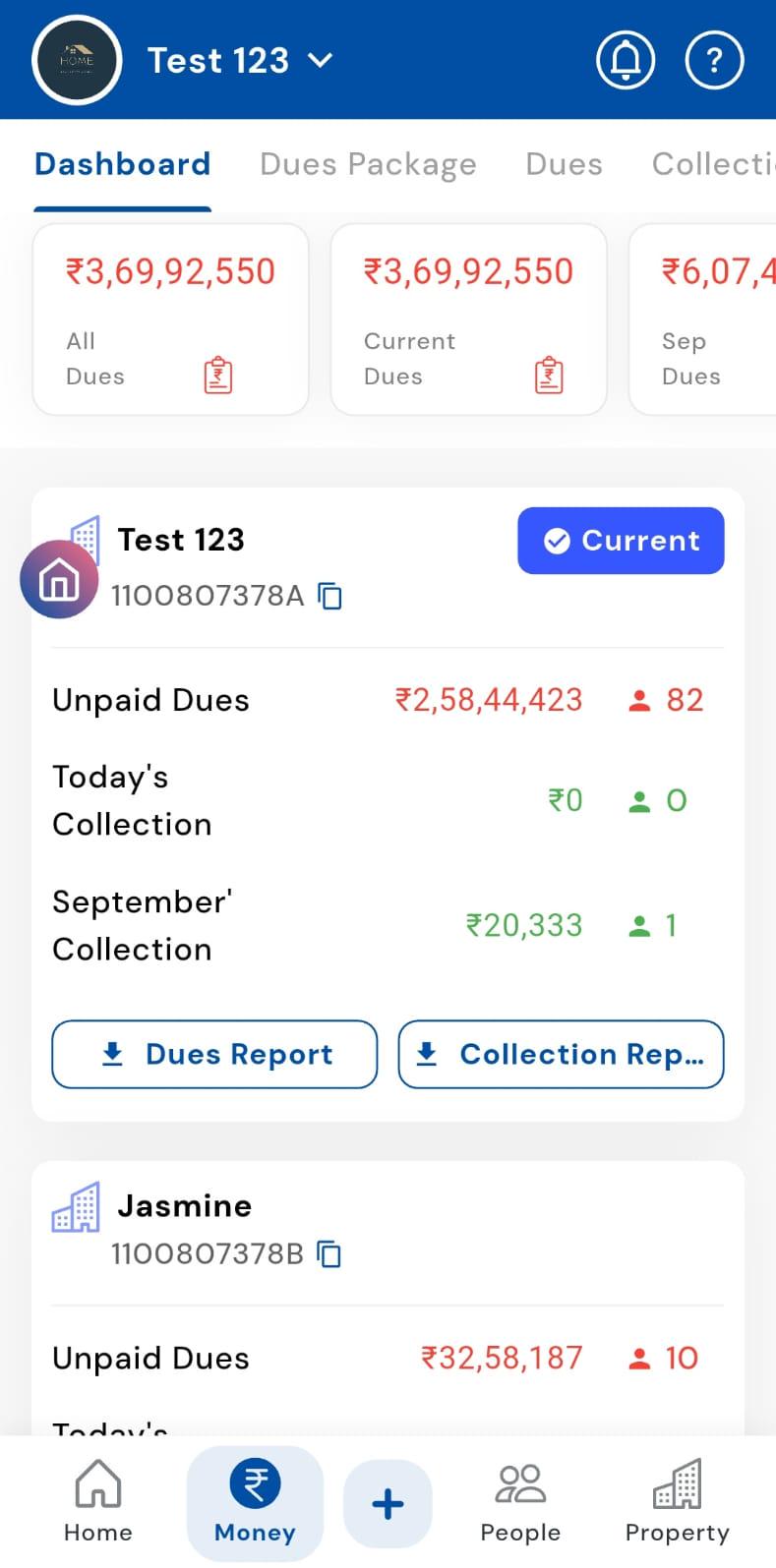
- Step 3: Scroll to view all properties Simply scroll down the Dashboard to see the details for every property. Each property’s data is displayed separately, making it easier to track and compare across months.
How can I generate a dues report in the Money Dashboard?
With just a few taps, the Dues Report on the Dashboard gives you a detailed breakdown of all tenant payments. You can generate the report and receive it directly in your email, making it simple to track payments and manage collections efficiently.
- Step 1: Tap on the Money icon At the bottom of your app screen, tap the Money icon to open the payments section, where you can view and manage all tenant-related transactions for all your activated properties.
- Step 2: Open the Dashboard tab Inside the Money section, select the Dashboard tab to access your financial summaries.
- Step 3: Select the Dues Report option Choose the Dues Report option from the Dashboard. A small window will appear.
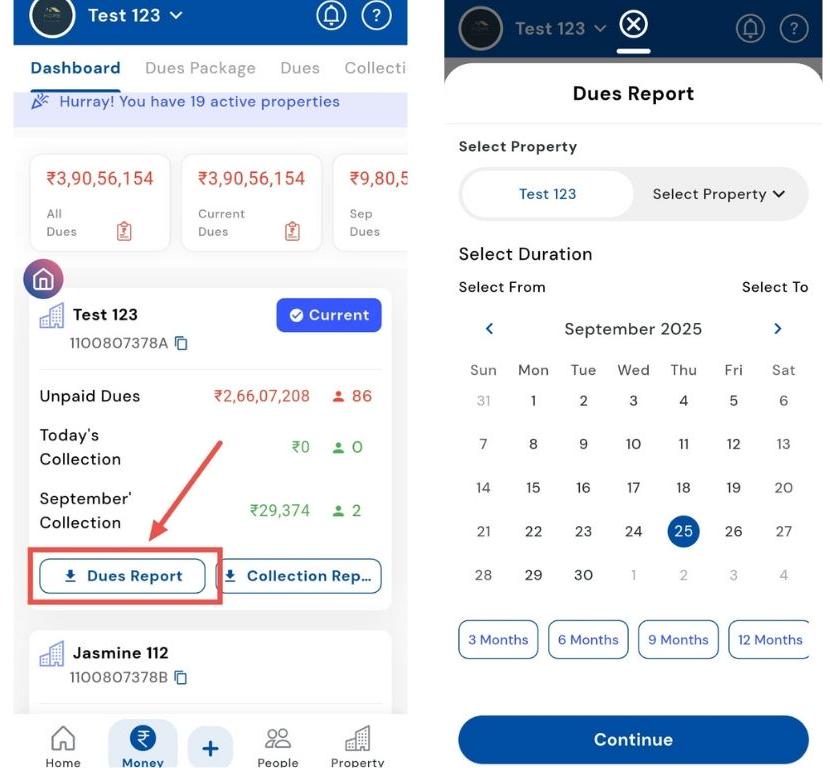
- Step 4: Choose property and duration From the window, first select the property associated with the tenant. Then choose the duration for which you want the report and click Continue.
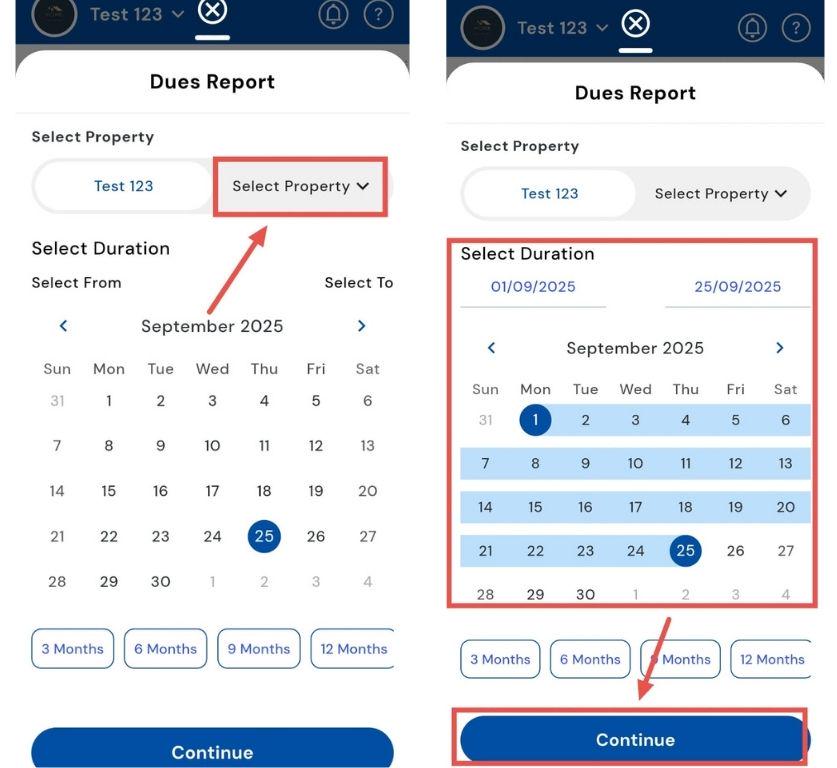
-
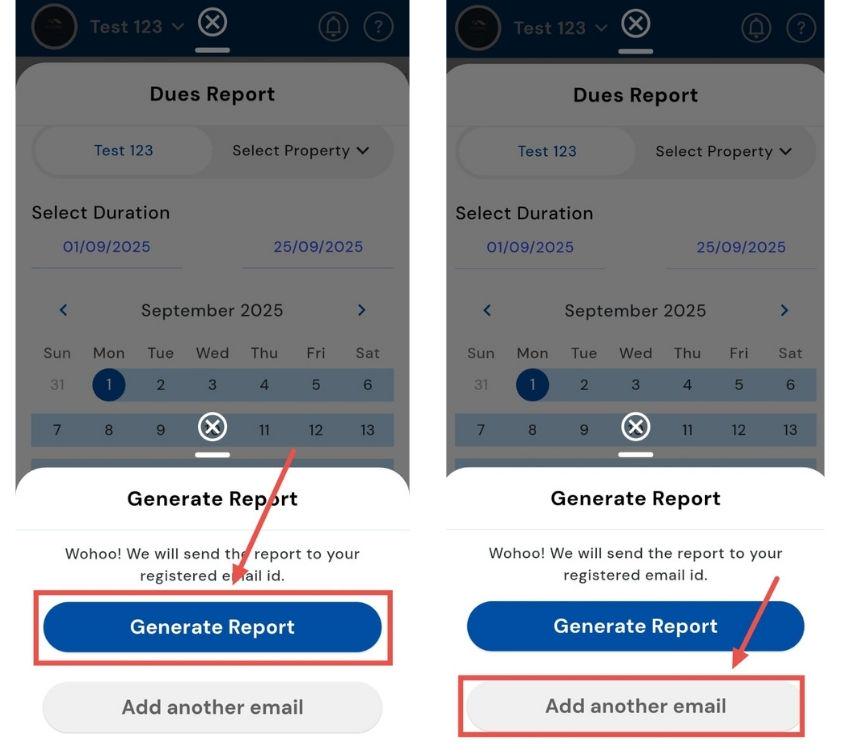
Step 5: Receive and check the report
-
Download the report directly on your phone for instant access.
-
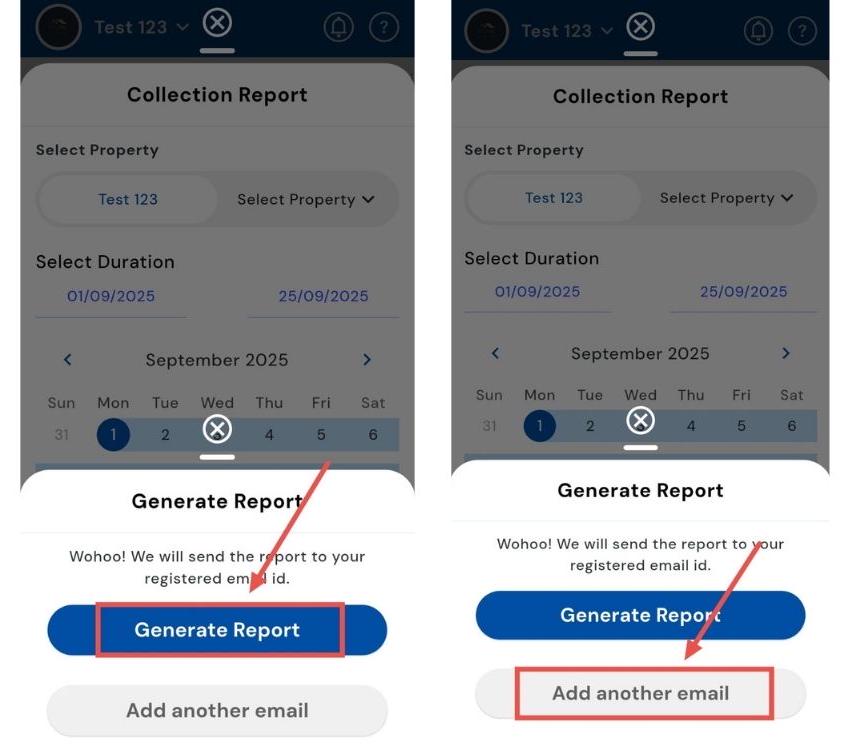
Or enter your email ID to receive the report in your inbox for detailed review.
-
How can I generate a collection report in the money dashboard?
If you need to track property-wise collections for any duration, the Collection Report has you covered. It allows you to generate a detailed summary and receive it directly in your email, making it simple to monitor payments and analyze financial data in Excel.
- Step 1: Tap on the Money icon At the bottom of your app screen, tap the Money icon to open the payments section, where you can view and manage all tenant-related transactions for all your activated properties.
- Step 2: Open the Dashboard tab Inside the Money section, select the Dashboard tab to access your financial summaries.
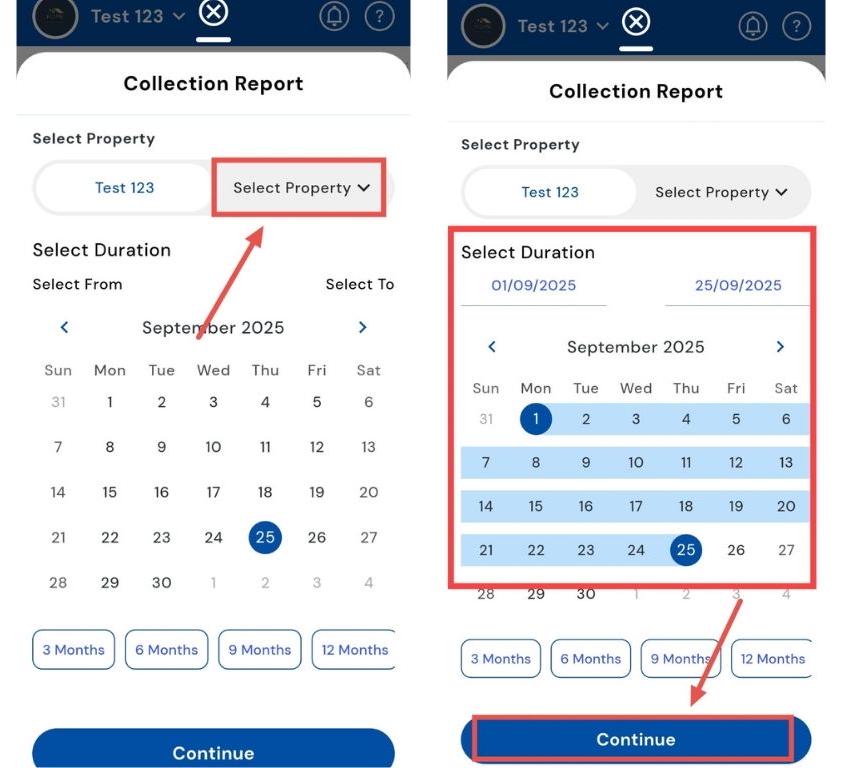
- Step 3: Generate the Collection Report Choose the Collection Report option from the Dashboard. A small window will appear.
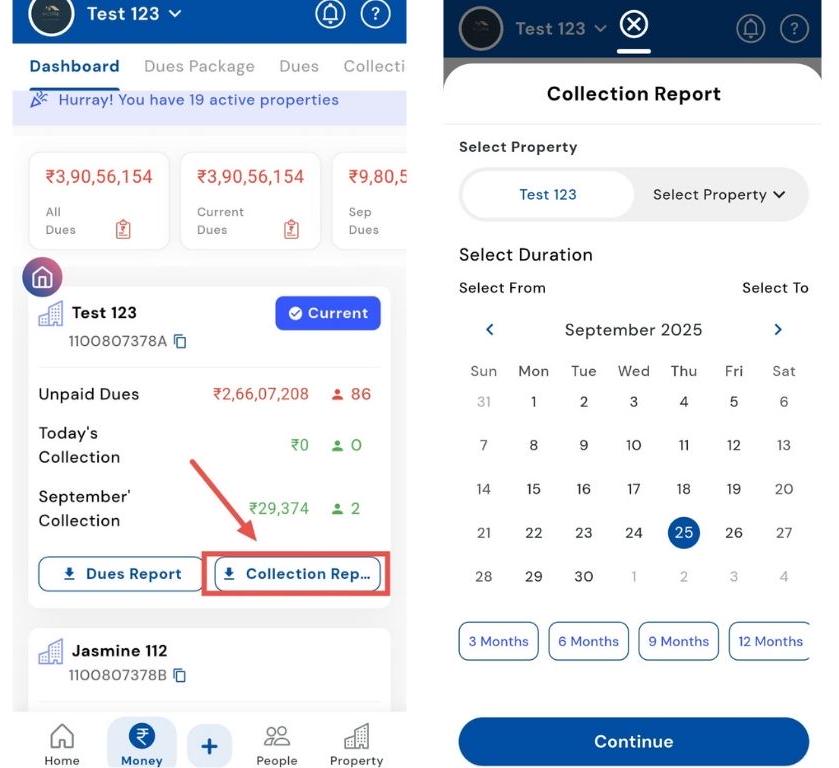
- Step 4: Choose property and duration From the window, first select the property associated with the tenant. Then choose the duration for which you want the report and click Continue.
-
Step 5: Receive and check the report
-
Download the report directly on your phone for instant access.
-
Or enter your email ID to receive the report in your inbox for detailed review.
-