Money Reports
MONEY>REPORTS
- MONEY>REPORTS
How can I generate a detailed tenant report?
Want a complete view of a tenant’s records? Generate a detailed tenant report to see everything in one place. This report consolidates payment history, property details, and other relevant information, making it easier to review, reconcile, or share tenant data.
Here’s how you can create a detailed tenant report in just a few steps:
- Step 1: Open Reports Tap the Money icon in the bottom navigation menu, then select Reports to access reporting options.
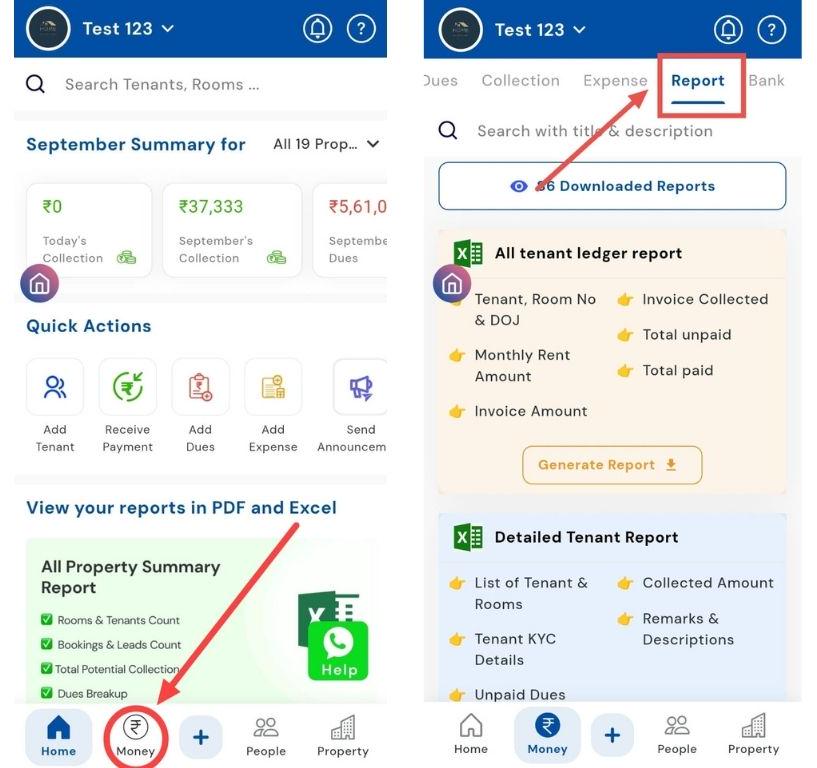
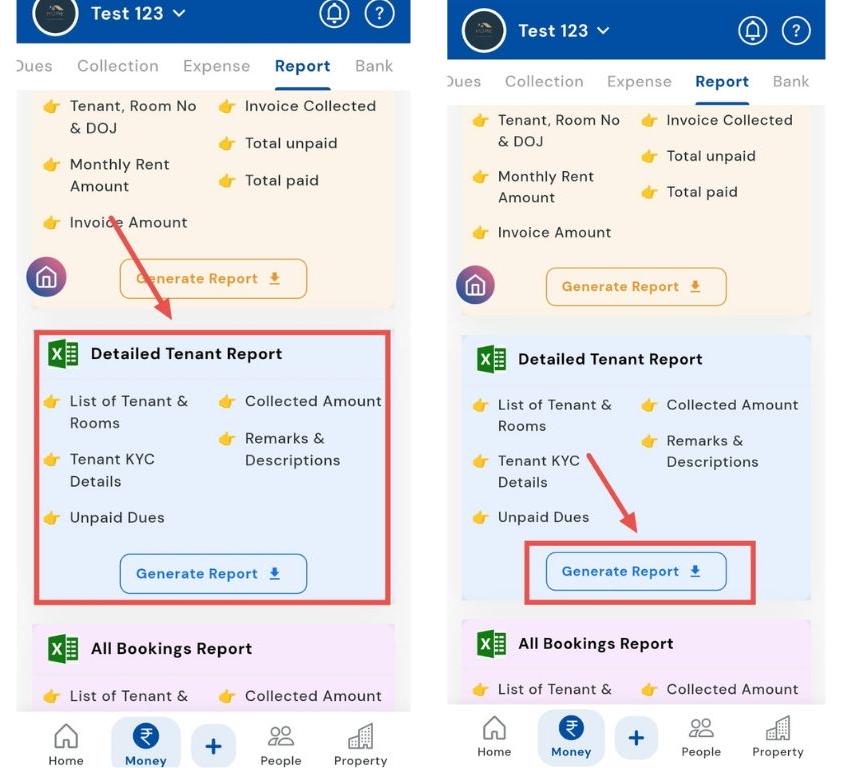
- Step 2: Select Detailed Tenant Report In the detailed tenant card, tap the option to generate a detailed tenant report.
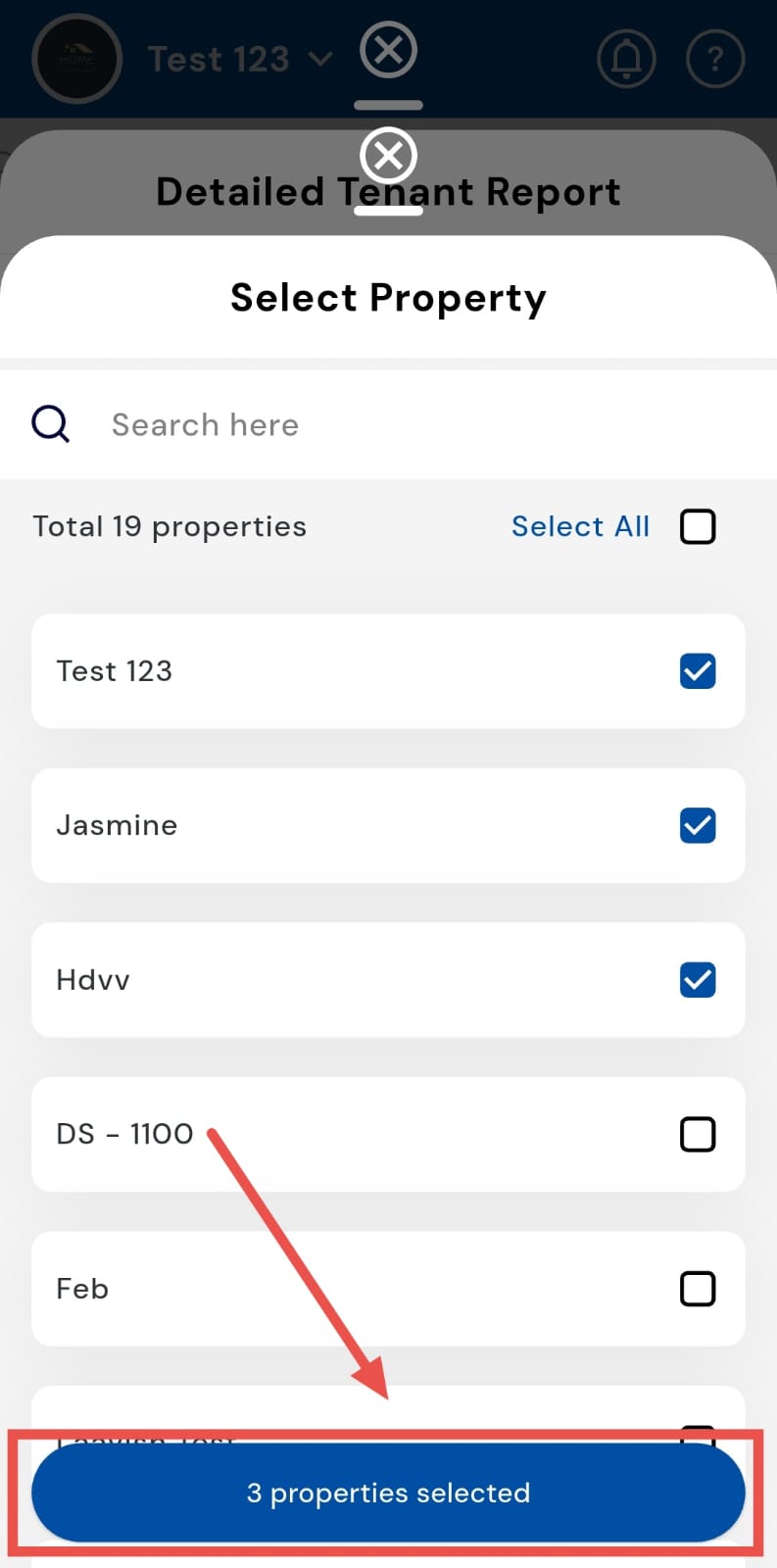
- Step 3: Select the Property A window will appear asking you to select the property associated with the tenant for which you want the report.
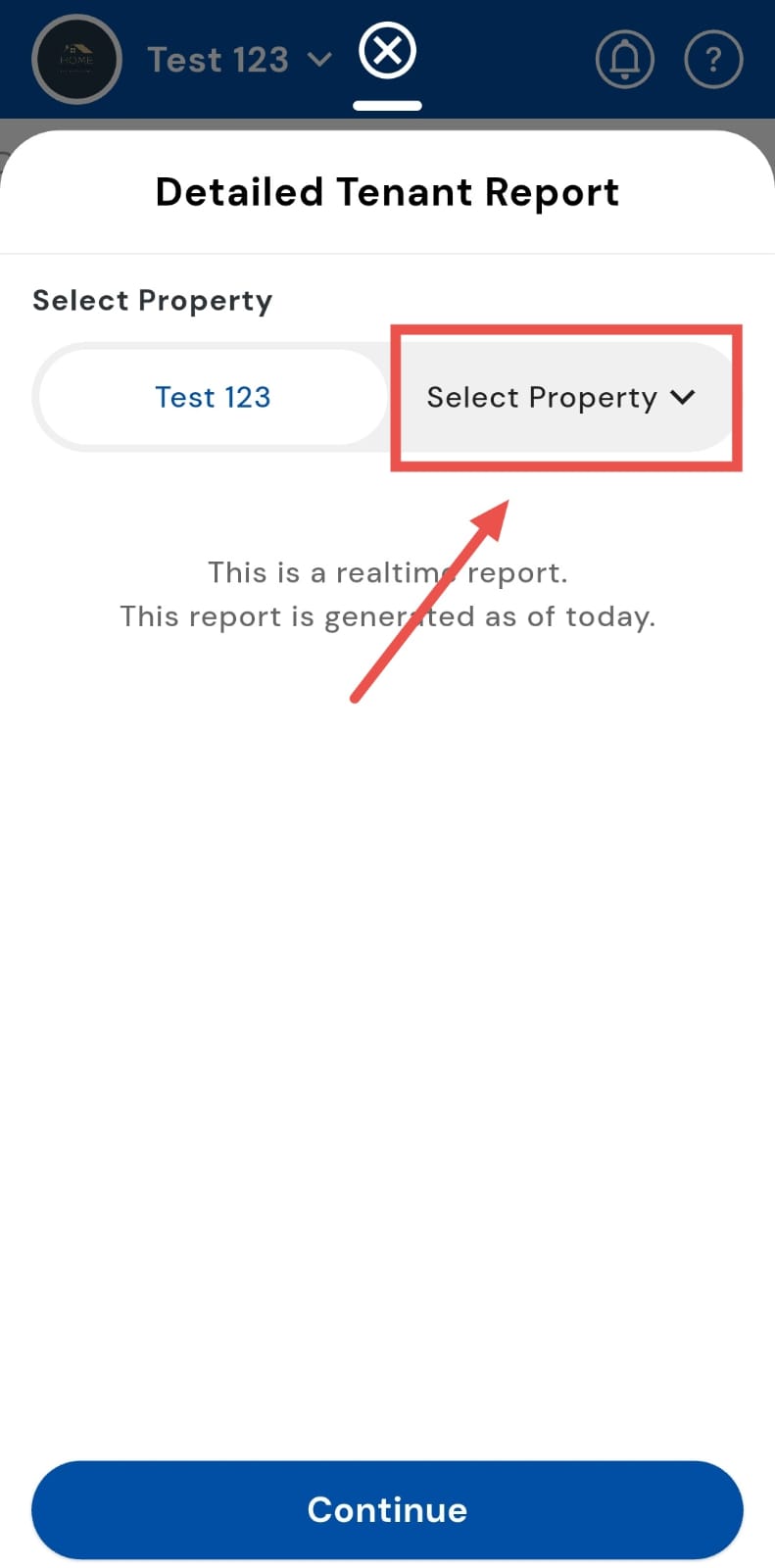
- Step 4: Confirm Selected Properties After selecting the properties, tap the button showing properties selected to confirm your selection.
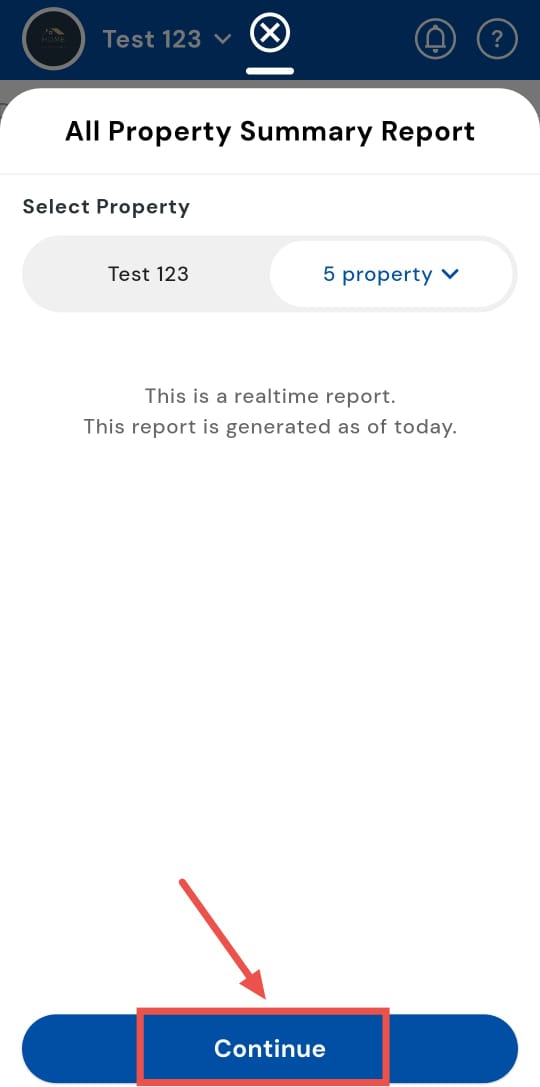
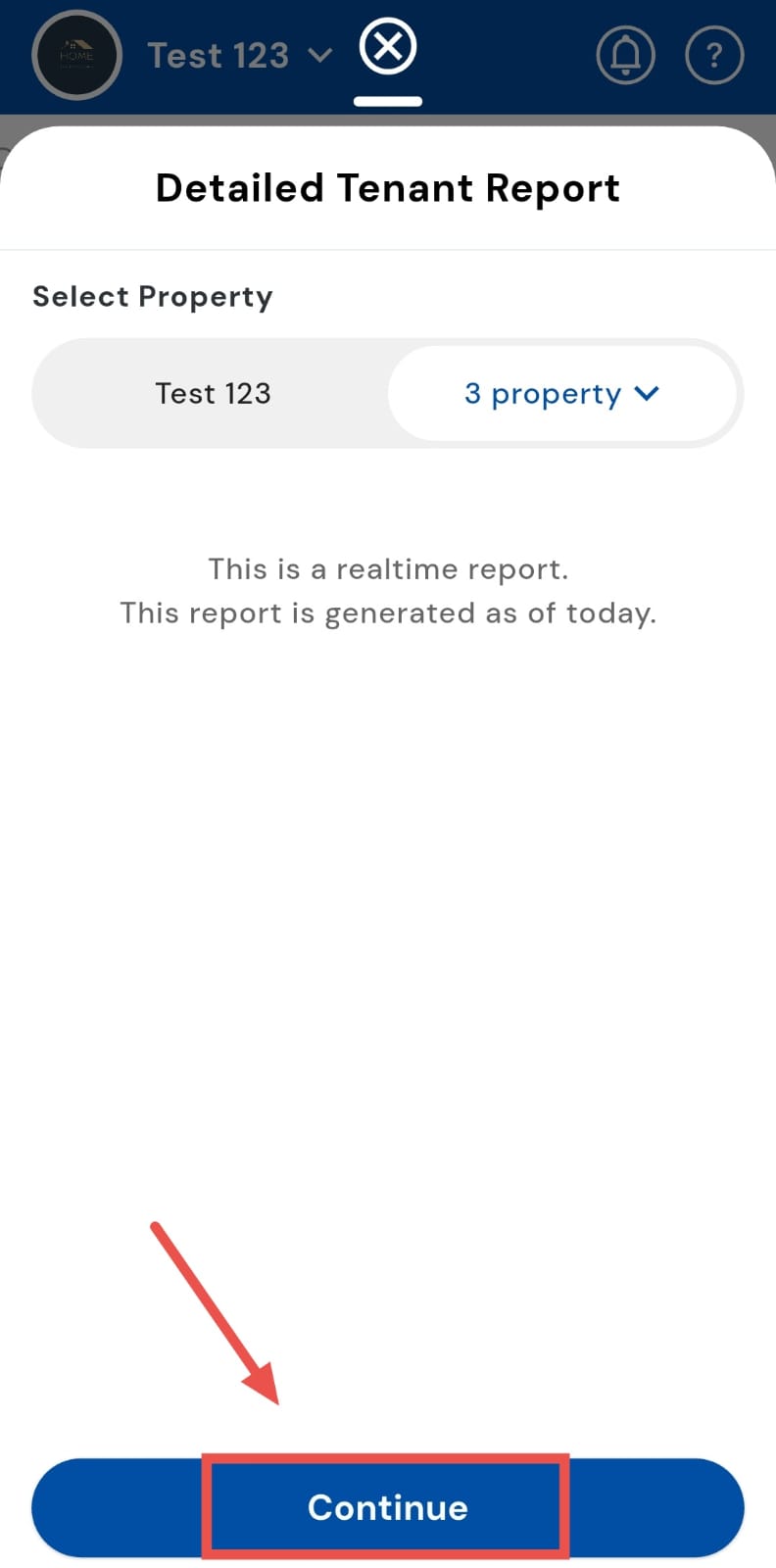
- Step 5: Continue Tap Continue to generate the report. The system will display all tenant details for the selected properties.
How can I generate a dues PDF?
For a complete overview of tenant dues, select the Dues PDF. This report consolidates all outstanding payments along with property details and durations, giving you a clear picture of what’s due. It’s perfect for tracking, reconciling, or sharing dues information efficiently.
Simply follow these steps to generate your Dues PDF.
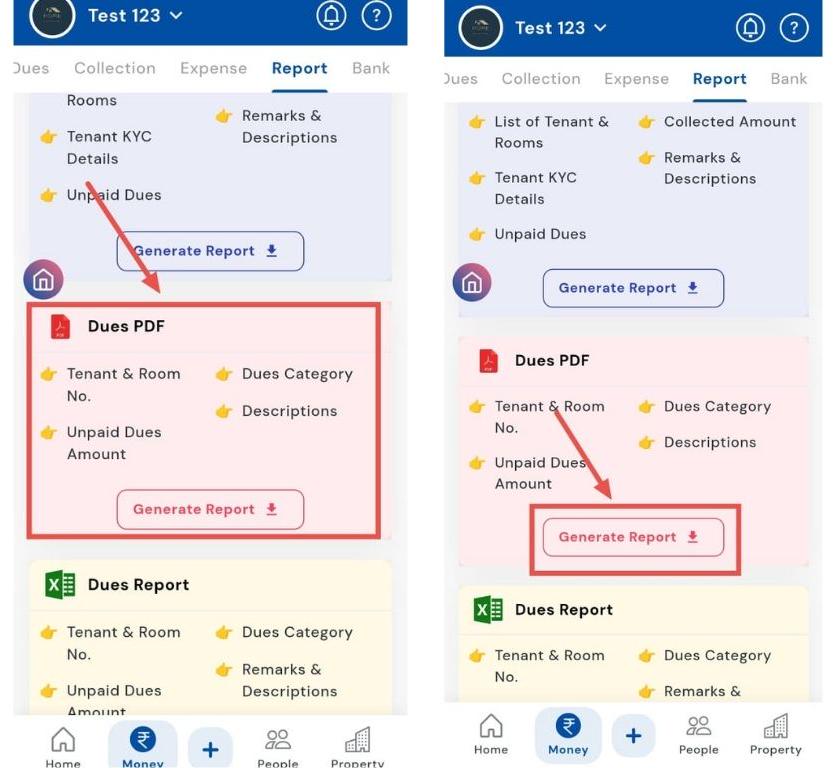
- Step 1: Open Reports Tap the Money icon in the bottom navigation menu, then select Reports to access reporting options.
- Step 2: Select Dues PDF Report In the Dues PDF card, tap Generate Report to start creating the report.
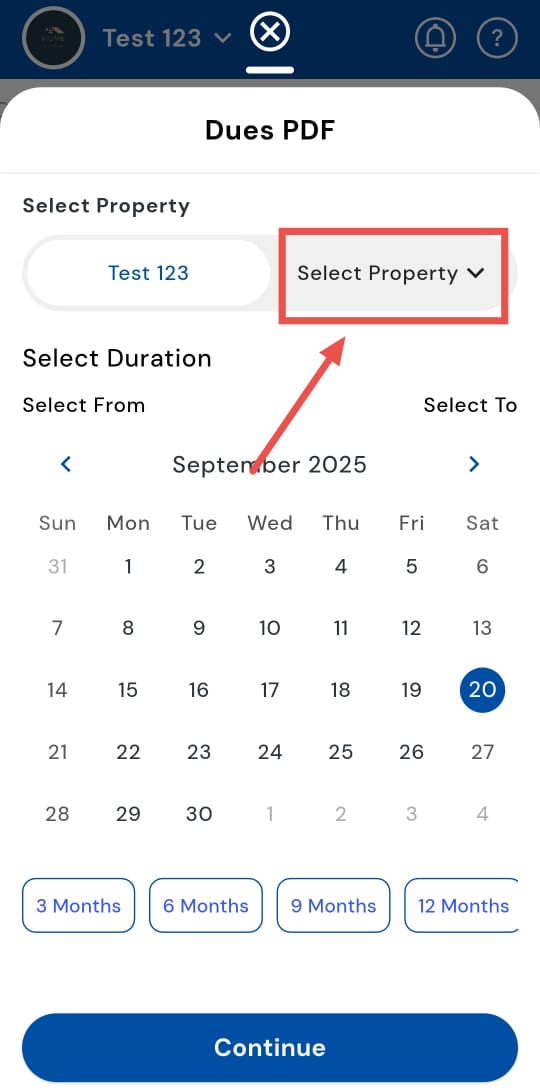
- Step 3: Select the Property A window will appear prompting you to select the property for which you want to generate the report.
- Step 4: Confirm Selected Properties After selecting the properties, tap the button showing properties selected to confirm your selection.
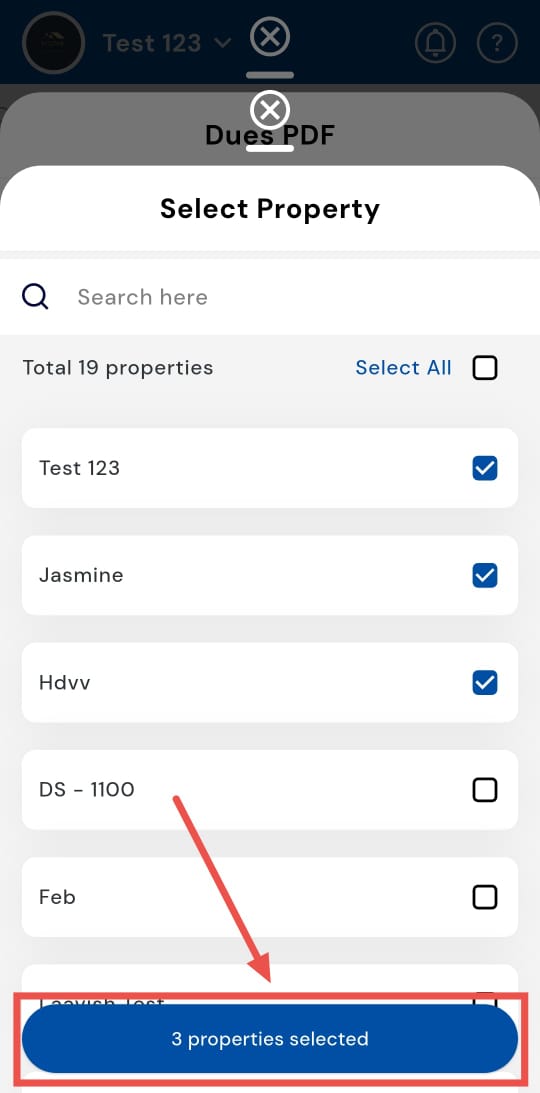
- Step 5: Select Duration Choose the time period for which you want to view dues. You can pick a custom date range, a specific number of months, a quarter, or an entire year.
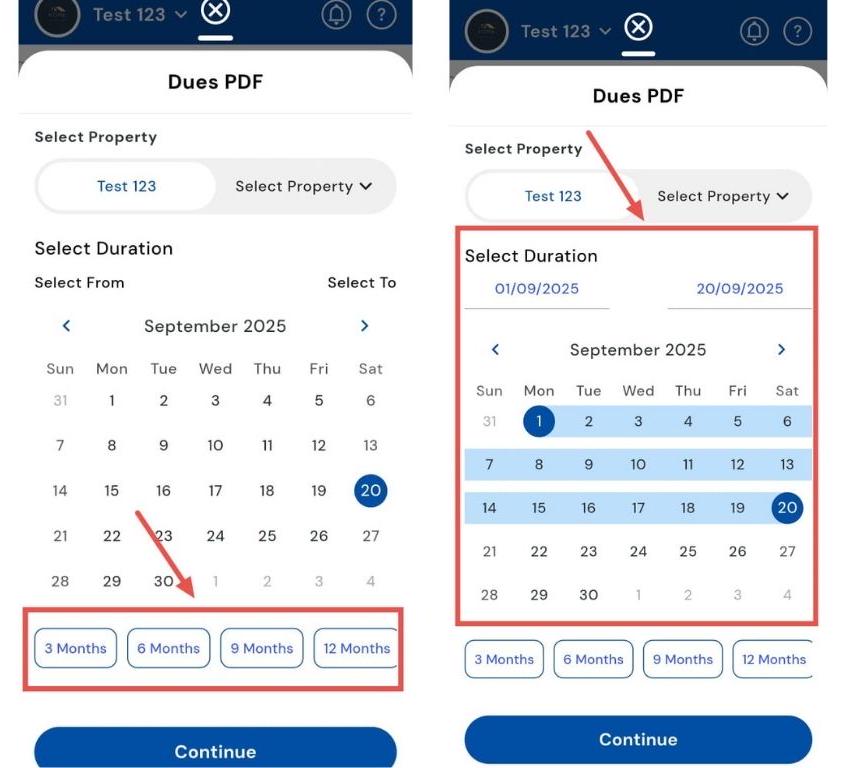
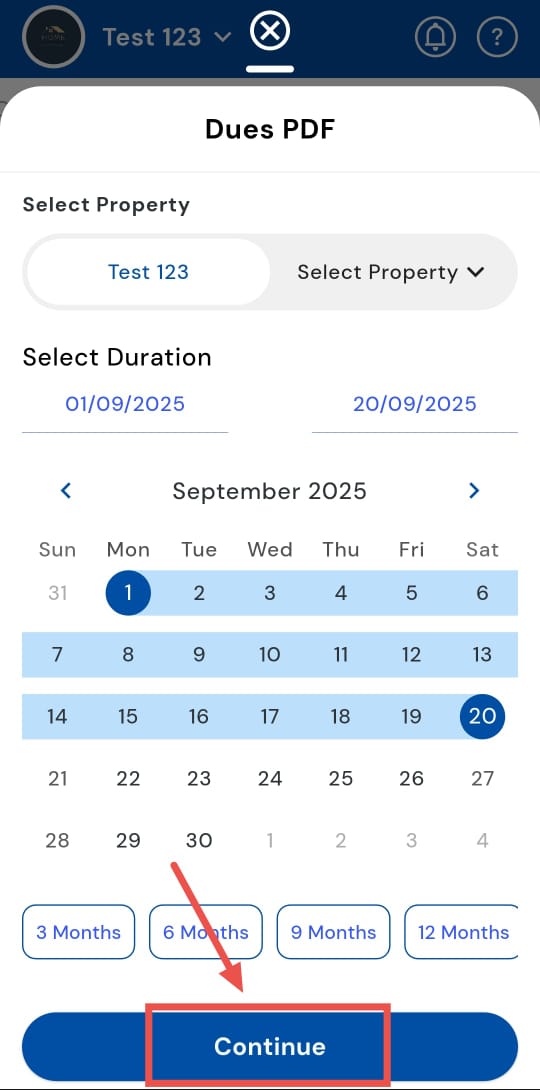
- Step 6: Continue Tap Continue to generate the report. The system will compile the dues and display or export the PDF accordingly.
How can I generate a dues report?
To monitor dues across properties, use the Dues Report feature. This report consolidates outstanding payments for selected properties and durations, giving you a clear and detailed view of tenant dues. It’s ideal for tracking, reconciling, or sharing financial data efficiently.
Here’s how you can generate a comprehensive Dues Report in just a few steps:
- Step 1: Open Reports Tap the Money icon in the bottom navigation menu, then select Reports to access reporting options.
- Step 2: Select Dues Report In the Dues Report card, tap Generate Report to start creating the report.
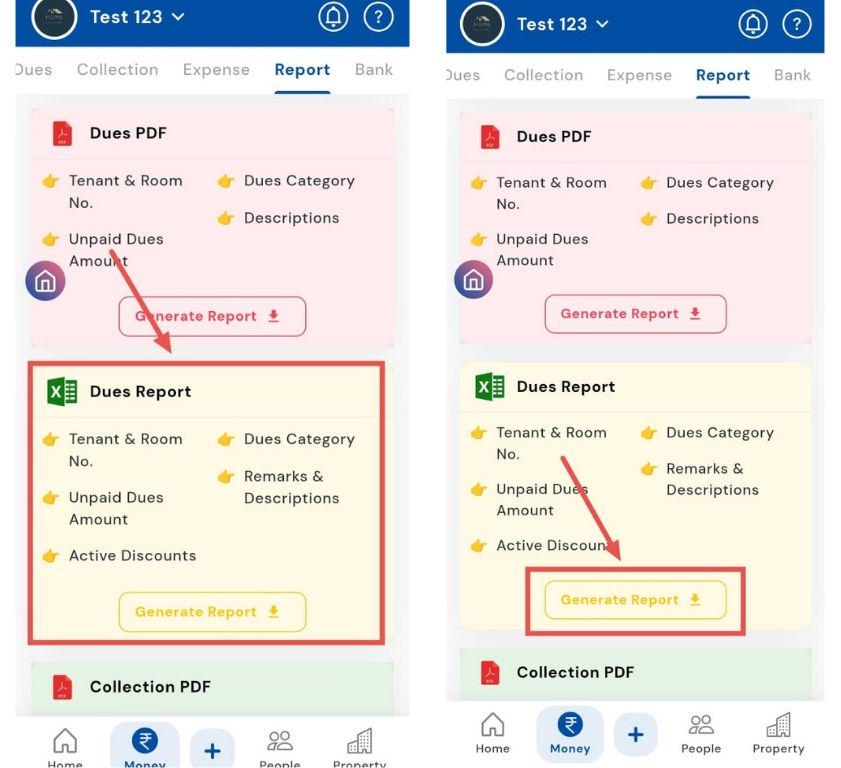
- Step 3: Choose the Property A window will appear prompting you to select the property for which you want to generate the report.
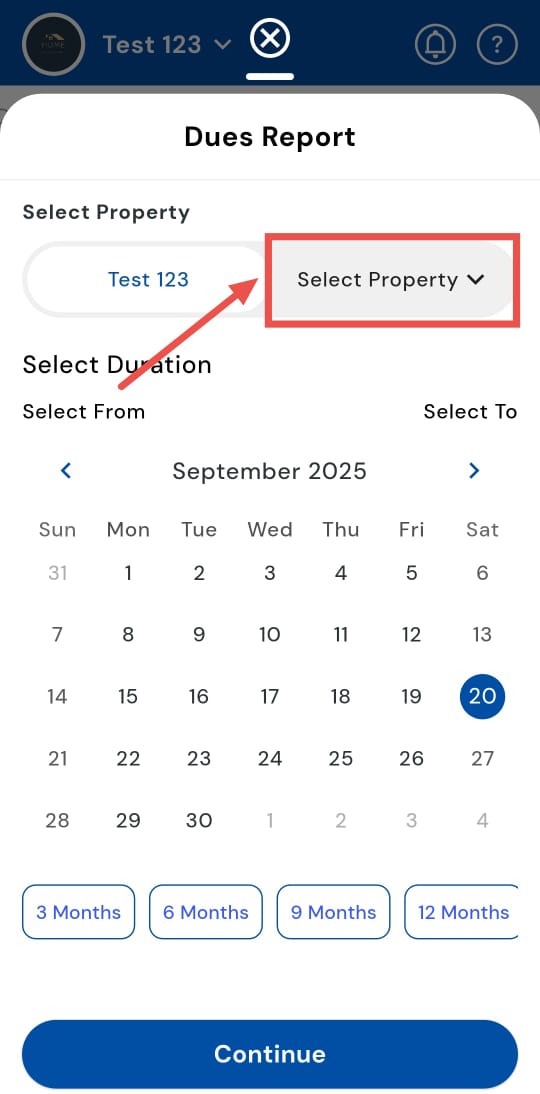
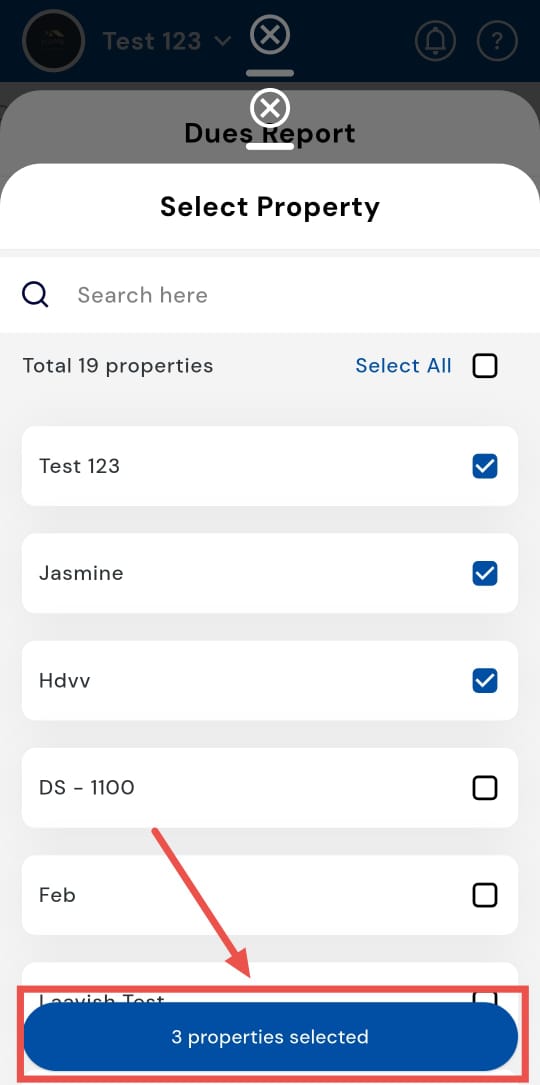
- Step 4: Confirm Selected Properties After selecting the properties, tap the button showing properties selected to confirm your selection.
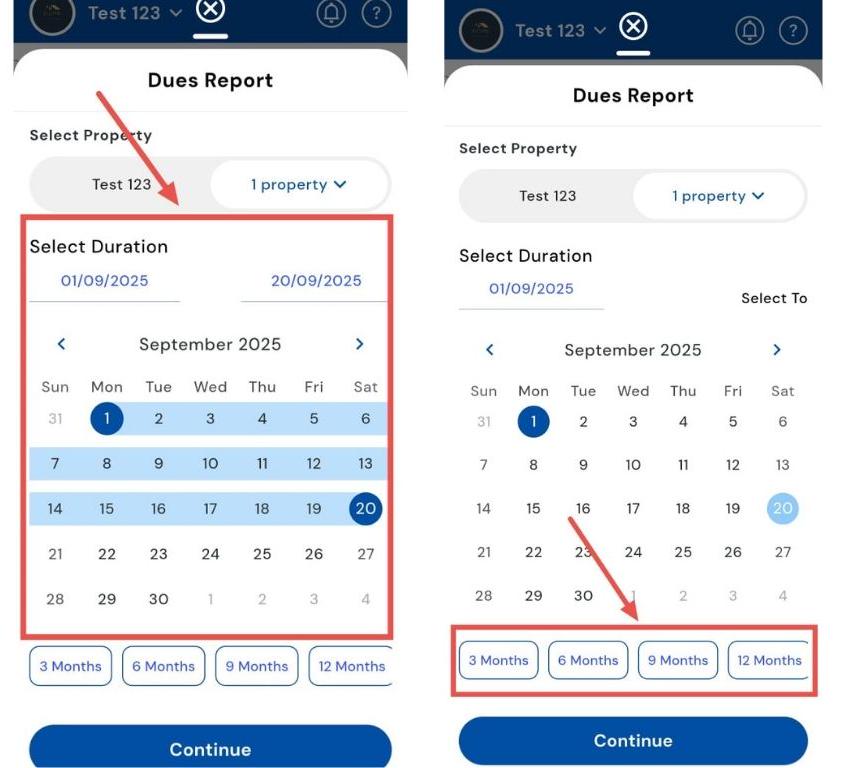
- Step 5: Select Duration Choose the time period for which you want to view dues. You can pick a custom date range, a specific number of months, a quarter, or an entire year.
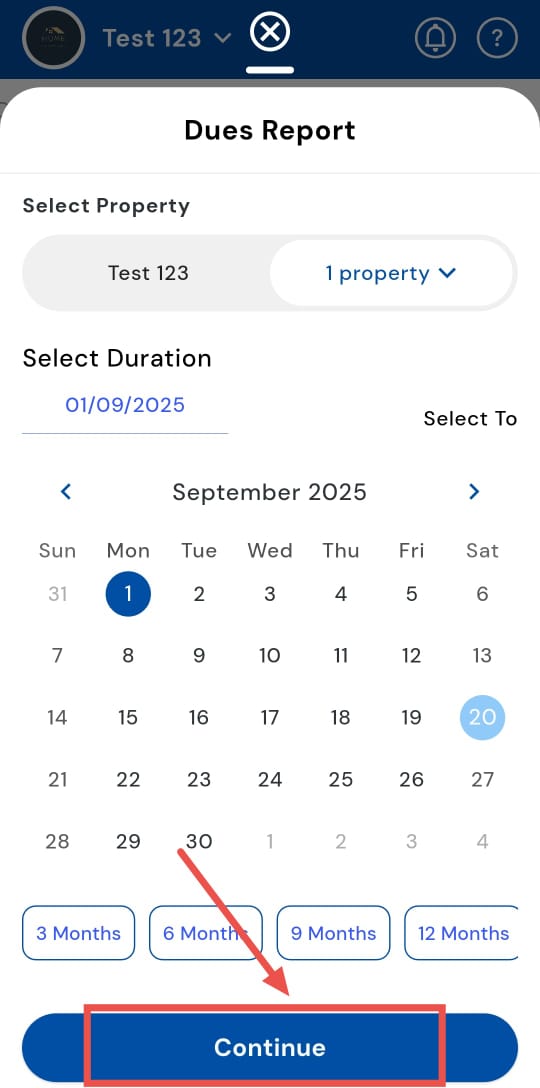
- Step 6: Continue Tap Continue to generate the report. The system will display the dues for the selected properties and duration.
How can I generate a collection PDF report?
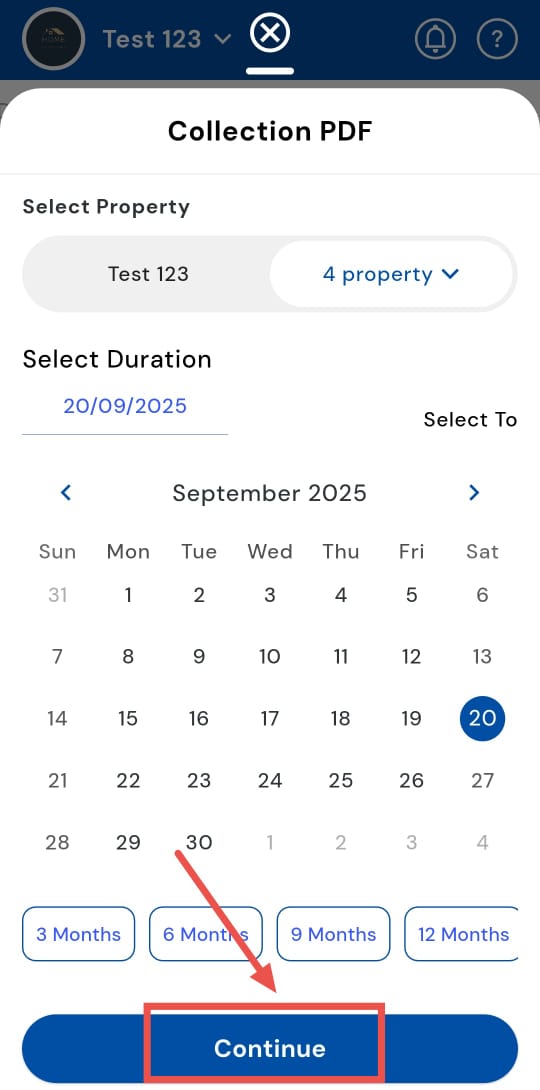
Get a comprehensive snapshot of payments collected with the Collection PDF report. This report compiles all collected amounts for selected properties and durations, giving you a clear overview of your collections. It’s perfect for tracking payments, reconciling accounts, or sharing reports efficiently.
Follow these steps to generate your Collection PDF report in just a few taps:
- Step 1: Open Reports Tap the Money icon in the bottom navigation menu, then select Reports to access reporting options.
- Step 2: Select Collection PDF Report In the Collection PDF card, tap Generate Report to start creating the report.
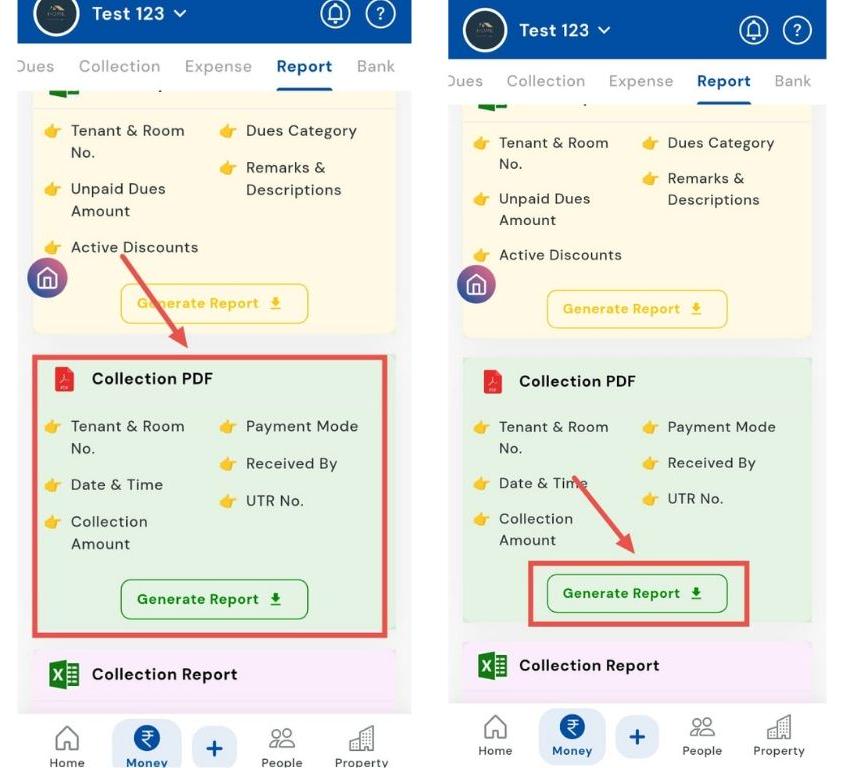
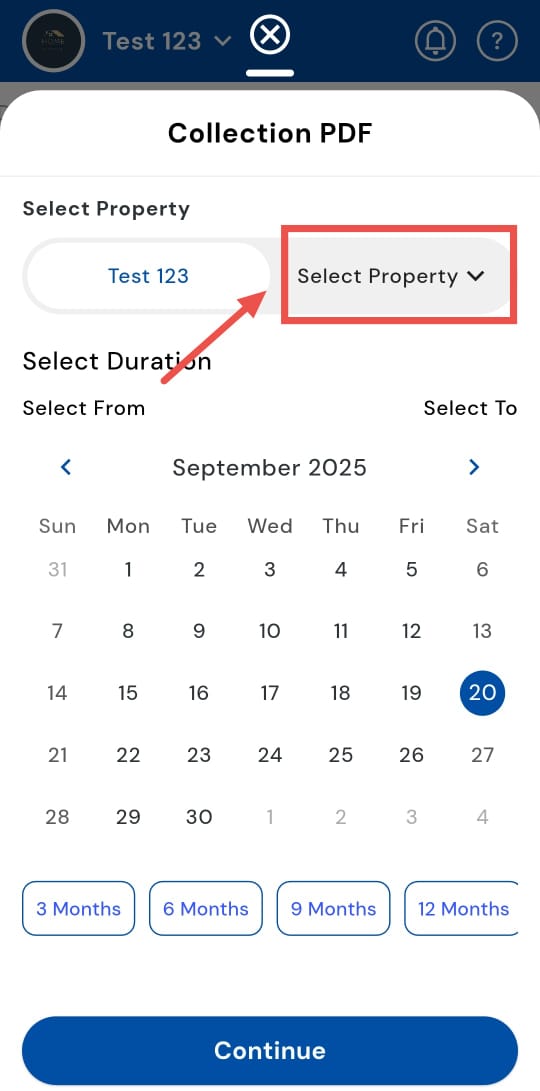
- Step 3: Choose the Property A window will appear prompting you to select the property for which you want to generate the report.
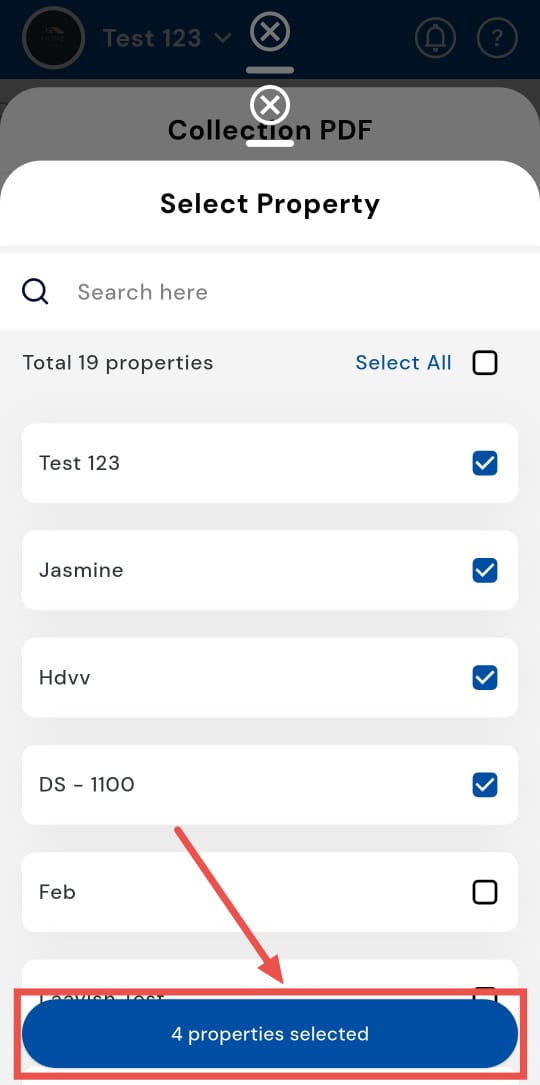
- Step 4: Confirm Selected Properties After selecting the properties, tap the button showing properties selected to confirm your selection.
- Step 5: Select Duration Choose the time period for which you want to view dues. You can pick a custom date range, a specific number of months, a quarter, or an entire year.
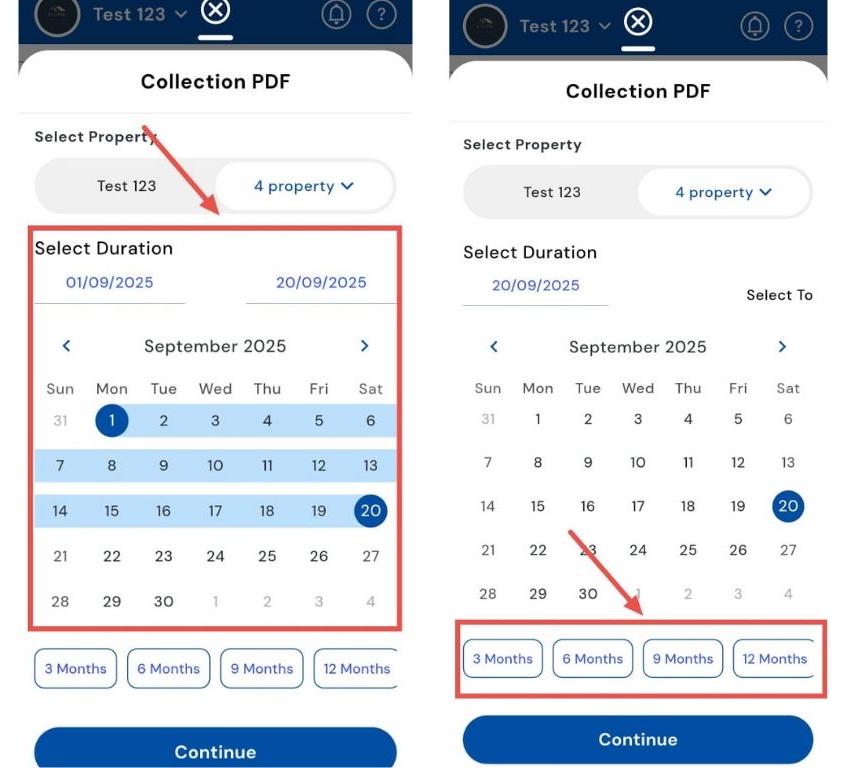
- Step 6: Continue Tap Continue to generate the report. The system will display all collections for the selected properties and duration in a PDF format.
How can I generate a collection report?
Quickly review all collections over a chosen period by generating a Collection Report. This report allows you to track payments collected during a specific time frame, organized by property and duration. It’s a convenient way to reconcile accounts and prepare accurate summaries, ensuring that no details are missed.
Here’s how you can generate a Collection Report step by step:
- Step 1: Open Reports Tap the Money icon in the bottom navigation menu, then select Reports to access different reporting options.
- Step 2: Select Collection Report In the Collection Report card, tap Generate Report to begin.
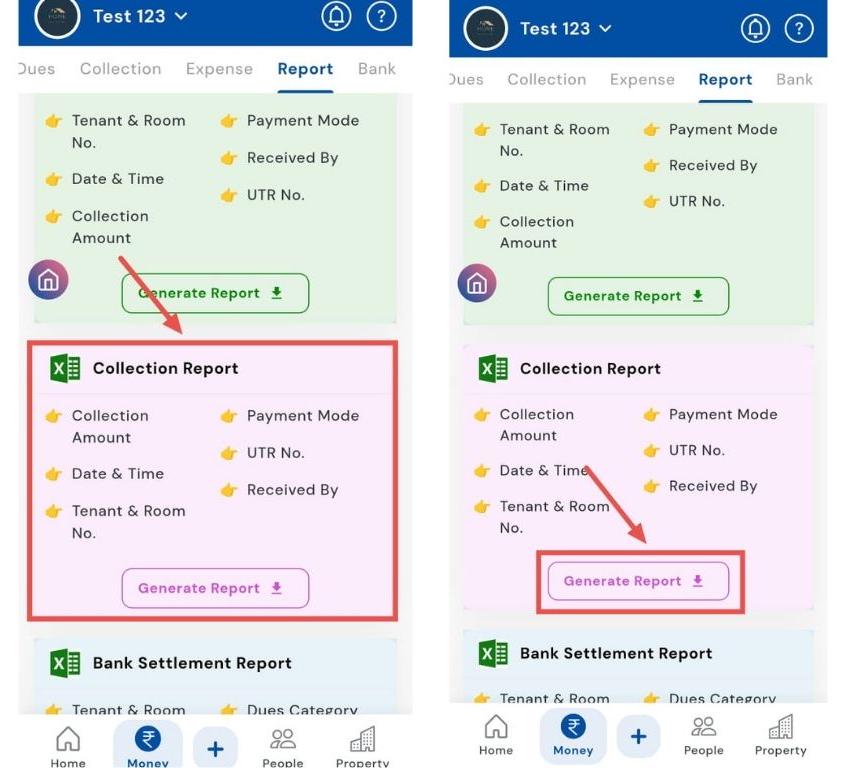
- Step 3: Choose the Property A window will appear asking you to select the property for which you want to generate the report.
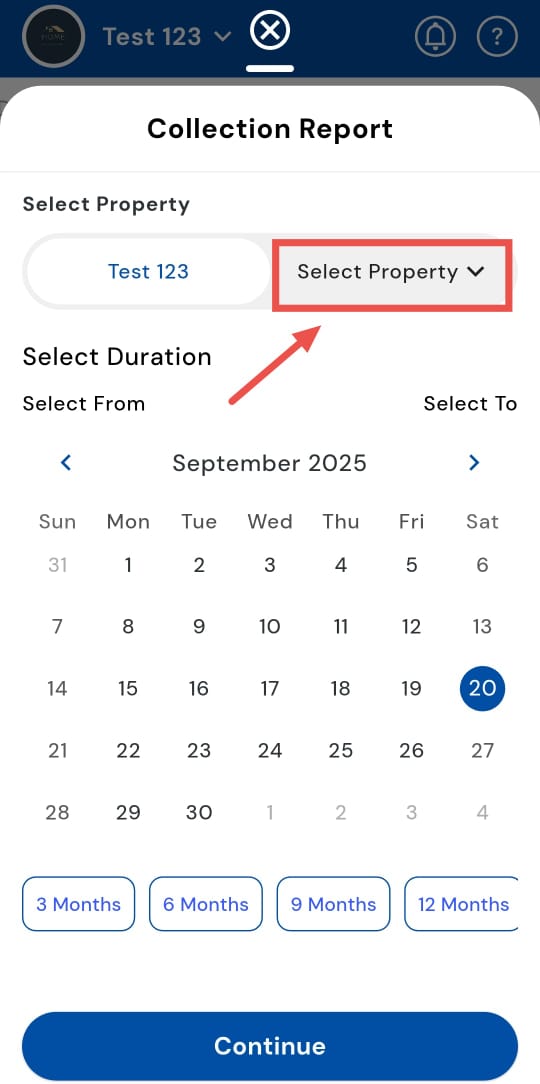
- Step 4: Confirm Selected Properties After selecting the properties, tap the button showing properties selected to confirm your choice.
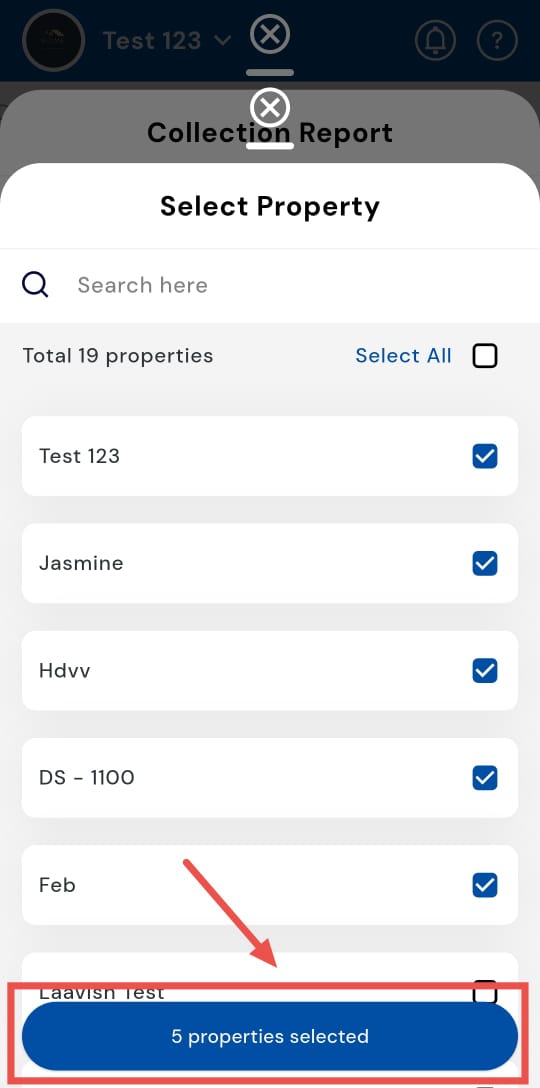
- Step 5: Select Duration Pick the time period you want to view collections for. This could be a custom date range, a few months, a quarter, or even an entire year.
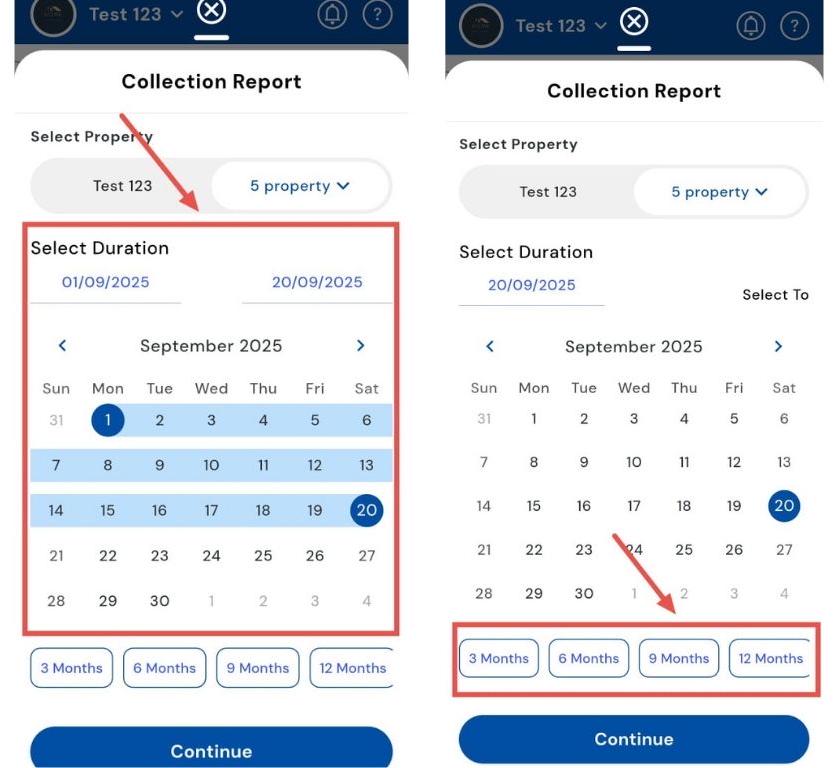
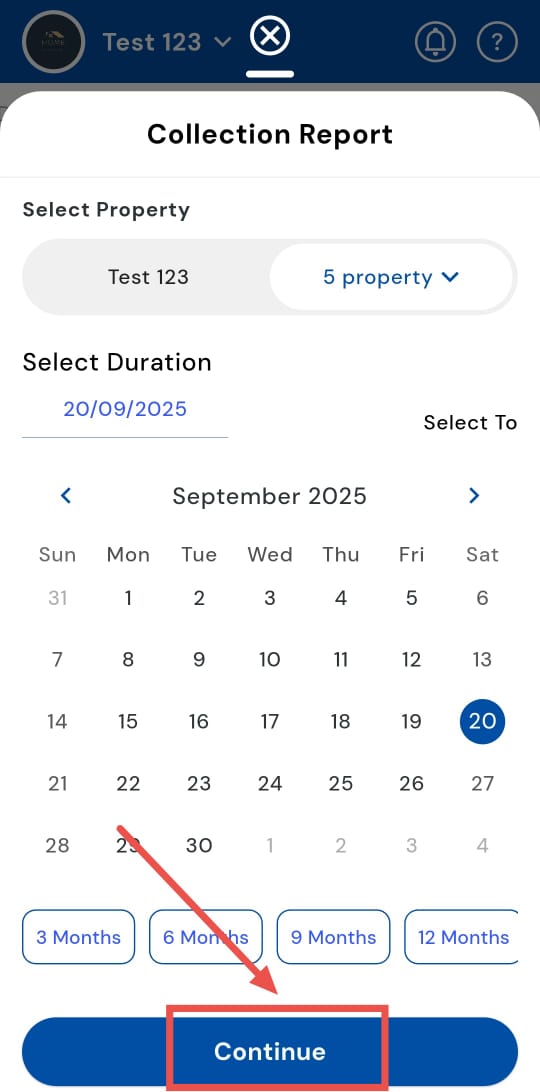
- Step 6: Continue Tap Continue to generate the report. The system will display all collections for the chosen properties and duration.
How can I generate a bank settlement report?
Want to check if collections match your bank records? Use the Bank Settlement Report option to reconcile payments collected through the app with deposits in your bank account. This report makes it easy to cross-check collections, spot mismatches, and maintain accurate financial records.
Follow these steps to generate your Bank Settlement Report effortlessly:
- Step 1: Open Reports Tap the Money icon in the bottom navigation menu, then select Reports to access reporting options.
- Step 2: Select Bank Settlement Report In the Bank Settlement Report card, tap Generate Report to begin.
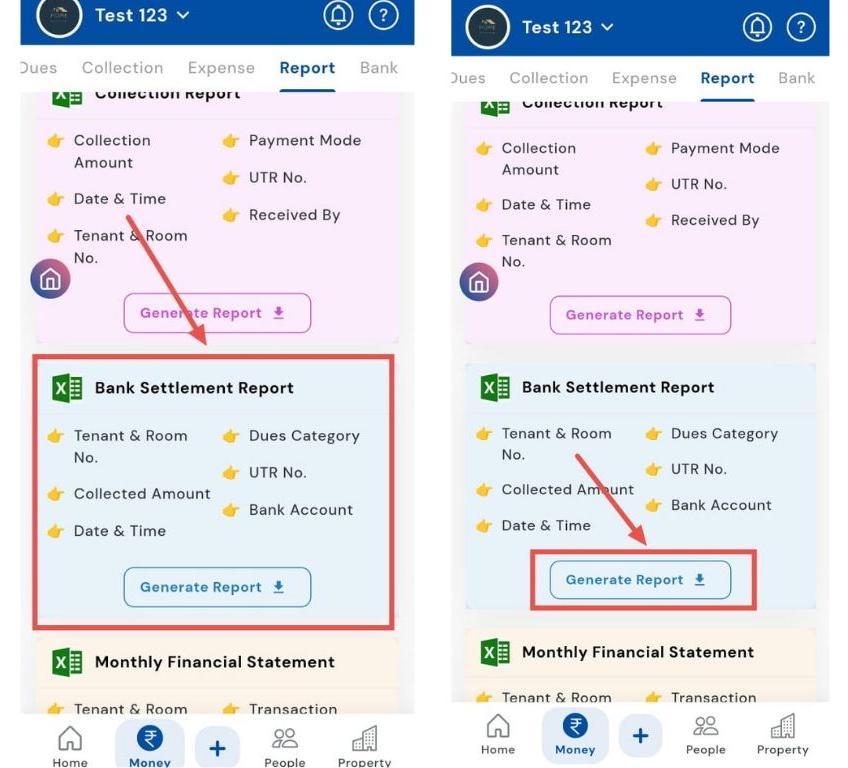
- Step 3: Choose the Property A window will appear asking you to select the property for which you want to generate the report.
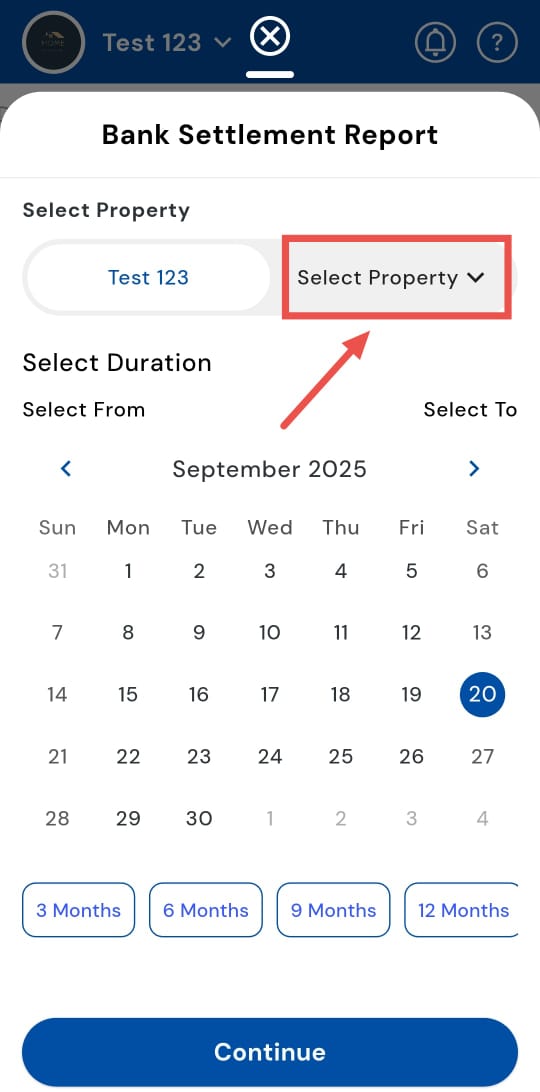
- Step 4: Confirm Selected Properties After selecting the properties, tap the button showing properties selected to confirm your choice.
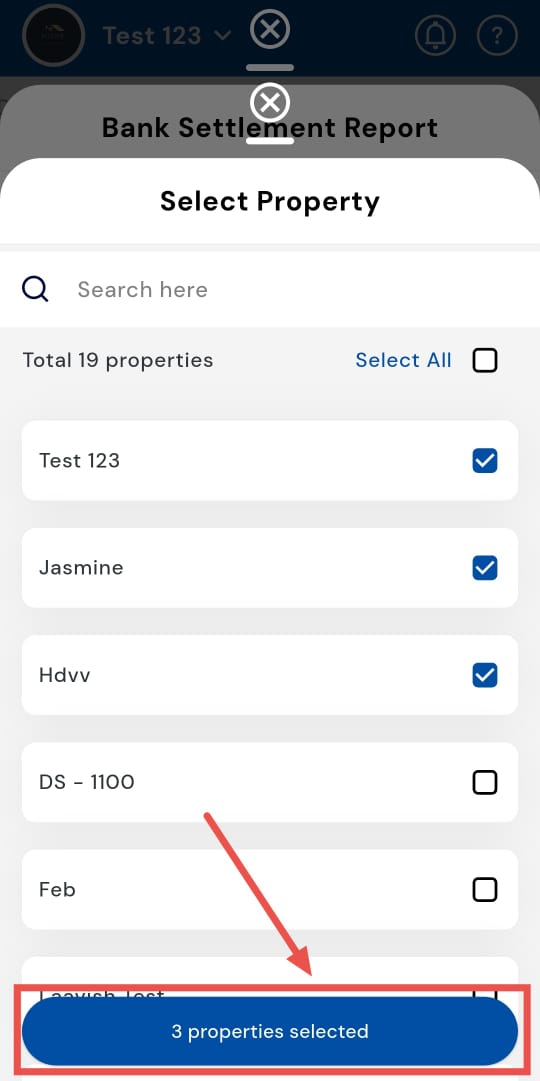
- Step 5: Select Duration Pick the time period you want to view settlements for. This could be a custom date range, a few months, a quarter, or even a year.
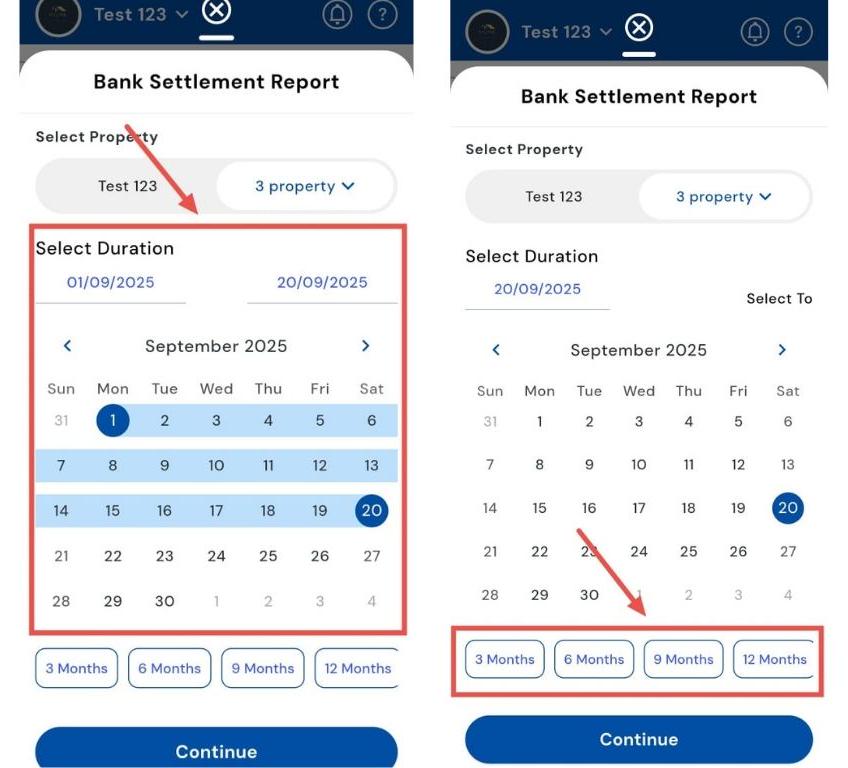
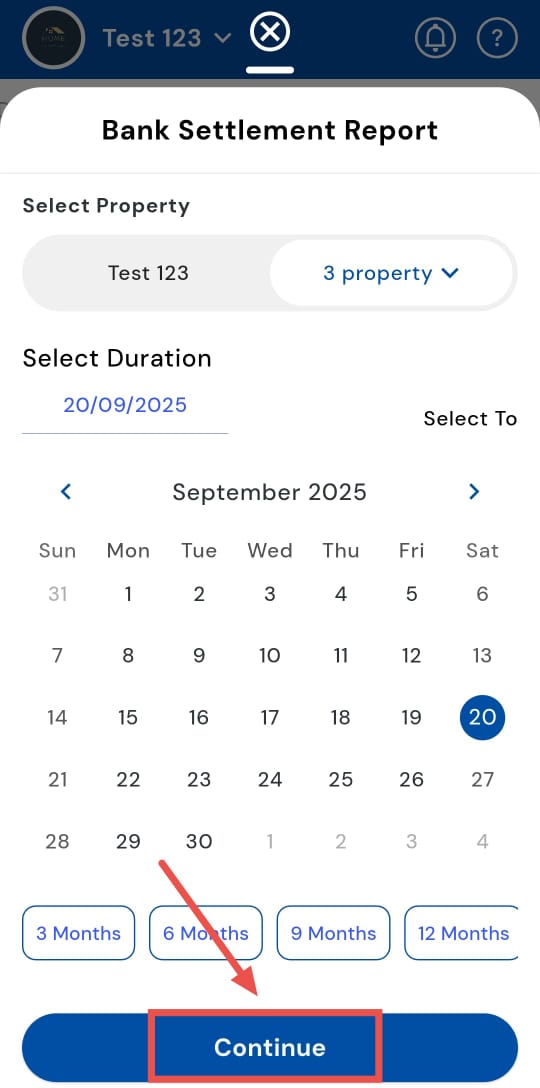
- Step 6: Continue Tap Continue to generate the report. The system will display settlement details for the selected properties and duration.
How can I generate an expense report?
Preparing financial summaries? The Expense Report makes it easy to view all recorded expenses. This report consolidates every expense entry for your selected properties and time period, giving you a complete overview. It’s perfect for reconciling accounts, preparing summaries, or sharing detailed expense information with your team or management.
Here’s how you can generate an Expense Report in just a few steps:
- Step 1: Open Reports Tap the Money icon in the bottom navigation menu, then select Reports to access all reporting options.
- Step 2: Select Expense Report In the list of reports, locate the Expense Report card and tap Generate Report to start creating your report.
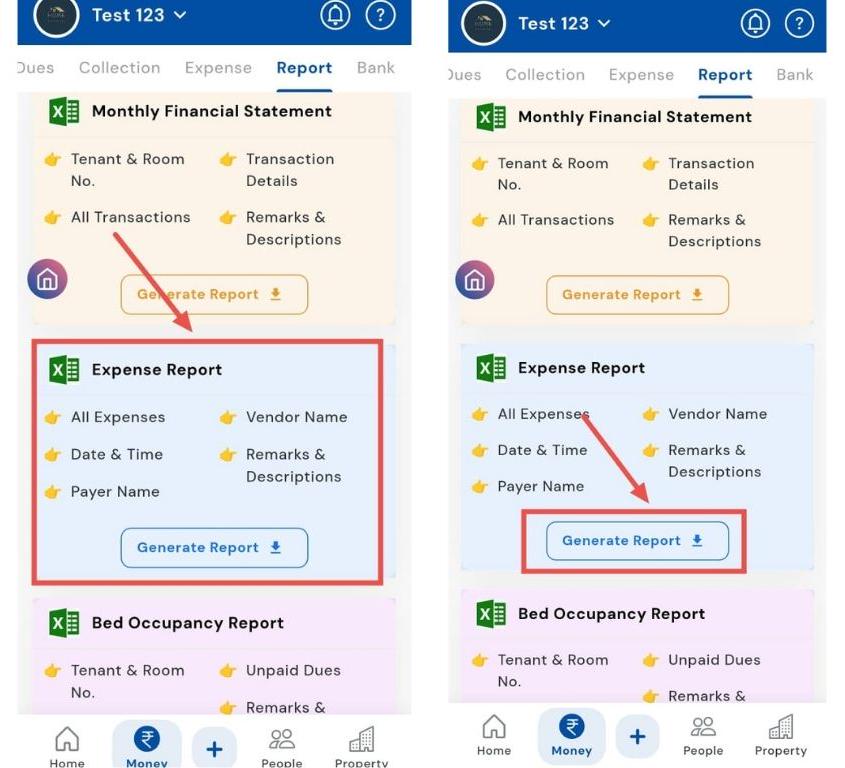
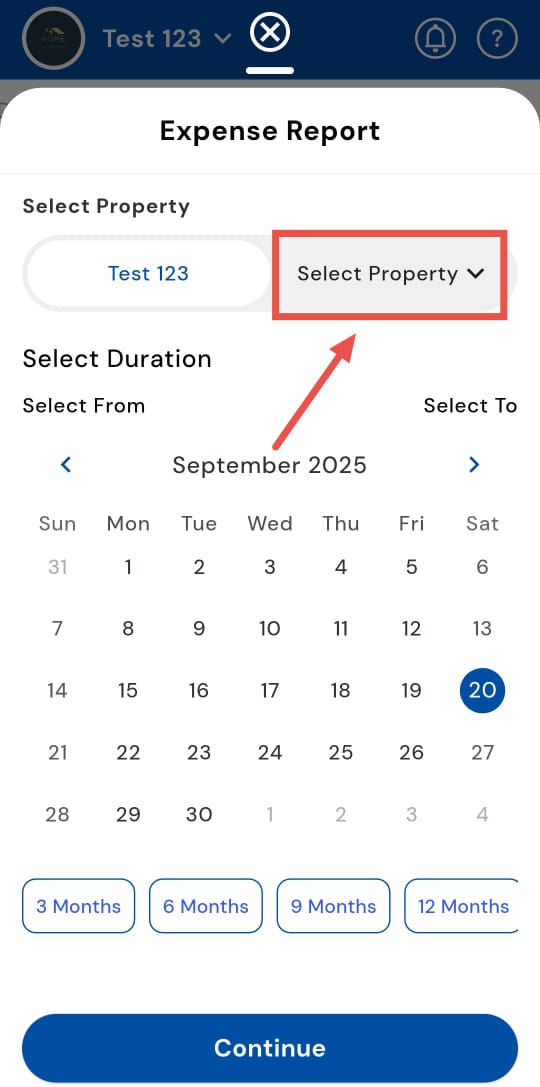
- Step 3: Choose Property A window will appear prompting you to select the property or properties you want included in the report.
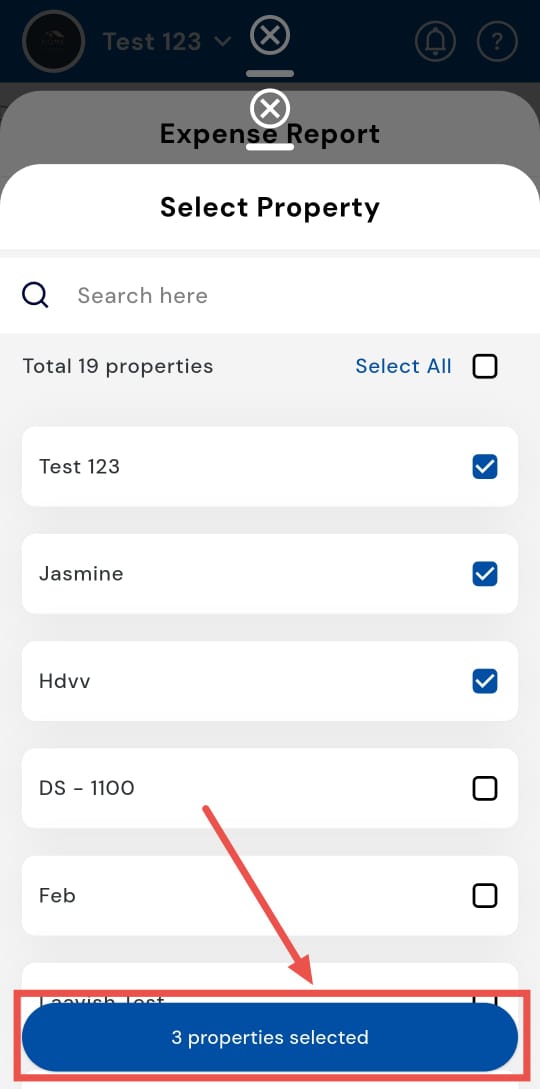
- Step 4: Confirm Selected Properties After selecting the properties, tap the button showing properties selected to confirm your selection.
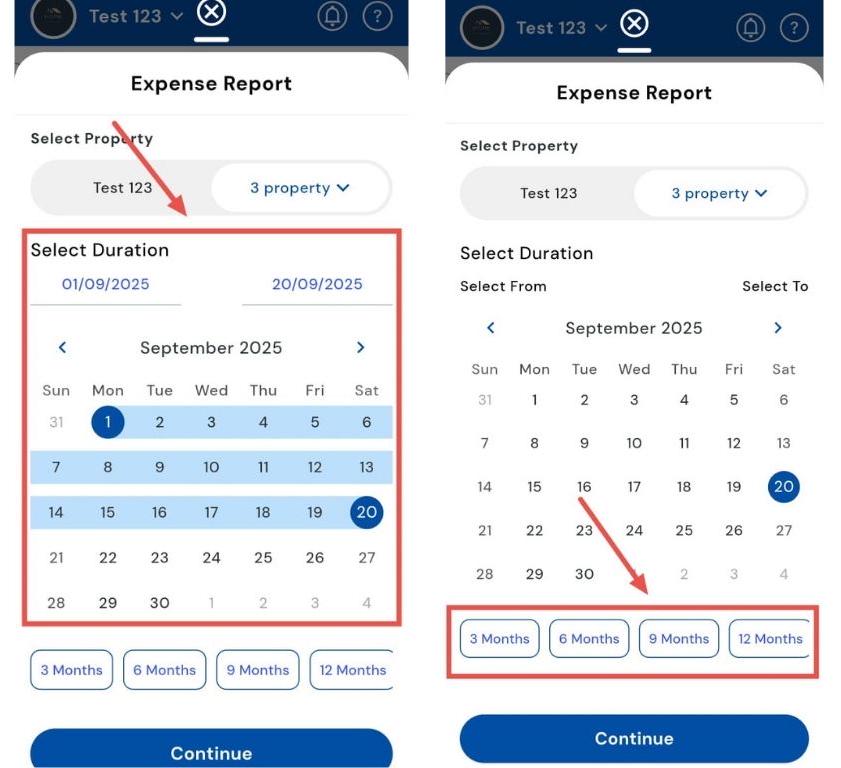
- Step 5: Select Duration Choose the time period for the report. You can select a custom date range, a specific number of months, a quarter, or an entire year, depending on your needs.
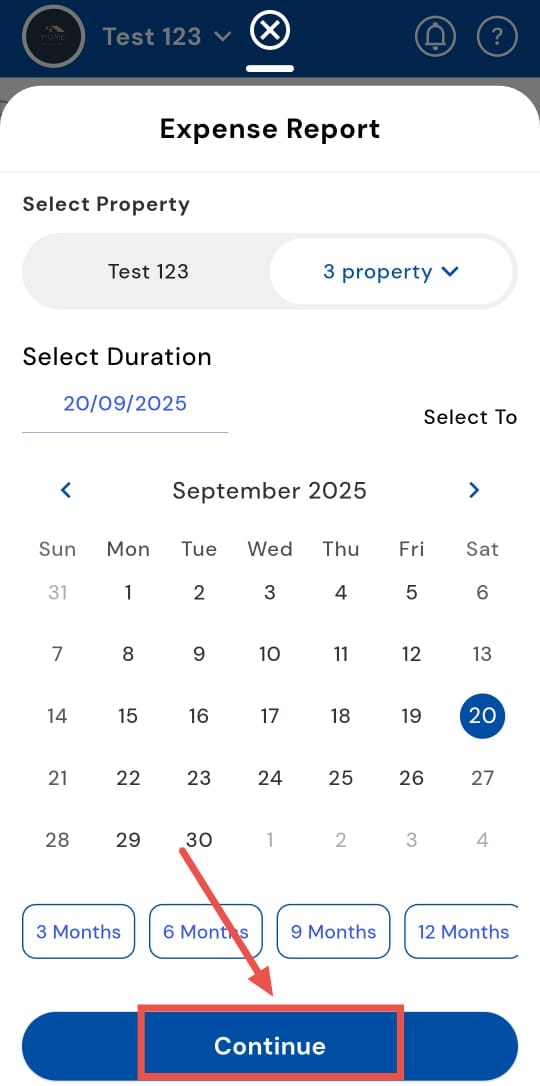
- Step 6: Continue Tap Continue to generate the report. The system will compile all expense details for the selected properties and period.
How can I generate an old tenant report?
To track past tenants and their associated properties, run the Old Tenant Report for your chosen duration. This report compiles all details of previous tenants for the properties and time period you select, providing a complete overview. It’s perfect for reviewing tenant histories, preparing audits, or sharing records with management.
Follow these steps to generate the Old Tenant Report quickly and easily:
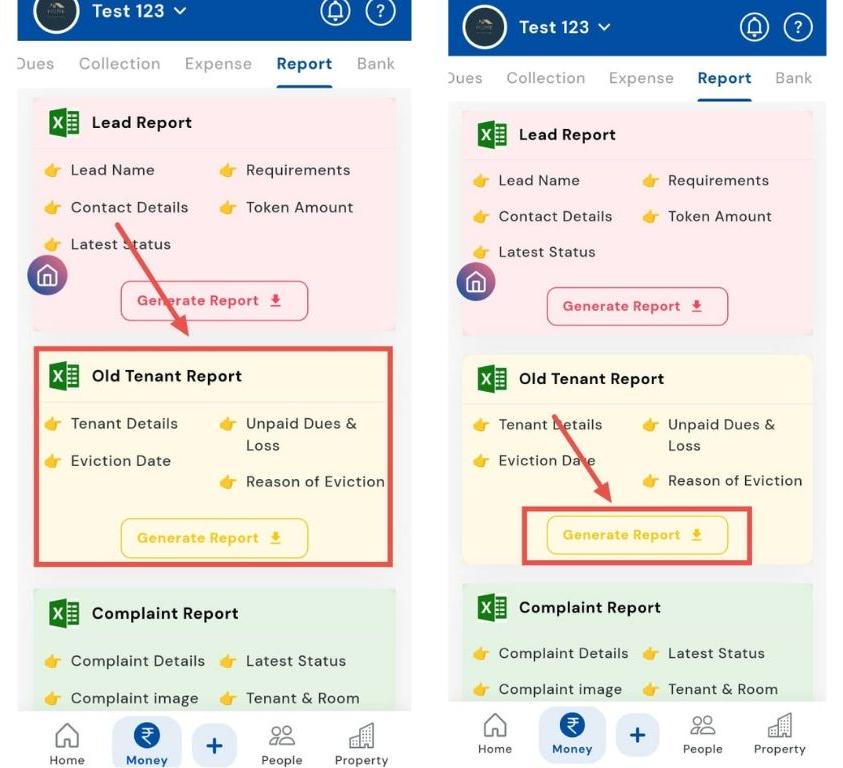
- Step 1: Open Reports Tap the Money icon in the bottom navigation menu, then select Reports to access the reporting options.
- Step 2: Select Old Tenant Report In the list of reports, locate the Old Tenant Report card and tap Generate Report to start.
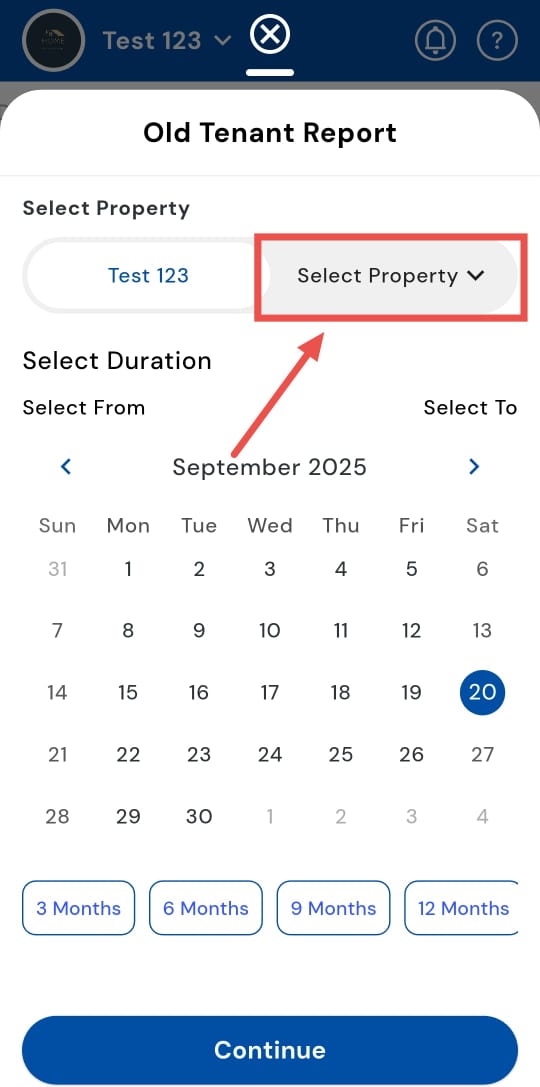
- Step 3: Select Property A window will appear prompting you to select the property or properties for which you want to generate the report.
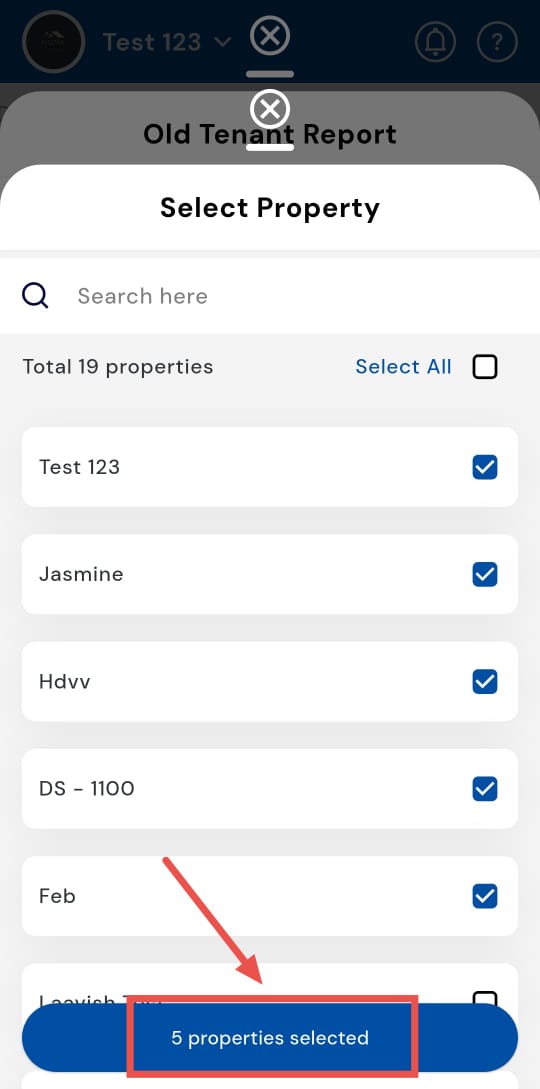
- Step 4: Confirm Selected Properties After selecting the properties, tap the button showing properties selected to confirm your selection.
- Step 5: Select Duration Pick the time period you want to include in the report. You can select a custom date range, some months, a quarter, or an entire year, depending on your requirements.
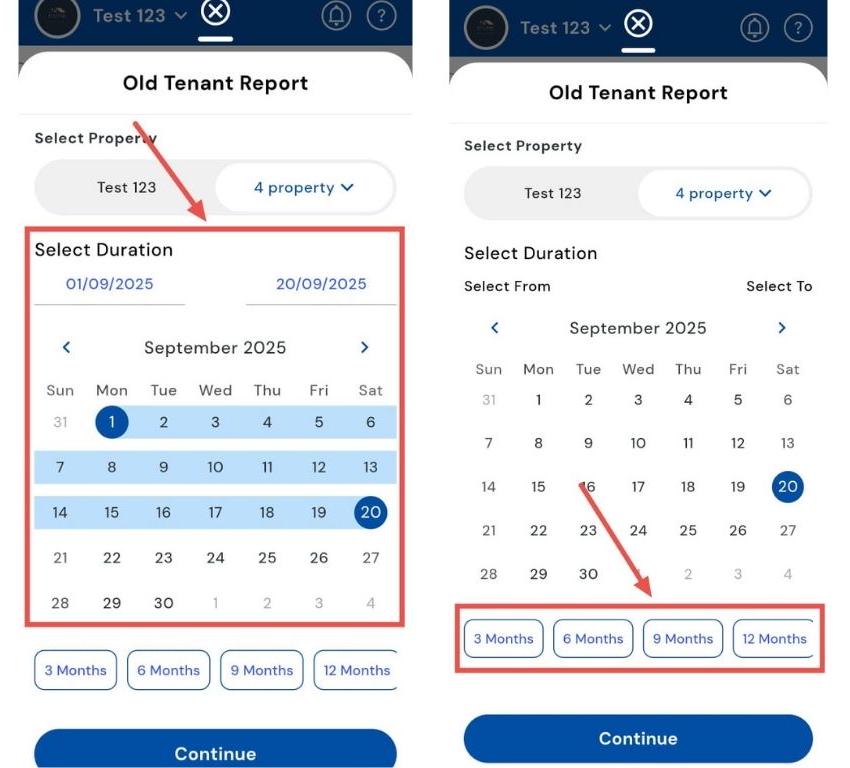
- Step 6: Continue Tap Continue to generate the report. The system will compile all old tenant details for the selected properties and timeframe.
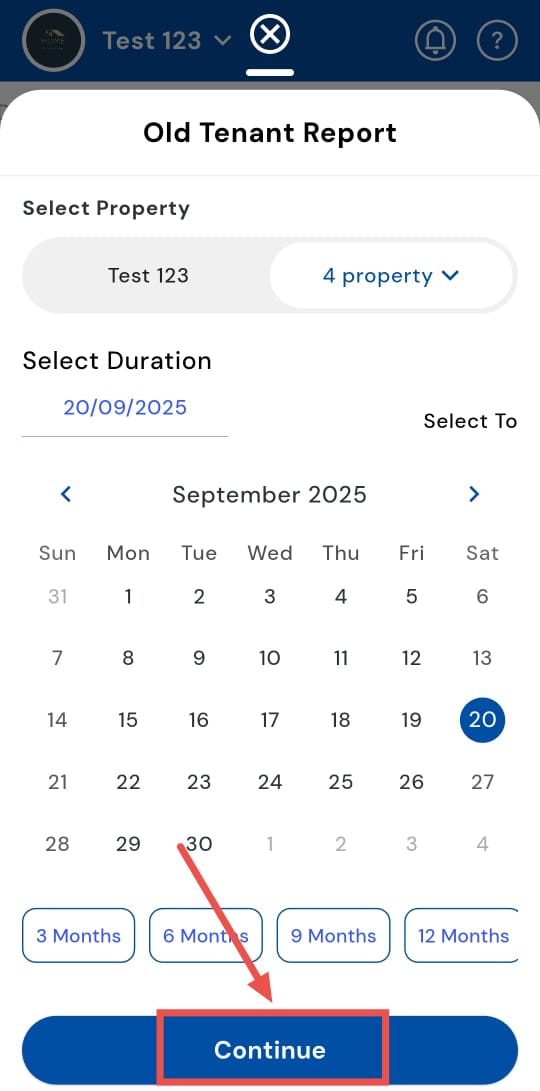
How can I generate PDF dues for 3, 6, or 9 months?
-
Step 1: Tap the money icon located in the bottom navigation menu, and click on the Reports option.
-
Step 2: In the Dues PDF card, click on Generate Report.
-
Step 3: A window will appear. Select the property.
-
Step 4: Confirm Selected Properties After selecting the properties, tap the button showing X properties selected to confirm your selection.
-
Step 5: Select the duration, choose 3 months, 6 months, or 9 months as per your requirement.
-
Step 6: Click on Continue.
1.10 **How can I generate ****a **PDF collection for 3, 6, or 9 months?
-
Step 1: Tap the money icon located in the bottom navigation menu, and click on the Reports option.
-
Step 2: In the Collection PDF card, click on Generate Report.
-
Step 3: A window will appear. Select the property.
-
Step 4: Confirm Selected Properties After selecting the properties, tap the button showing X properties selected to confirm your selection.
-
Step 5: Select the duration — choose 3 months, 6 months, or 9 months as per your requirement.
-
Step 6: Click on Continue.
How can I generate collection reports for 3, 6, or 9 months?
-
Step 1: Tap the money icon located in the bottom navigation menu, and click on Reports.
-
Step 2: In the Collection Report card, click on Generate Report.
-
Step 3: A window will appear. Select the property.
-
Step 4: Choose the duration — 3 months, 6 months, or 9 months.
-
Step 5: Click on Continue.
How can I generate all property monthly summary reports?
If you want a quick overview of all your properties every month, the All Property Monthly Summary Report is the right tool. It gathers details from every property in a single report, making it easier to track performance, reconcile data, or share summaries with management.
Simply follow these steps to generate your All Property Monthly Summary Report in just a few taps:
- Step 1: Open Reports Tap the Money icon in the bottom navigation menu, then select Reports to access reporting options.
- Step 2: Select All Property Monthly Summary Report In the reports list, locate the All Property Monthly Summary Report card and tap Generate Report to start.
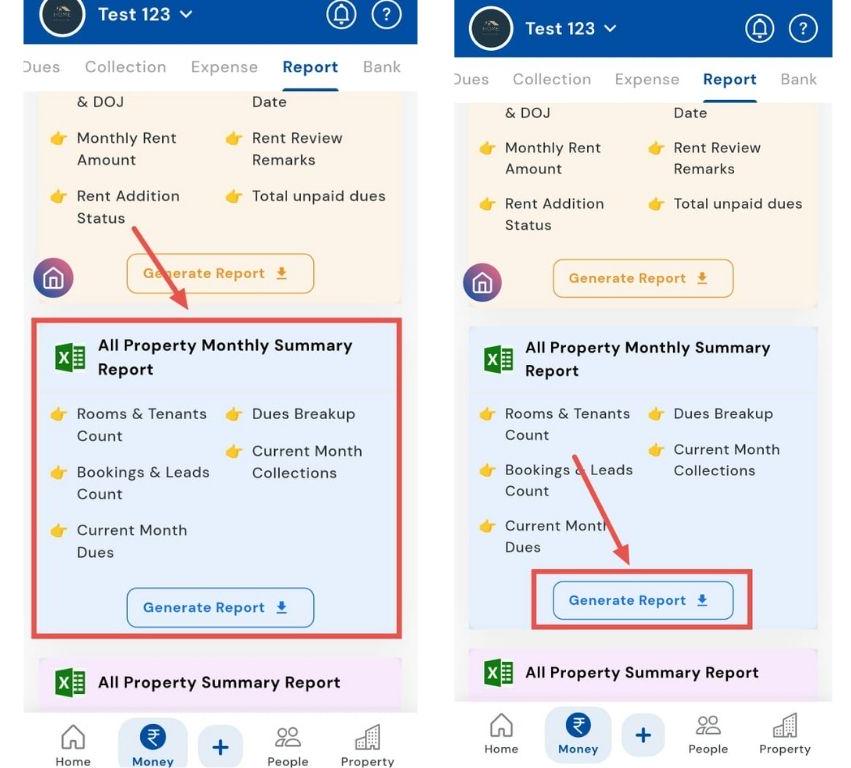
- Step 3: Select Property A window will appear asking you to select the Property or properties you want included in the report.
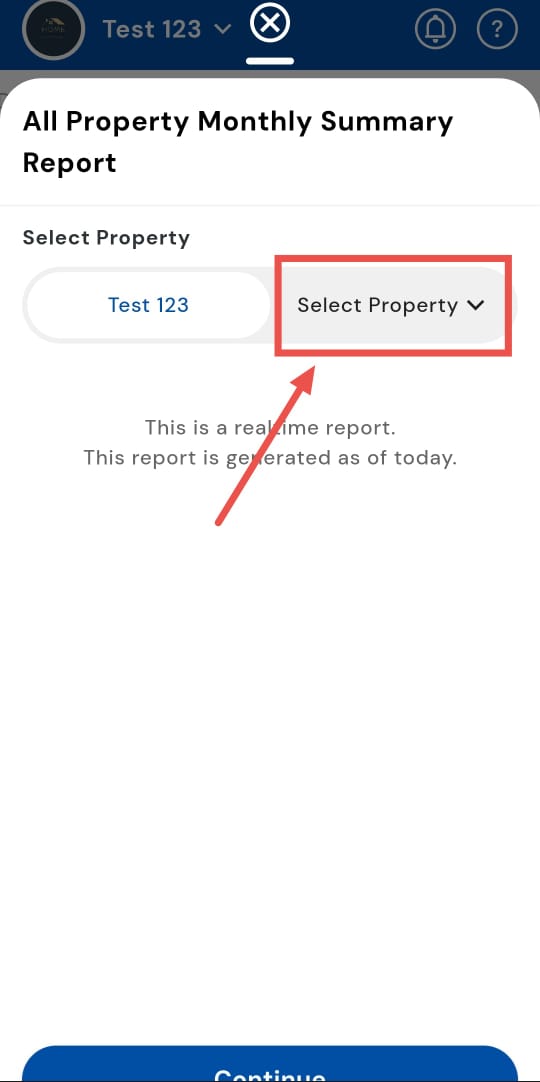
- Step 4: Confirm Selected Properties After selecting the properties, tap the button showing properties selected to confirm your selection.
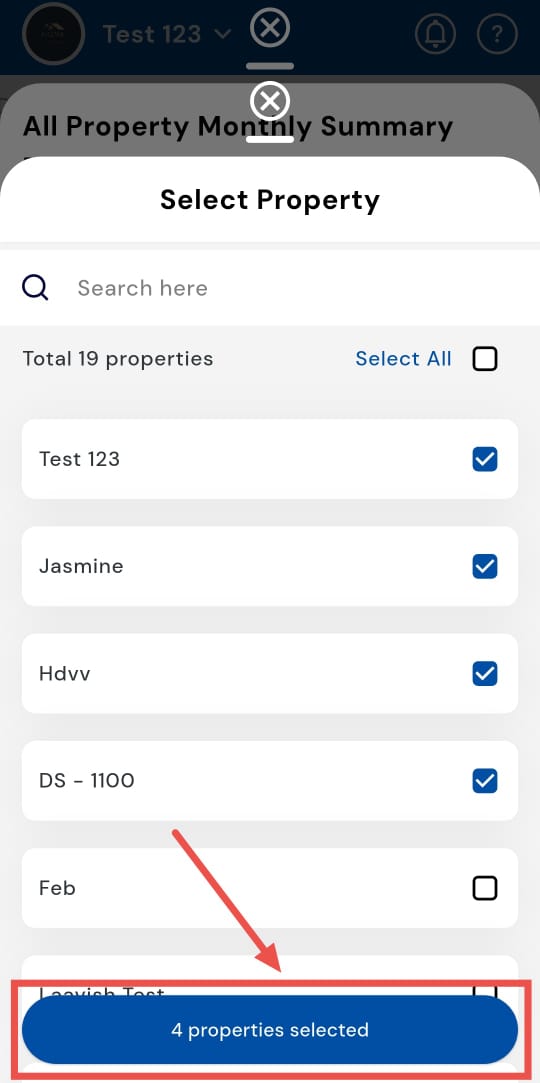
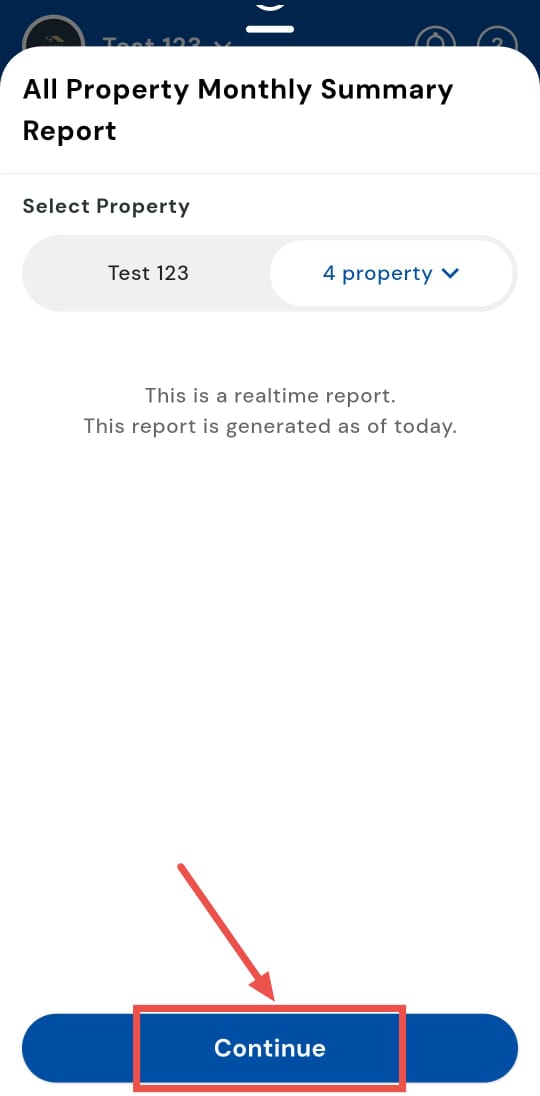
- Step 5: Continue After selecting the properties, tap Continue to generate the report. The system will compile all monthly summaries for the chosen properties.
How can I generate all property summary reports?
It’s not always easy to create a compiled report of all your properties, but it’s definitely possible with the All Property Summary Report. For a full summary of all properties at once, this report consolidates details from every property, giving you a comprehensive view. It’s perfect for tracking performance, reconciling accounts, or sharing summaries with your team or management.
Here’s how you can generate the All Property Summary Report quickly and easily:
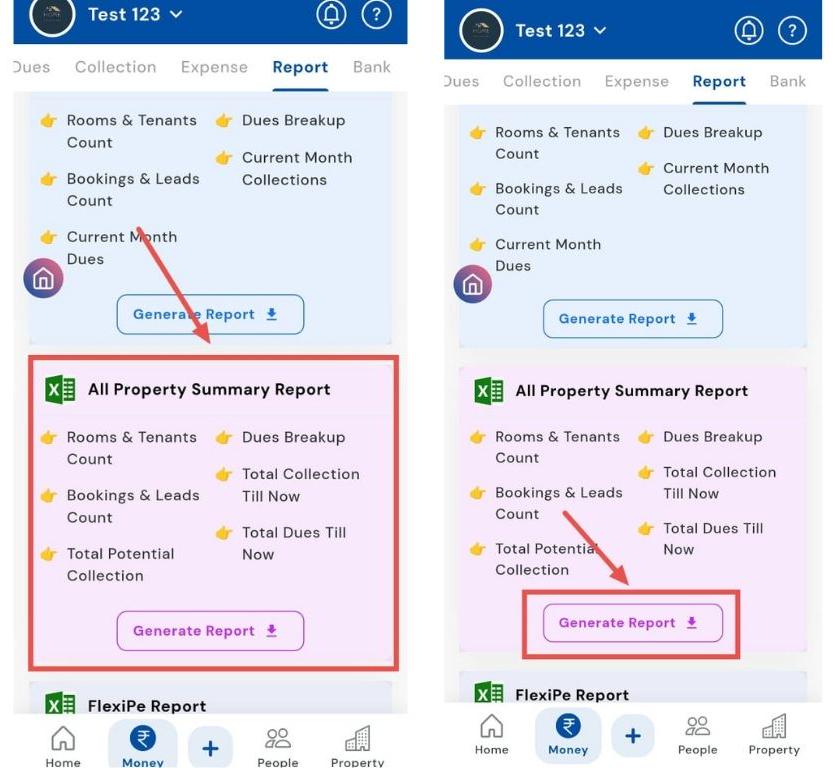
- Step 1: Open Reports Tap the Money icon in the bottom navigation menu, then select Reports to access the reporting options.
- Step 2: Select All Property Summary Report In the list of reports, locate the All Property Summary Report card and tap Generate Report to begin.
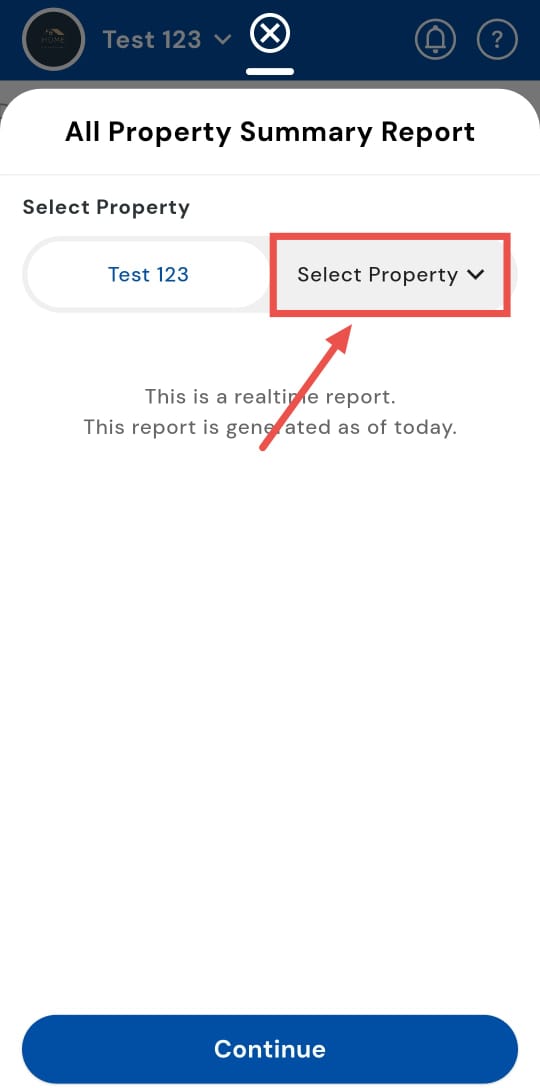
- Step 3: Select Property A window will appear prompting you to select the Property or properties you want included in the report.
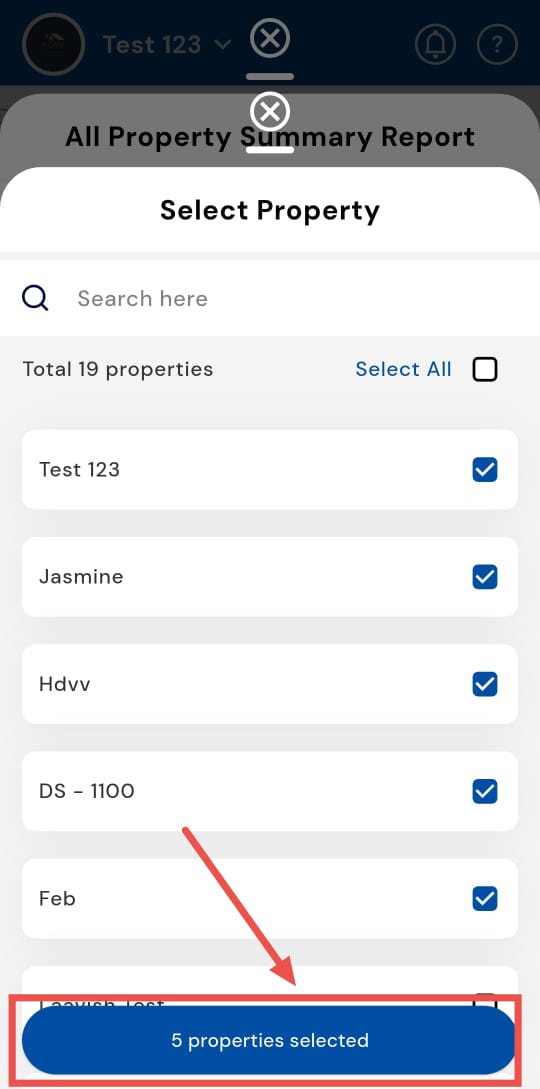
- Step 4: Confirm Selected Properties After selecting the properties, tap the button showing properties selected to confirm your selection.
- Step 5: Continue Tap Continue to generate the report. The system will compile a summary for all selected properties.