Property Settings
How do I add or edit property basic details?
Property basic details include information like your property name, type, and location. You can update these details anytime from the property settings to make sure your information stays correct and up to date.
To add or edit property basic details, follow these steps:
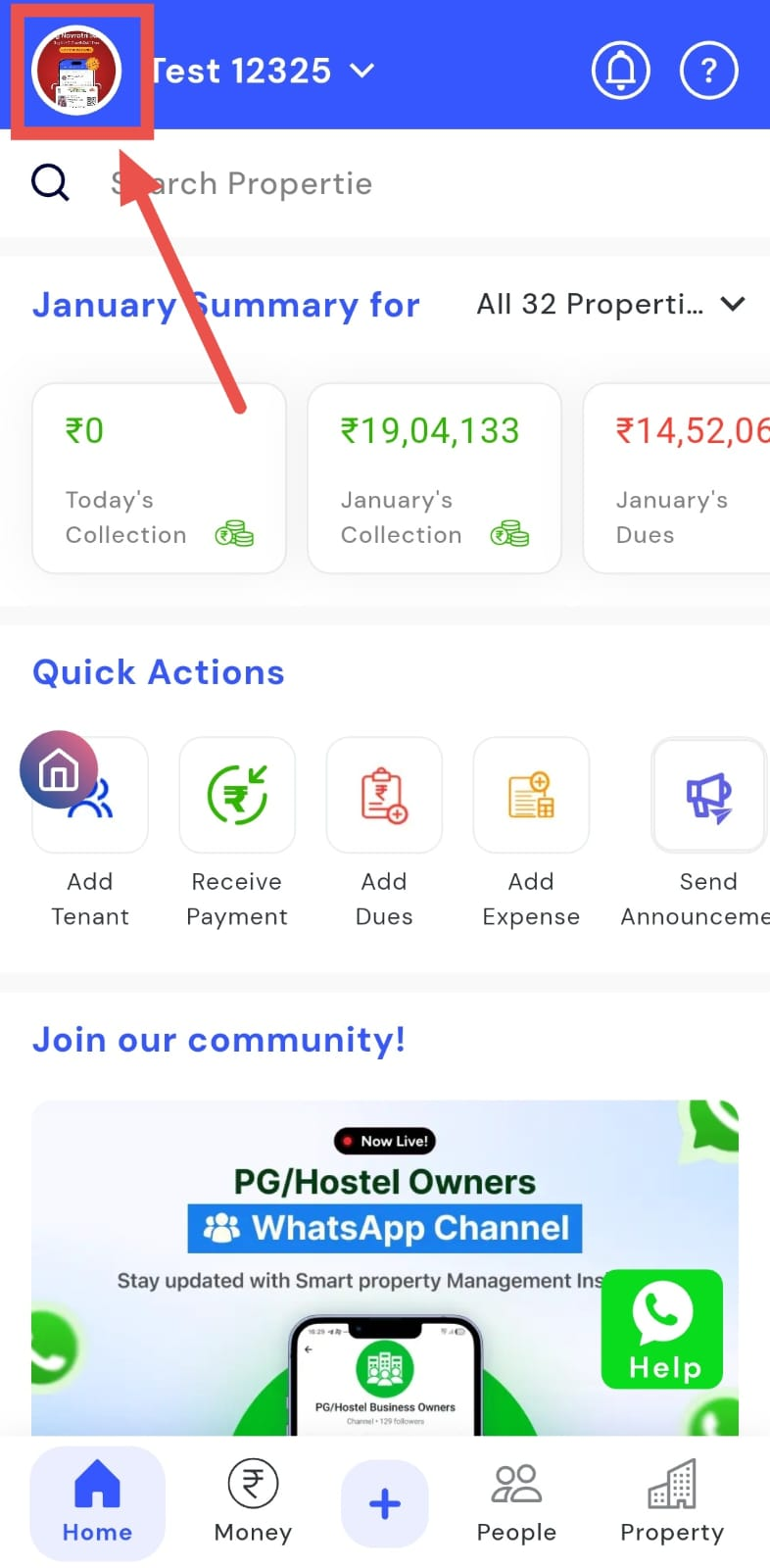
- Step 1: Open your profile Tap on your profile picture in the top-left corner of the screen to open your settings.
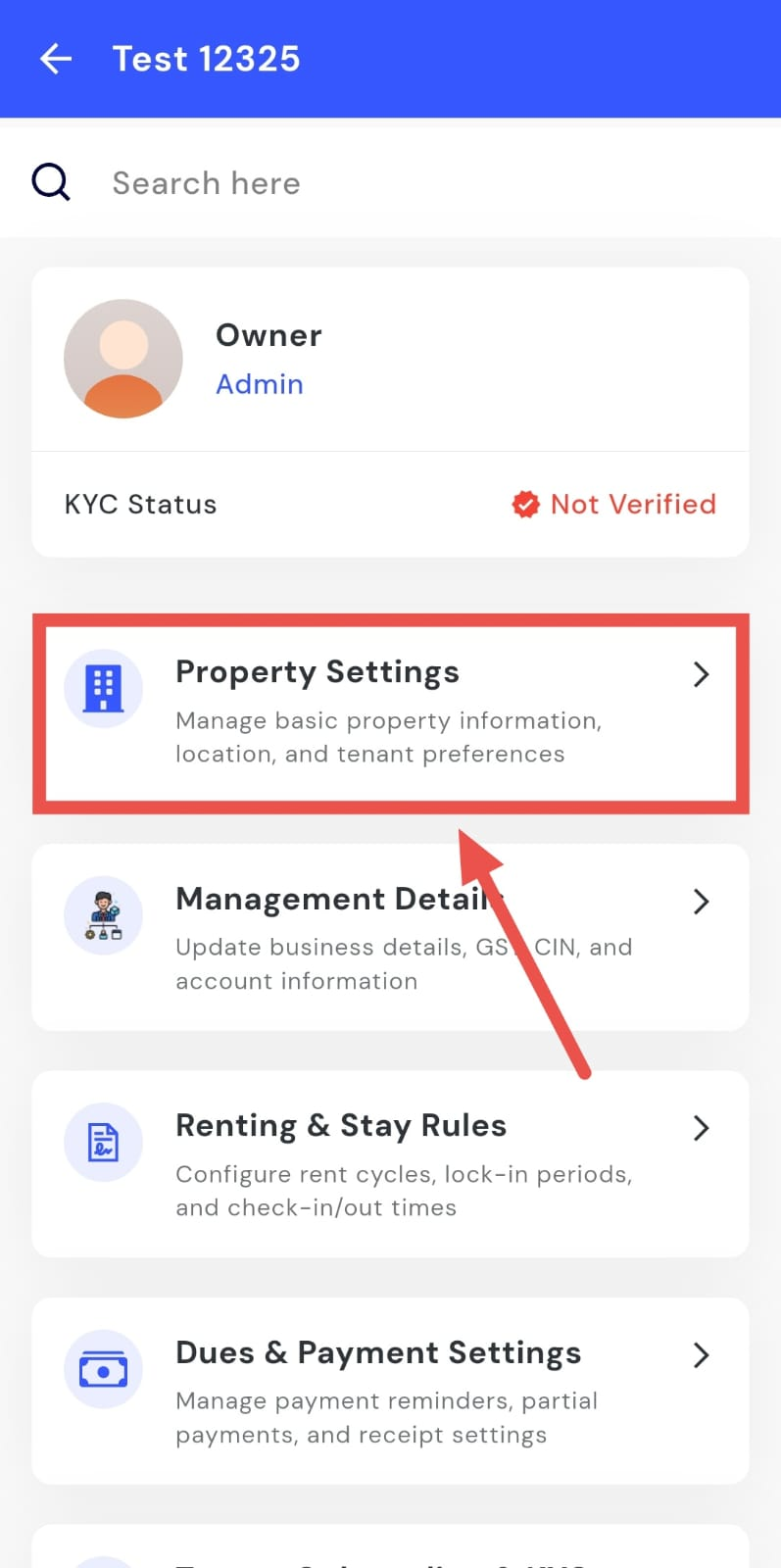
- Step 2: Open Property Settings From here, tap on Property Settings to open the main settings for your property.
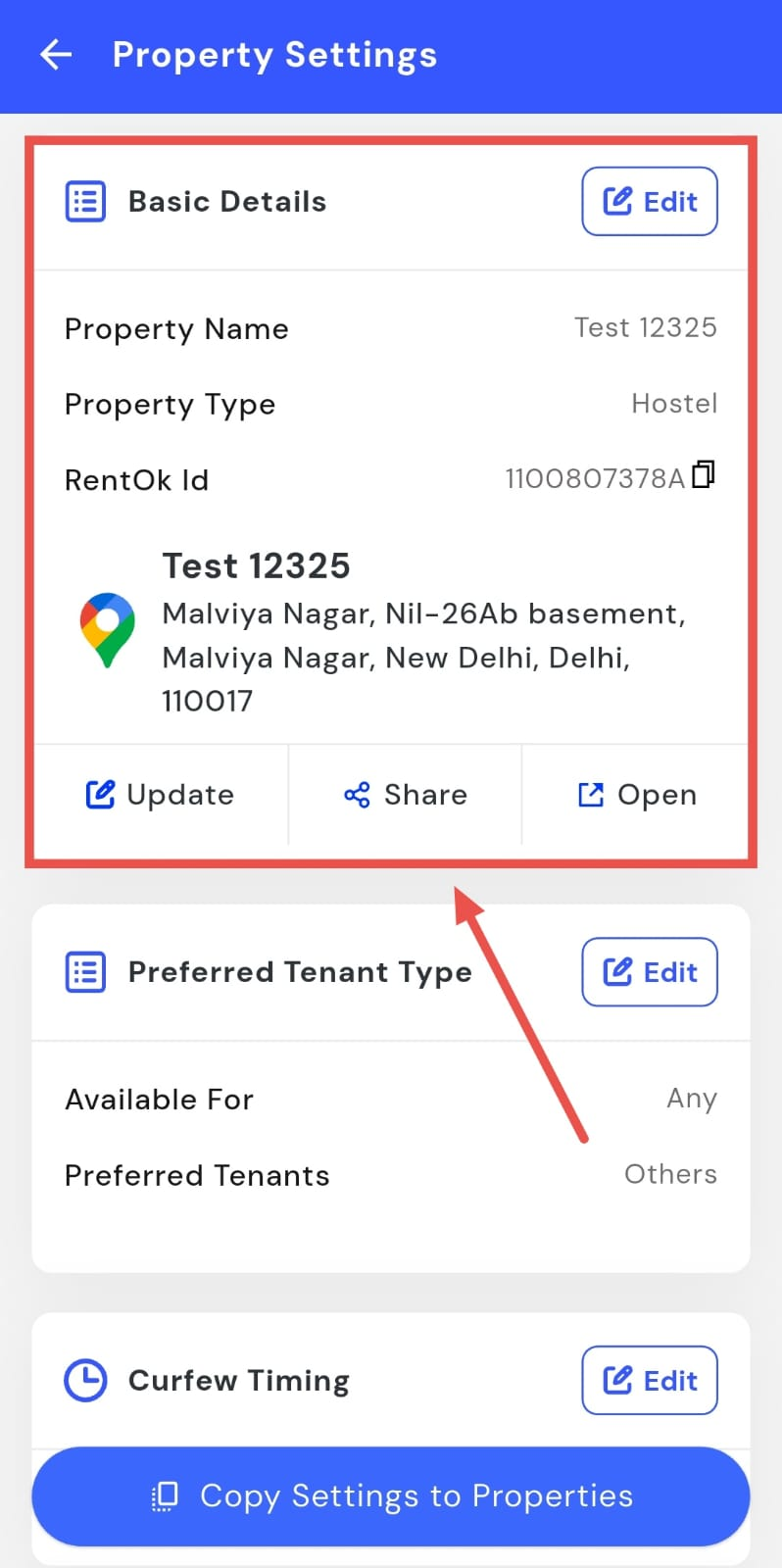
- Step 3: Open Basic Details Tap on the Basic Details option to view your property information.
-
Step 4: Edit the details Tap on Edit to update details like:
-
Property name
-
Property type
-
Location. (You can also open or share the location from here.)
-
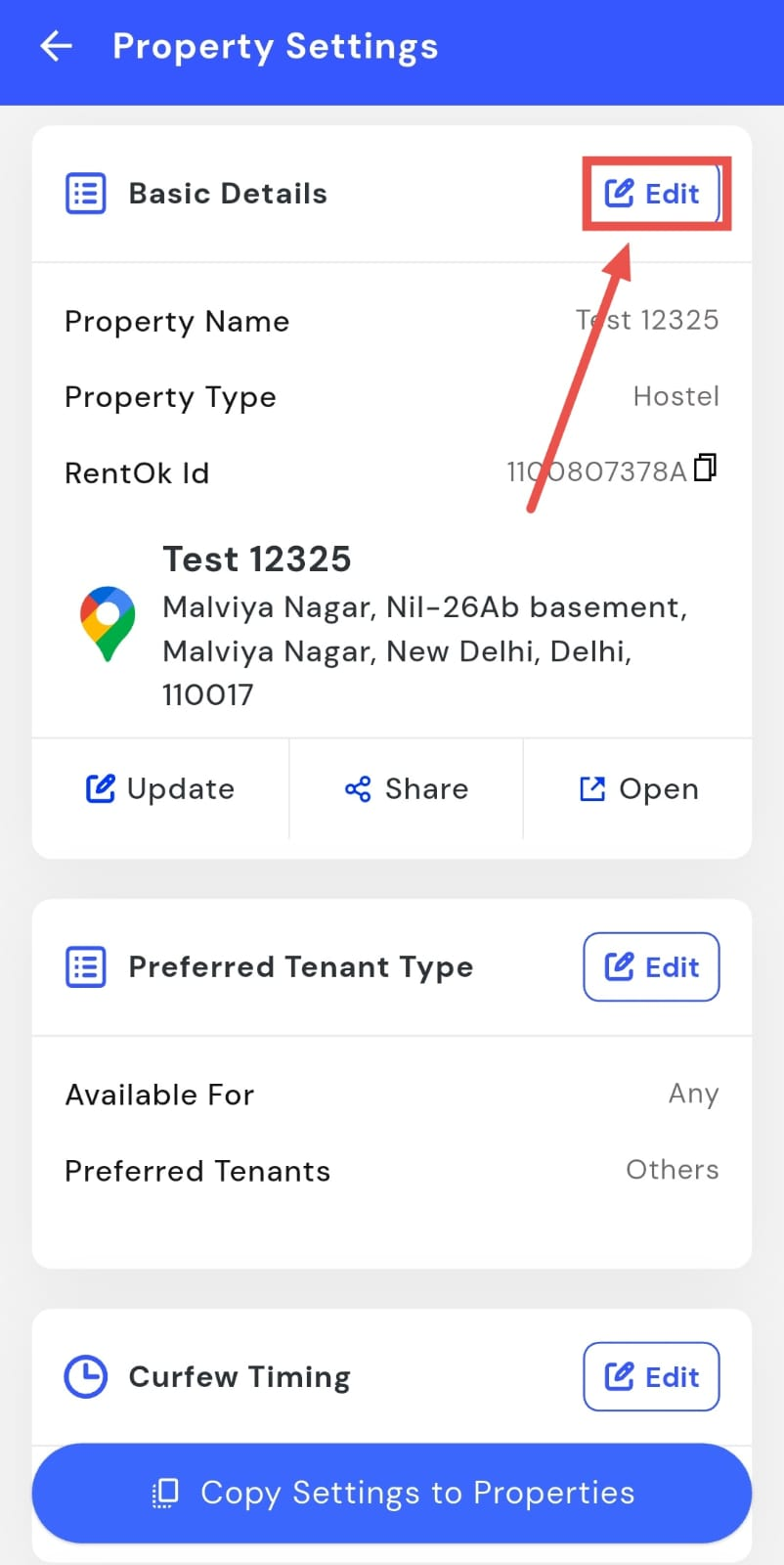
| Note: The RentOK ID cannot be edited. You can only copy it. |
|---|
How do I set or change the preferred tenant type?
The preferred tenant type helps you define what kind of tenant your property is suitable for. This makes it easier to keep your listings and records aligned with the type of tenants you want to allow.
To set or change the preferred tenant type, follow these steps:
- Step 1: Open your profile Tap on your profile picture in the top-left corner of the screen to open your settings.
- Step 2: Open Property Settings From here, tap on Property Settings to open the main settings for your property.
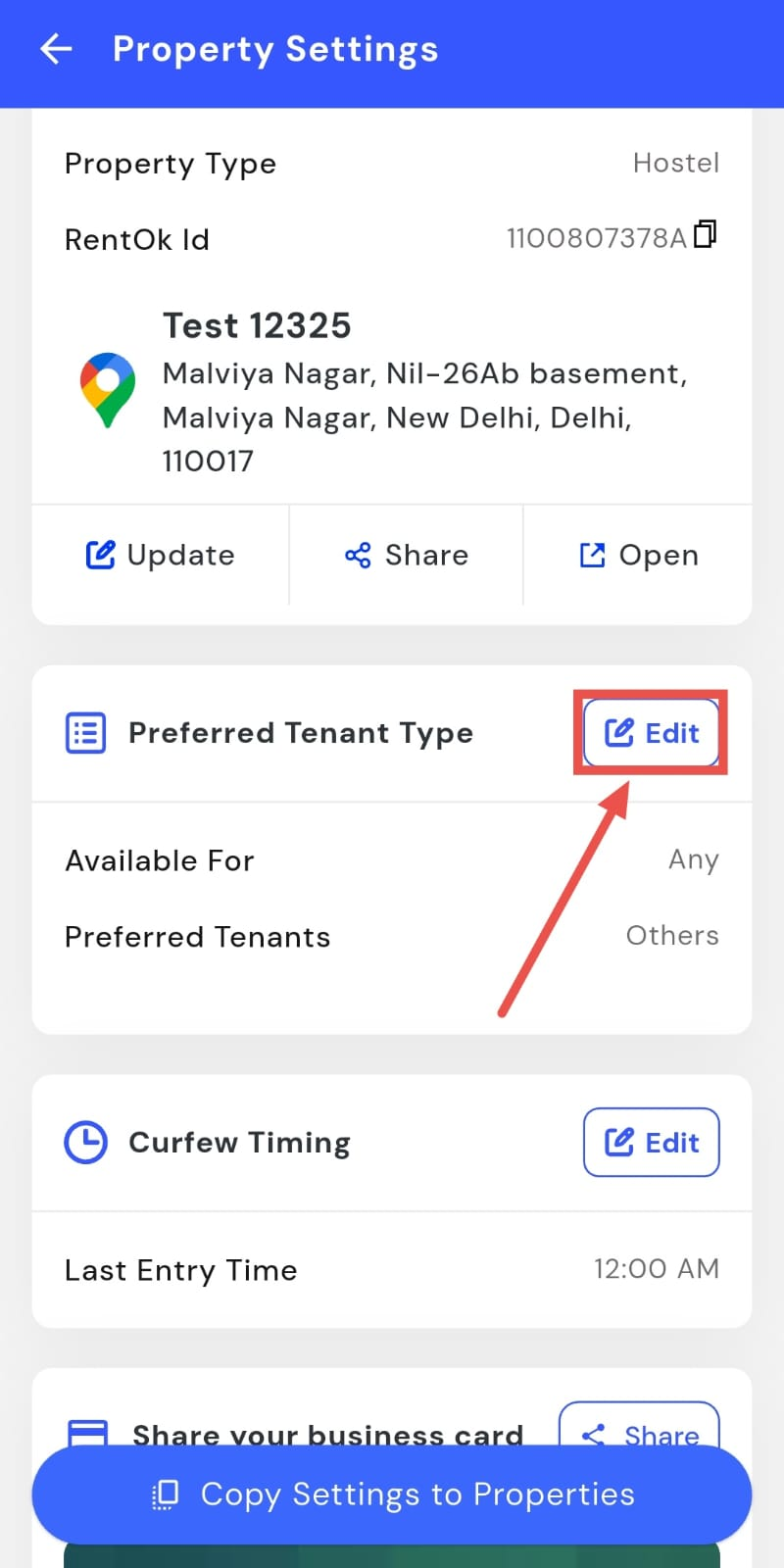
- Step 3: Find Preferred Tenant Type On the settings screen, look for the Preferred Tenant Type option.
-
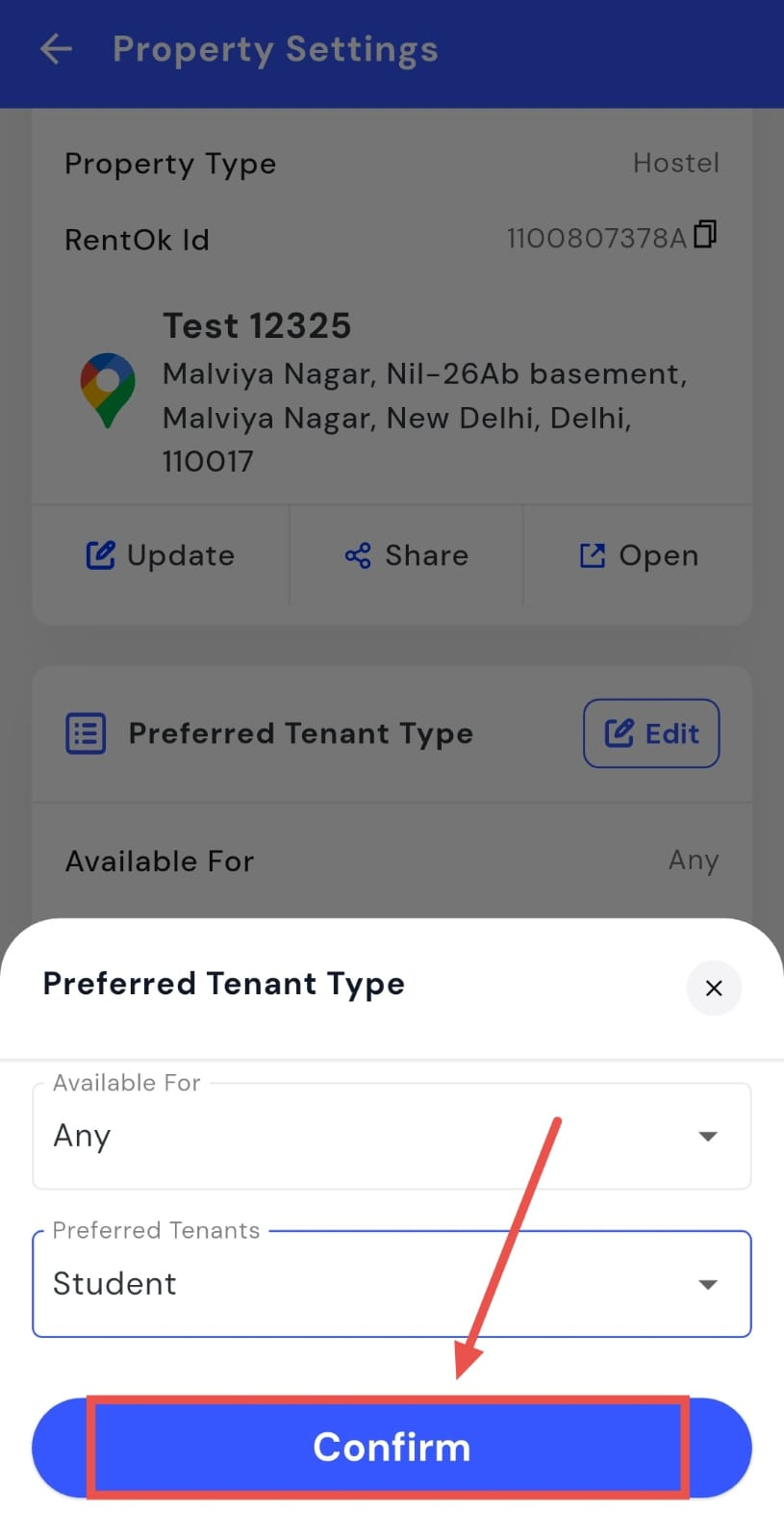
Step 4: Edit the tenant type Tap on Edit and choose your preference:
-
Select the main preference: Any, Only Boys, or Only Girls
-
Select one or more tenant categories: Student, Working Professional, Bachelor, Company, Family, Couple, Staff, Relatives, or Friends
-
-
Step 5: Confirm your selection Tap on Confirm to save your changes. Your preferred tenant type will now be updated.
How do I set or update curfew timings?
Curfew timings let you define the time limit for entry and exit at your property. You can update these timings anytime from the property settings based on your rules or requirements.
To set or update curfew timings, follow these steps:
- Step 1: Open your profile Tap on your profile picture in the top-left corner of the screen to open your settings.
- Step 2: Open Property Settings From here, tap on Property Settings to open the main settings for your property.
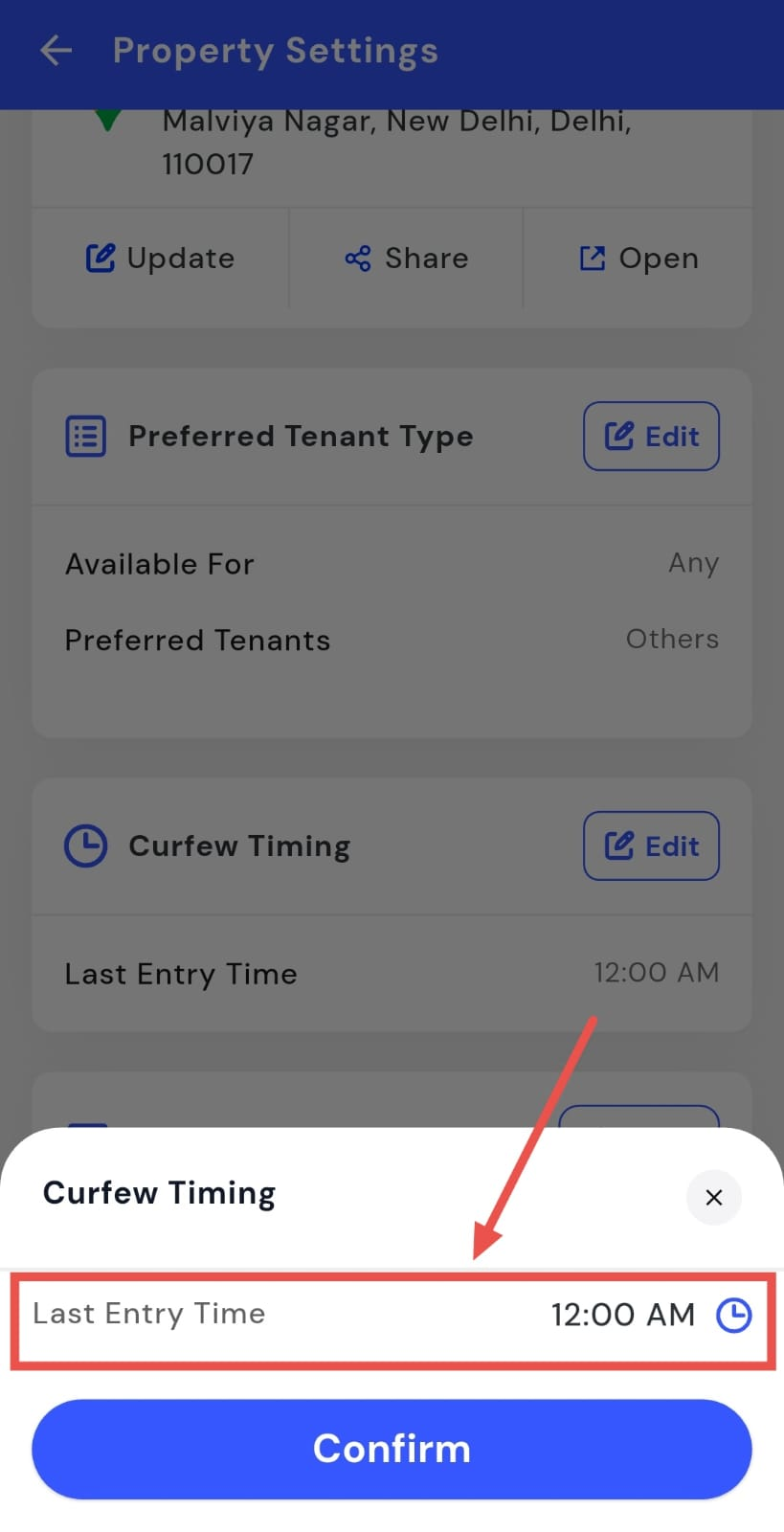
- Step 3: Open Curfew Timings On the settings screen, scroll down to Curfew Timings option and tap on Edit.
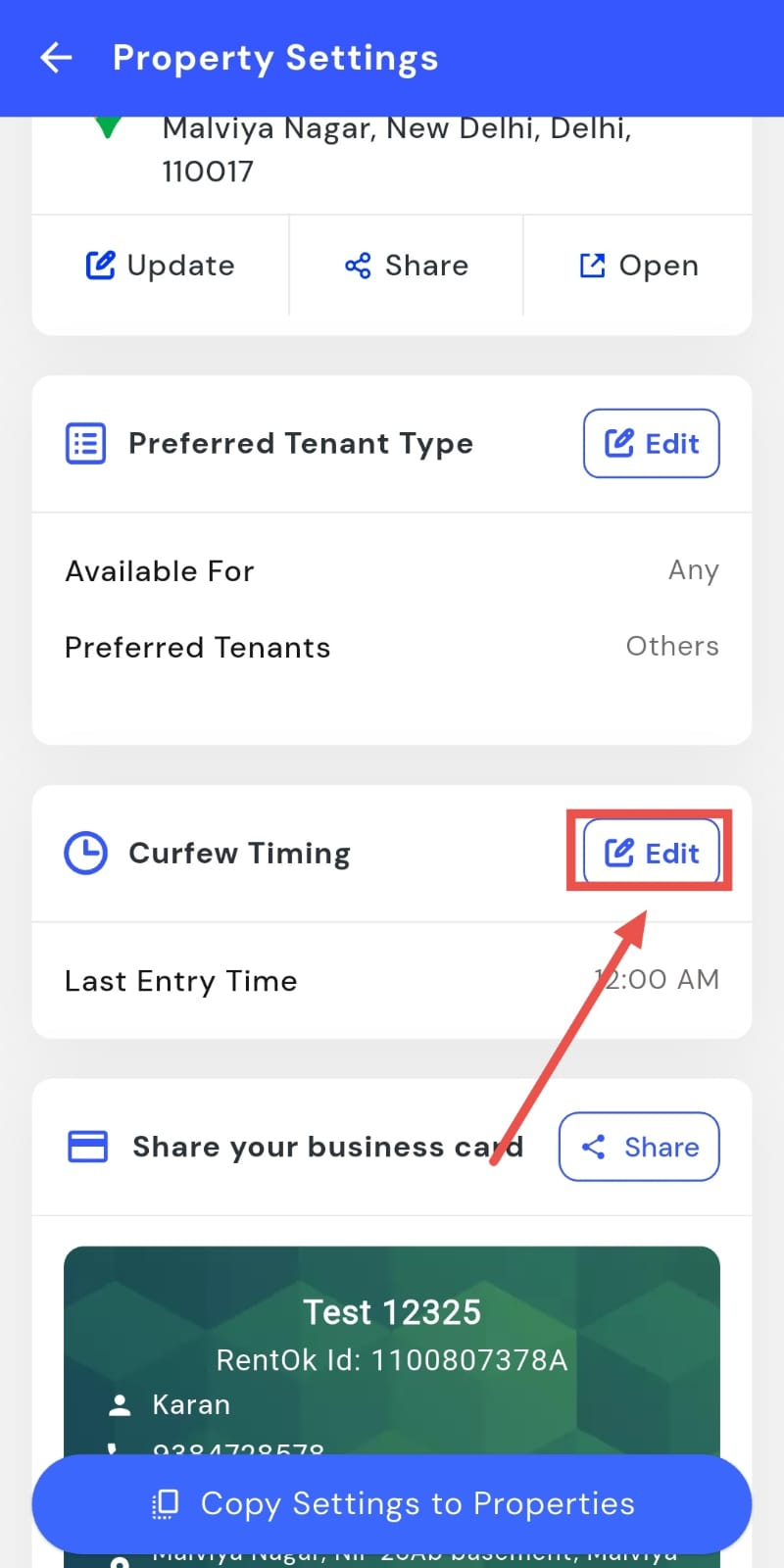
- Step 4: Edit the timing Select the time you want to set as the curfew.
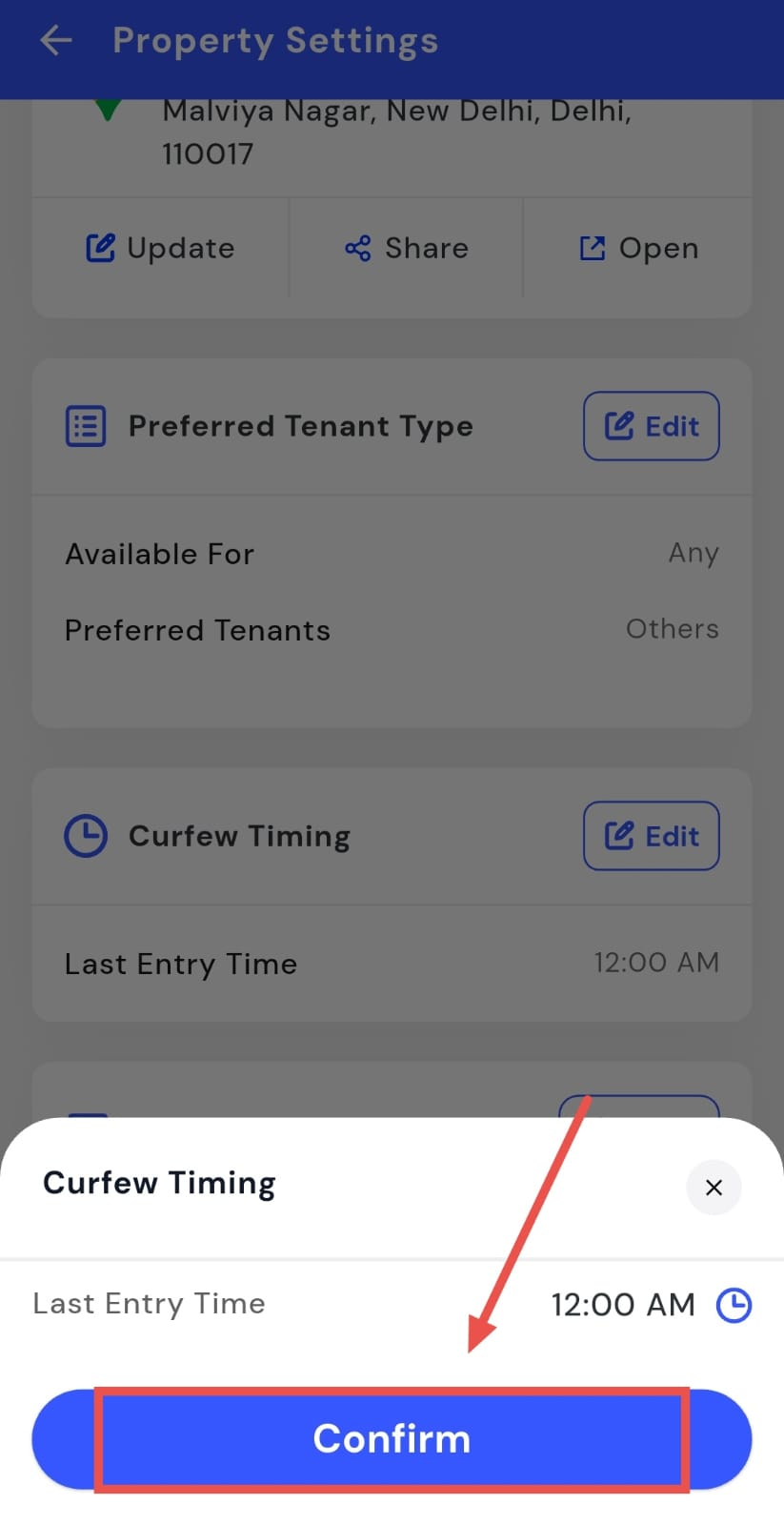
- Step 5: Confirm and save Tap on Confirm to save your changes. The new curfew timing will now be applied.
How do I create and share my property business card?
Sharing your property details with someone shouldn’t require typing everything again and again. That’s why the app creates a business card for your property using the information you’ve already added, so you can share it in just a tap.
To create and share your property business card, follow these steps:
- Step 1: Open your profile Tap on your profile picture in the top-left corner of the screen to open your settings.
- Step 2: Open Property Settings From here, tap on Property Settings to open the main settings for your property.
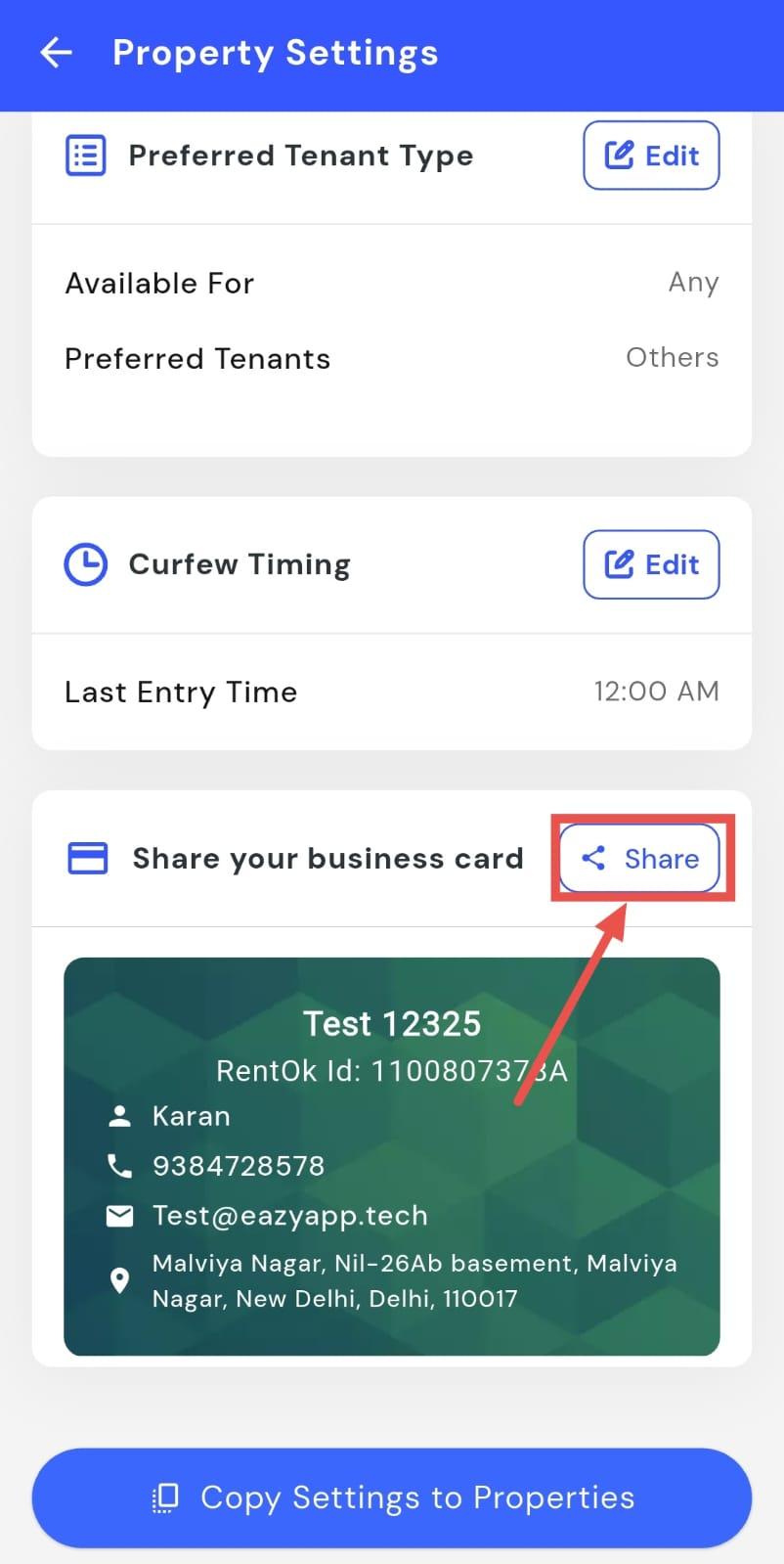
- Step 3: Find your business card Scroll down to find the Business Card section. Your business card is already created by the app using your property details.
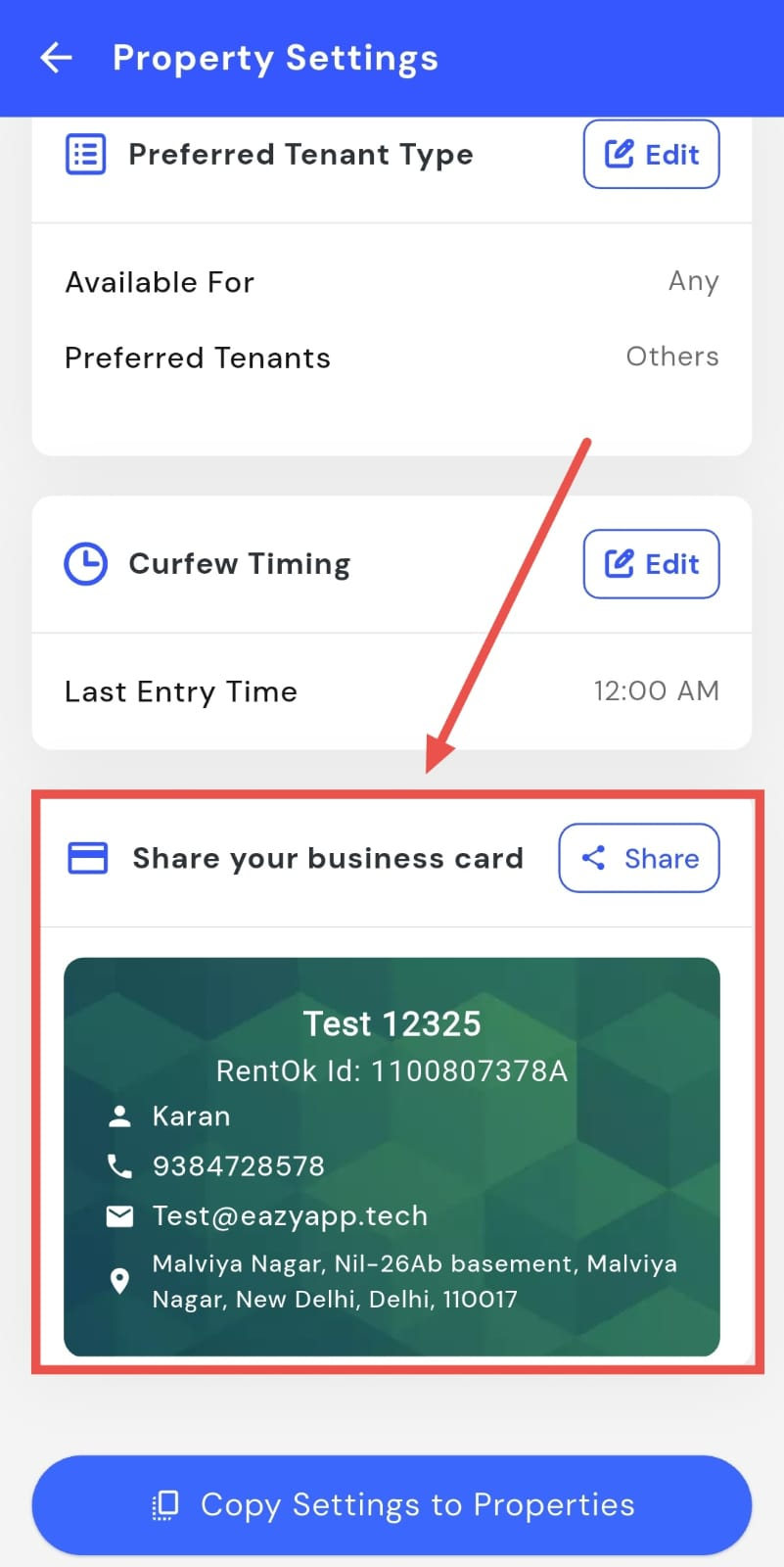
- Step 4: Share the business card Tap on Share to send your business card to others. It will include all the details you have added in your property settings.