Main App Settings
How do I change my password?
Passwords sometimes need to be updated, whether it’s for security reasons or simply because you want to use a new one. You can change your password directly from the app without any extra steps or support help.
To change your password, follow these steps:
- Step 1: Open your profile Tap on your profile picture in the top-left corner of the screen to open your settings.
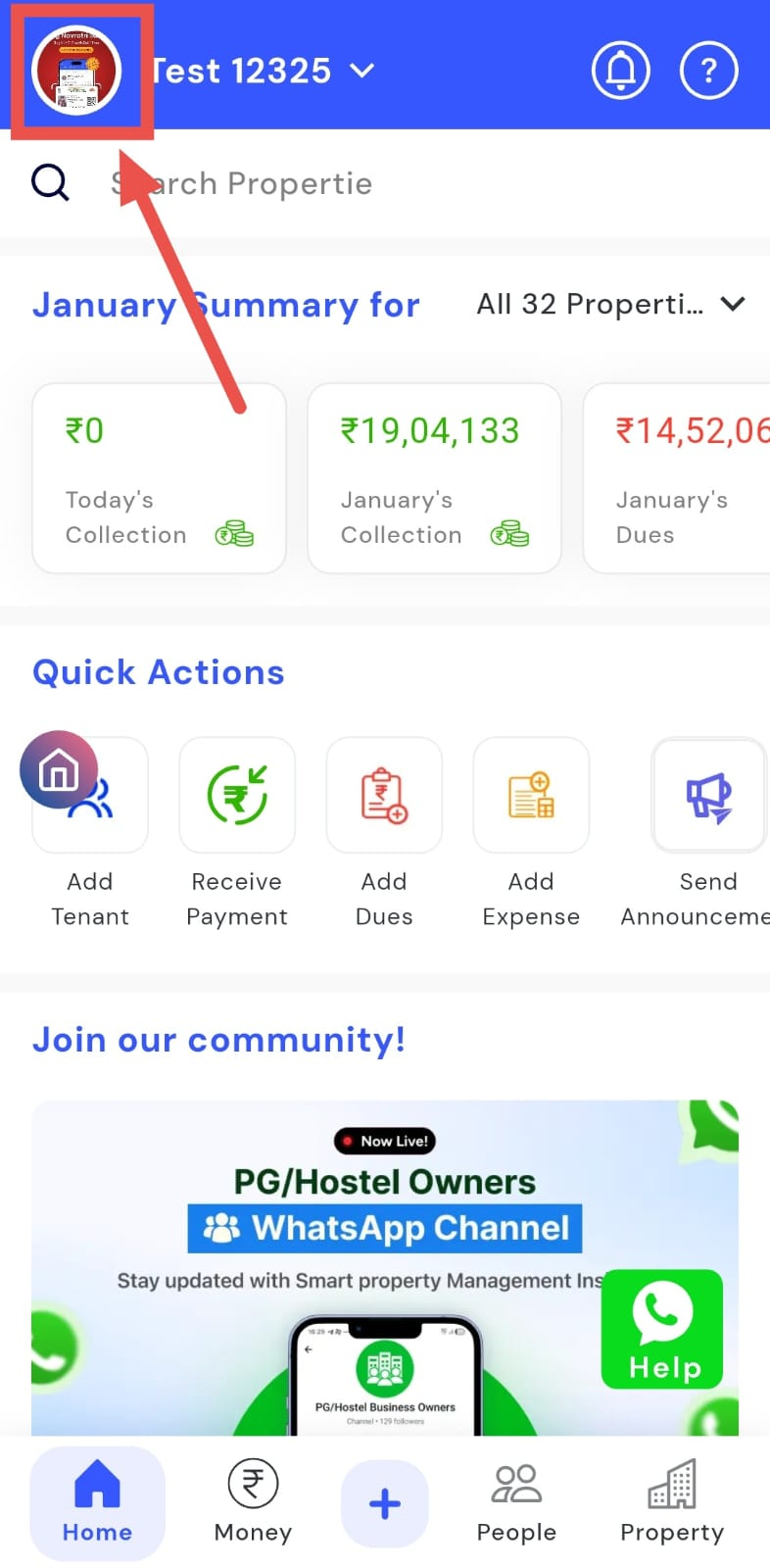
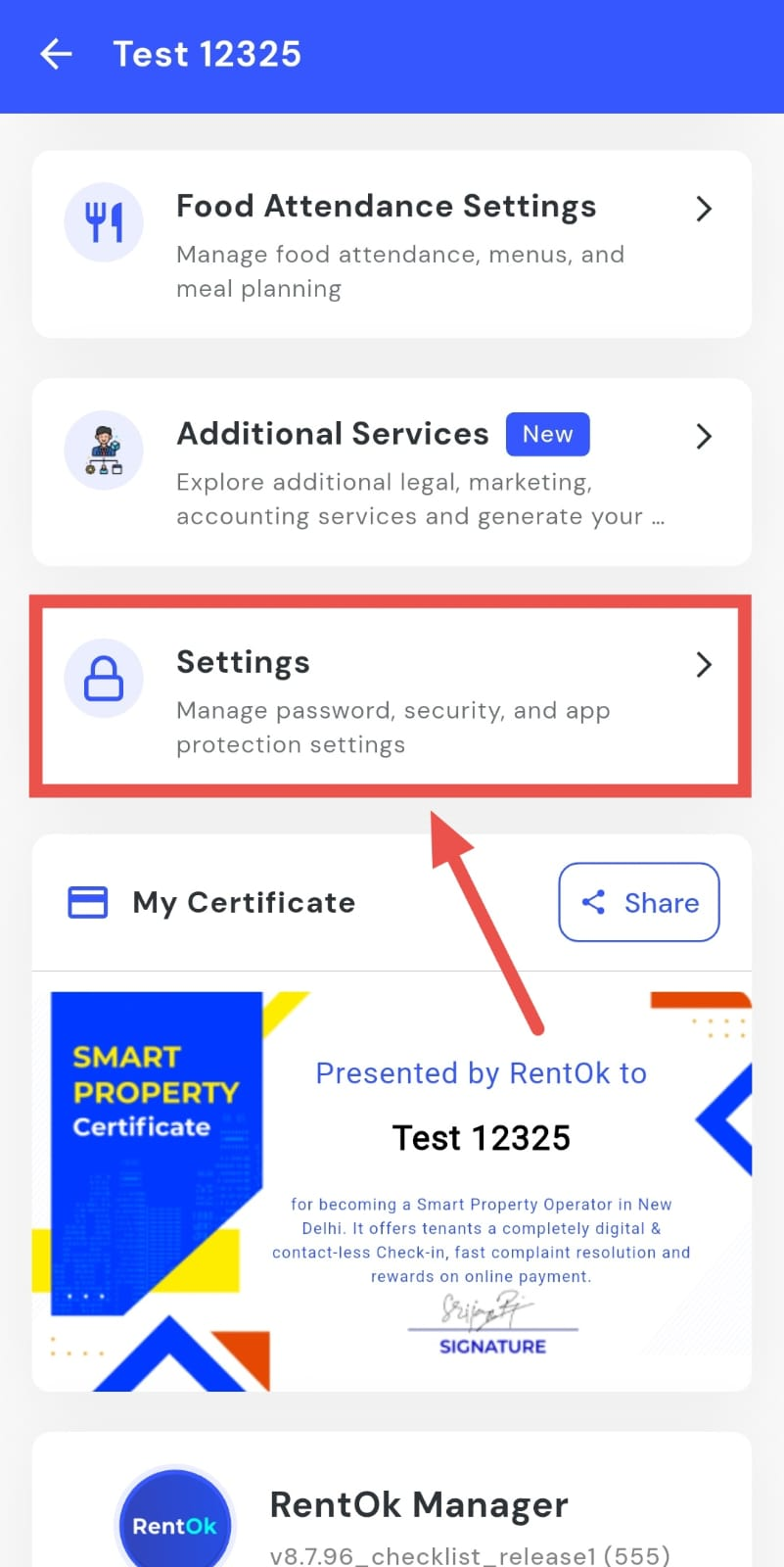
- Step 2: Open Settings On this screen, tap on the Settings option to go to your account settings.
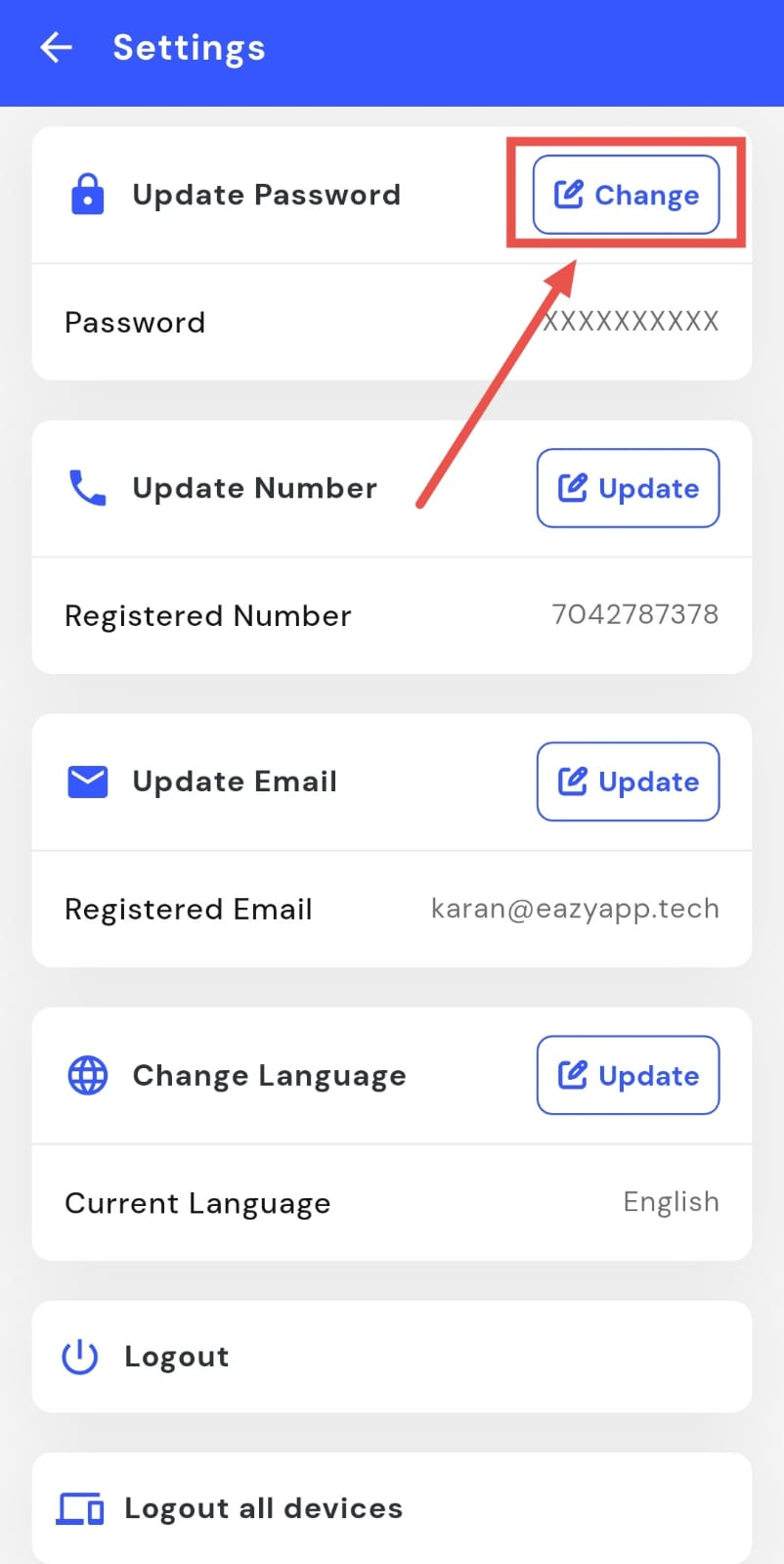
- Step 3: Enter your new password Tap on Change Password and enter the new password you want to use.
- Step 4: Confirm and save Tap on Confirm to save your new password.
How do I update my mobile number?
Your mobile number is used for important updates and communication related to your account. If you’ve changed your number or want to use a different one, it’s a good idea to update it here so everything stays in sync. You can do this easily from the app settings in just a few steps.
To update your mobile number, follow these steps:
- Step 1: Open your profile Tap on your profile picture in the top-left corner of the screen to open your settings.
- Step 2: Open Settings On this screen, tap on the Settings option to go to your account settings.
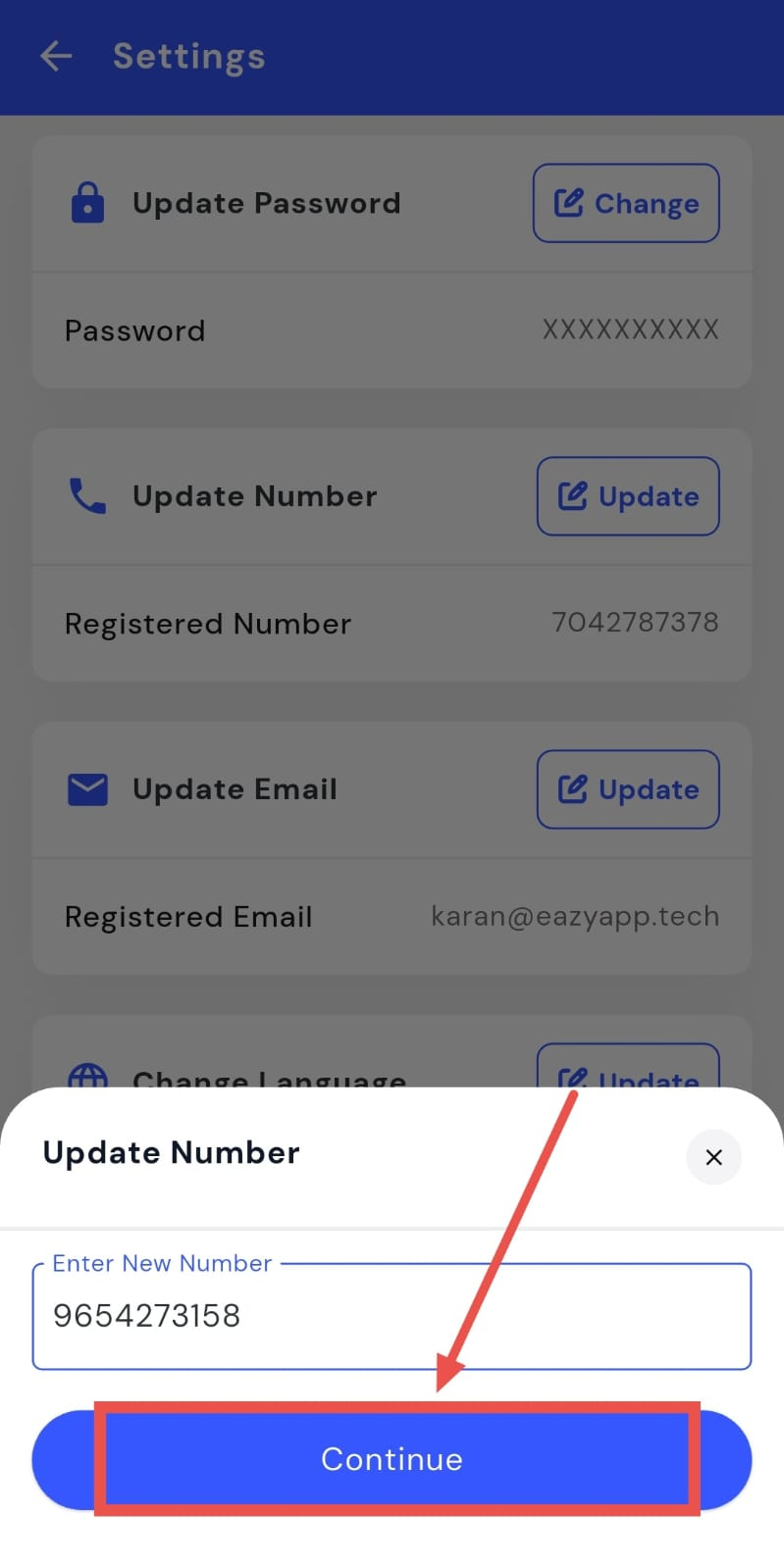
- Step 3: Enter your new mobile number Tap on Mobile Number and enter the new number you want to use.
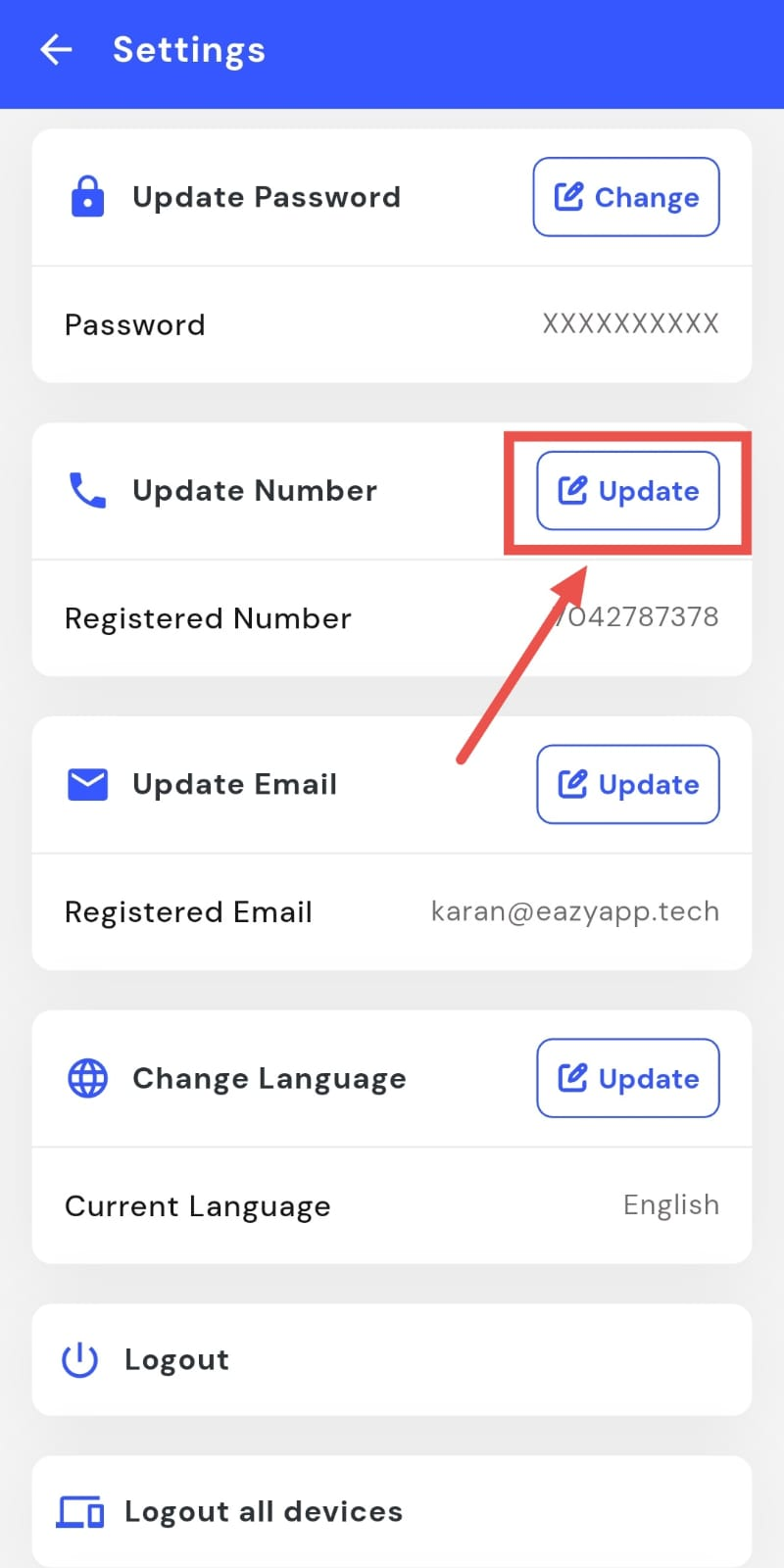
- Step 4: Confirm and save Tap on Confirm to save your updated mobile number.
How do I update my email address?
Your email address is linked to your account for notifications and important communication. If you no longer use your old email or want to switch to a new one, you should update it to make sure you don’t miss any important updates. This can be done directly from the app settings.
To update your email address, follow these steps:
- Step 1: Open your profile Tap on your profile picture in the top-left corner of the screen to open your settings.
- Step 2: Open Settings On this screen, tap on the Settings option to go to your account settings.
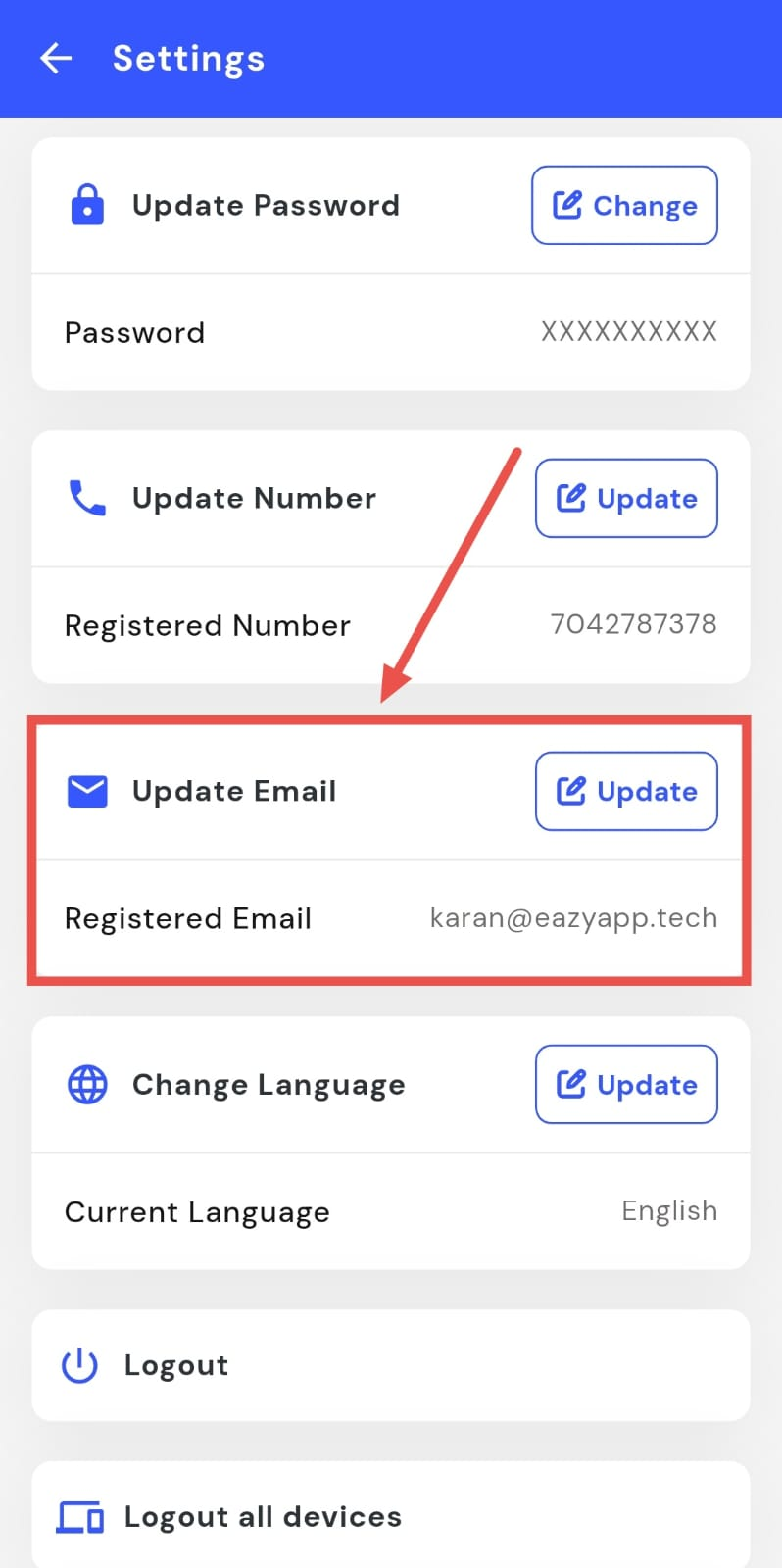
- Step 3: Check email update option You may also see an option to update your email address. This feature will be available soon; for now, email updates can be done only from the backend.
How do I change the app language?
Using the app in a language you’re comfortable with makes everything easier to understand and use. If you prefer a different language, you can change it anytime from the settings. Once updated, the app will start showing content in the selected language.
To change the app language, follow these steps:
- Step 1: Open your profile Tap on your profile picture in the top-left corner of the screen to open your settings.
- Step 2: Open Settings On this screen, tap on the Settings option to go to your account settings.
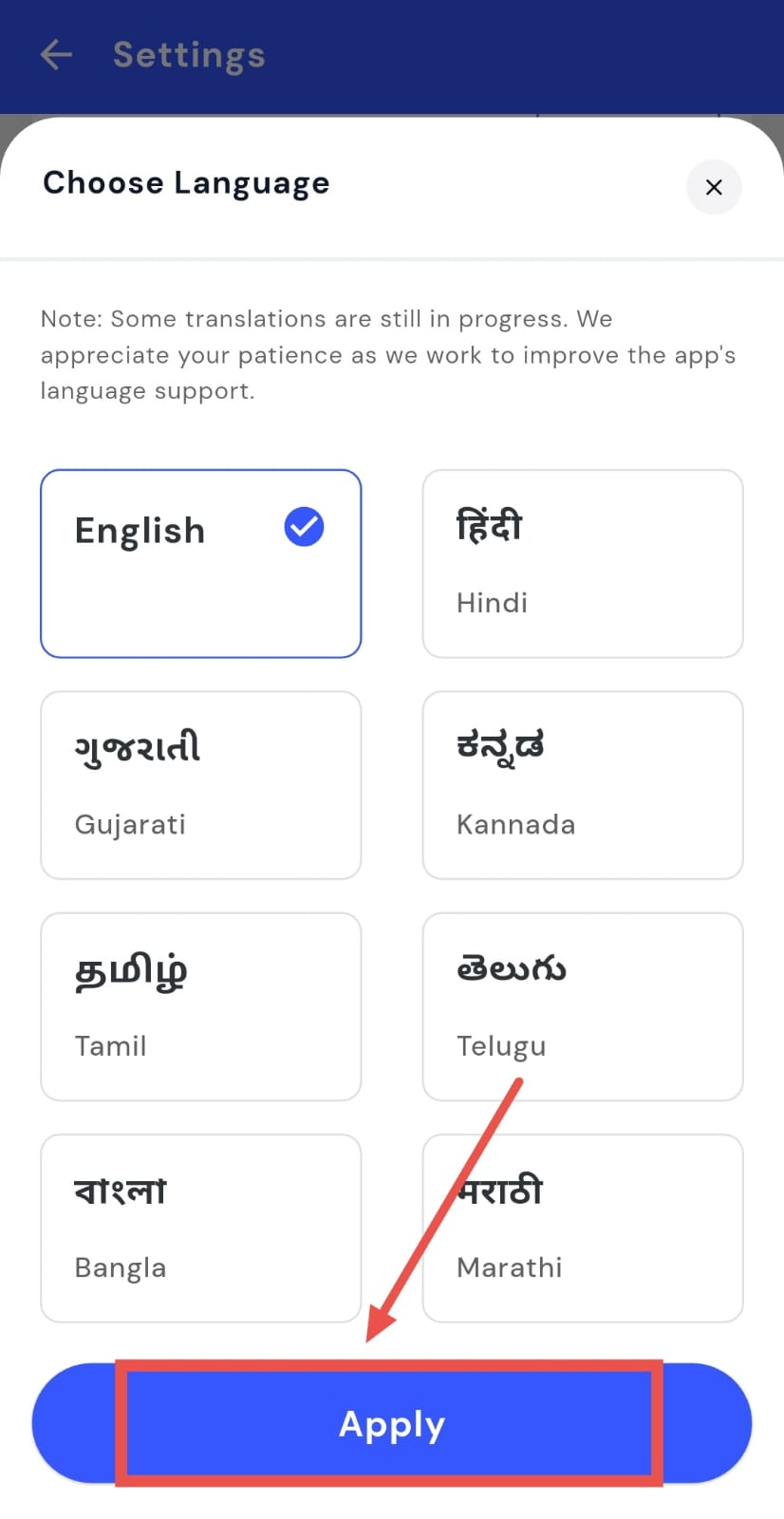
- Step 3: Select a new language Tap on Language and choose the language you want to use.
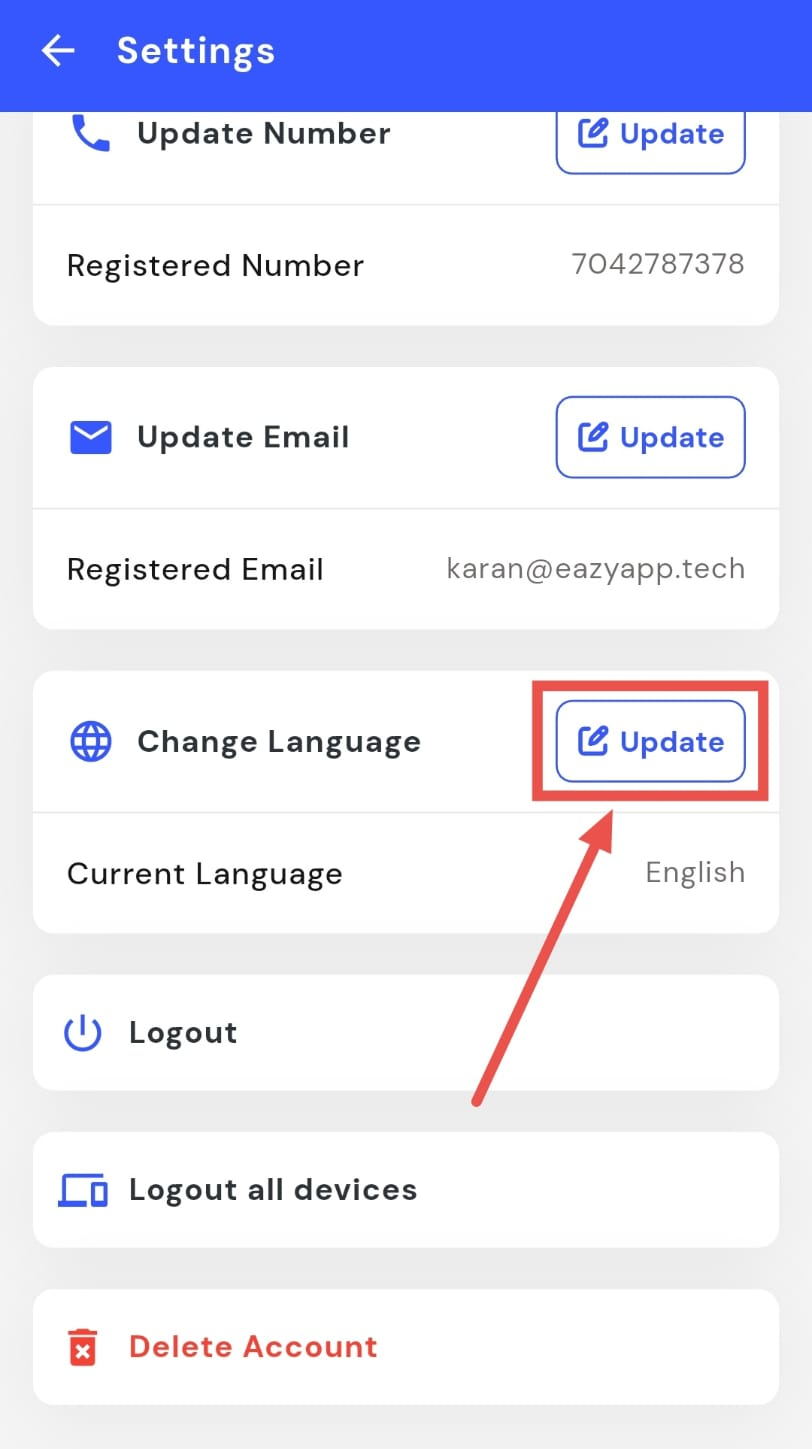
- Step 4: Confirm and save Tap on Confirm to apply the selected language.
How do I log out of my account?
If you’re using the app on a shared device or just want to sign out for a while, logging out is a good way to keep your account safe. You can do this anytime from the settings without affecting your data or account information.
To log out of your account, follow these steps:
- Step 1: Open your profile Tap on your profile picture in the top-left corner of the screen to open your settings.
- Step 2: Open Settings On this screen, tap on Settings to go to your account-related options.
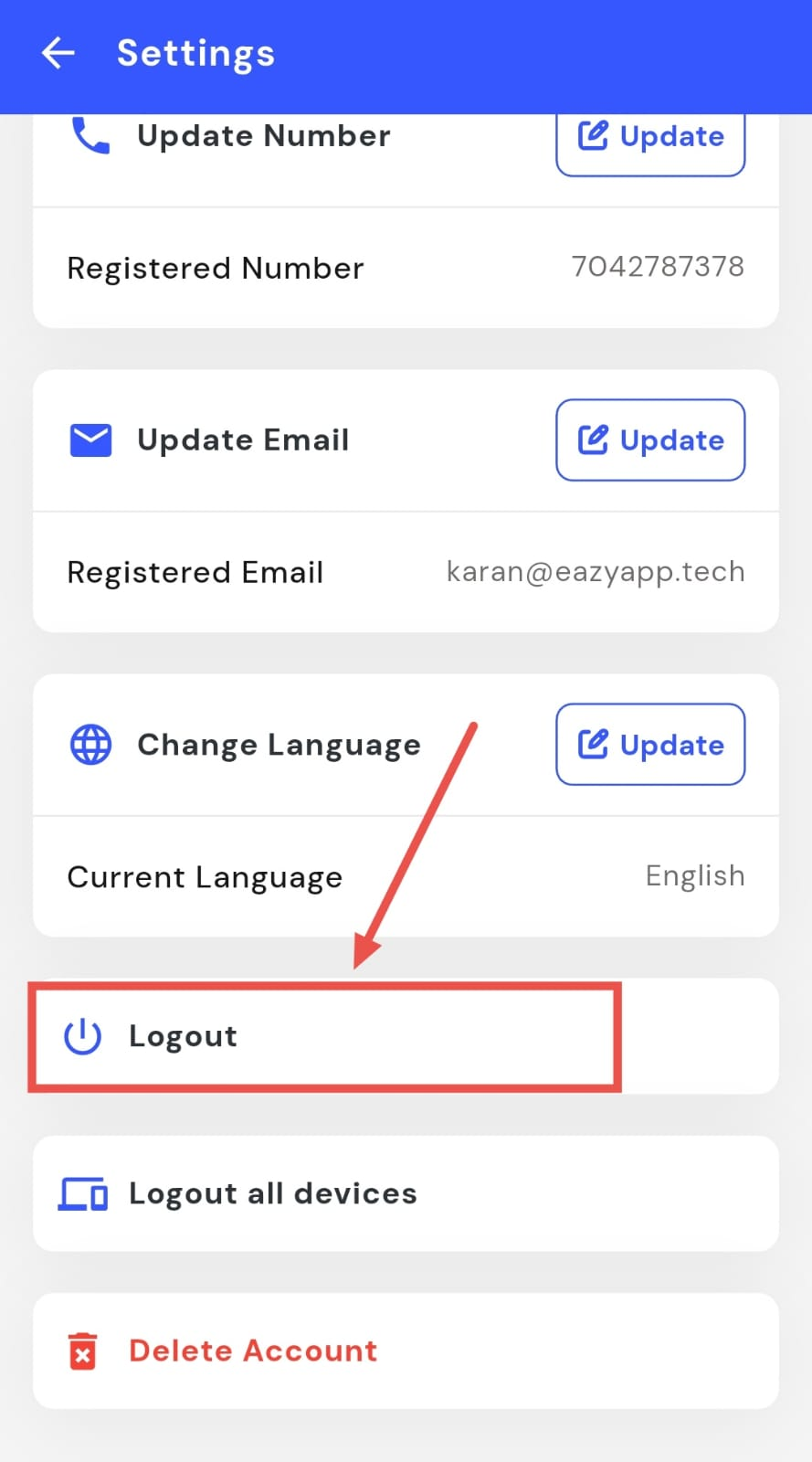
- Step 3: Log out of your account Scroll down until you see the Log Out option, then tap on it to sign out of your account.
How do I log out from all devices?
If you think your account is signed in on other devices or you just want to make sure no one else has access, logging out from all devices is a safe option. This will sign you out everywhere at once and help keep your account secure.
To log out from all devices, follow these steps:
- Step 1: Open your profile Tap on your profile picture in the top-left corner of the screen to open your settings.
- Step 2: Open Settings On this screen, tap on Settings to go to your account-related options.
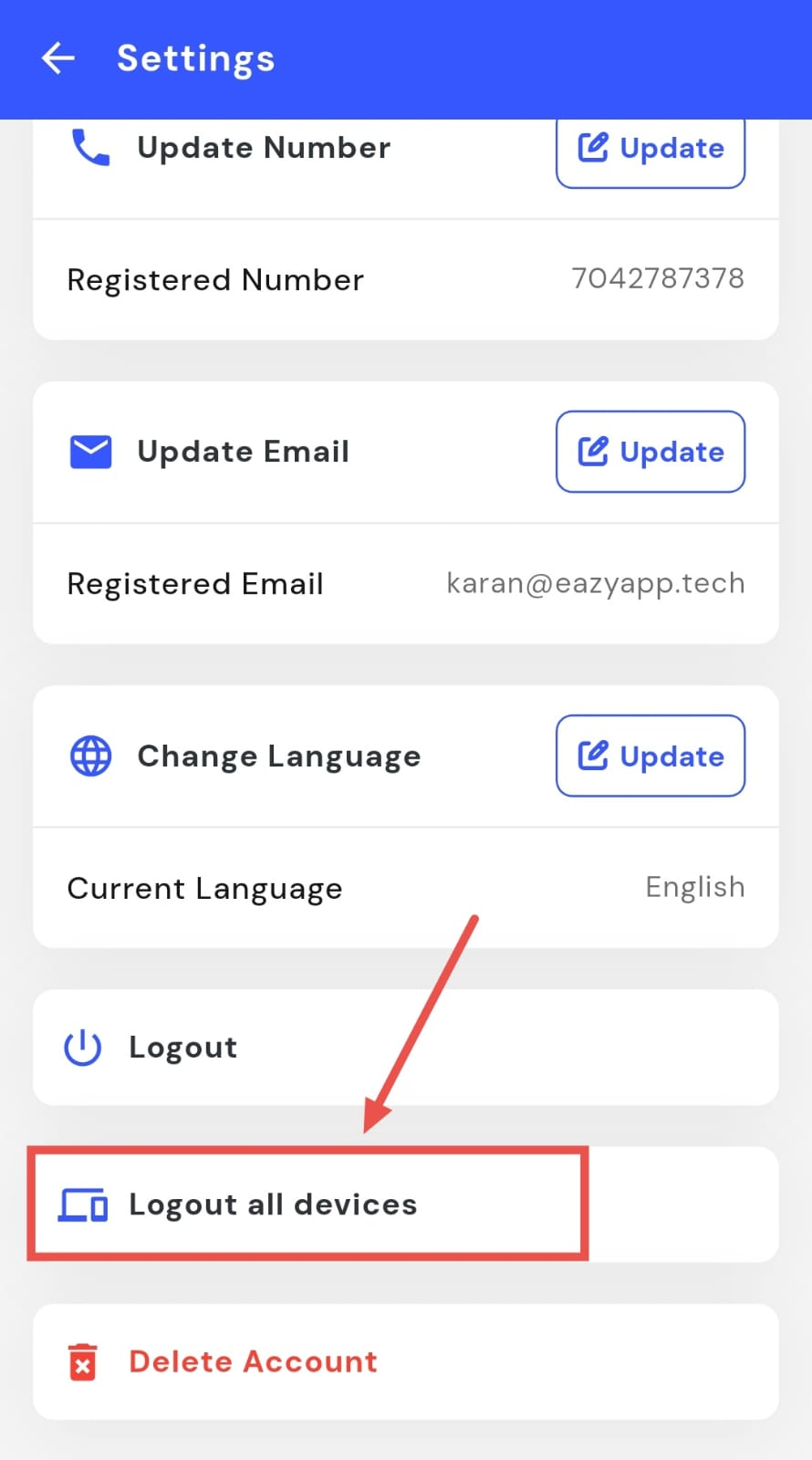
- Step 3: Log out from all devices Scroll down until you see the Log out from all devices option, then tap on it to sign out from every device.
How do I delete my account?
Deleting your account is a permanent action and should only be done if you no longer want to use the app. Once your account is deleted, you won’t be able to access your data or settings again. If you’re sure about this decision, you can start the process directly from the app settings.
To delete your account, follow these steps:
- Step 1: Open your profile Tap on your profile picture in the top-left corner of the screen to open your settings.
- Step 2: Open Settings On this screen, tap on Settings to go to your account-related options.
- Step 3: Choose Delete Account Scroll down until you see the Delete Account option, then tap on it to continue.
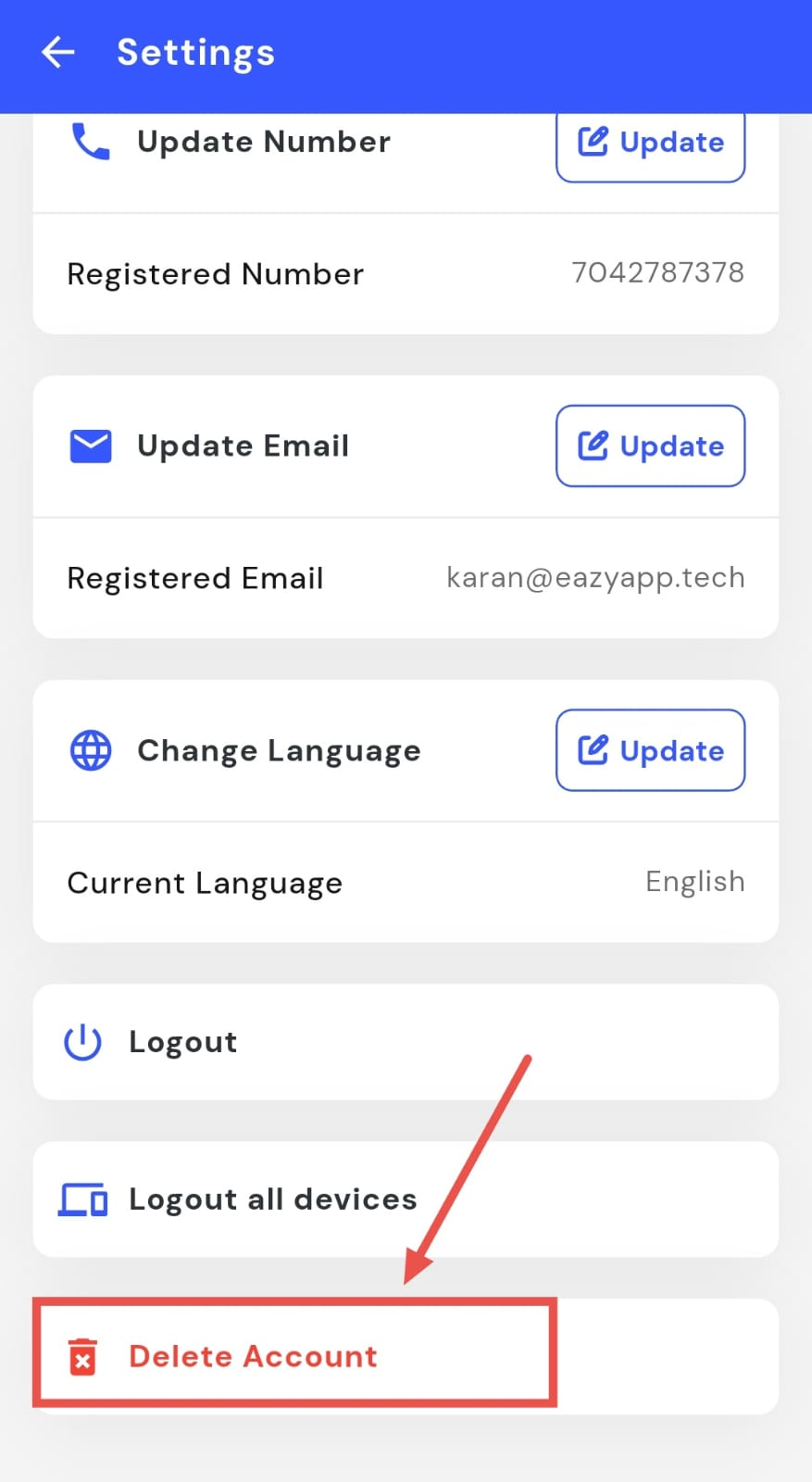
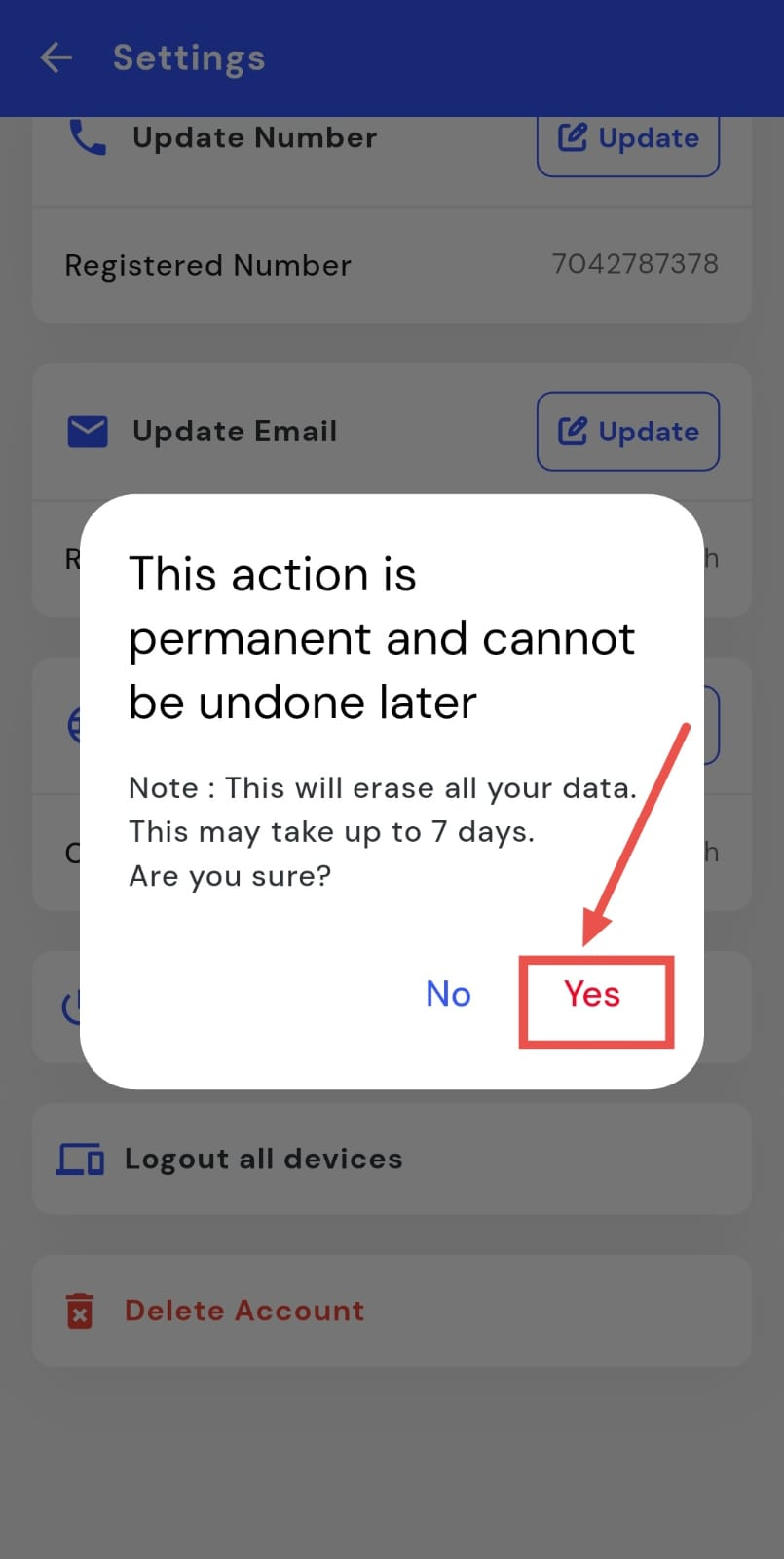
- Step 4: Confirm the action When asked for confirmation, tap Yes to confirm. Your account will then be deleted.