My Website
How do I enable my property website?
Your property website helps you showcase your property and available units online without sharing details manually. You can choose whether to enable the website and also control what information appears on it, all from one place in the app.
To enable your property website, follow these steps:
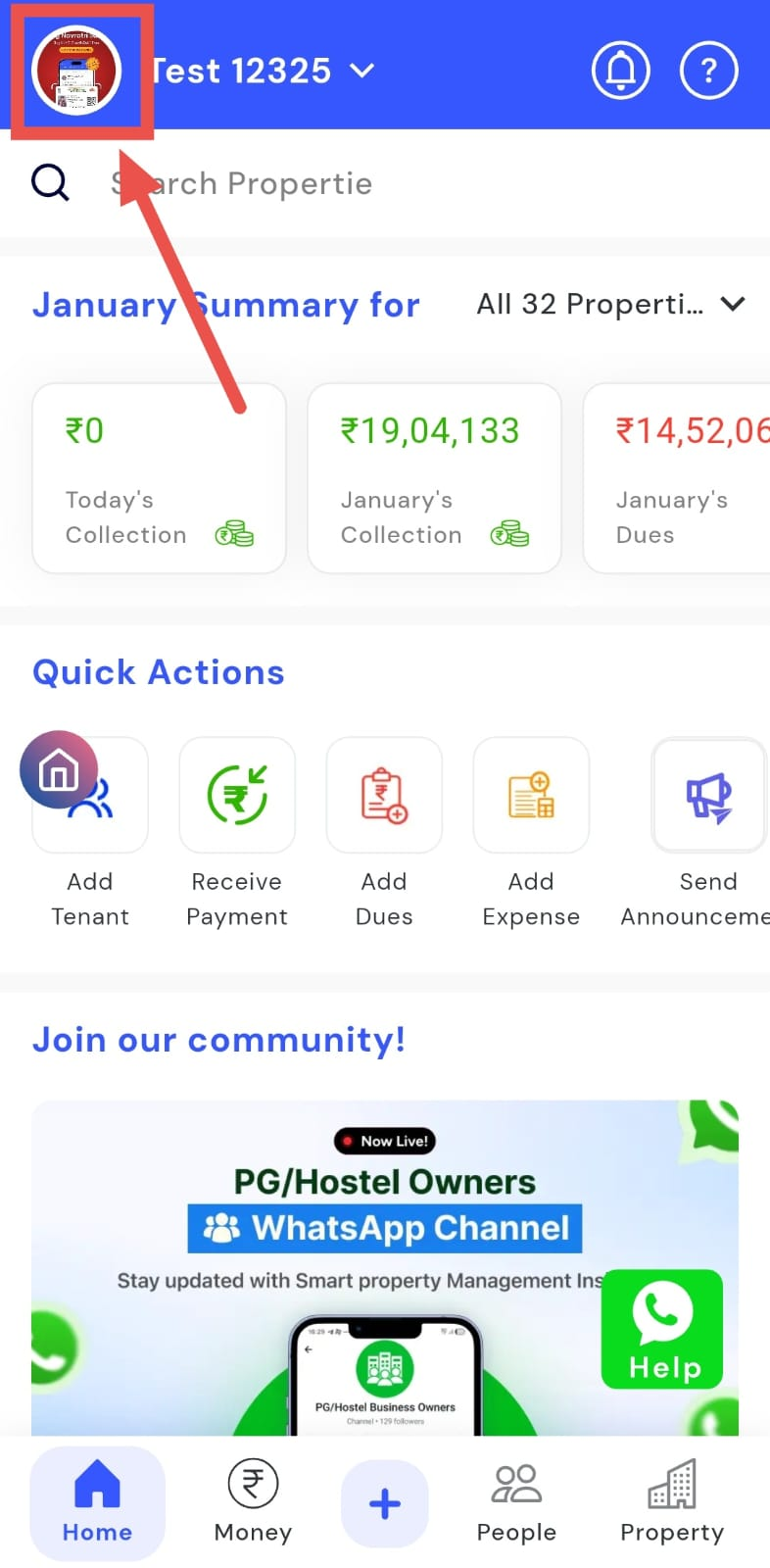
- Step 1: Open your profile Tap on your profile picture in the top-left corner of the screen to open your settings.
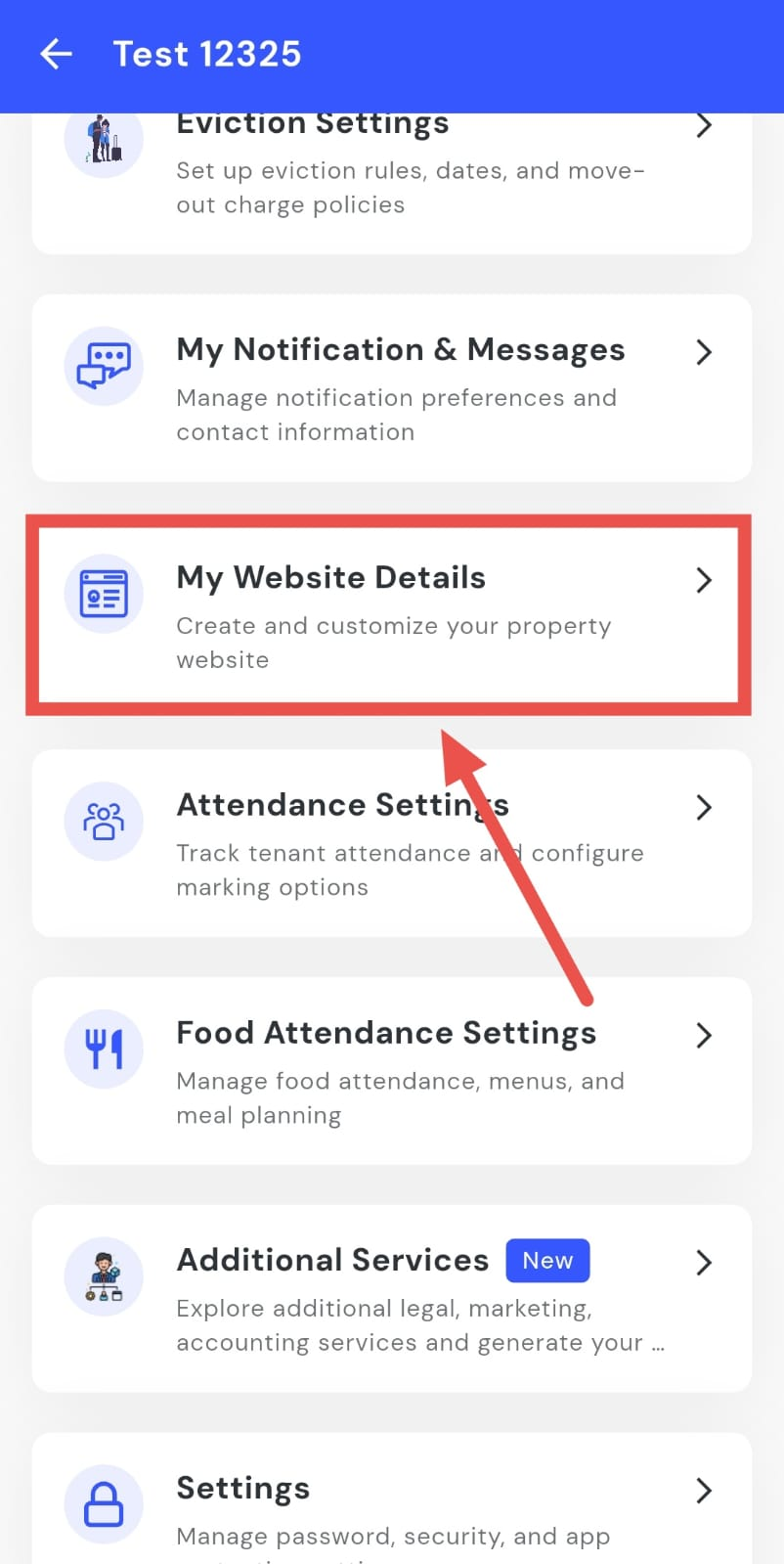
- Step 2: Open My Website Details Scroll down on this screen until you see My Website Details, then tap on it to continue.
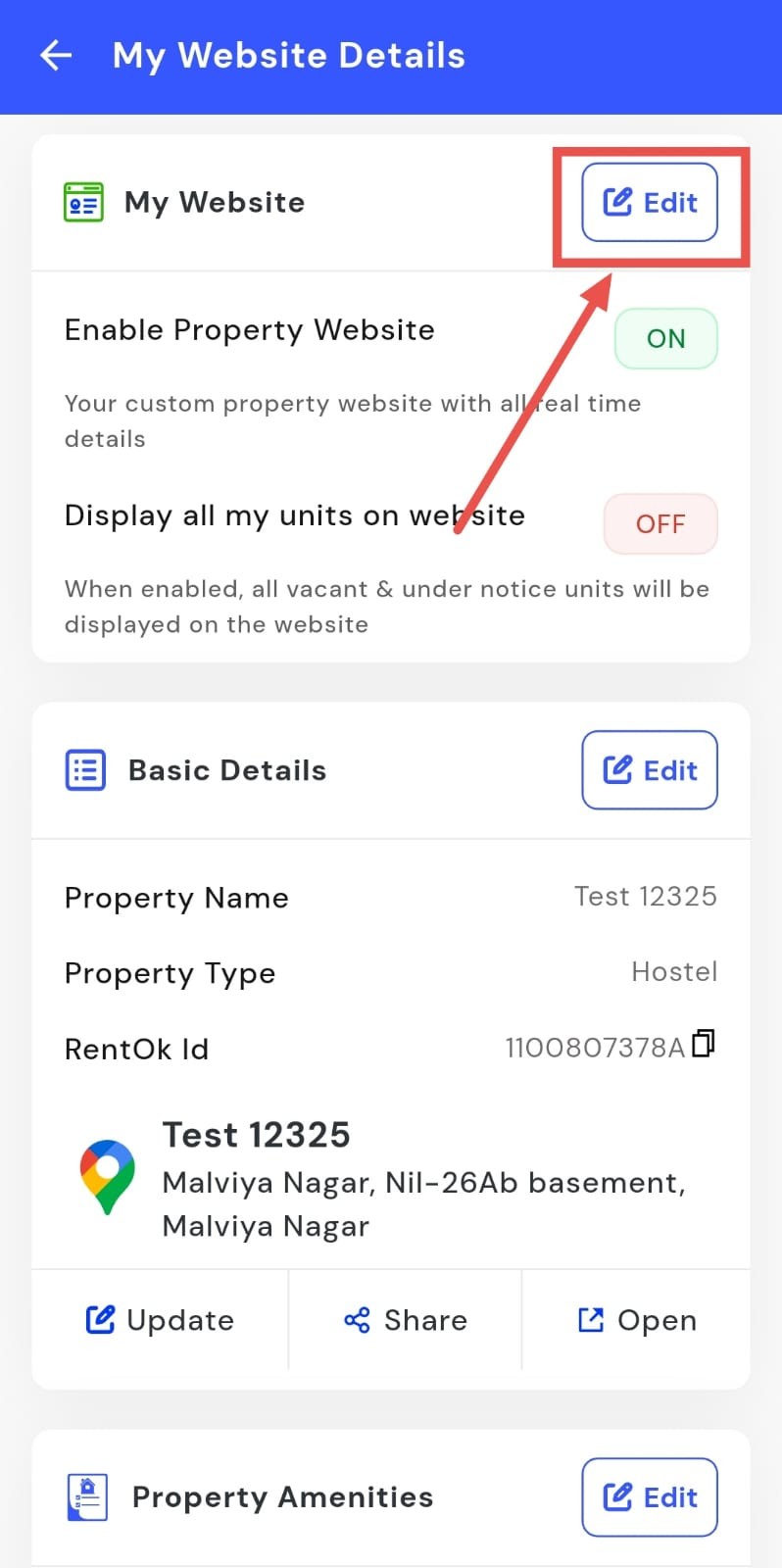
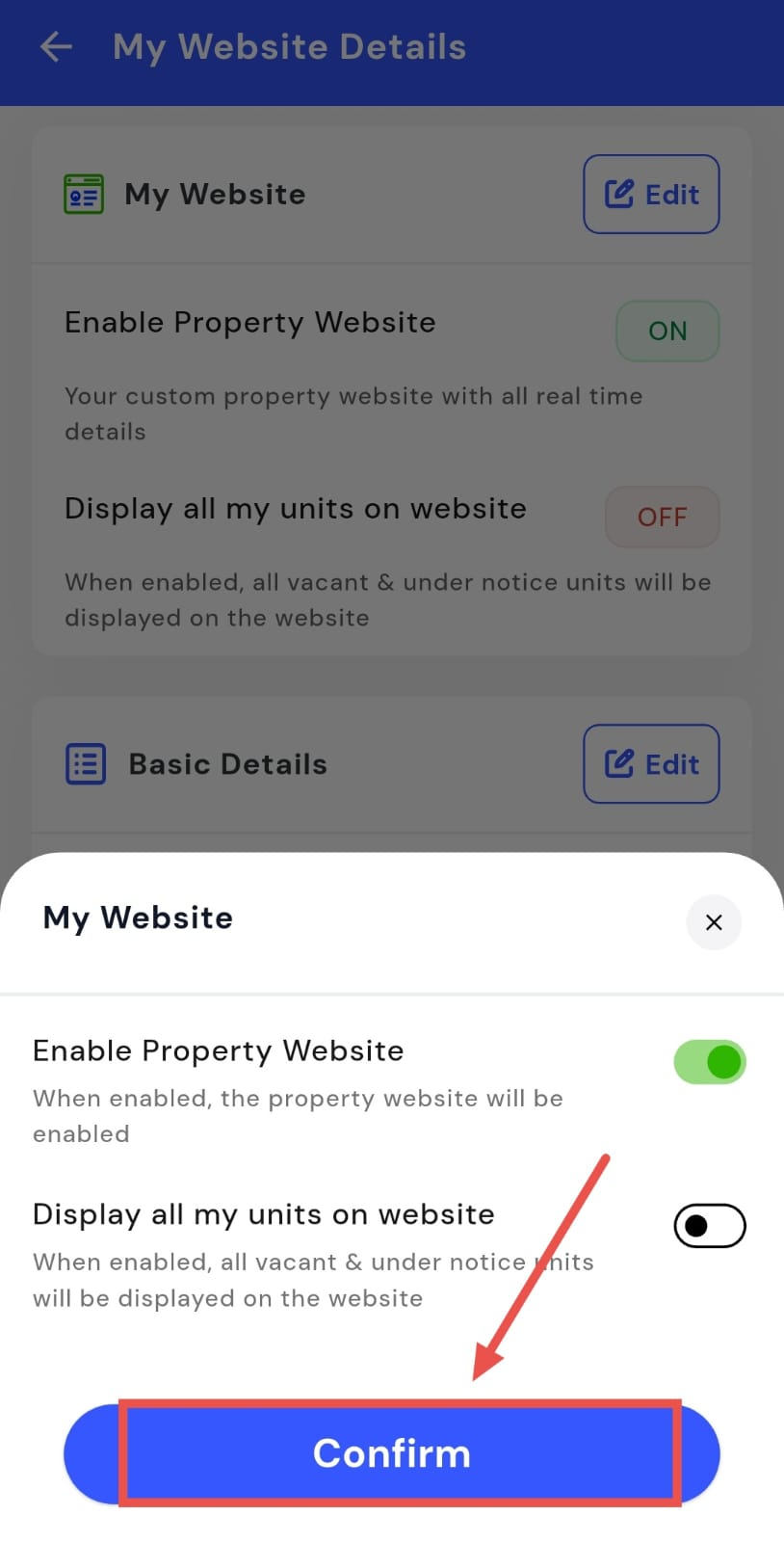
- Step 3: Enable the website On this screen, you will see the My Website option. Tap on Edit, then enable or disable your property website as required.
- Step 4: Choose unit visibility Under the same section, you can choose whether to display all units on the website. When enabled, vacant units and units under notice will also be shown.
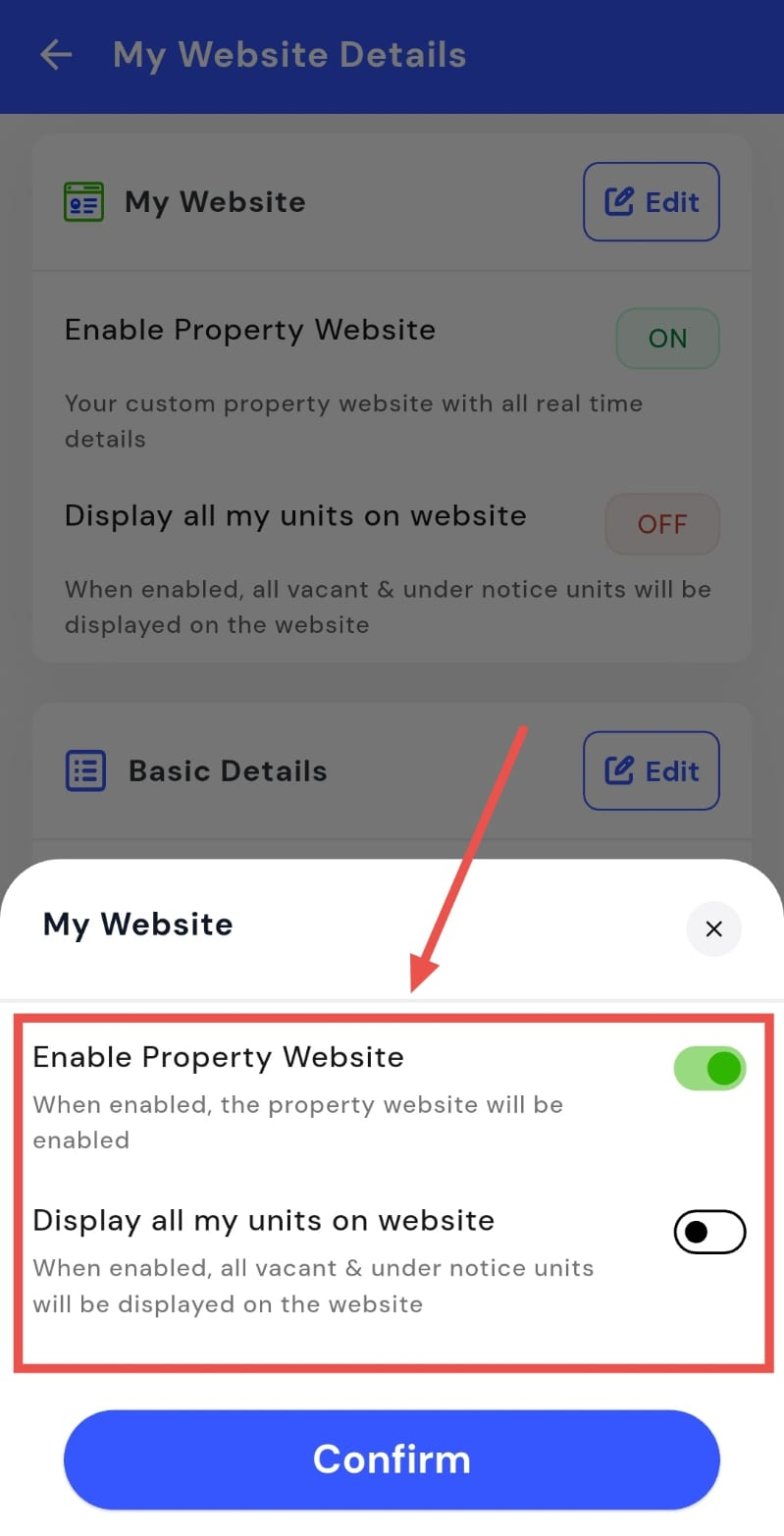
- Step 5: Confirm your changes After updating the settings, tap on Confirm to apply the changes.
How do I edit my property website details?
Your property website details control how your property appears online, including its name, type, and location. If any of this information changes or needs correction, you can update it directly from the website settings without any extra effort.
To edit your property website details, follow these steps:
- Step 1: Open your profile Tap on your profile picture in the top-left corner of the screen to open your settings.
- Step 2: Open My Website Details Scroll down until you see the My Website Details option, then tap on it to continue.
-
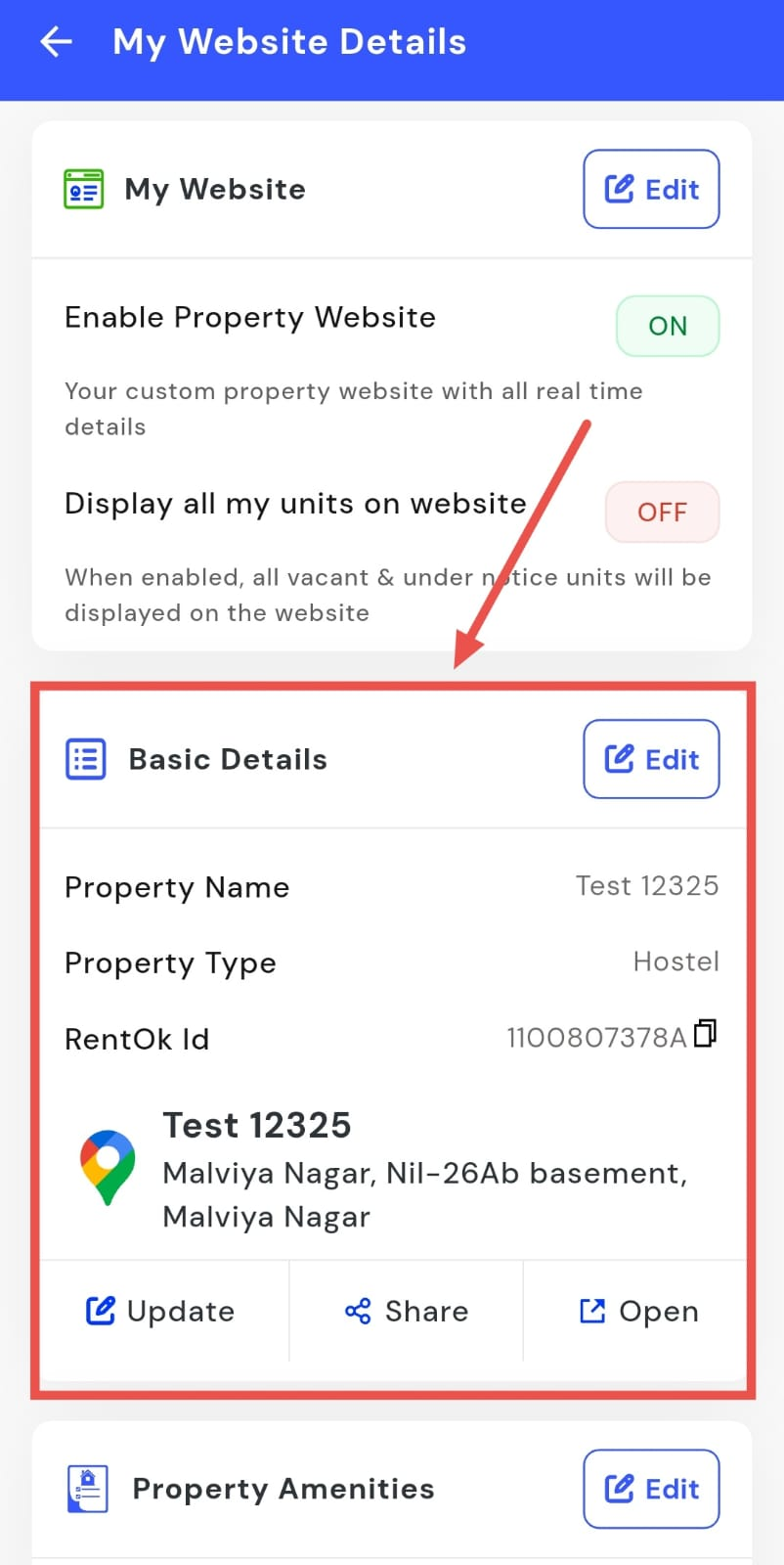
Step 3: Edit basic details On this screen, you will see the Basic Details section. Tap on Edit to update information such as:
-
Property name
-
Property type
-
RentOK ID
-
Location
-
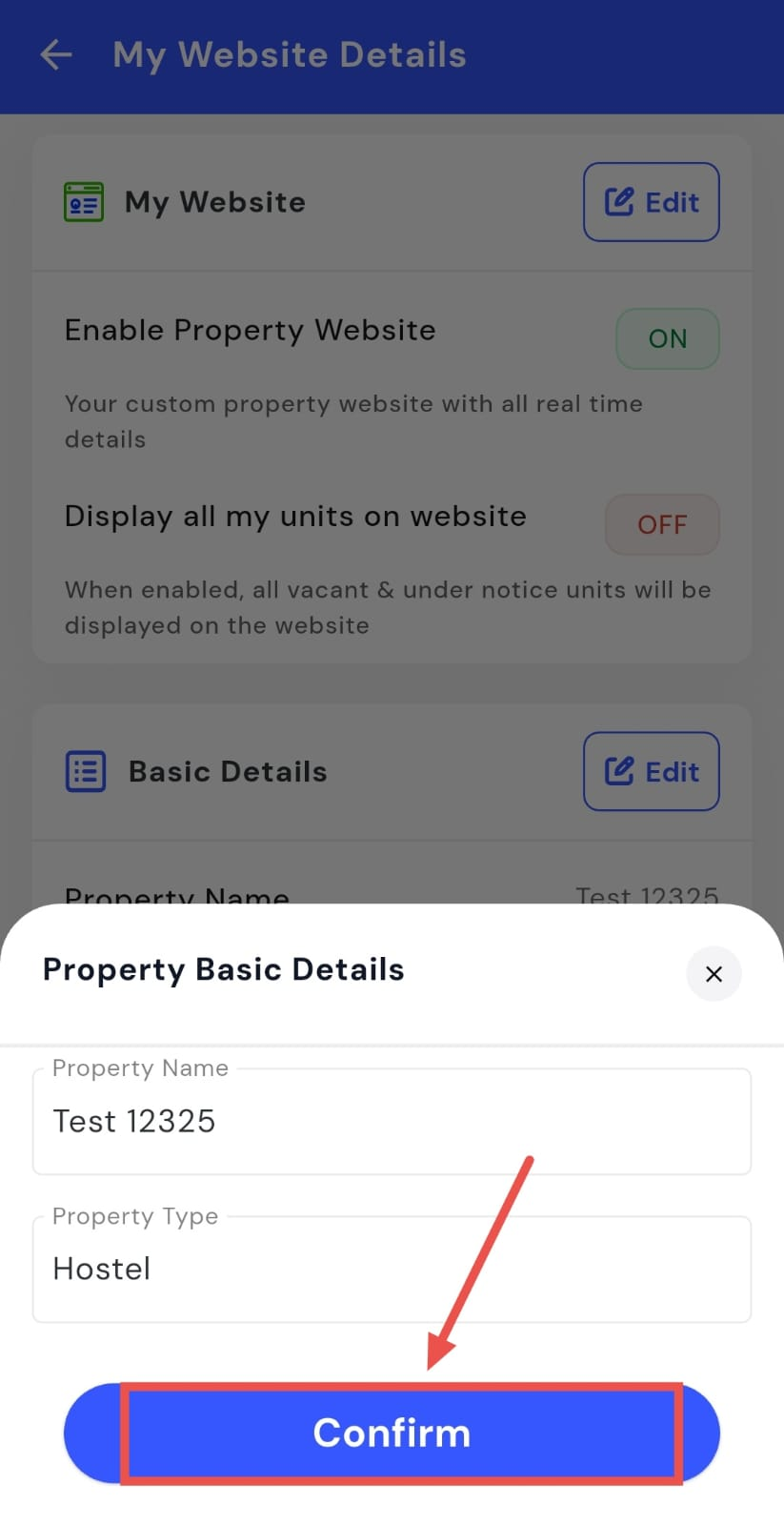
- Step 4: Confirm and save After making the required changes, tap on Confirm to apply the updated website details.
How do I update property info shown on my website?
The information shown on your property website helps people understand what your property offers before they reach out. This includes details like amenities, photos, and a short description of the property. If anything changes or needs improvement, you can update all of this from the website settings.
To update the property information shown on your website, follow these steps:
- Step 1: Open your profile Tap on your profile picture in the top-left corner of the screen to open your settings.
- Step 2: Open My Website Details Scroll down until you see the My Website Details option, then tap on it to continue.
-
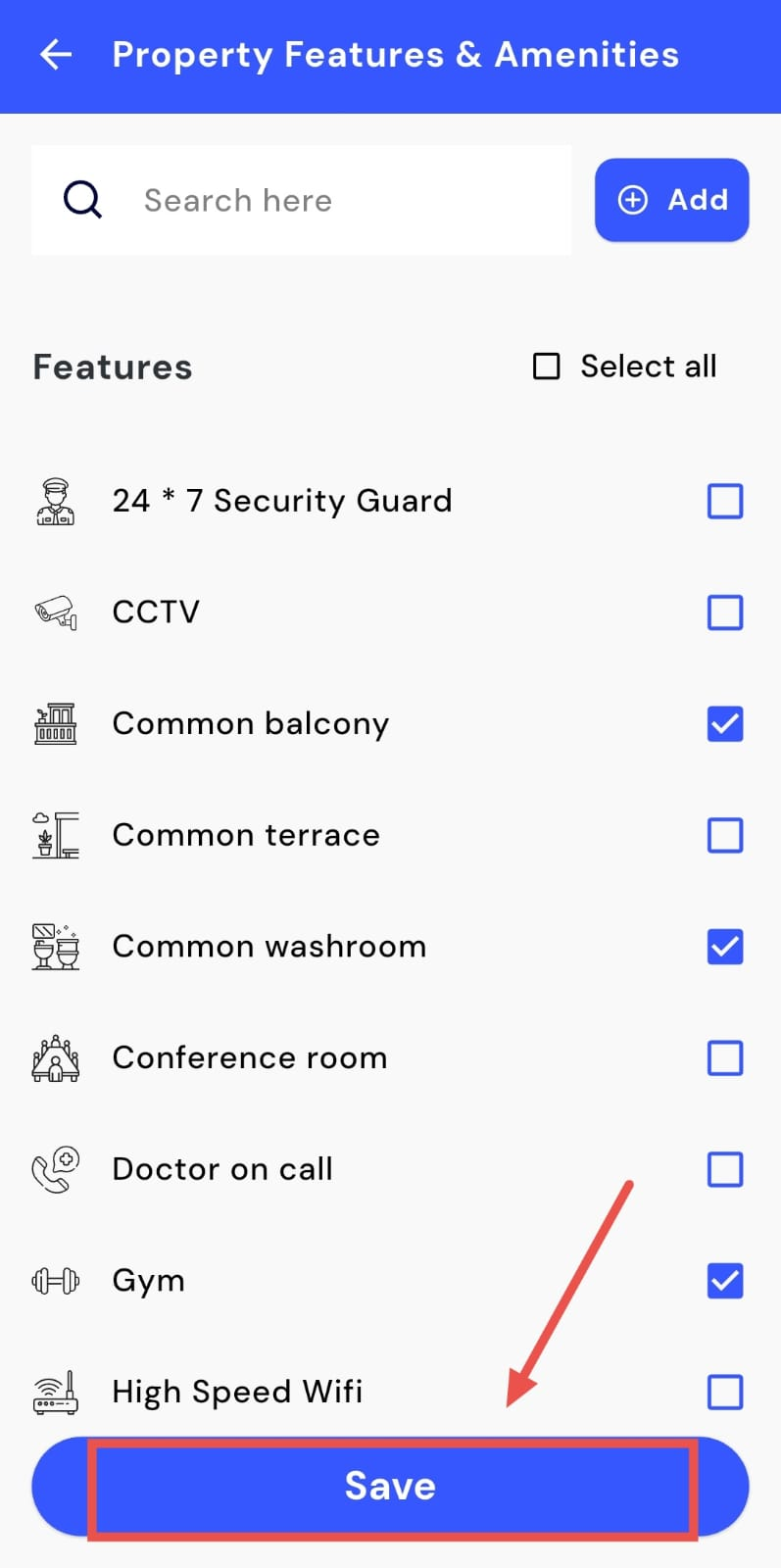
Step 3: Edit property information On this screen, you will see sections such as
-
Property Amenities
-
Room Amenities
-
Property Photos
-
About the Property.
-
Tap on Edit next to each section to make the required updates.
- Step 4: Confirm and save After updating the details, tap on Confirm to save all the changes and apply them to your website.
How do I preview my website?
To preview your website, simply enter your website name or URL in a browser and search for your properties website.