Renting & Rules
How do I change the rent addition cycle (rent date)?
Different properties follow different rent schedules. Some add rent on a fixed day every month, while others prefer to align it with the tenant’s joining date. To avoid manual adjustments every month, you can set the rent date once and let the system follow it automatically.
To change the rent addition cycle, follow these steps:
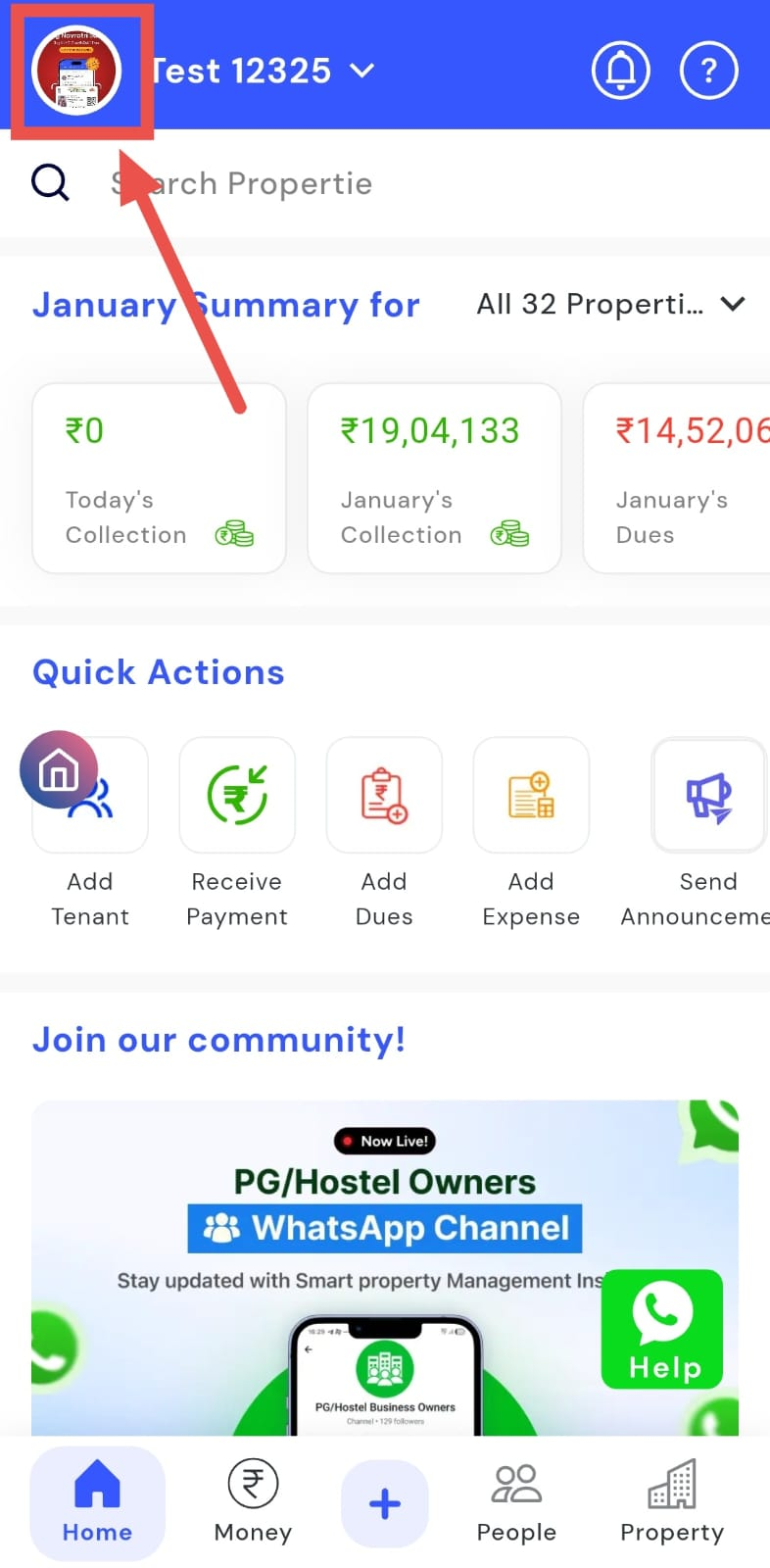
- Step 1: Open your profile Tap on your profile picture in the top-left corner of the screen to open your settings.
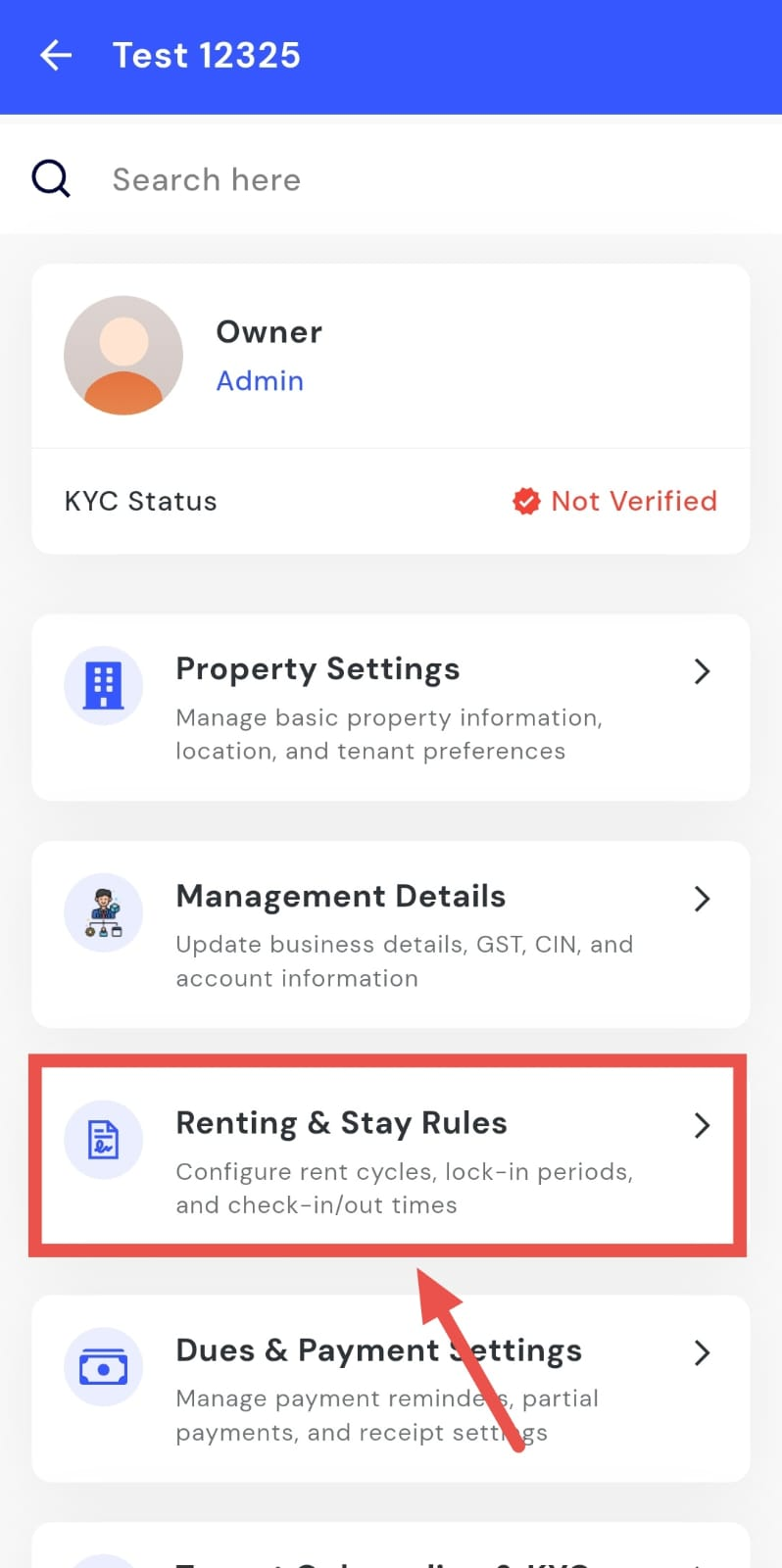
- Step 2: Go to Renting & Rules From the settings screen, tap on Renting & Rules to open all the related options for rent and stay rules.
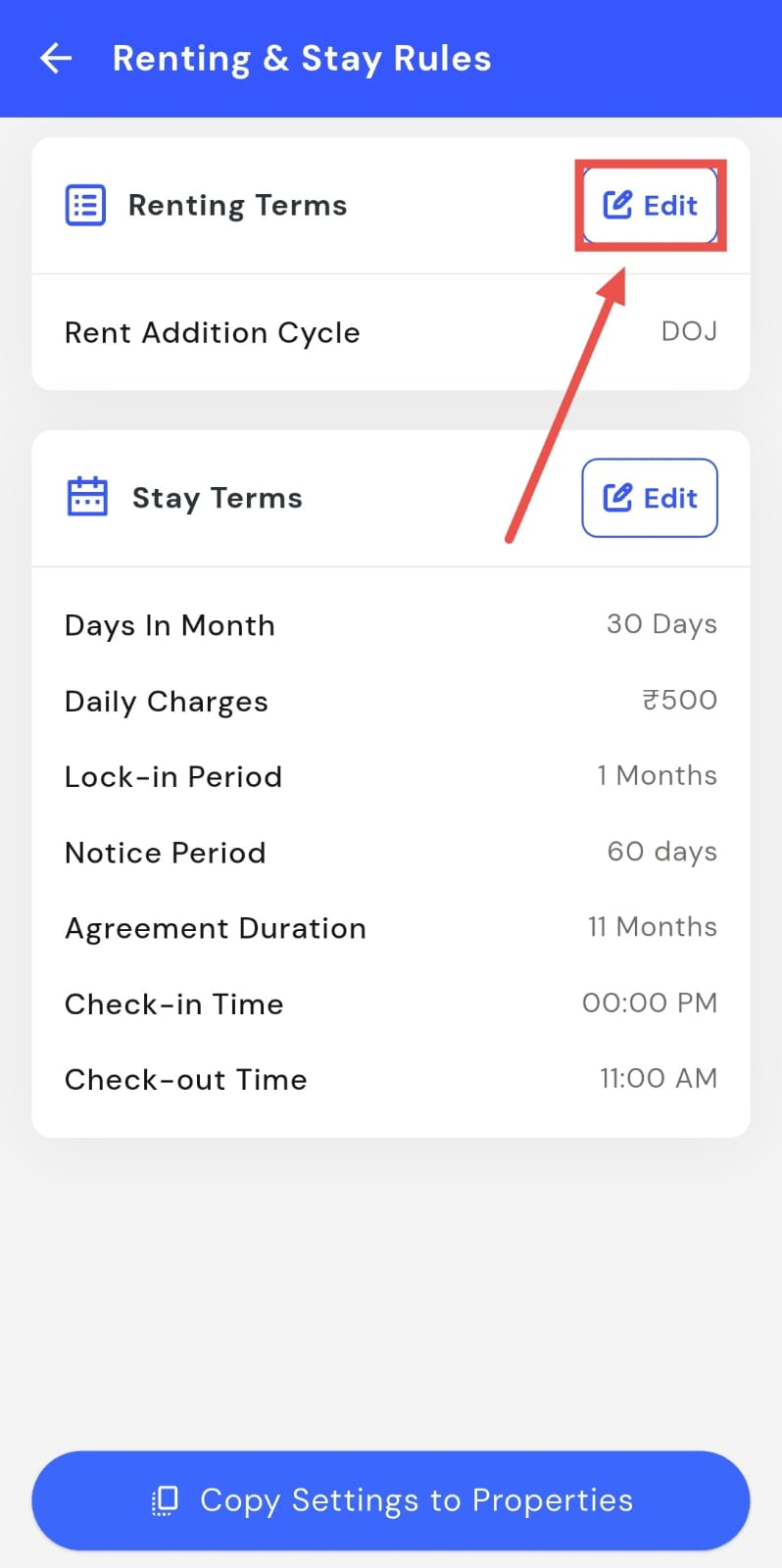
- Step 3: Open Stay Terms Inside Renting & Rules, you will find the Renting Terms option where you can view all current stay-related settings.
-
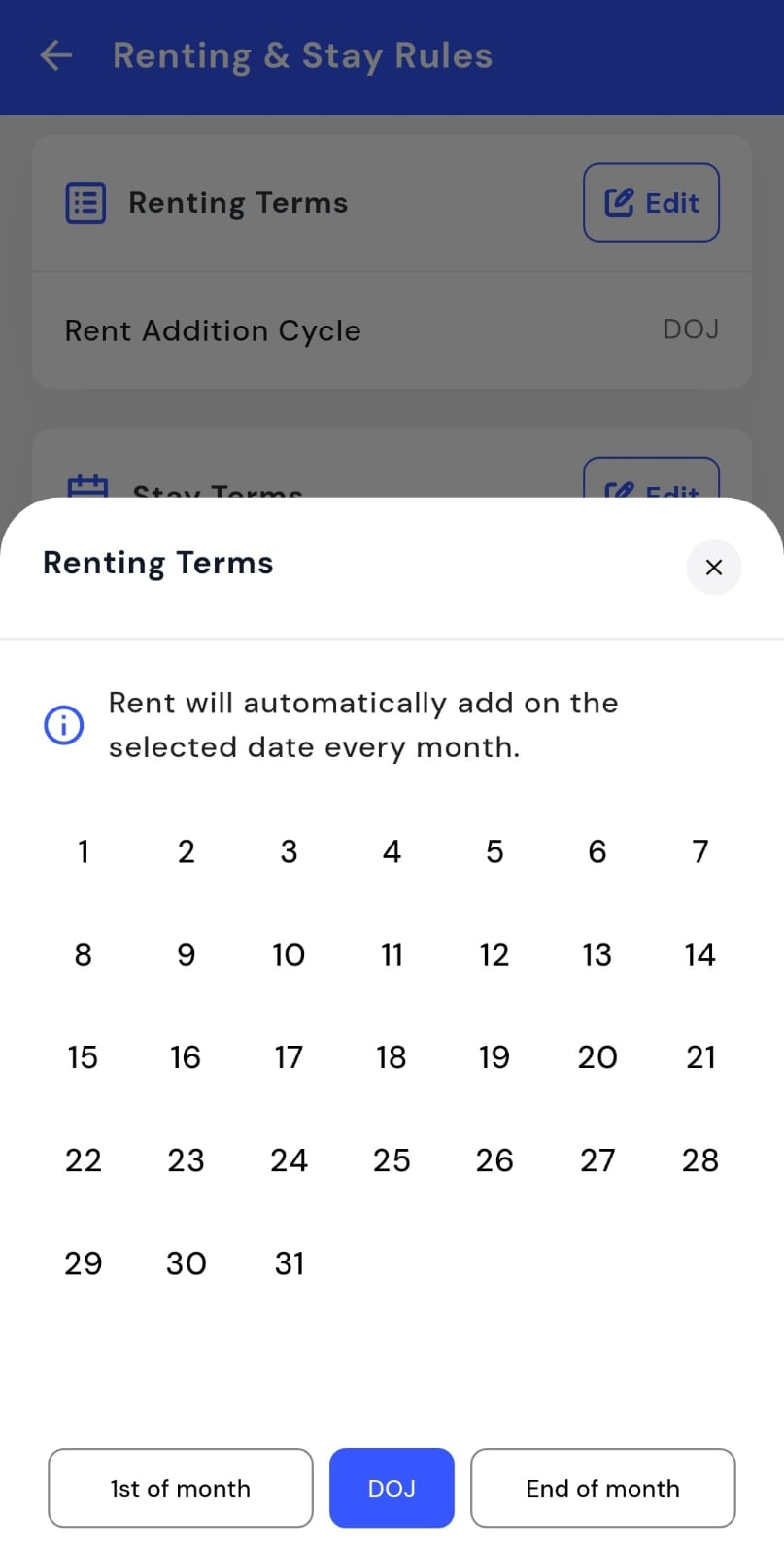
Step 4: Change the rent date Tap on Edit and choose when you want the rent to be added automatically every month:
-
1st of every month
-
End of the month
-
Date of joining
-
Custom
-
How do I choose between a 30-day cycle or monthly stay?
When managing stays, even small differences in how days are counted can affect billing and records over time. That’s why the app lets you decide whether your property should follow a fixed 30-day cycle or the actual number of days in each month, based on what suits you better.
To choose between a 30-day cycle or monthly stay, follow these steps:
- Step 1: Open your profile Tap on your profile picture in the top-left corner of the screen to open your settings.
- Step 2: Go to Renting & Rules From the settings screen, tap on Renting & Rules to open all the related options for rent and stay rules.
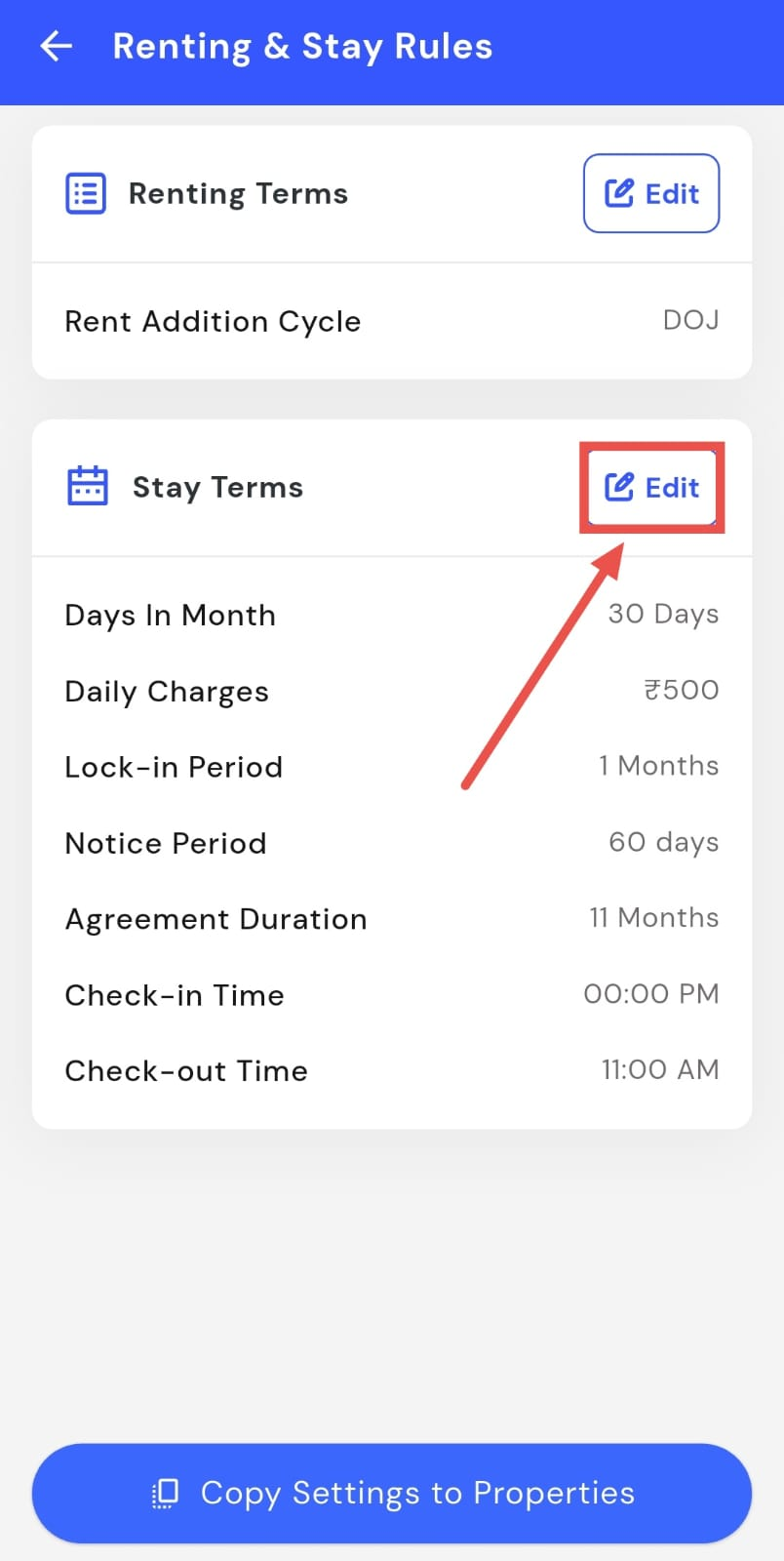
- Step 3: Open Stay Terms Inside Renting & Rules, tap on Stay Terms to view the current stay-related settings.
-
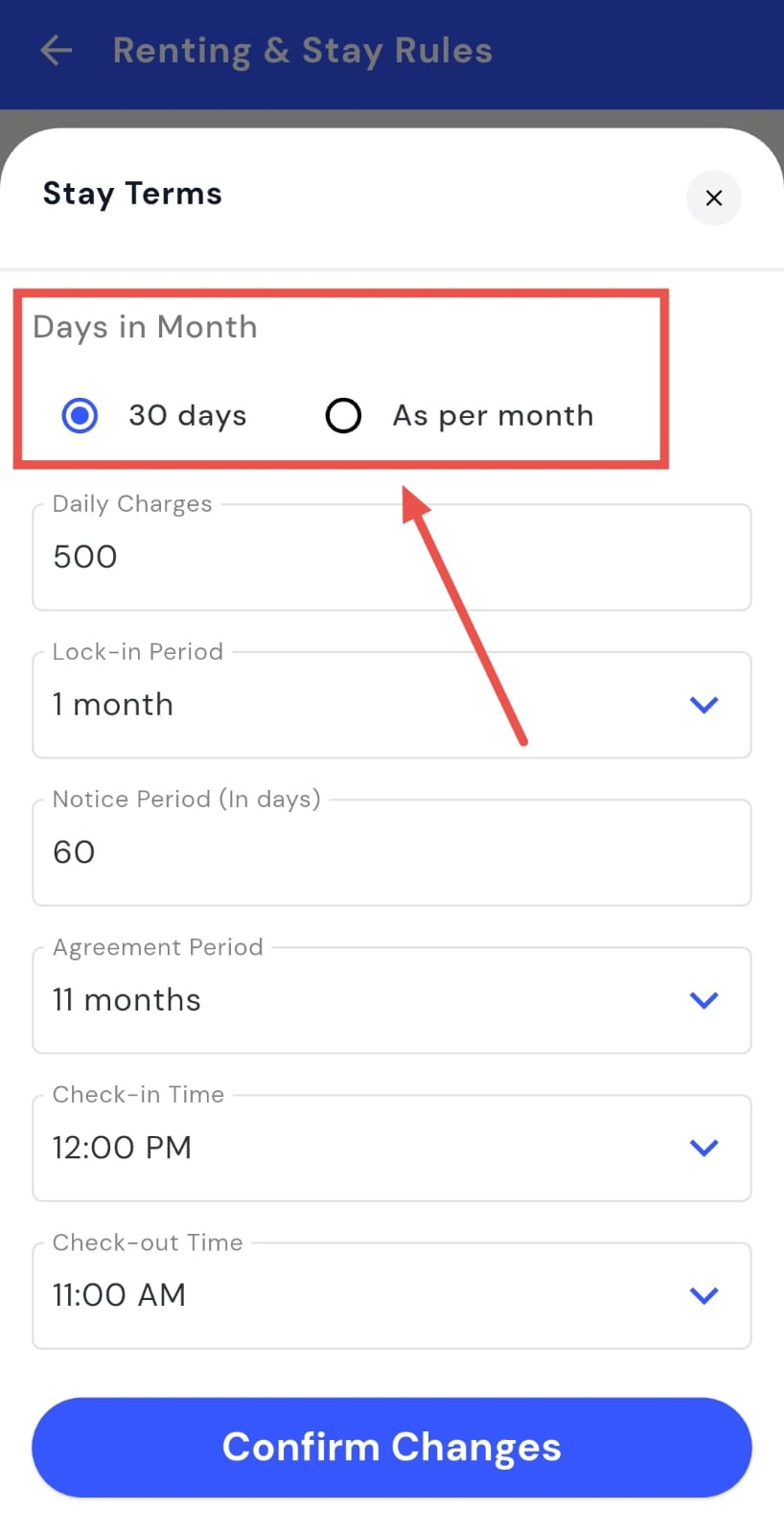
Step 4: Edit the stay cycle Tap on Edit and choose how you want the days in a month to be calculated:
-
30 days
-
As per actual month days
-
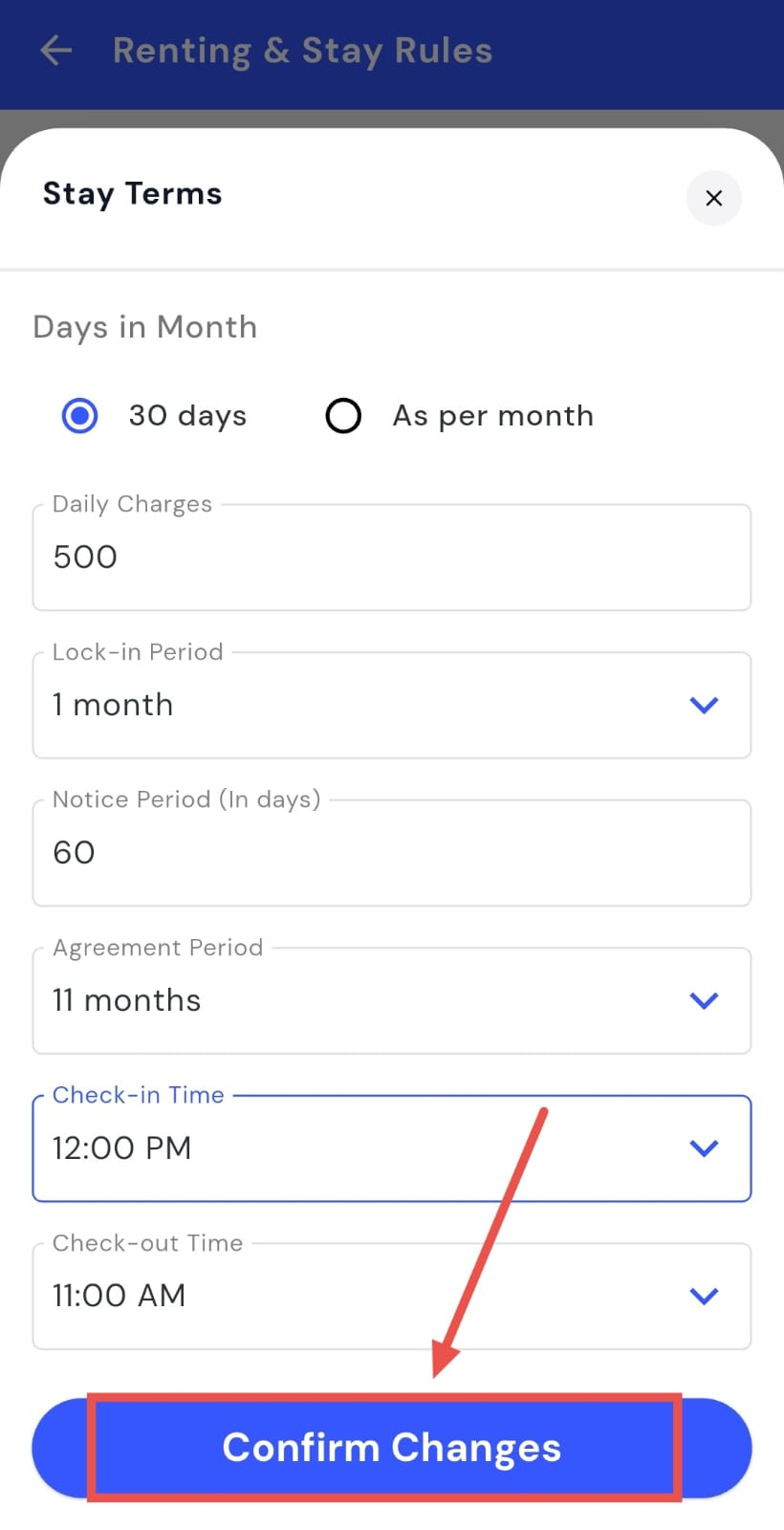
- Step 5: Confirm your changes Tap on Confirm to save your selection. The new stay cycle will now be applied.
How do I update daily charges?
Daily charges are useful when you want to apply a per-day cost for stays, extensions, or special cases. Instead of calculating this manually each time, you can set the amount once in the settings and update it whenever needed.
To set or change daily charges, follow these steps:
- Step 1: Open your profile Tap on your profile picture in the top-left corner of the screen to open your settings.
- Step 2: Go to Renting & Rules From the settings screen, tap on Renting & Rules to open all the related options for rent and stay rules.
- Step 3: Open Stay Terms Inside Renting & Rules, you will find the Stay Terms option where you can view all current stay-related settings and tap on Edit.
- Step 4: Edit daily charges Then select the Daily Charges option and update the amount as per your requirement.
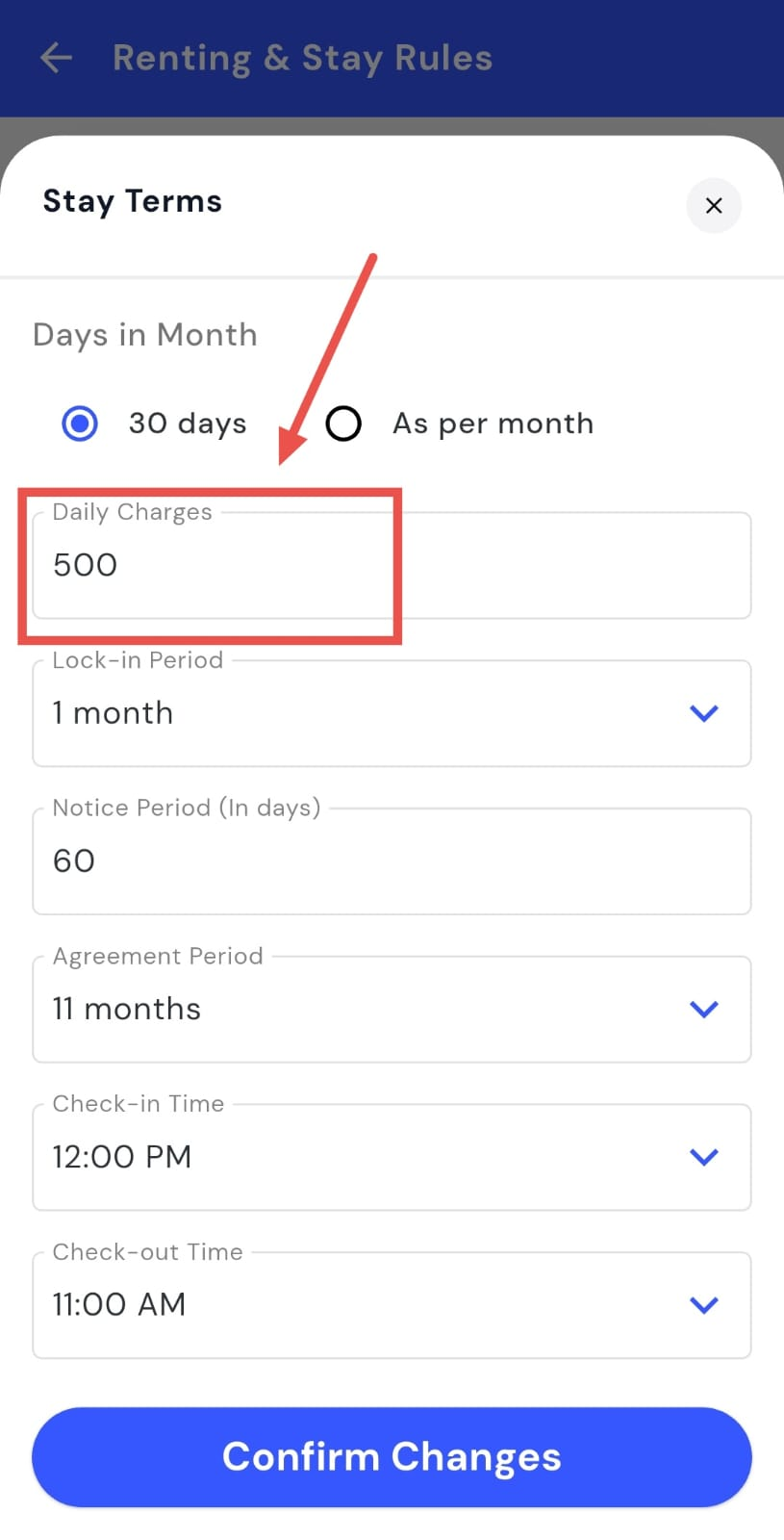
- Step 5: Save the changes Confirm your changes to apply the updated daily charges.
How do I update the lock-in period?
The lock-in period decides the minimum time a tenant is expected to stay at your property. If your rental terms change or you want to adjust this duration, you can update it directly from the settings in a few simple steps.
To update the lock-in period, follow these steps:
- Step 1: Open your profile Tap on your profile picture in the top-left corner of the screen to open your settings.
- Step 2: Go to Renting & Rules From the settings screen, tap on Renting & Rules to open all the related options.
- Step 3: Open Stay Terms On this screen, you will see Stay Terms, tap on Edit.
- Step 4: Edit the lock-in period On the edit screen, you will see the Lock-in Period option. Update the duration as needed.
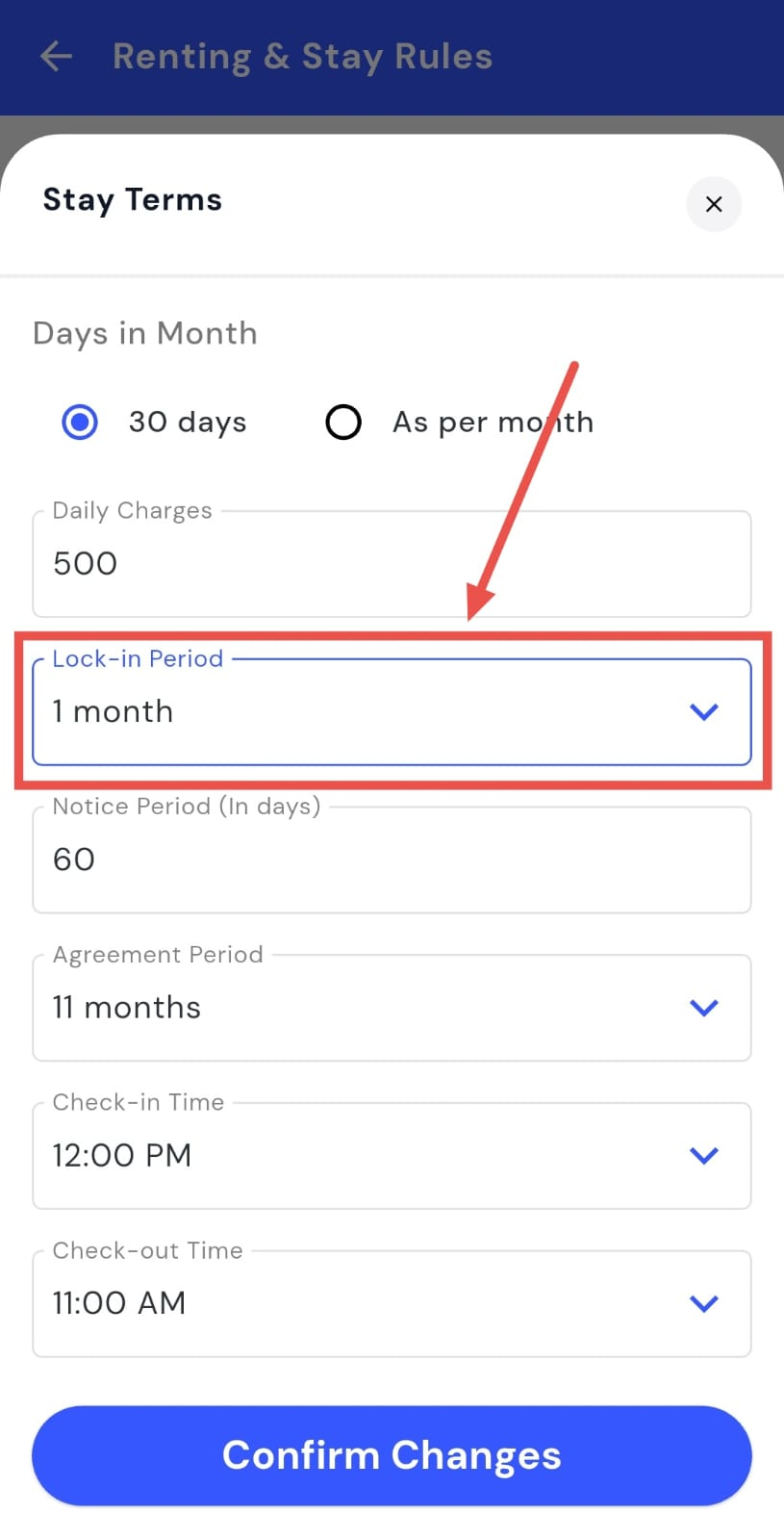
- Step 5: Confirm and save Confirm your changes to apply the updated lock-in period.
How do I change the notice period?
Sometimes you may want to give tenants more or less time before they move out, depending on how your property is being managed. Instead of handling this on a case-by-case basis, you can update the notice period once in the settings and let it apply to everyone.
To change the notice period, follow these steps:
- Step 1: Open your profile Tap on your profile picture in the top-left corner of the screen to open your settings.
- Step 2: Go to Renting & Rules From the settings screen, tap on Renting & Rules to open all the related options.
- Step 3: Open Rent Agreement and Stay Terms On the next screen, you will see Stay Terms, tap on Edit.
- Step 4: Edit the notice period On the edit screen, find the Notice Period (Days) option and change the number as needed.
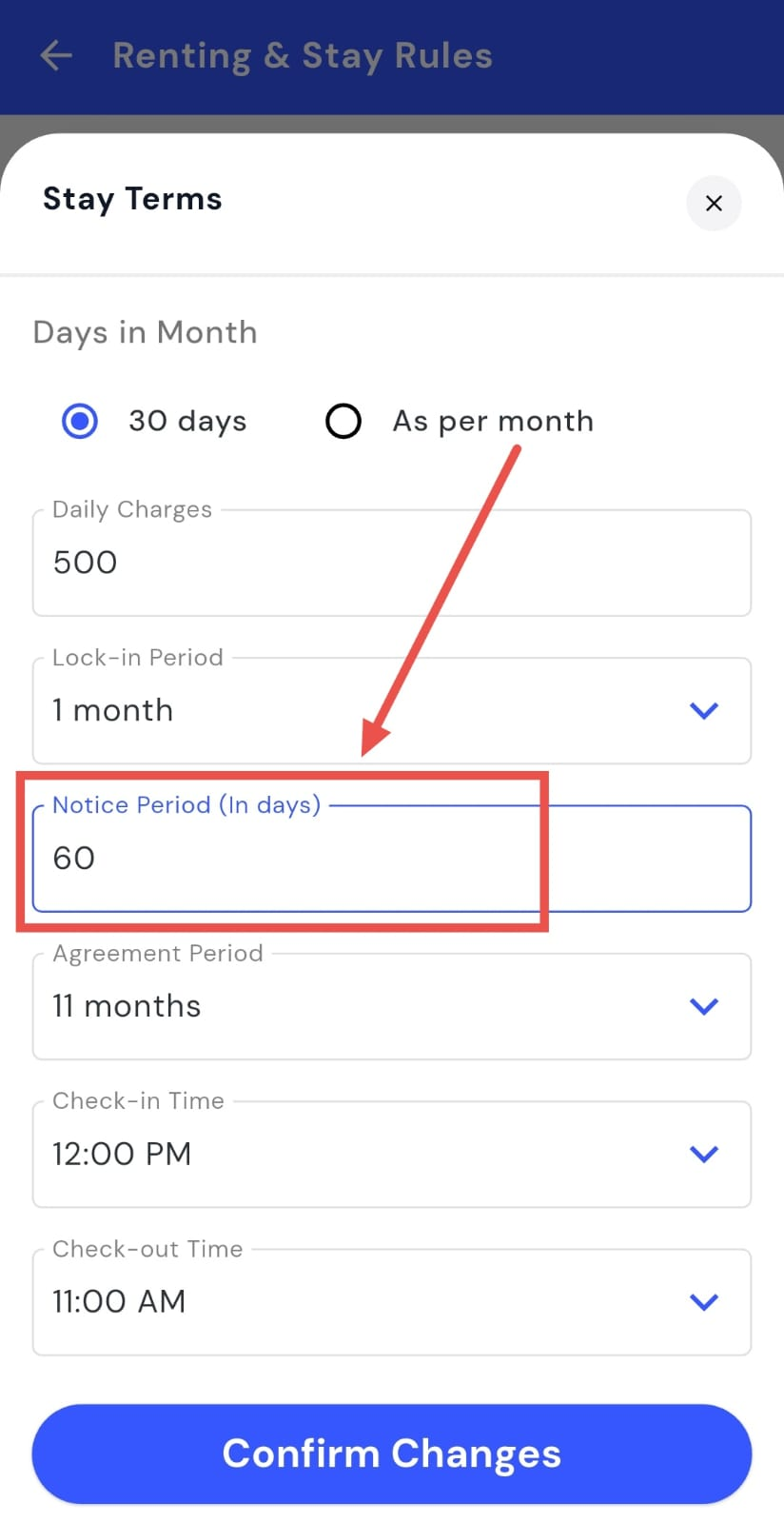
- Step 5: Confirm and save Confirm your changes to apply the updated notice period.
How do I update the agreement duration?
The agreement duration decides how long the rental agreement will remain valid for your property. If you change your rental terms or want to offer a different agreement period, you can update this easily from the settings.
To update the agreement duration, follow these steps:
- Step 1: Open your profile Tap on your profile picture in the top-left corner of the screen to open your settings.
- Step 2: Go to Renting & Rules From the settings screen, tap on Renting & Rules to open all the related options.
- Step 3: Open Rent Agreement and Stay Terms On the next screen, you will see Stay Terms, tap on Edit.
- Step 4: Edit the agreement duration On the edit screen, find the Agreement Period option and change the time period as needed.
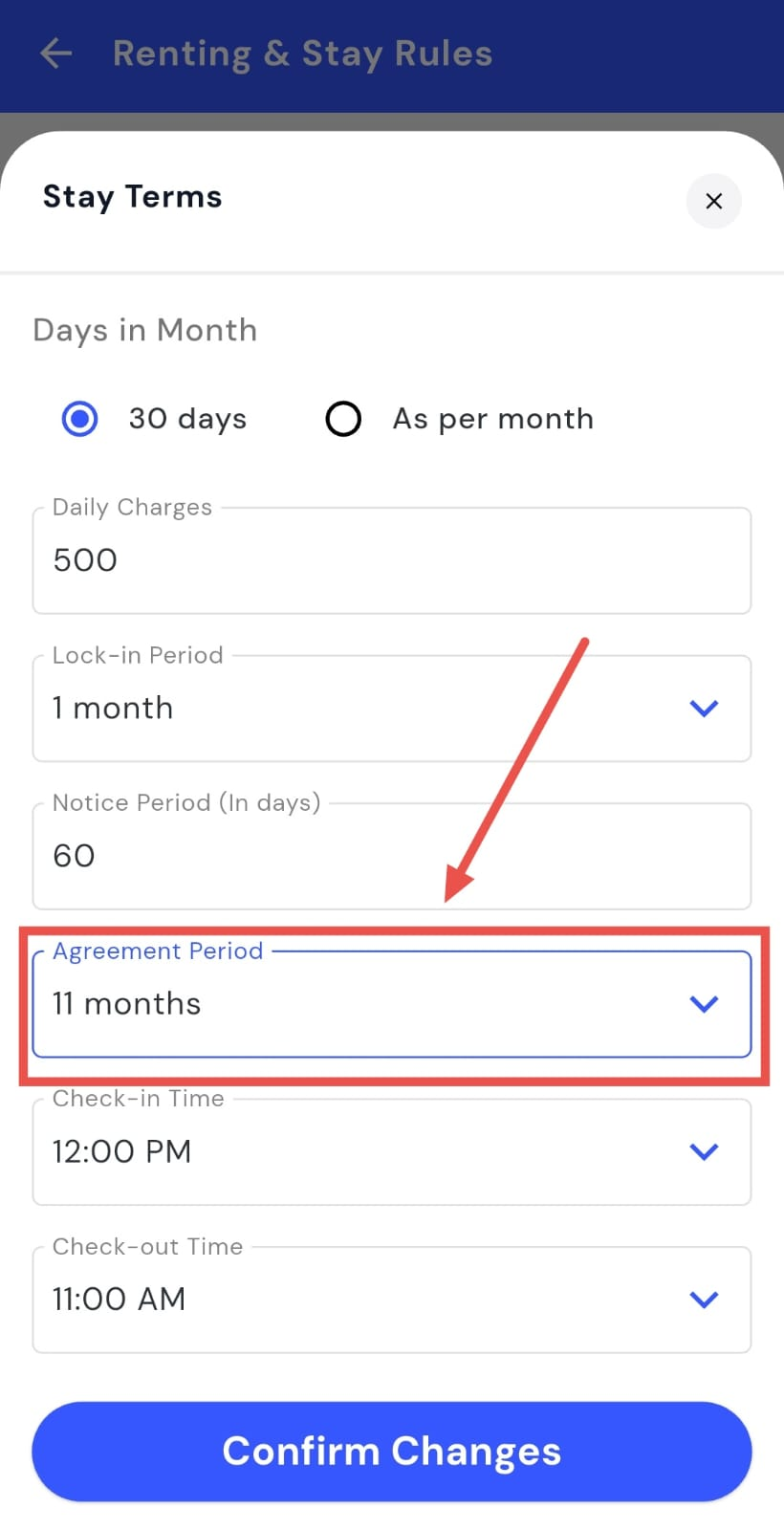
- Step 5: Confirm and save Confirm your changes to apply the updated agreement duration.
How do I change check-in and check-out time?
Check-in and check-out times help set clear expectations for when tenants can enter or leave the property. If your property timings change or you want to adjust these hours, you can update them easily from the settings.
To change the check-in and check-out time, follow these steps:
- Step 1: Open your profile Tap on your profile picture in the top-left corner of the screen to open your settings.
- Step 2: Go to Renting & Rules From the settings screen, tap on Renting & Rules to open all the related rent and stay options.
- Step 3: Open Rent Agreement and Stay Terms On the next screen, you will see Stay Terms, tap on Edit.
- Step 4: Edit the timings On the edit screen, you will see options for Check-in Time and Check-out Time. Set them to the timings you want to keep.
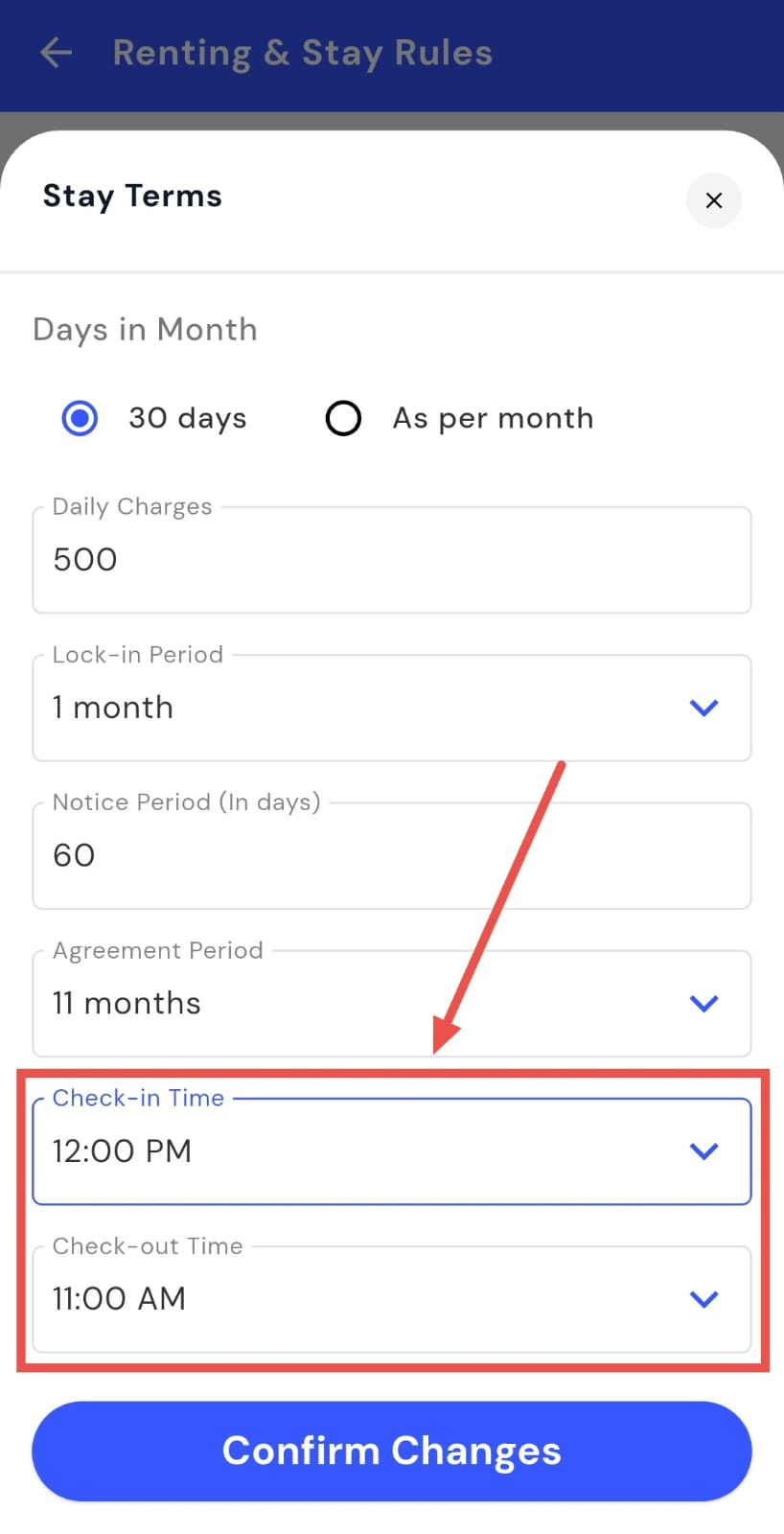
- Step 5: Confirm and save Confirm your changes to apply the updated timings.