September 25, 2025
This week, we are excited to release one of our most requested updates: an overall haul of the Record Payment feature, giving you full control. We’ve also launched a new web calendar to help you visualize your property's occupancy at a glance.
1. Total Control Over Payment Collection - A smarter, faster Record Payment flow
We've completely redesigned the Record Payment screen from the ground up to give you more power and flexibility. This addresses long-standing feedback and makes handling complex payment scenarios incredibly simple.
See what’s new →
Highlights
- Adjust from Advance & Deposit: Easily use a tenant's available advance or security deposit balance to settle dues directly from the collection screen.
- Manually Control Partial Payments: You can now decide exactly how a partial payment is split across different invoices (e.g., pay the electricity bill first, then the remaining towards rent).
- Apply Multiple Discounts: If a tenant has multiple credit notes or discounts available, you can now apply all of them to a single bulk payment.
- Optional OTP Verification: For enhanced security, you can enable a setting to require an OTP (sent to the tenant or a manager) to verify cash payments.
- Record UTR & Bank Details: A dedicated field to save UTR numbers for UPI/bank transfers and link payments to a specific bank account for easier reconciliation.
- Default Report: Generate default reports directly from the Record Payment screen to track collections and dues without extra steps.
- Activity Log Report: View a complete audit trail of all payment-related actions, helping you monitor changes and maintain accountability.
How to try
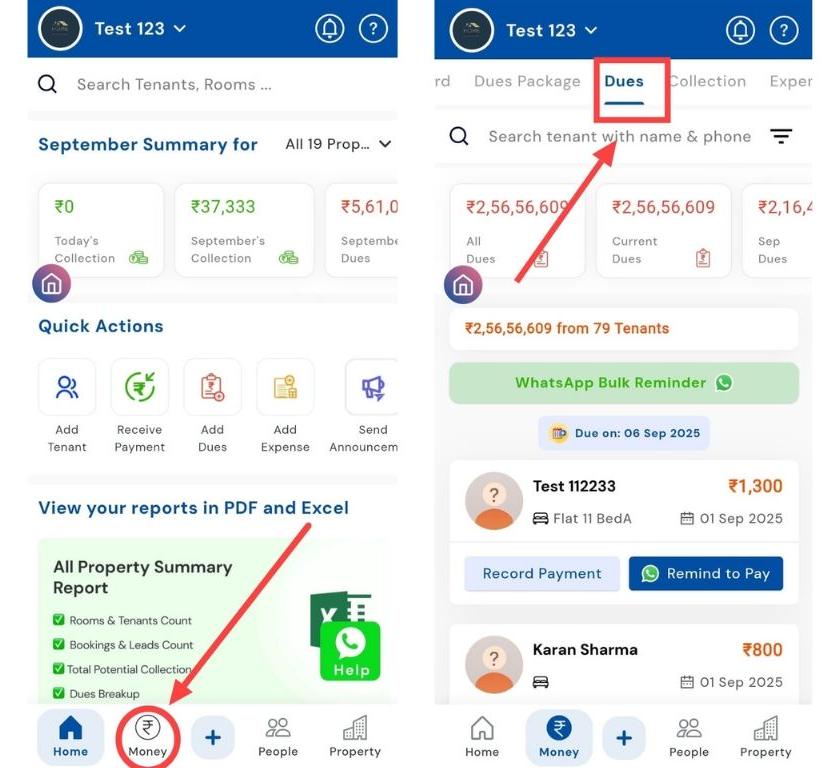
- Step 1: Open the Dues tab
Tap the Money icon in the bottom navigation menu, then select Dues to see the list of tenants with pending amounts.
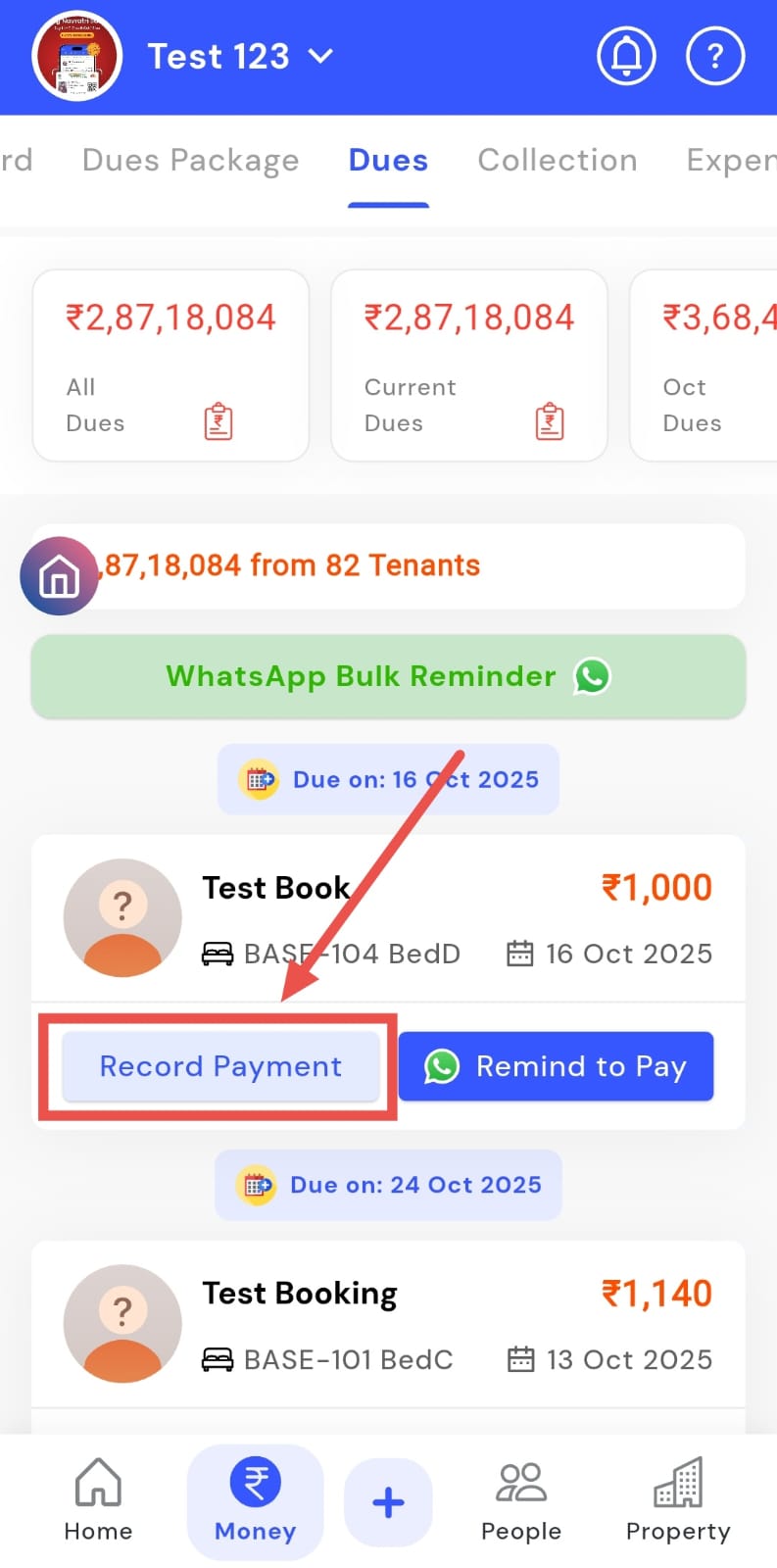
- Step 2: Tap Record Payment on the tenant card
Find the tenant whose payment you received and tap Record Payment on their due card. This opens the payment entry window for that tenant.
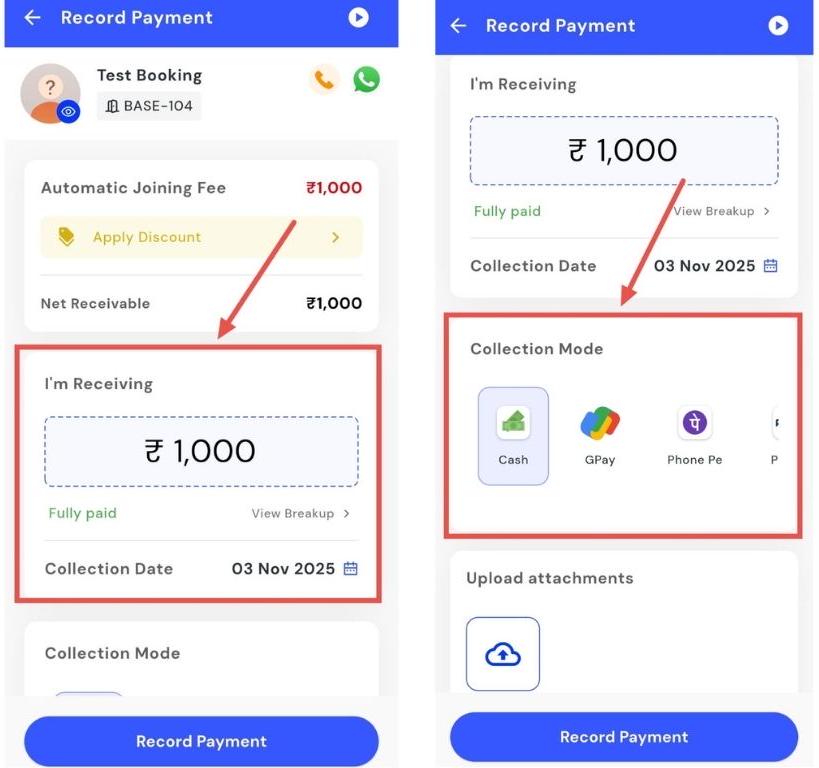
- Step 3: Choose payment details
In the window, enter the amount received and select the Collection Mode (e.g., cash, UPI, bank transfer, cheque). Optionally add a note or reference (transaction ID, cheque number) for future reconciliation.
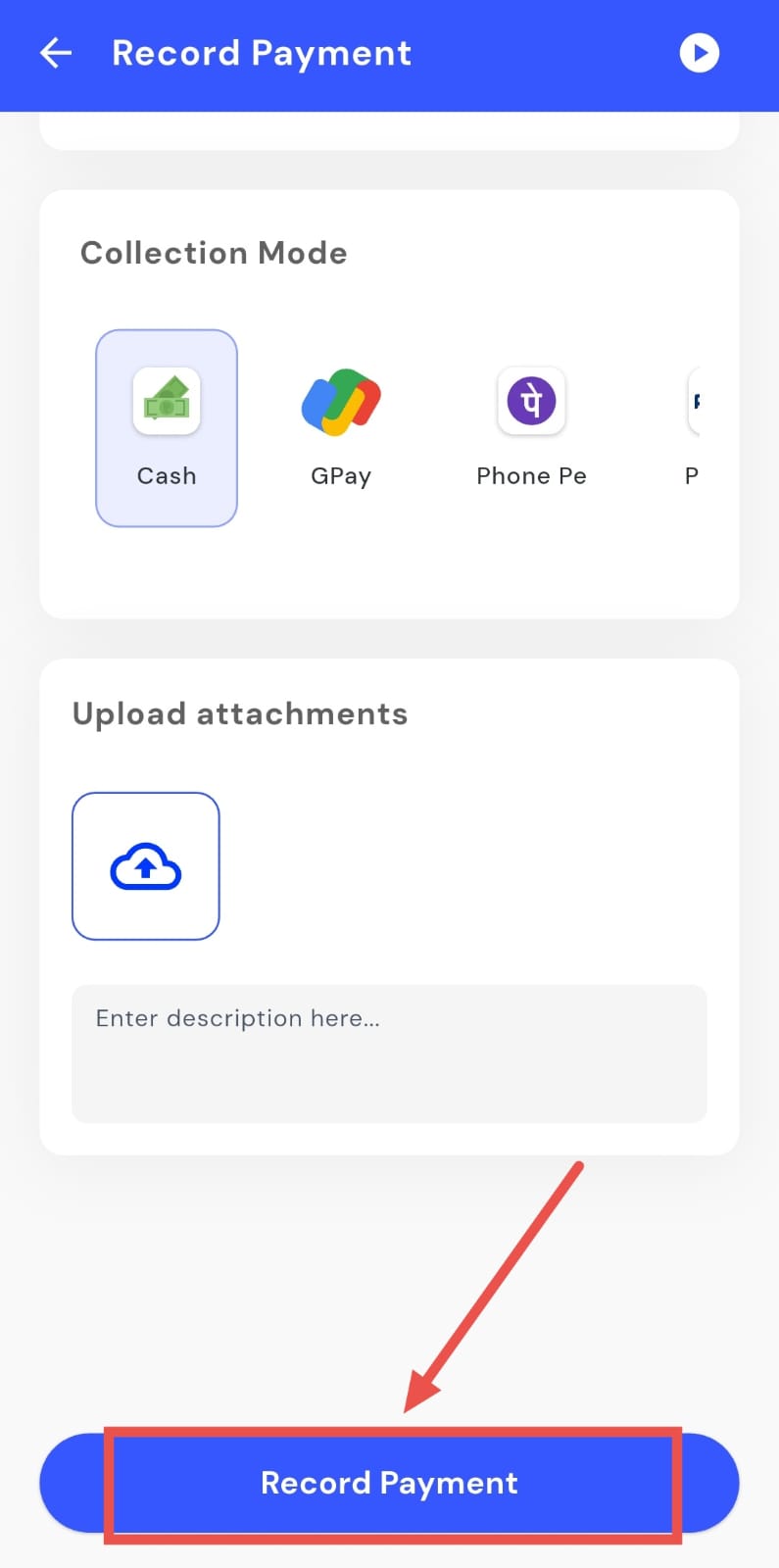
- Step 4: Record the payment
After verifying the details, tap Record Payment to save. The app will update the tenant’s dues, reflect the transaction in their passbook, and adjust the overall balances accordingly.
One example
-
“A tenant's due is ₹20,000. You adjust ₹2,700 from their Advance, apply a ₹300 discount, and collect the remaining ₹17,000 via UPI, noting the UTR ...1234, all in one screen.”
💡 Why it matters: This gives property managers, accountants, and wardens precise control over every aspect of payment collection. It reduces errors, handles complex scenarios like advance adjustments and partial payments smoothly, and builds trust through optional OTP verification. Now recording payments is more flexible and easier*.*
2. Room Availability Calendar (Web · Beta) — Visualize your property's occupancy
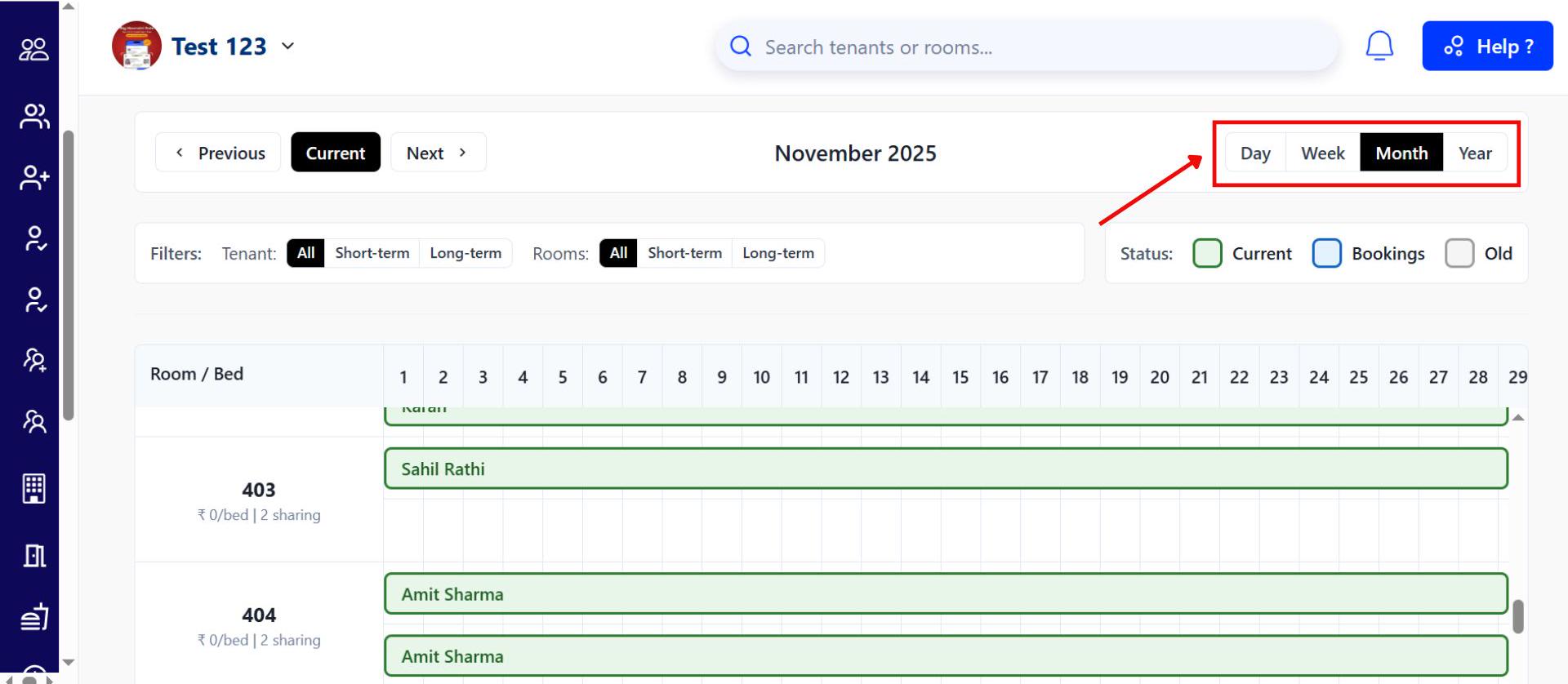
A new calendar view on the web shows you exactly which rooms and beds are occupied or vacant, making it easy to track availability and plan for new bookings.
See what’s new →
Highlights
-
See a full month's booking status for all your rooms in one place.
-
Quickly identify vacant slots and see which tenant occupies which bed.
-
Click on any booking to instantly see the tenant's details.
-
Easily switch between a monthly and weekly view.
How to try
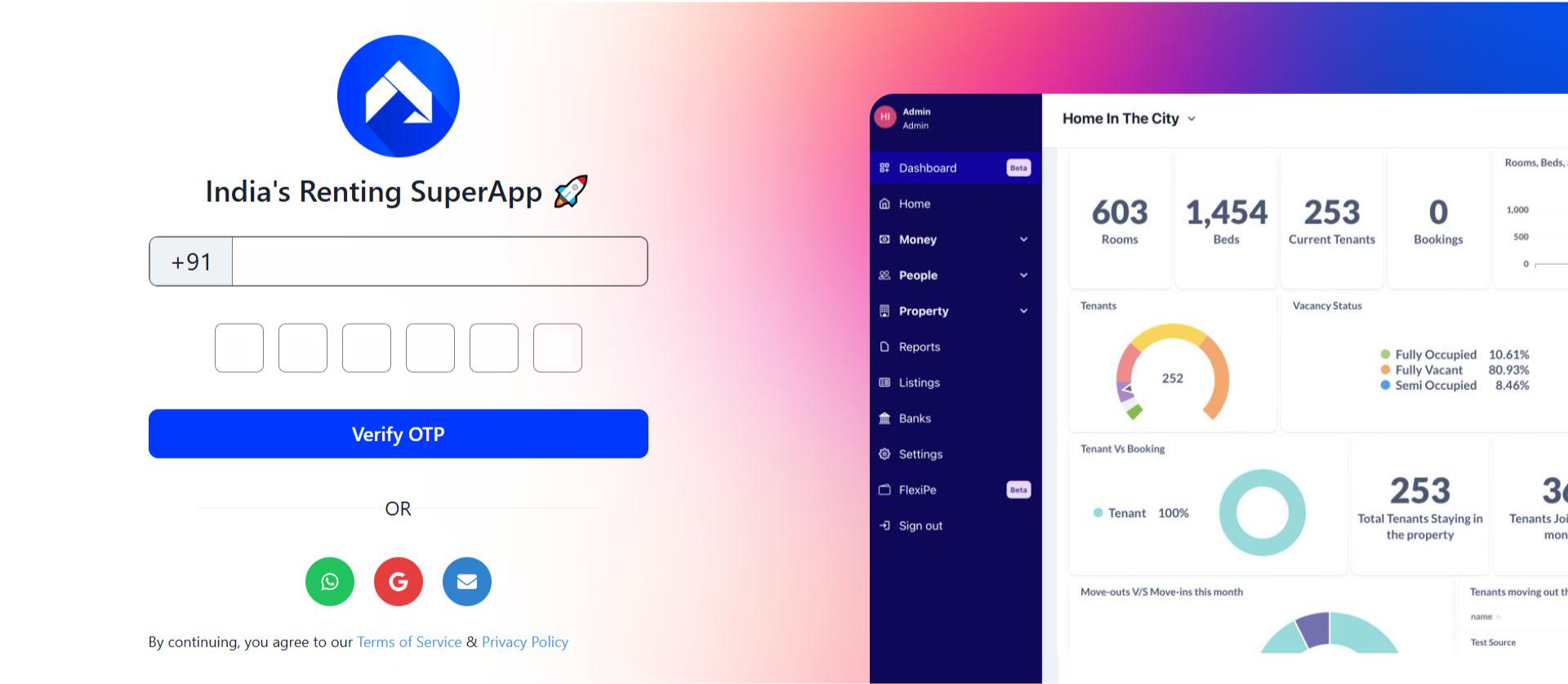
- Step 1: Log in to the web version
Open the web version of the app and enter your credentials to log in.
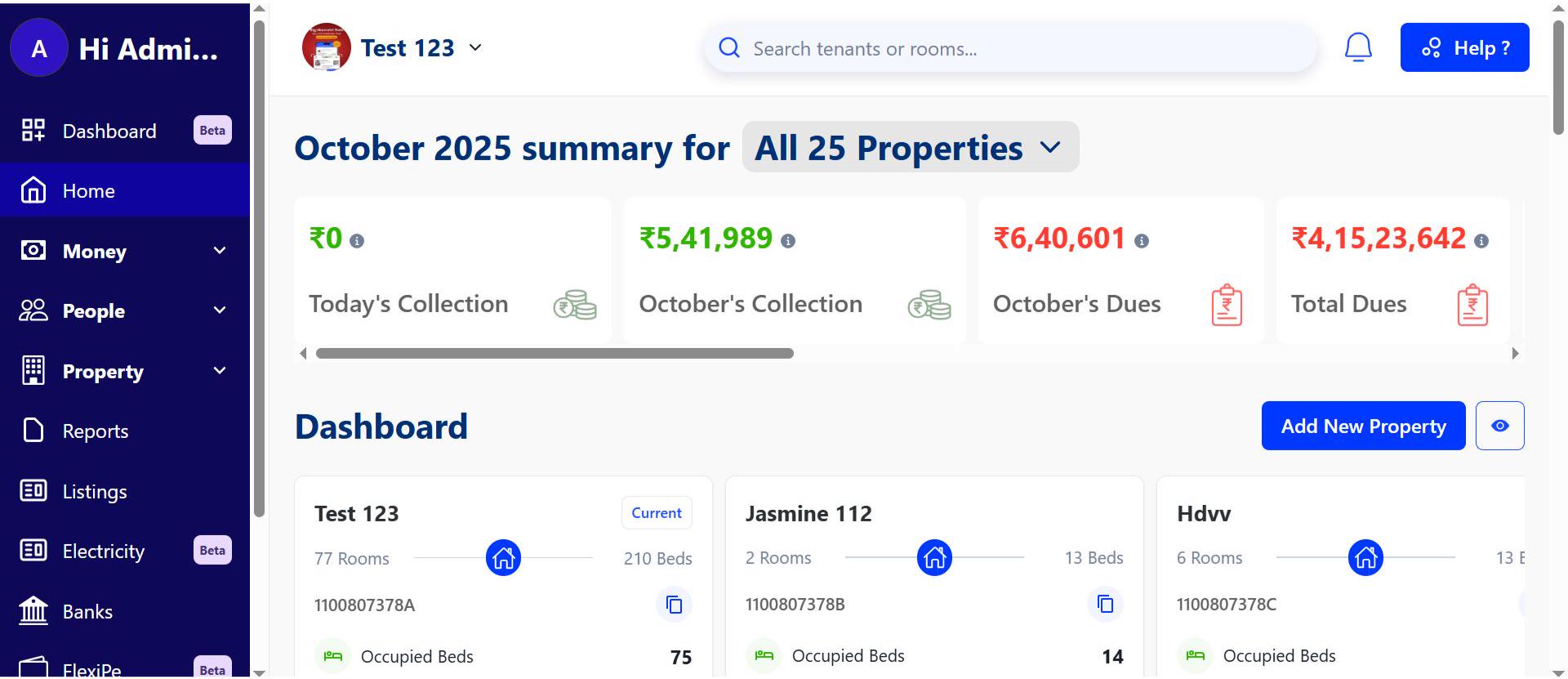
- Step 2: Go to the Home page
After logging in, the home page gives you an overview of your account.
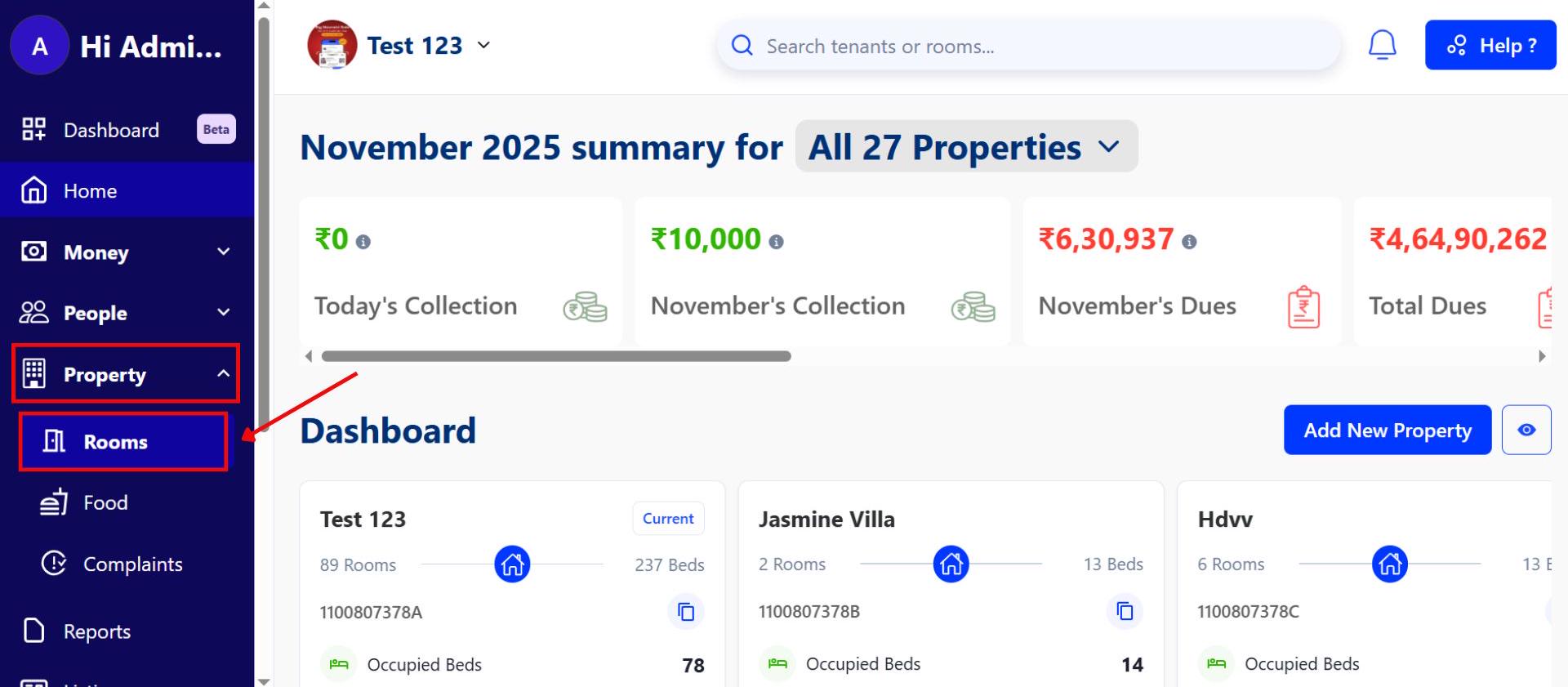
- Navigate to Property → Room
Click on Property, then select Room to see all available reports.
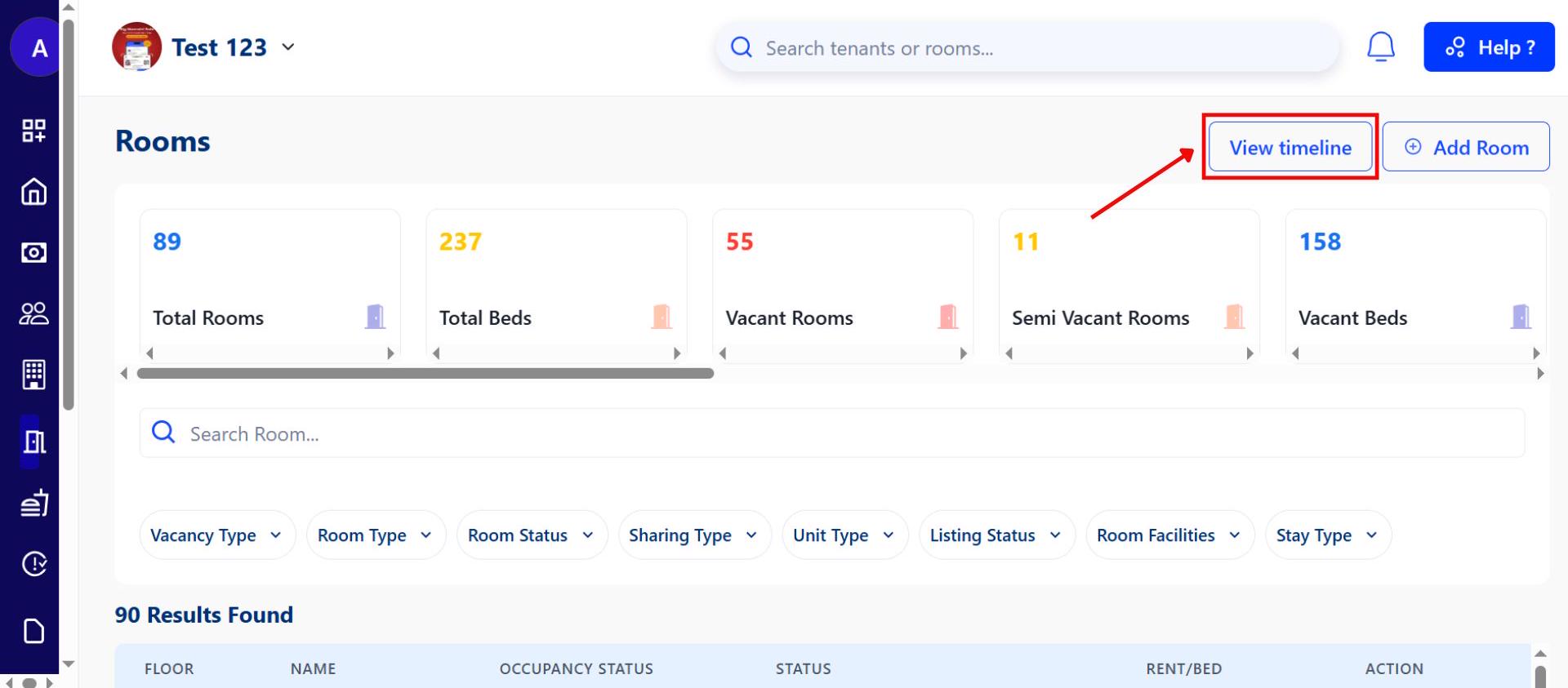
- View Timelines
On the Room page, click View Timelines to see detailed activity for each room. You can choose to view timelines by day, week, month, or year.
This feature is currently available on the web platform. One example
-
“You get an inquiry for a room. On the calendar, you instantly see that Bed-B in Room 101 is vacant from October 25th onwards and can confirm the availability on the call.”
💡 Why it matters: This is especially helpful for managers of short-stay properties (like service apartments and guesthouses) to quickly answer booking inquiries without relying on manual charts or diaries.
- Step 1: Log in to the web version
3. New Stay Type Control for Tenants – Choose Long or Short Stay Yourself
We’ve added more flexibility while adding tenants. Now, you can decide whether a tenant falls under a Long-term or Short-term stay, regardless of their actual stay duration.
See what’s new →
Highlights
- Full Control: When adding a new tenant, you can manually set their stay type as either Long-term or short-term, with no automatic restrictions.
- Custom Categorization: Even if a tenant’s stay duration doesn’t fit the typical long or short-term definition, you can categorize them based on your own operational needs.
- Improved Data Accuracy: Ensures your property reports, collections, and dashboards reflect accurate data based on how you define your tenants.
- Seamless Integration: The selected stay type directly impacts payment collection patterns, reports, and occupancy tracking.
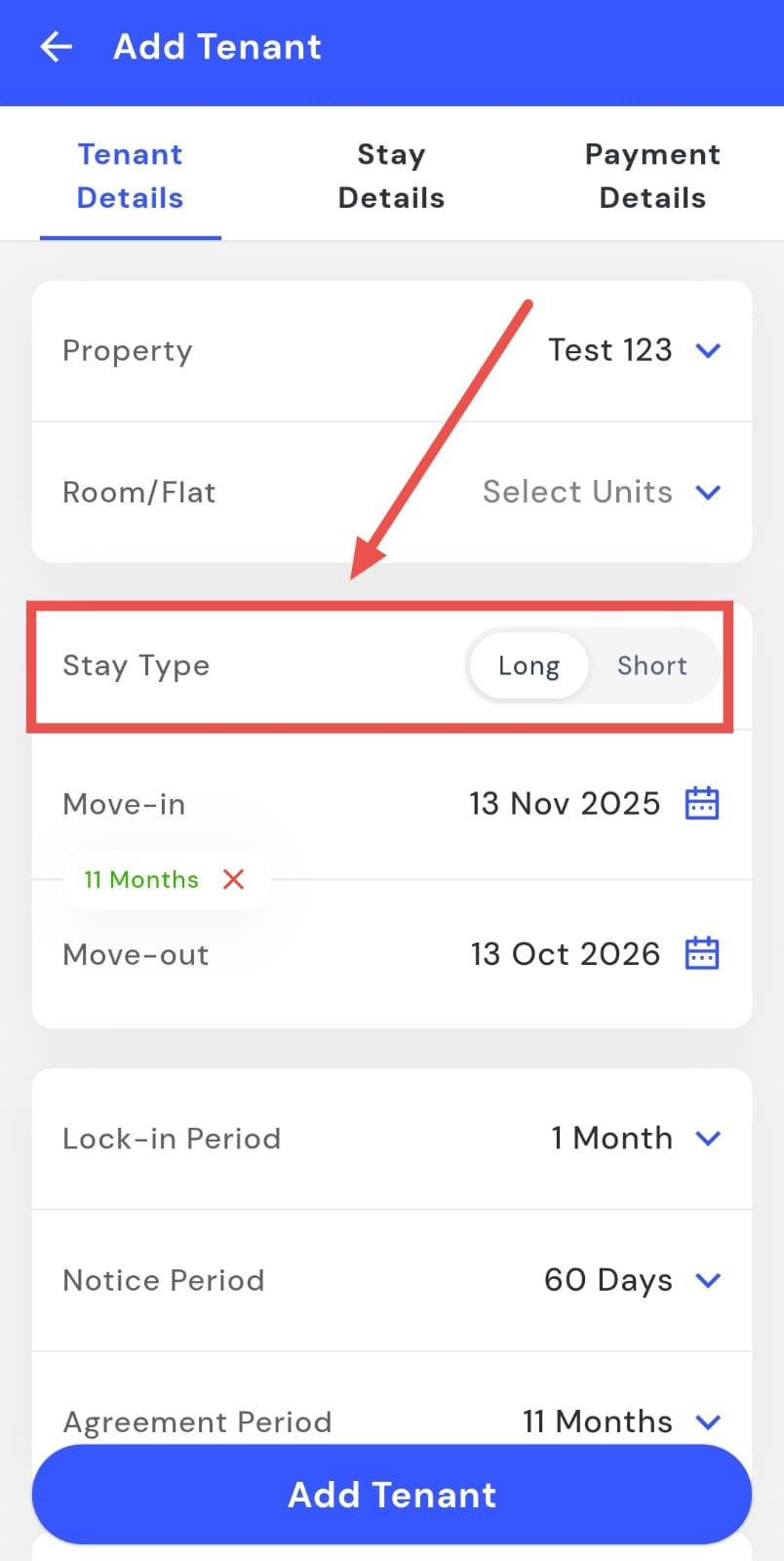
One example
“A tenant has stayed for just 10 days, but you want to treat the record as long-term for internal tracking — simply select ‘Long-term’ while adding them, and RentOK will display them under long-term tenants in all reports.”
| 💡 Why it matters: This gives managers more control over how tenants are tracked, billed, and displayed in reports. It helps maintain cleaner data, accurate reporting, and better differentiation between short-stay and long-stay tenants. |
|---|
4. Fixes & Polish
- Passbook Stability: Fixed a critical bug that could cause the total deposit to show a negative amount after multiple transactions (like collect, refund, and delete).
- Instant Receipts: Receipts are now generated immediately after recording a payment. You no longer need to restart the app to see them.
- Pull to Refresh: The entire Passbook screen in the app now supports "pull-to-refresh" for an instant data update.
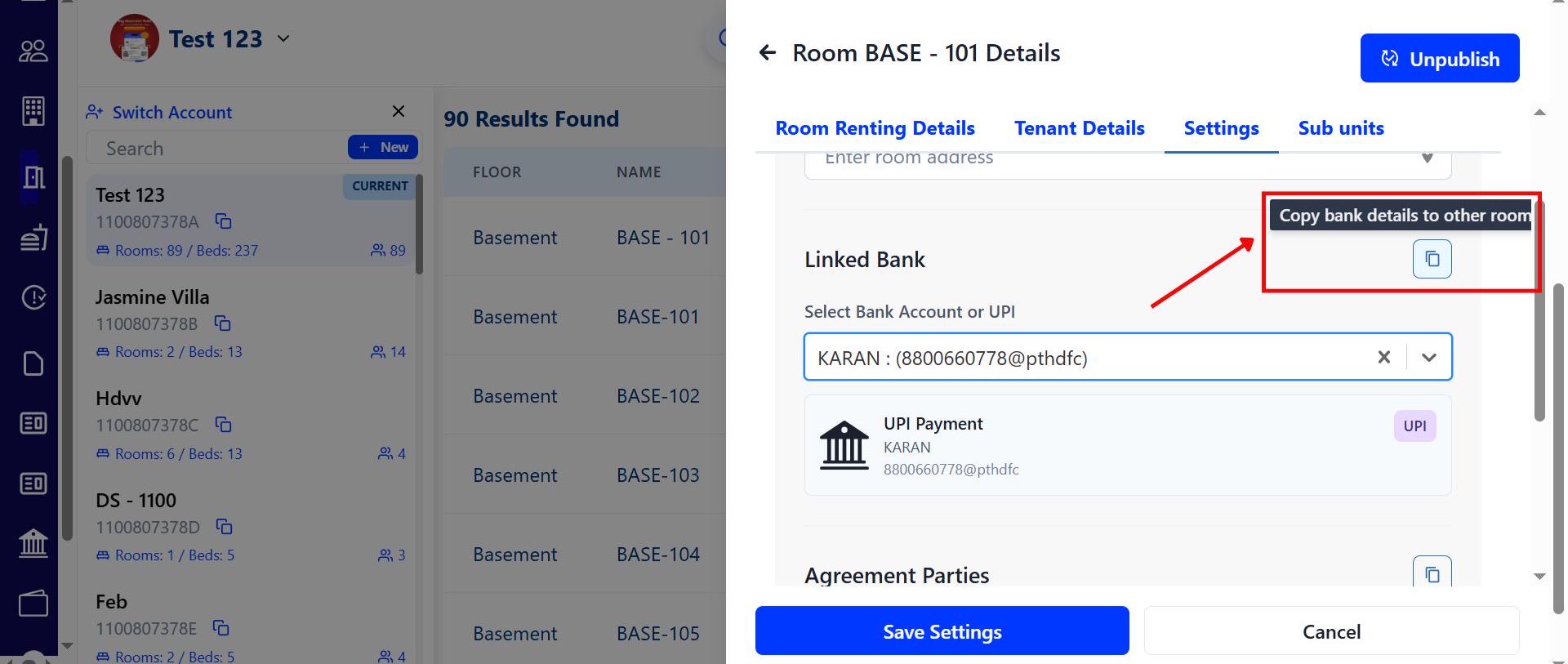
- Bulk Room Updates (Web): Save setup time by copying bank account details and agreement first-party information to multiple rooms at once on the web.
- Online Payment Details: UTR numbers for online payments collected via RentOk are now clearly visible and reliably updated in the payment details screen.
- Team Management: Resolved an issue that prevented the deletion of team members who were assigned the 'Owner' designation.
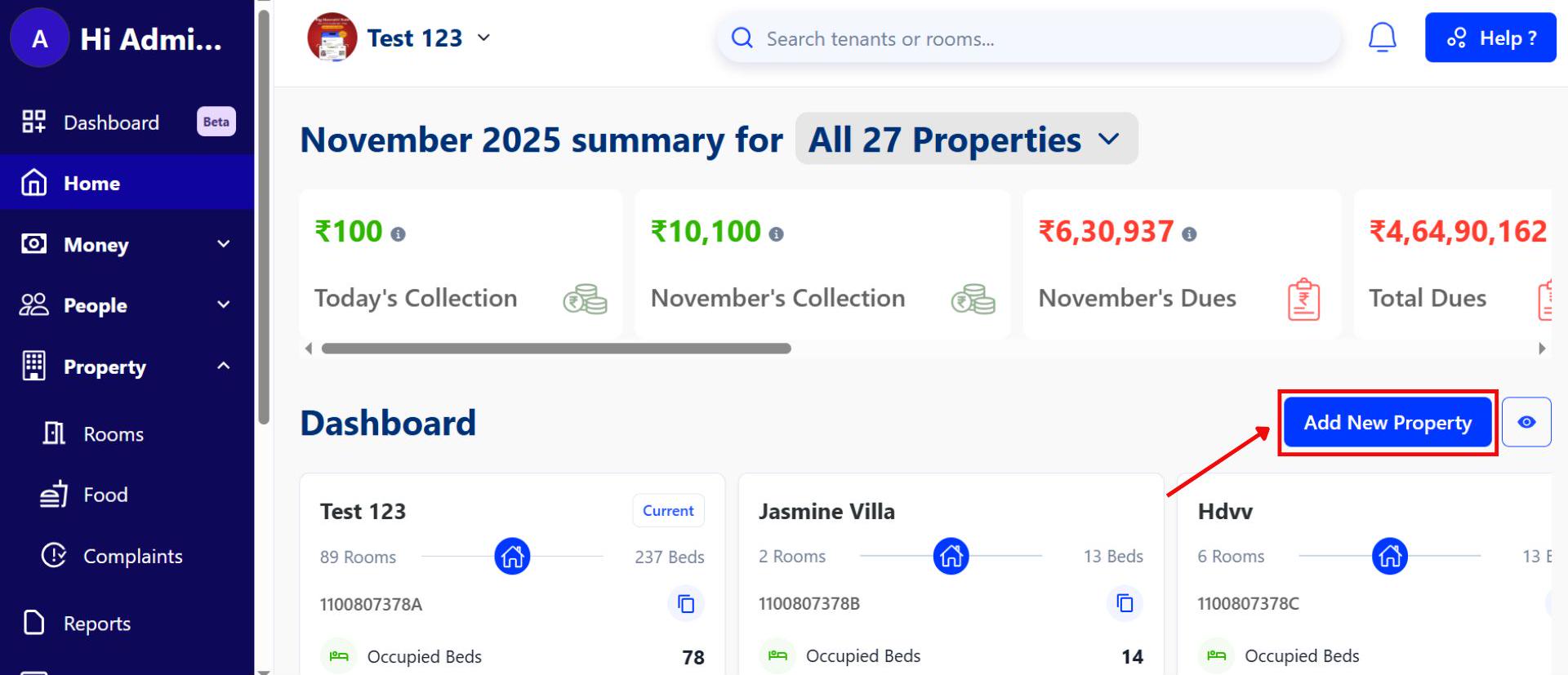
- New Property Creation (Web): Admins can now create a new property directly from the web interface.
Coming Up Next
-
A property-level setting to automatically adjust dues from a tenant's advance balance.
-
Filters for the new Room Availability Calendar (e.g., view only short-stay tenants).
-
The ability for tenants to adjust payments from their advance balance directly on the payment link.
Have doubts or any feedback? Chat with us in-app (Help → send us a message).
We’re building for you, and every suggestion counts!