6th November 2025
Record Payment on Web - Manager App experience like now on your desktop
See what’s new →
Highlights
-
Adjust Dues from Advance & Deposit:
Easily use a tenant's available advance or security deposit balance to settle their dues.
-
View Detailed Breakup:
See exactly how a collected amount is being applied across different dues like rent, electricity, and mess.
-
Collect Extra as Advance:
If a tenant pays extra, the surplus amount is now automatically recorded in their Advance balance.
-
Record UTR/Reference Numbers:
Keep a clear record of bank transfers and UPI payments by saving the UTR number for easier reconciliation.
The new, more flexible Record Payment flow is now officially live on the web platform. This is perfect for accountants and managers who work primarily on a computer and need the full power of the mobile app.
How to try
-
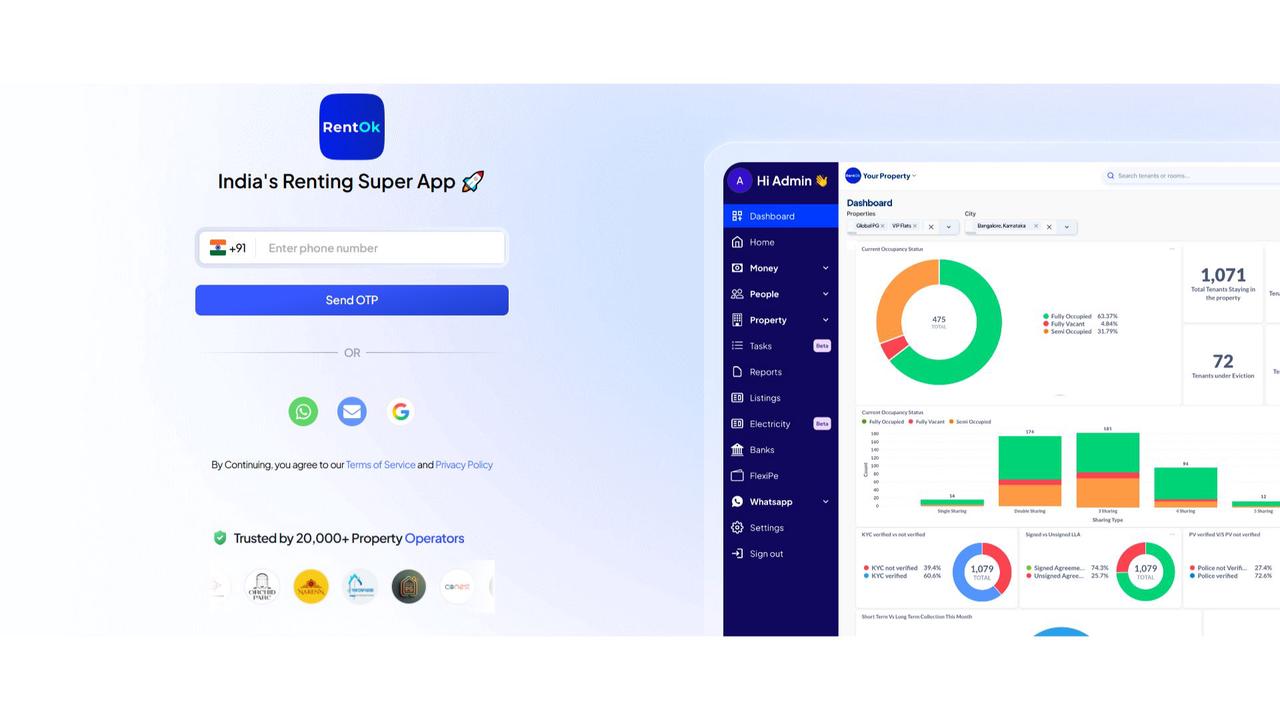
Step 1: Log in to the web version
Open the web version of the app and enter your credentials to log in.
-
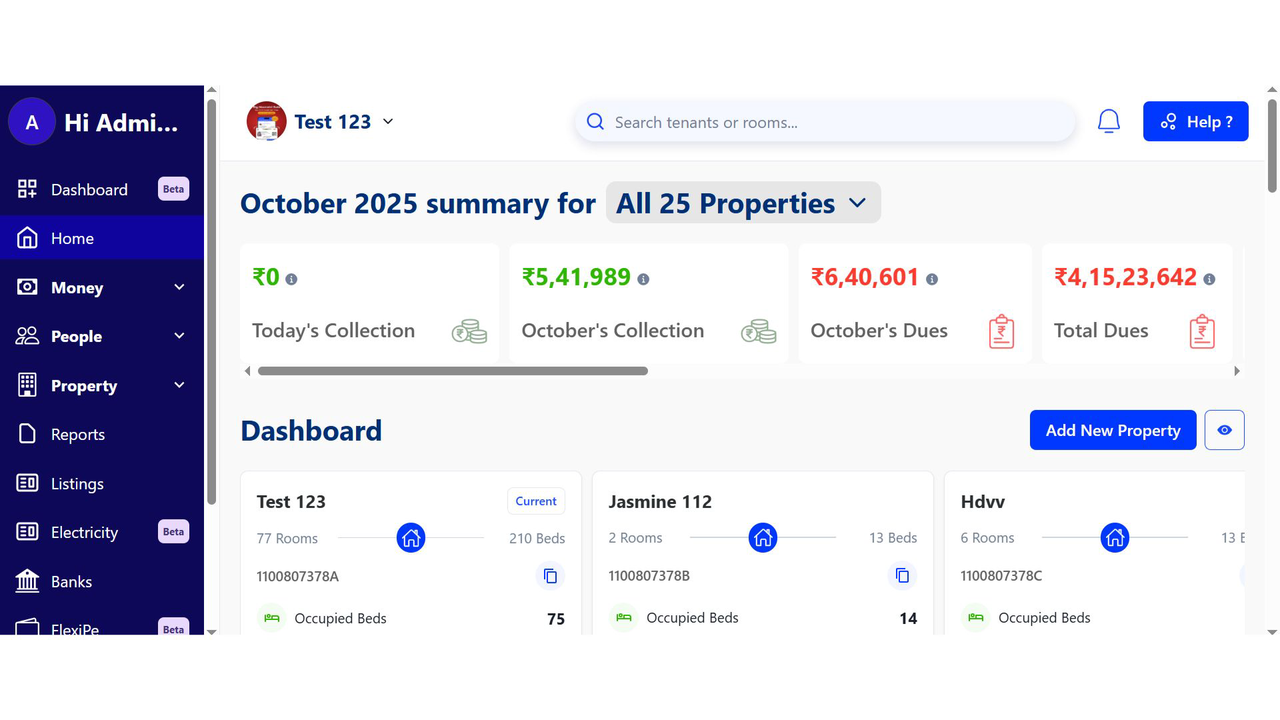
Step 2: Go to the Home page
After logging in, the home page gives you an overview of your account.
-
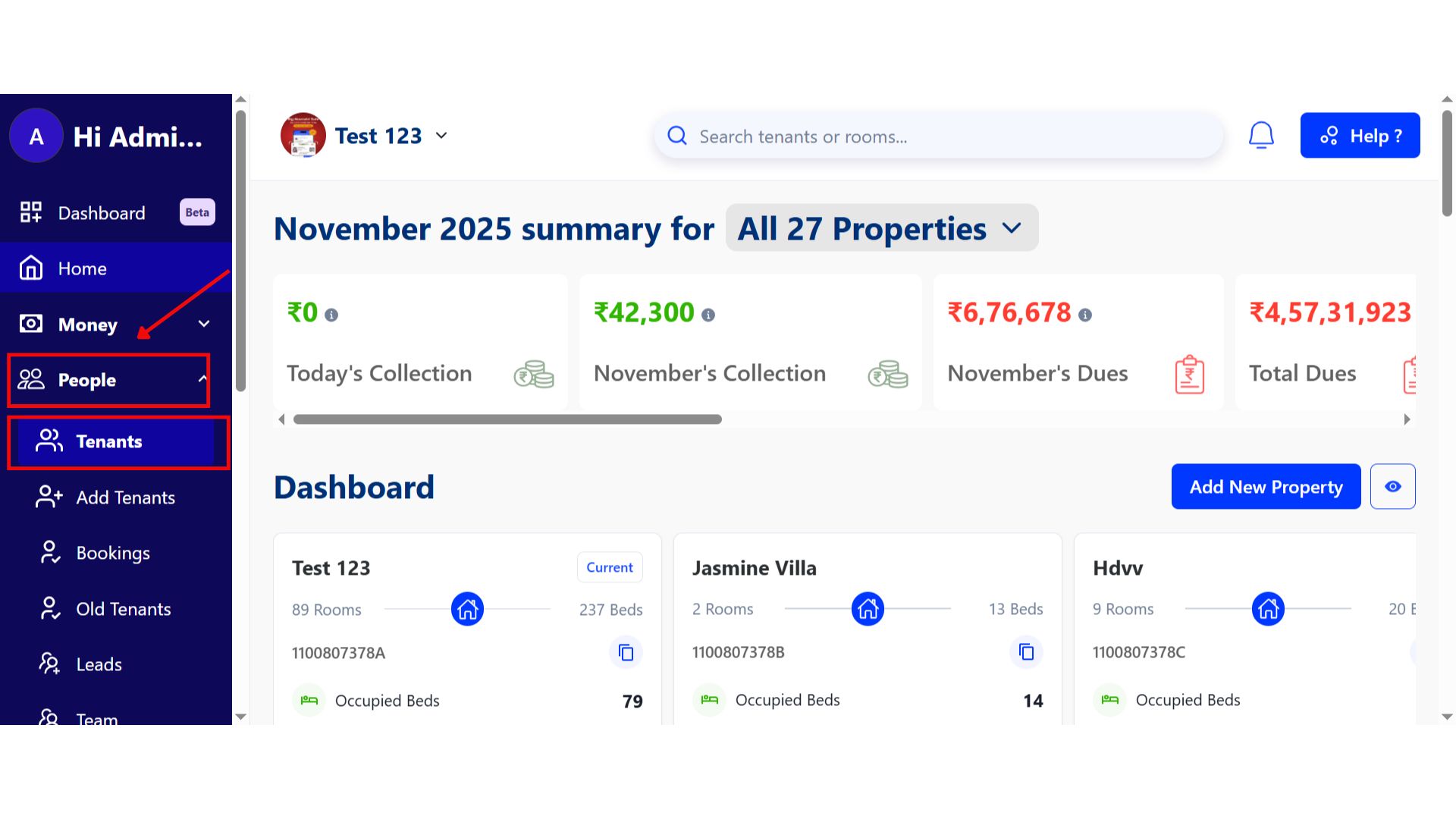
Step 3: Open the People Section and Select the Tenant
From the left-hand menu or navigation panel, click on People to view all contacts linked to your property. Under the Tenant tab, browse the list and select the tenant whose payment you want to record.
-
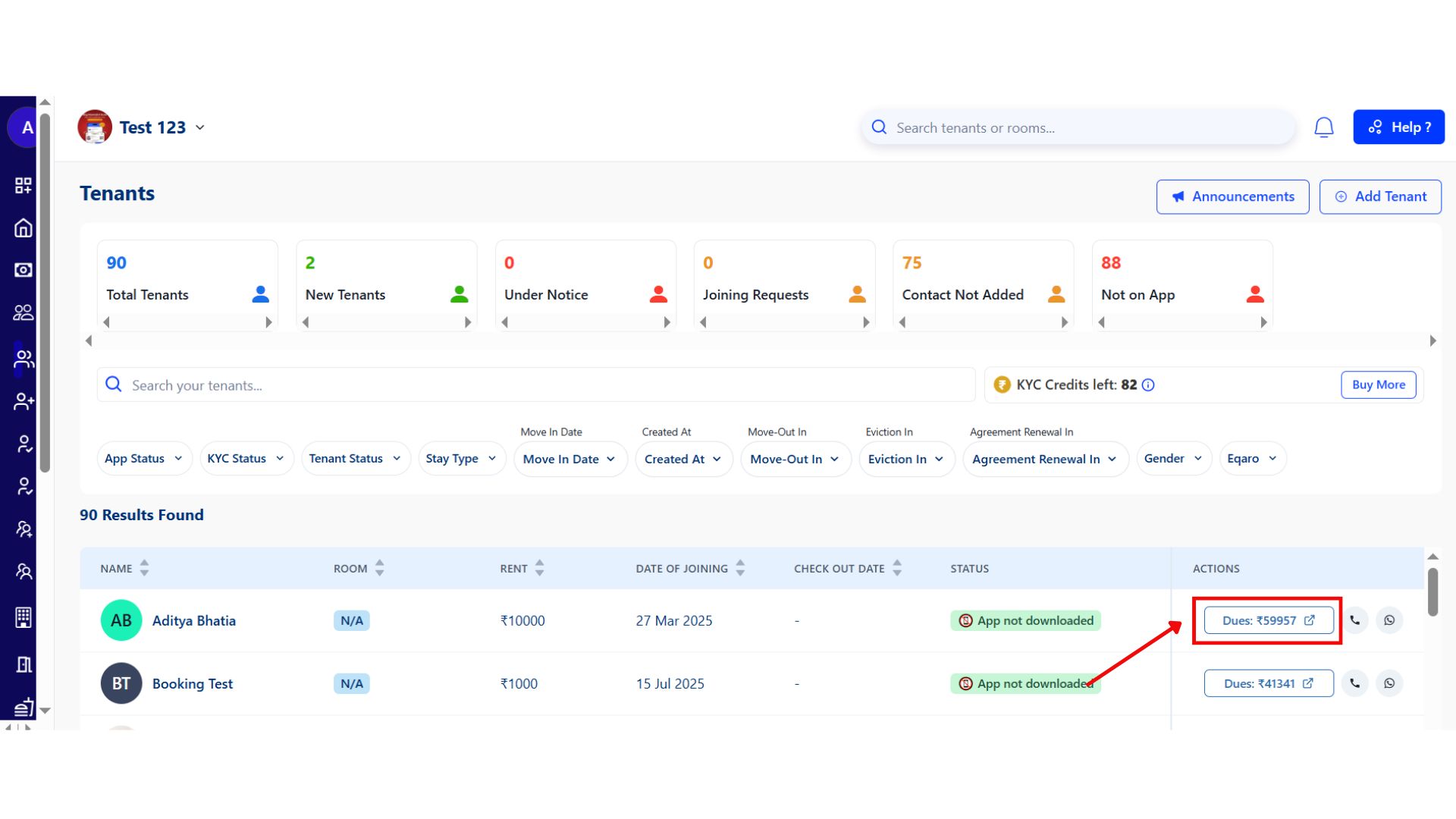
Step 4: Open Dues from the Actions Section
In the selected tenant’s profile, click on Dues under the Actions section. Then, choose the specific category for which you want to record the payment.
-
Step 5: Open the Action Menu
Click on the Record Payment icon for the option to open the payment entry window.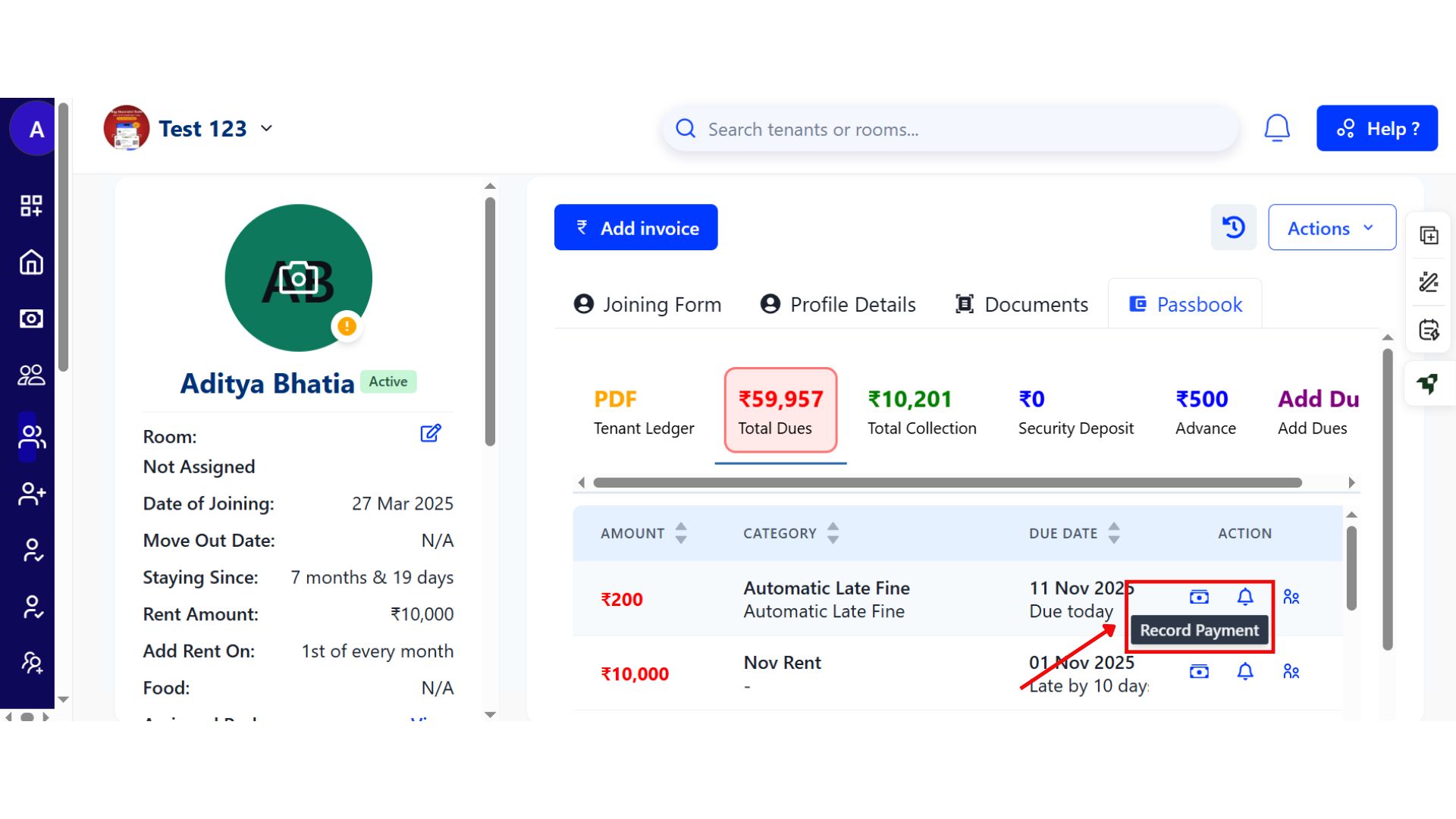
-
Step 6: Record the Payment
In the payment entry window, enter the payment details such as amount, mode of payment, and date. Once done, click Record Payment, and the transaction will be instantly updated in the tenant’s payment history.
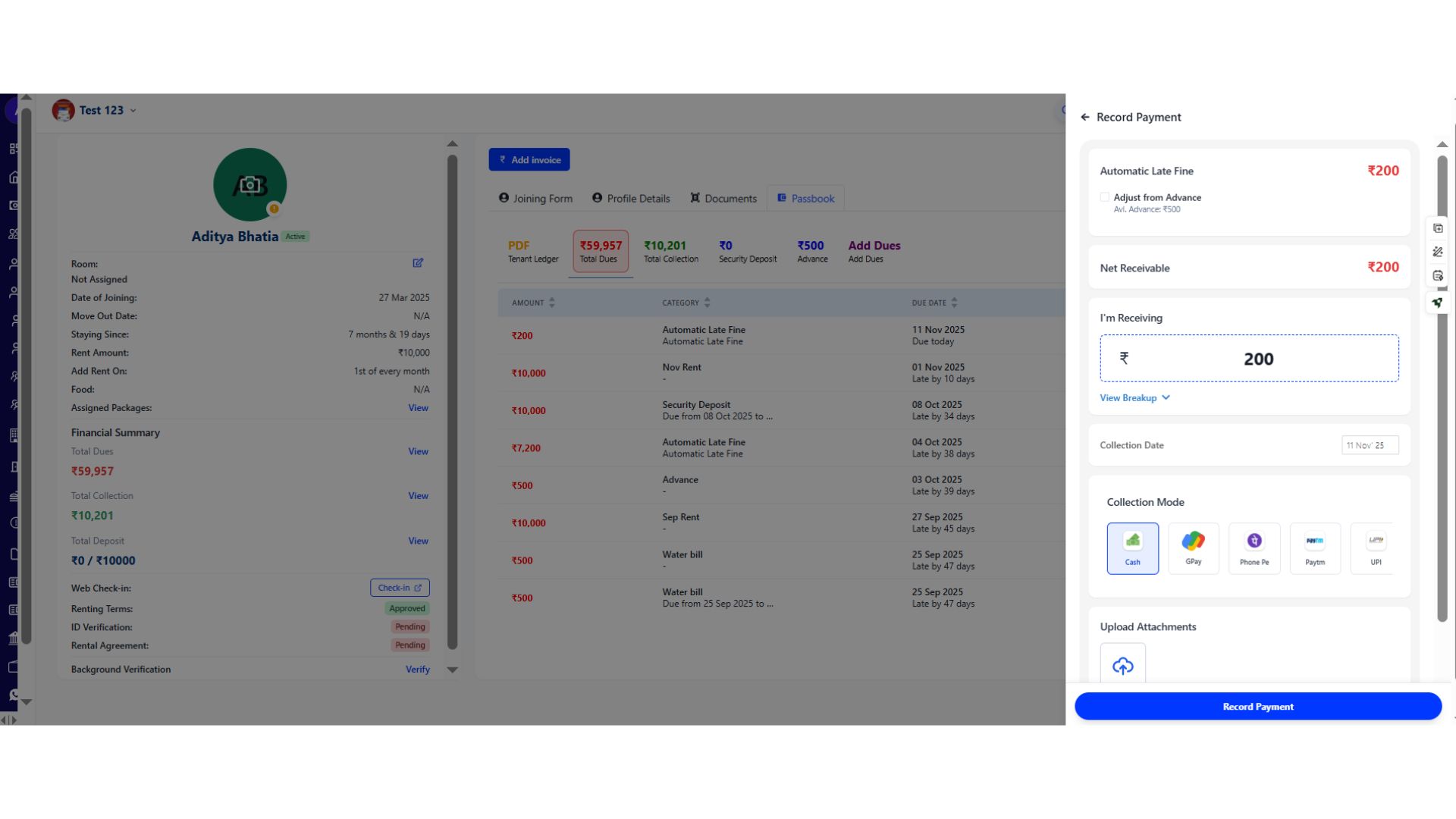
💡 Why it matters: This provides much-needed flexibility for staff working on desktops. It mirrors the powerful features of the mobile app, making bulk payment entries and complex adjustments much easier to manage.
Smarter Complaint Tracking with Email Alerts - Never miss an update on a ticket
We've introduced email notifications and team tagging to our complaints module. This ensures every issue is tracked transparently from the moment it's created until it's resolved.
See what’s new →
Highlights
-
Automatic Email Notifications: Get email alerts for new tickets, status updates, and new comments, creating a permanent record in your inbox.
-
Tag Your Team: Mention your internal staff members (e.g.,
@Ramesh) in a ticket's remarks to assign tasks or ask questions directly. -
Keep Owners Informed: The property owner (Admin) and any tagged team members will automatically receive email updates for full visibility.
-
Full Conversation History: Every update creates a single email thread, giving you a complete history of the complaint without needing to search in the app.
How to try
-
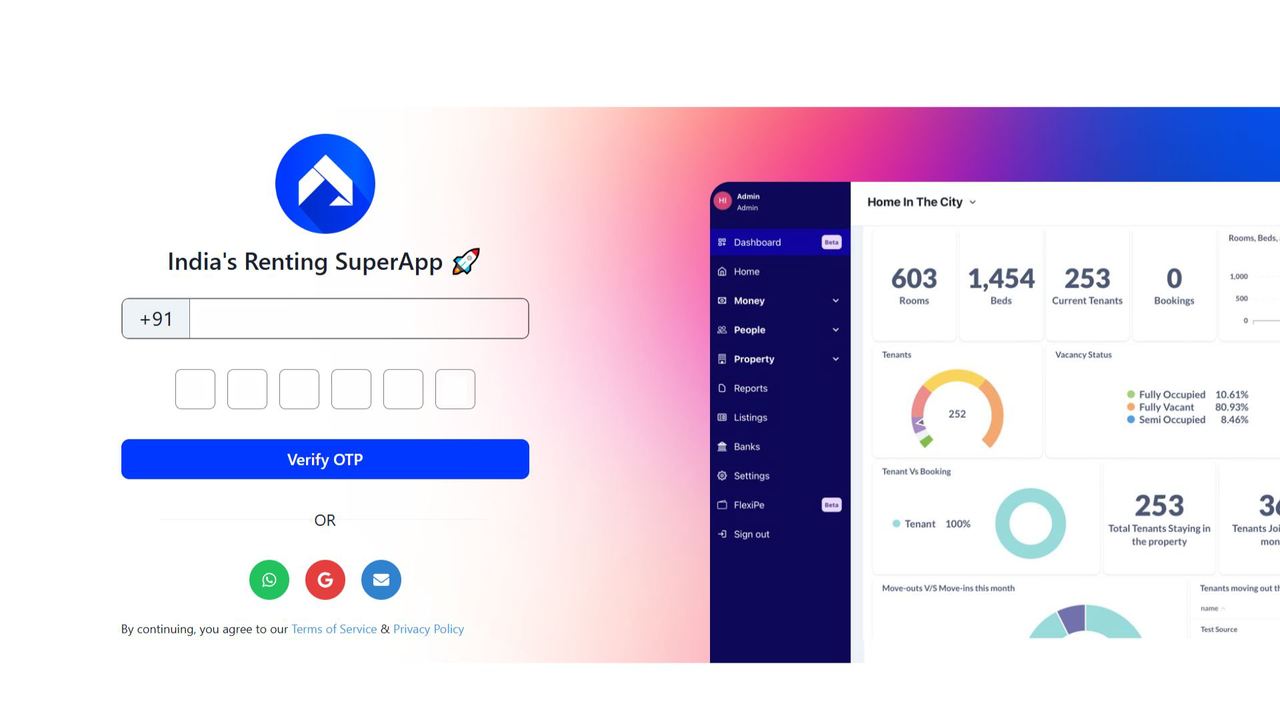
Step 1: Log in to the Web Version
Open the web version of the app in your browser and sign in using your registered credentials.
-
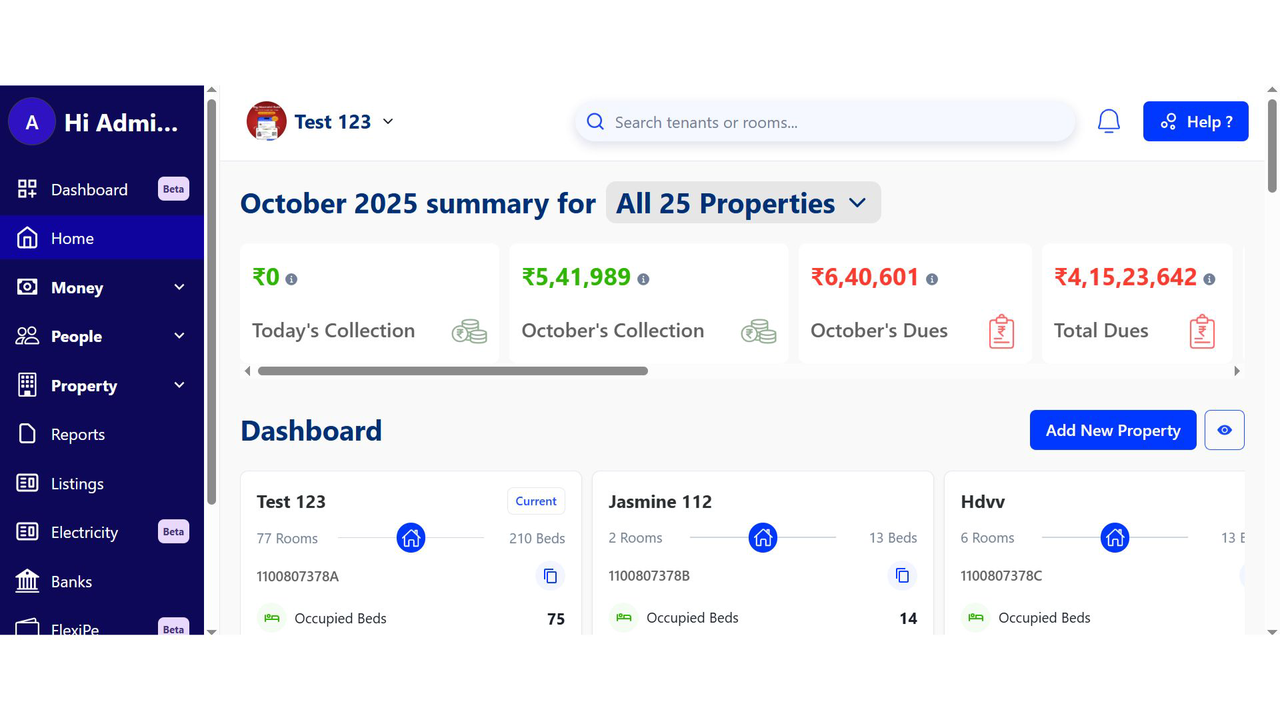
Step 2: Go to the Home Page
Once logged in, you’ll arrive at the Home page, which gives you a quick overview of your account and recent activities.
-
Step 3: Open the Property Section
From the left-hand menu or navigation panel, click on Property to access all property-related options.
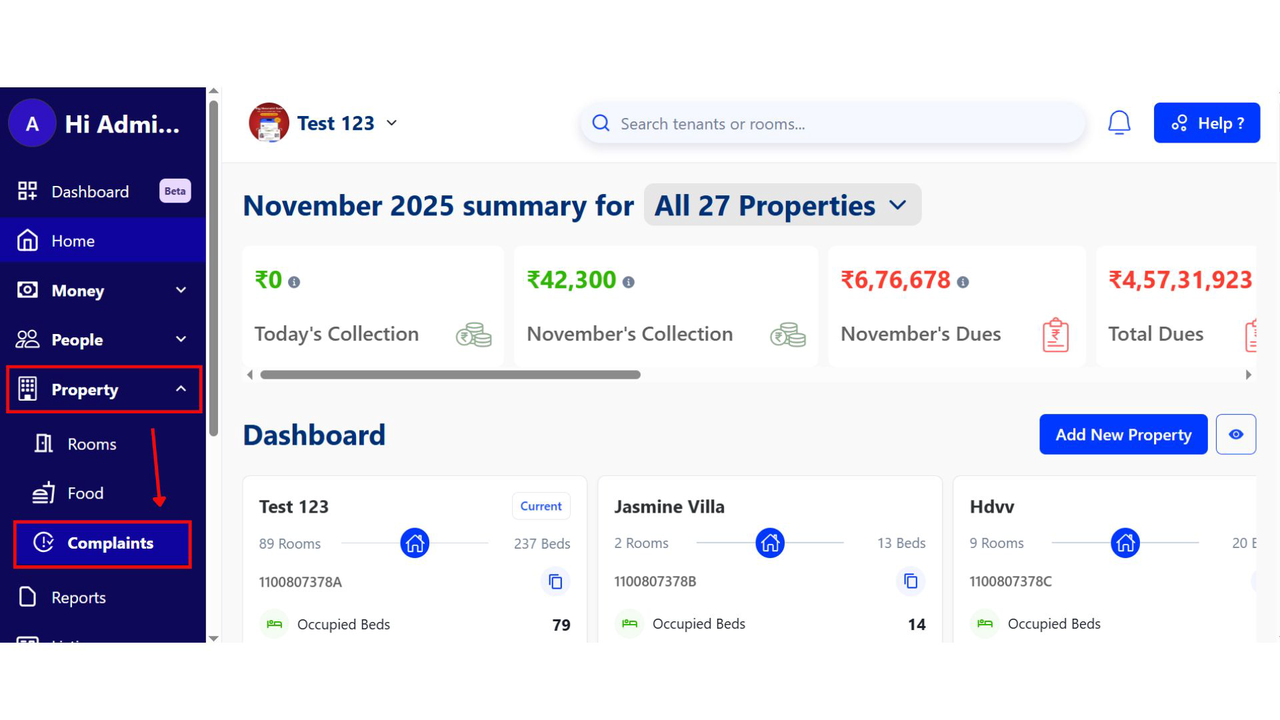
-
Step 4: Select the Complaints Tab
Under the Complaints tab, you’ll see a list of all reported issues. Browse through the list and select the complaint whose status you want to update.
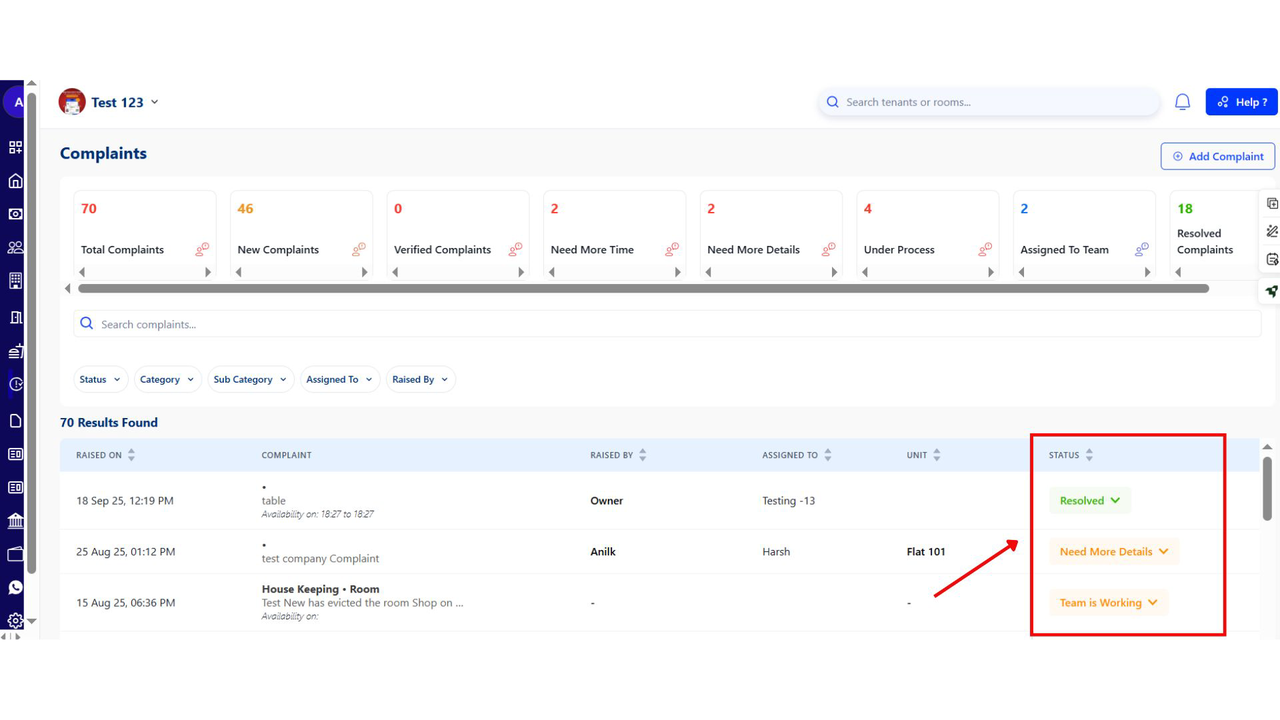
-
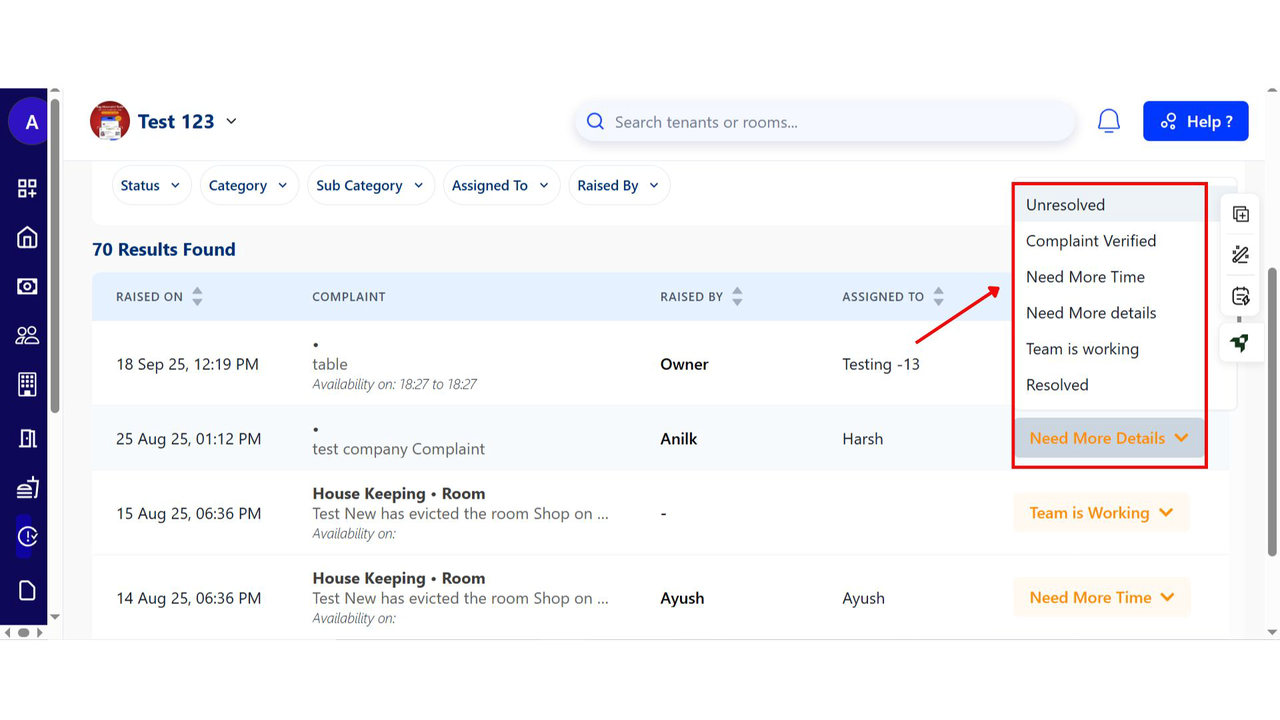
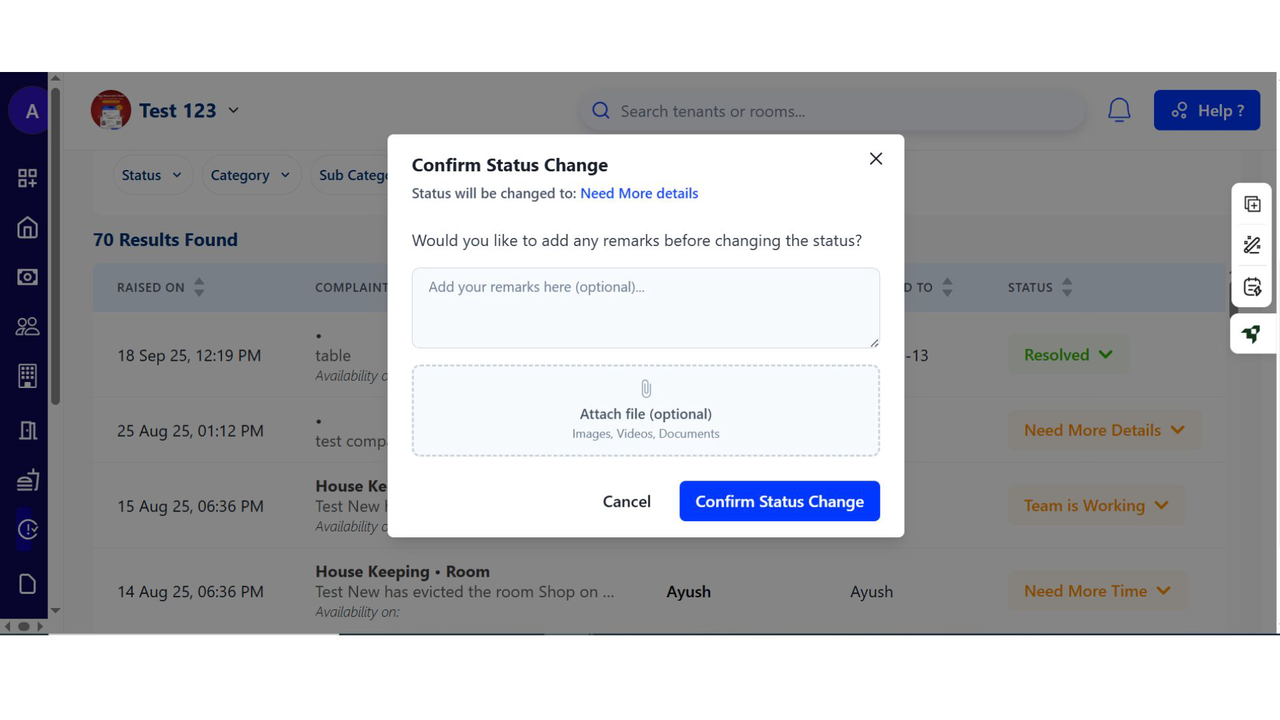
Step 5: Update the Complaint Status
Open the selected complaint, click on the Status field, and choose the new status from the available options. Save your changes, and the complaint status will be updated instantly.
Unit-Based Billing for Services - Automate bills for laundry, electricity, and mess
You can now create billing packages that charge tenants based on consumption, like per kg for laundry or per unit for electricity.
See what’s new →
Highlights
- Create packages for services like laundry, mess, or electricity.
- Set a price per unit (e.g., ₹25 per laundry load, ₹10 per kWh).
- When invoicing, simply enter the number of units consumed.
- RentOk automatically calculates the total and adds it to the bill.
How to try
-
Step 1: Open Dues Package Section
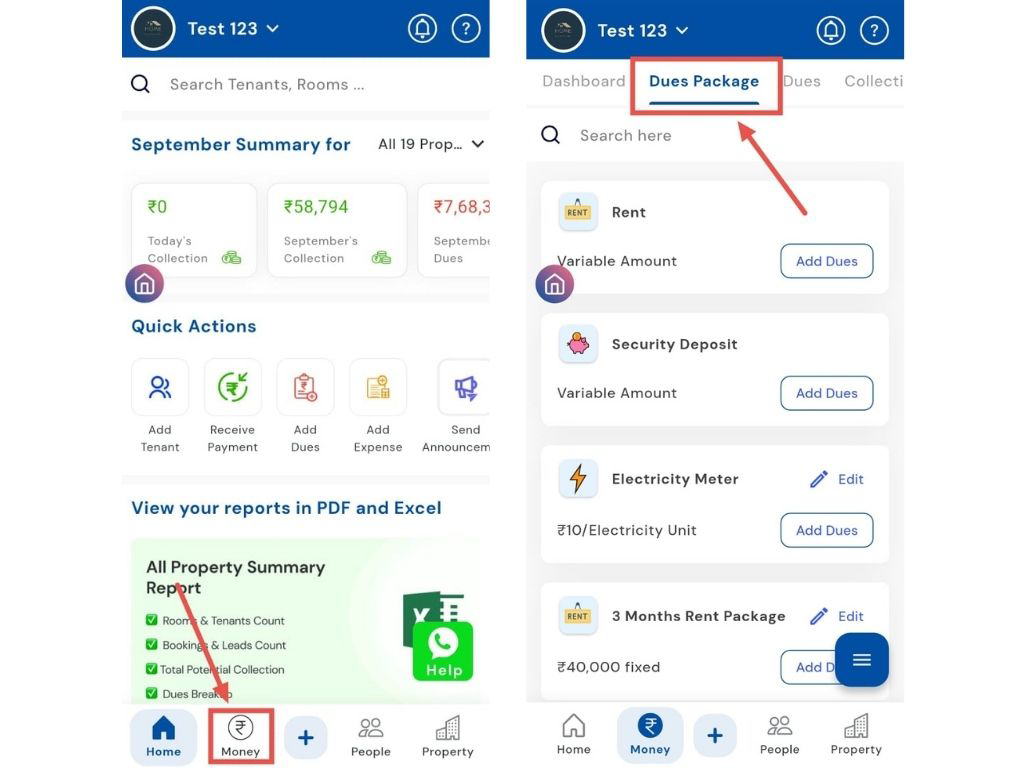
Tap the Money icon in the bottom navigation menu, then select Dues Package to access package settings.
-
Step 2: Choose the Package Type
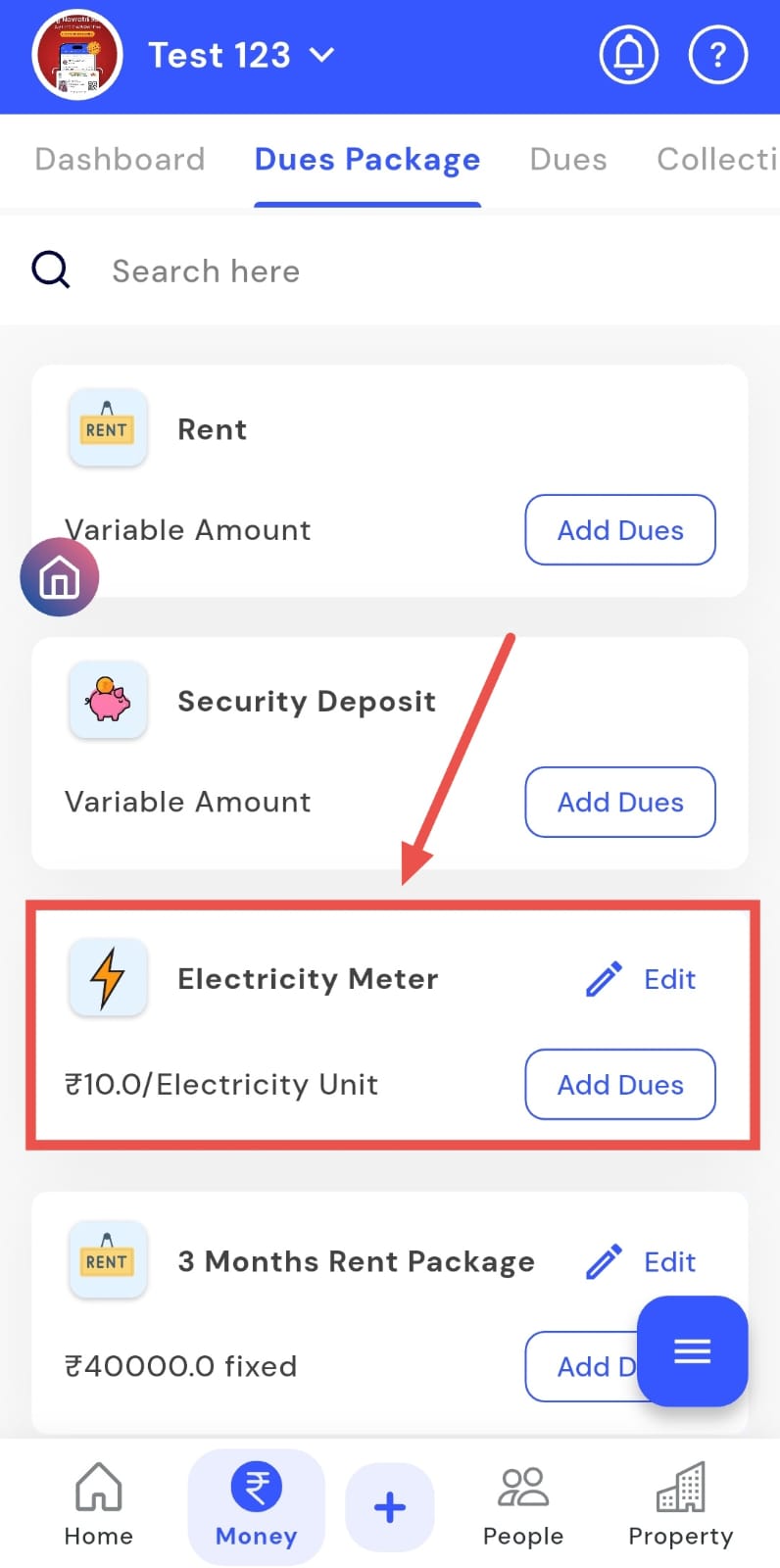
Click on the relevant package such as Electricity Meter, Laundry, Mess, or any other available category. Example: If you’re editing the Electricity Meter package, click on it and select Edit Dues.
-
Step 3: Enter or Update Package Details
-
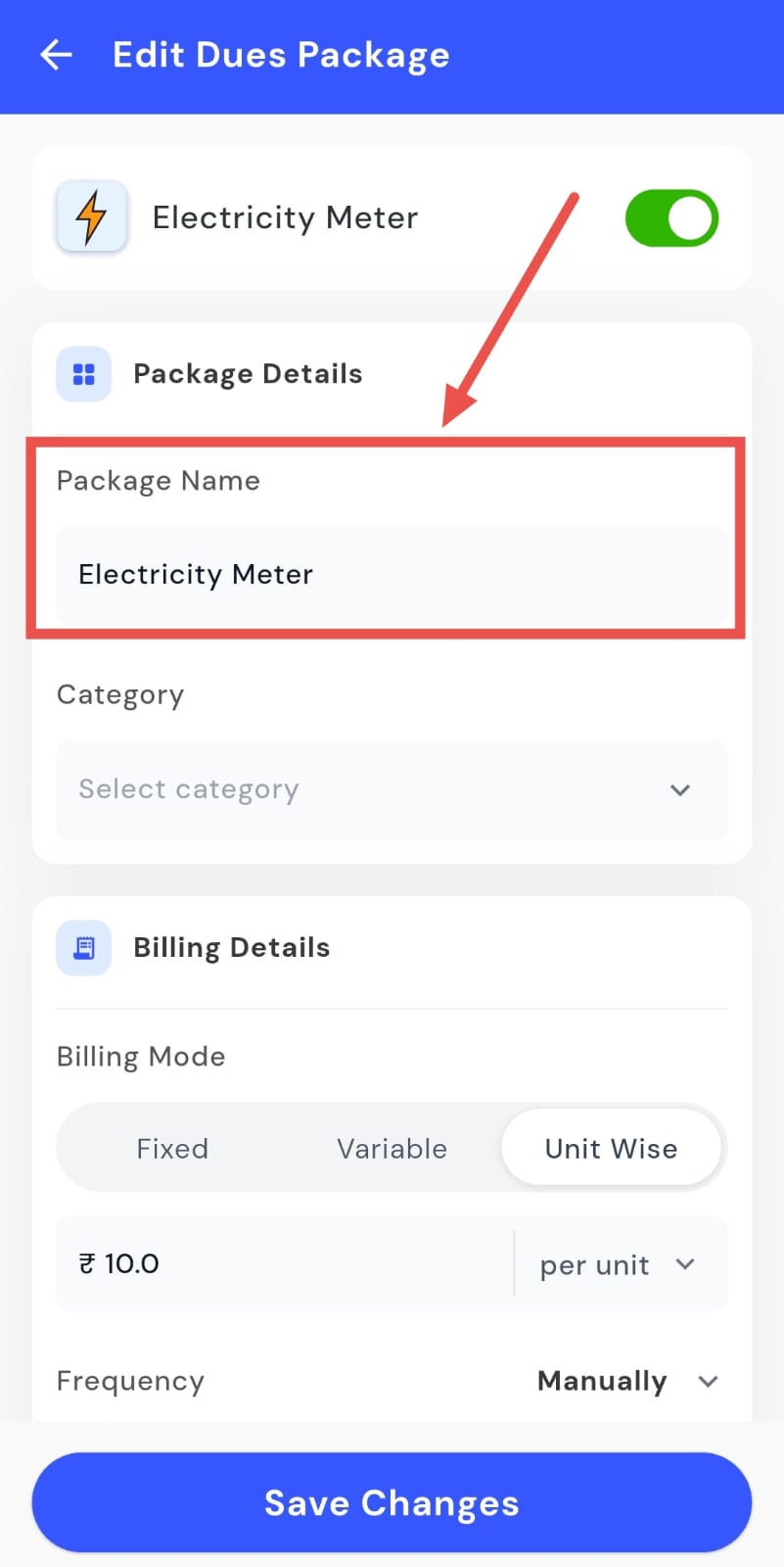
Package Name:
Specify the name of the dues package.
-
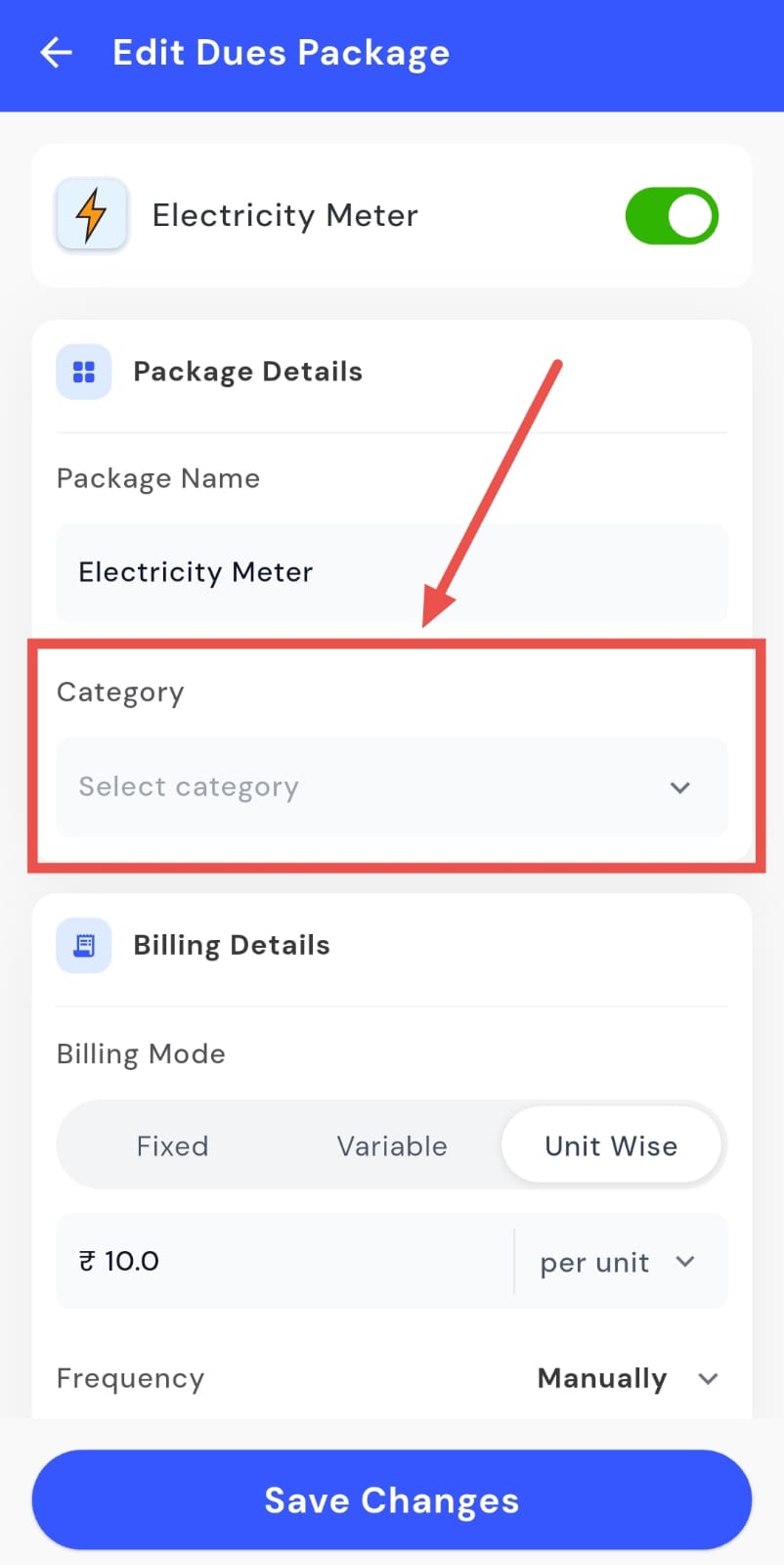
Category:
Select the relevant category (for example,
Electricity
)
-
-
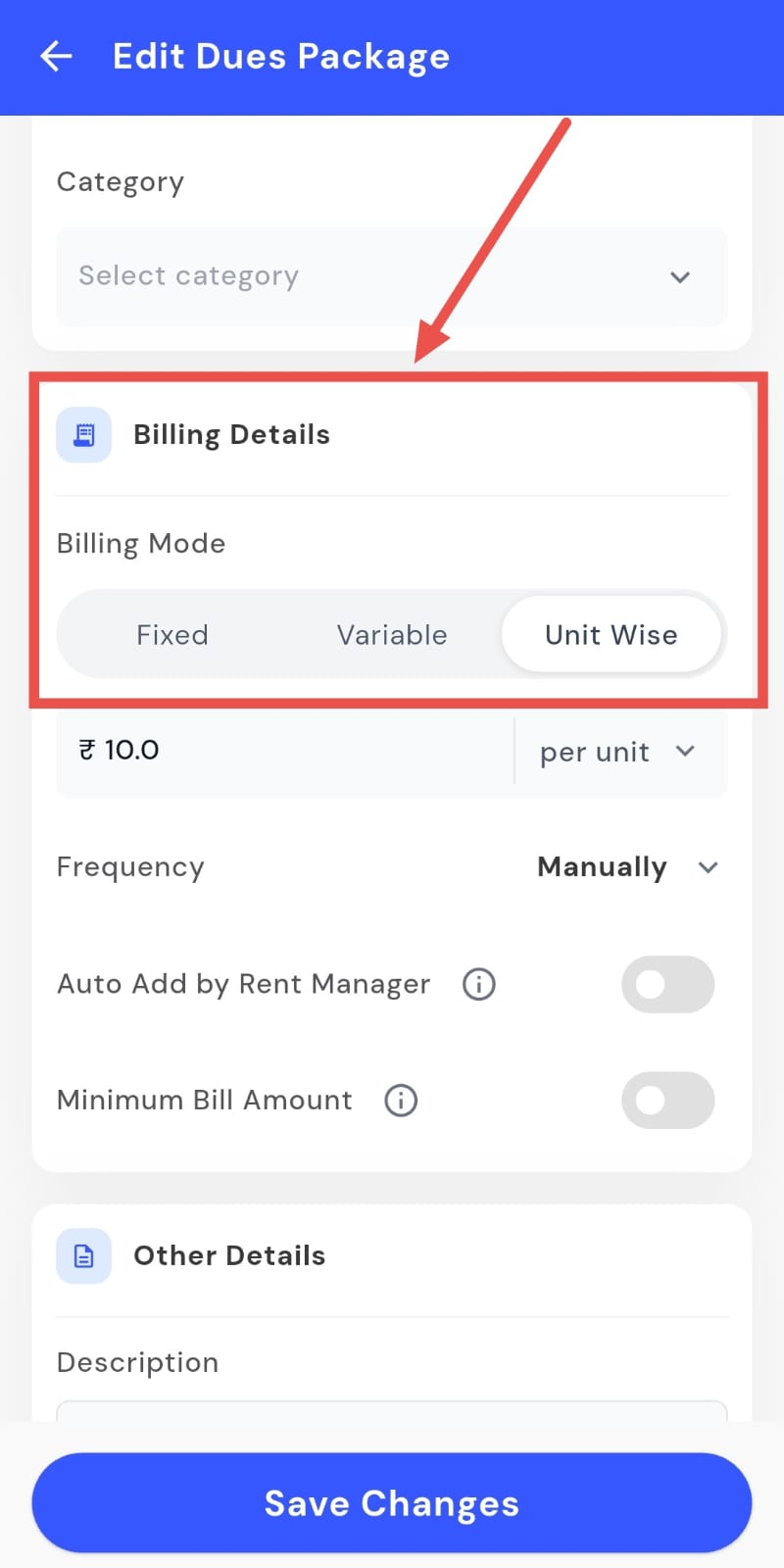
Billing Mode: Choose how you want the billing to work:
-
Fixed:
A constant amount will be charged regardless of the bill amount.
-
Variable:
Charges depend on usage, and you can still set frequency, auto-add options, and a minimum bill amount.
-
Unit-wise:
Charges are calculated per unit (e.g., per plate, per kg, per unit, or per month).
-
-
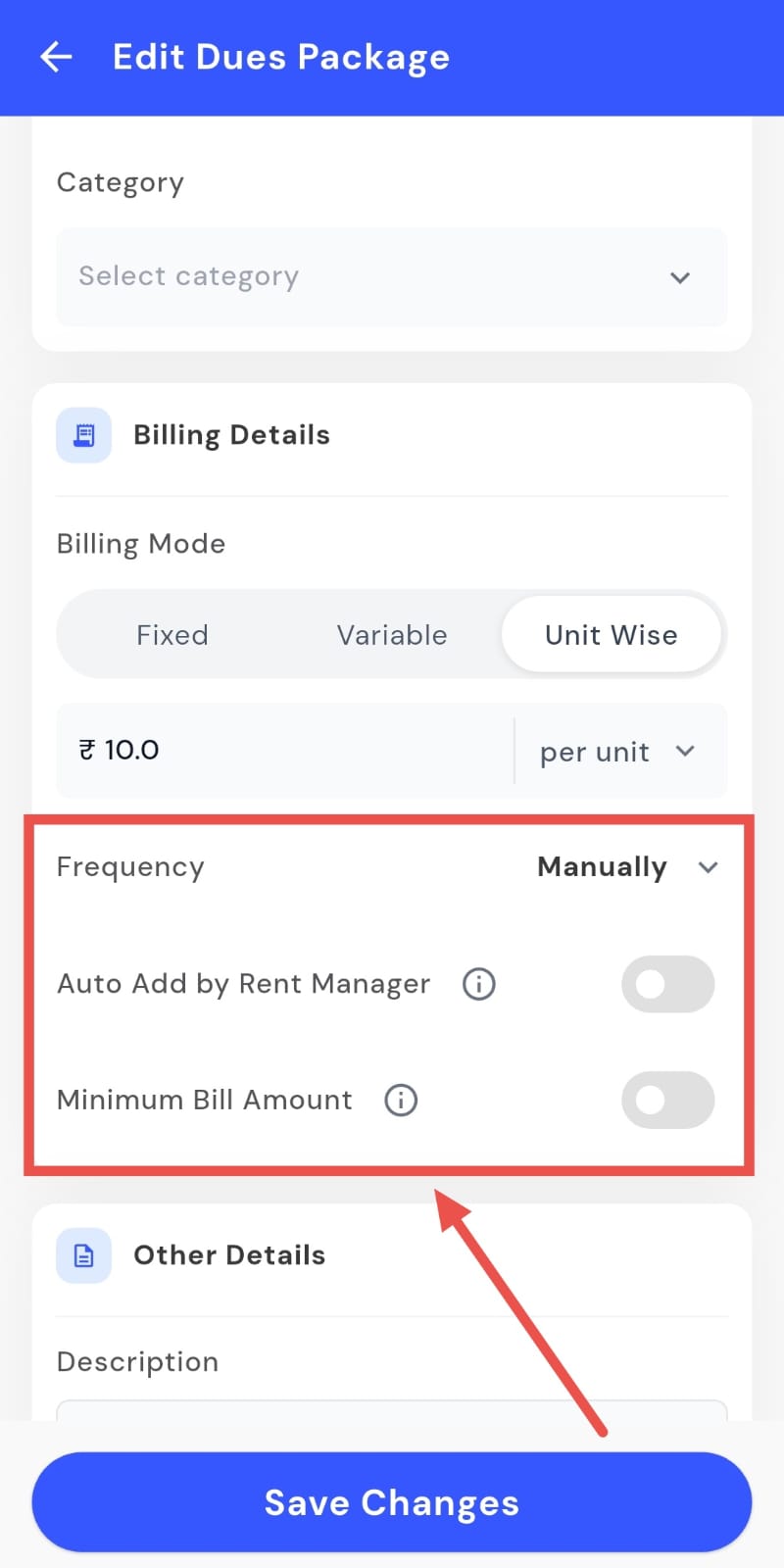
Configure Billing Settings
-
Frequency:
Set how often the bill should be generated (weekly, monthly, etc.).
-
Auto-Add by Rent Manager:
Turn this on if you want the system to automatically add dues based on the selected frequency. This helps save time and ensures consistent billing.
-
Minimum Bill Amount:
Define the lowest amount to be charged. If the bill falls below this value, the system will still charge the minimum; if it exceeds, the actual bill will apply.
-
-
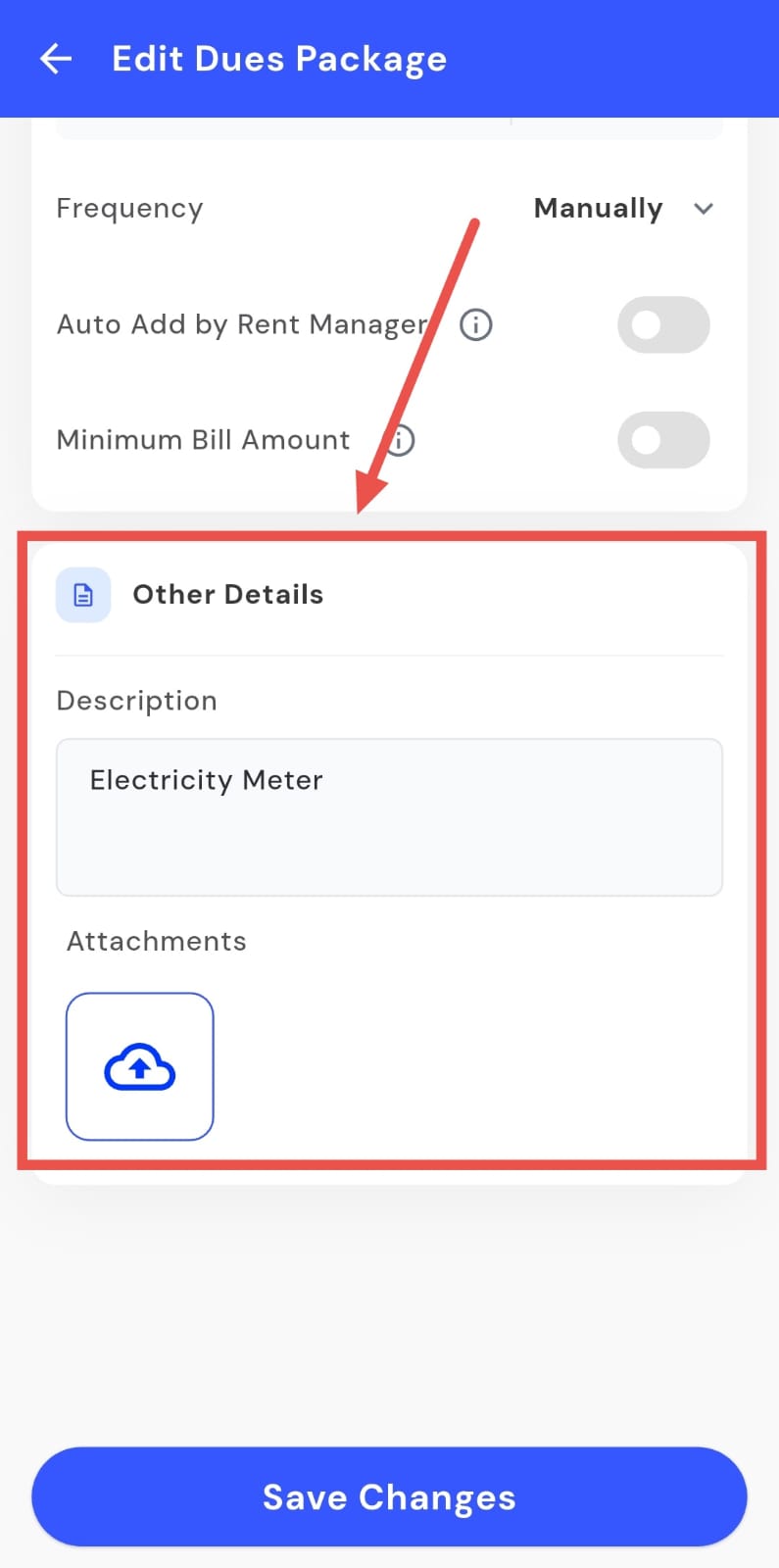
Step 5: Add Additional Details
In the Other Details section, you can add a short description and attach any supporting files or documents, if needed.
-
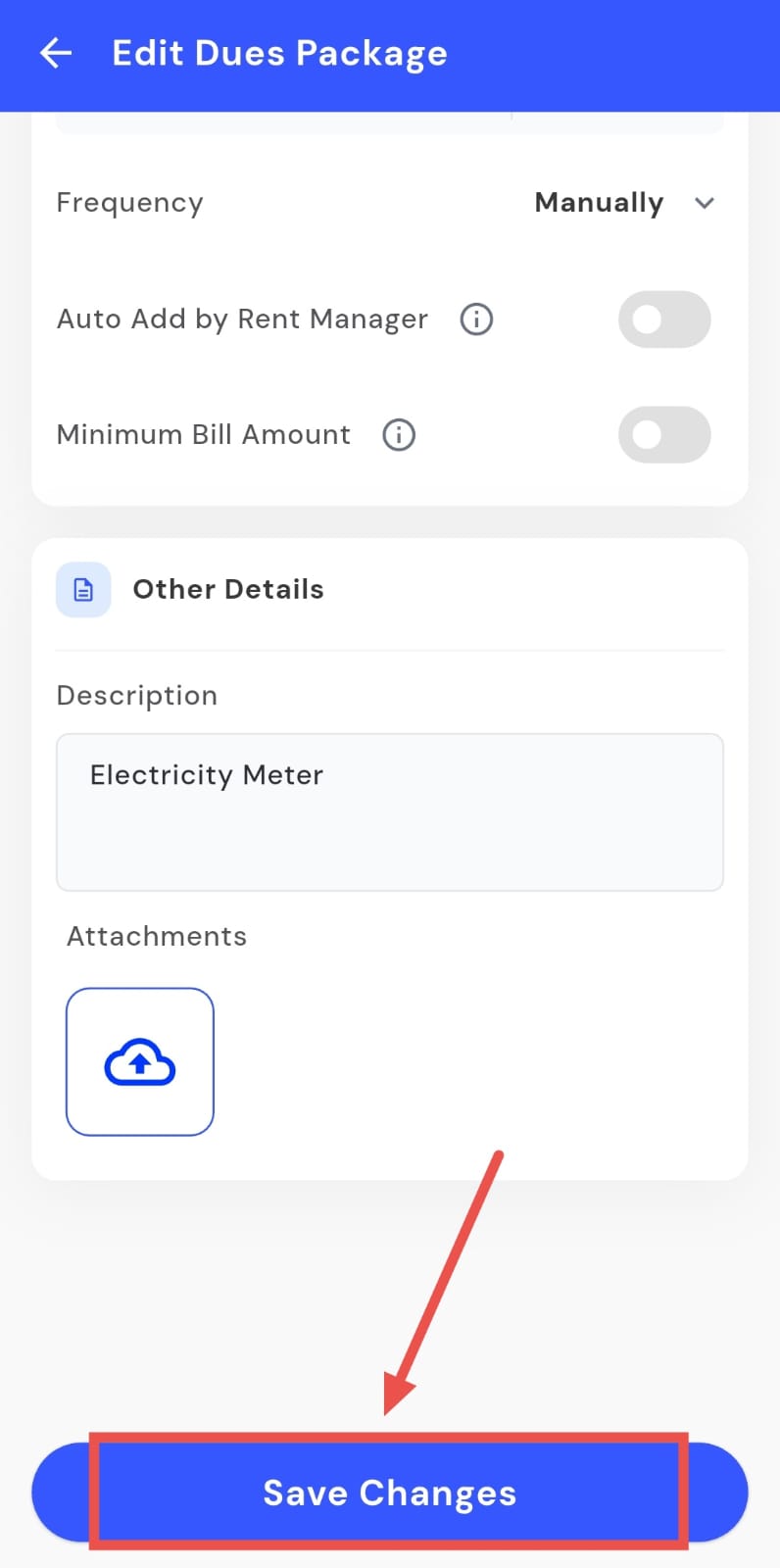
Step 6: Save Changes Once you’ve filled in or updated all the details, click Save Changes. The system will update the dues package instantly and apply the new settings going forward.
💡 Why it matters: This finally automates complex, variable billing for hostel and PG managers, ensuring accurate charges, reducing disputes, and saving precious time.
AutoPay / E-NACH – Never miss a rent collection again
With AutoPay, rent gets debited automatically on the due date, no reminders, no delays, no manual follow-ups. You can even decide who pays the monthly setup fee and customize AutoPay eligibility based on your tenants.
See what’s new →
Highlights
-
Enable AutoPay:
Allow tenants to set up automatic rent payments directly from their bank account.
-
Make AutoPay Mandatory:
You can choose to make AutoPay compulsory for new tenants joining after a specific date.
-
Customizable Eligibility:
Configure which tenants are eligible - existing ones, new ones, or both.
-
Flexible Fee Setup:
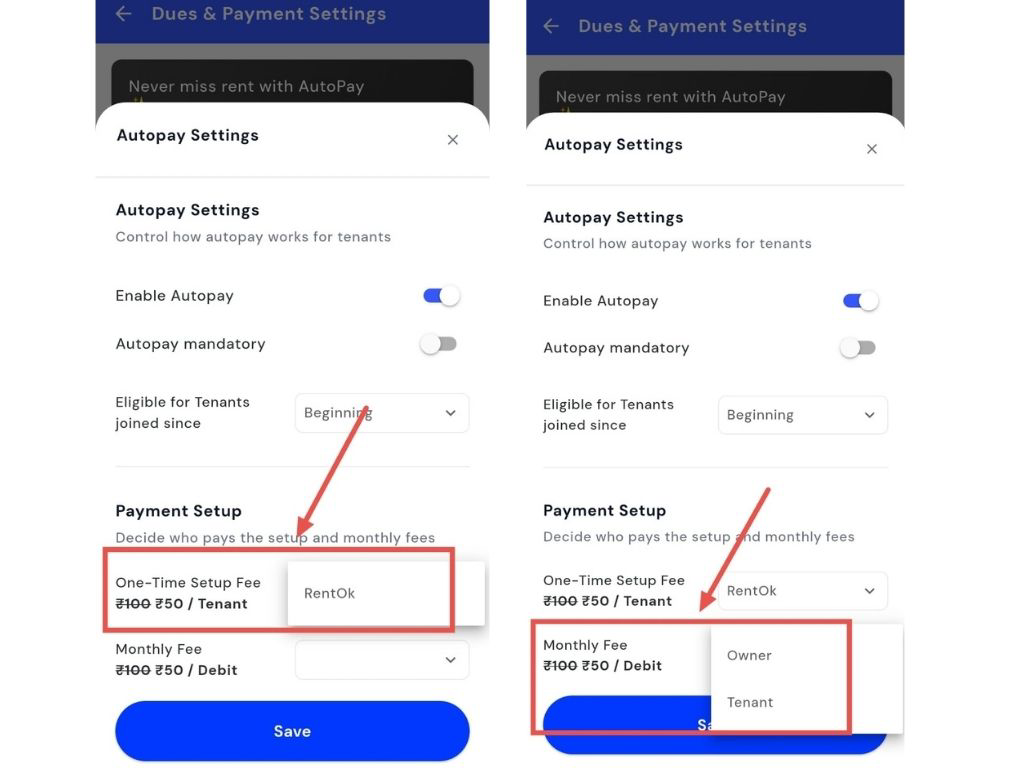
Choose who pays the monthly ₹50 fee - the owner or the tenant. The one-time setup fee is paid by RentOK.
-
Stable Cash Flow:
RentOK auto-collects rent on the due date and retries if a payment fails.
-
No More Follow-ups:
RentOK sends payment reminders and status updates automatically.
-
Instant Receipts:
Receipts are sent automatically, and ledgers are updated after every successful collection.
How to try
-
-
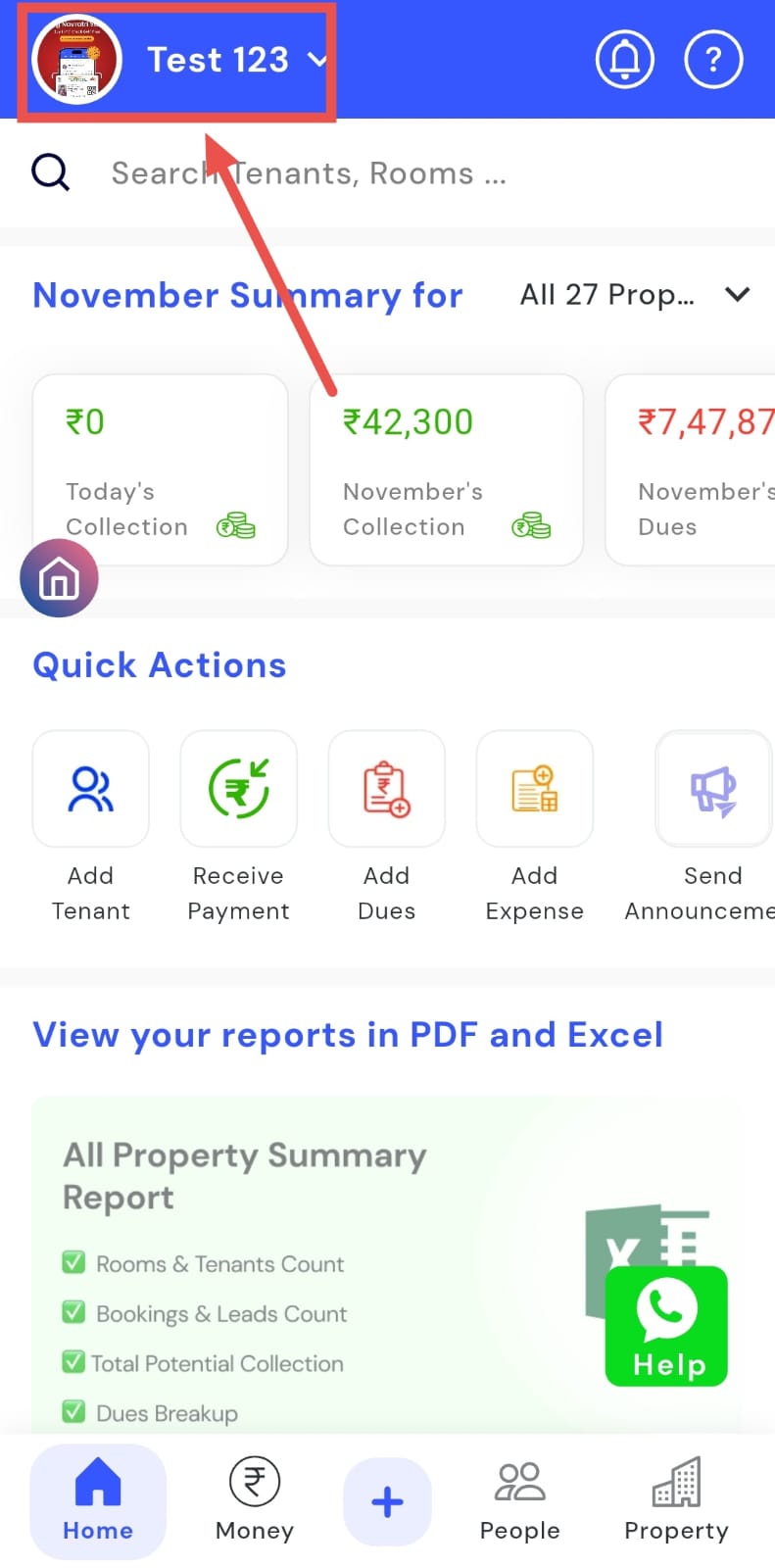
Step 1: Open Profile Settings\
Click on your profile picture in the top-right corner of the screen. This will open your profile settings.
-
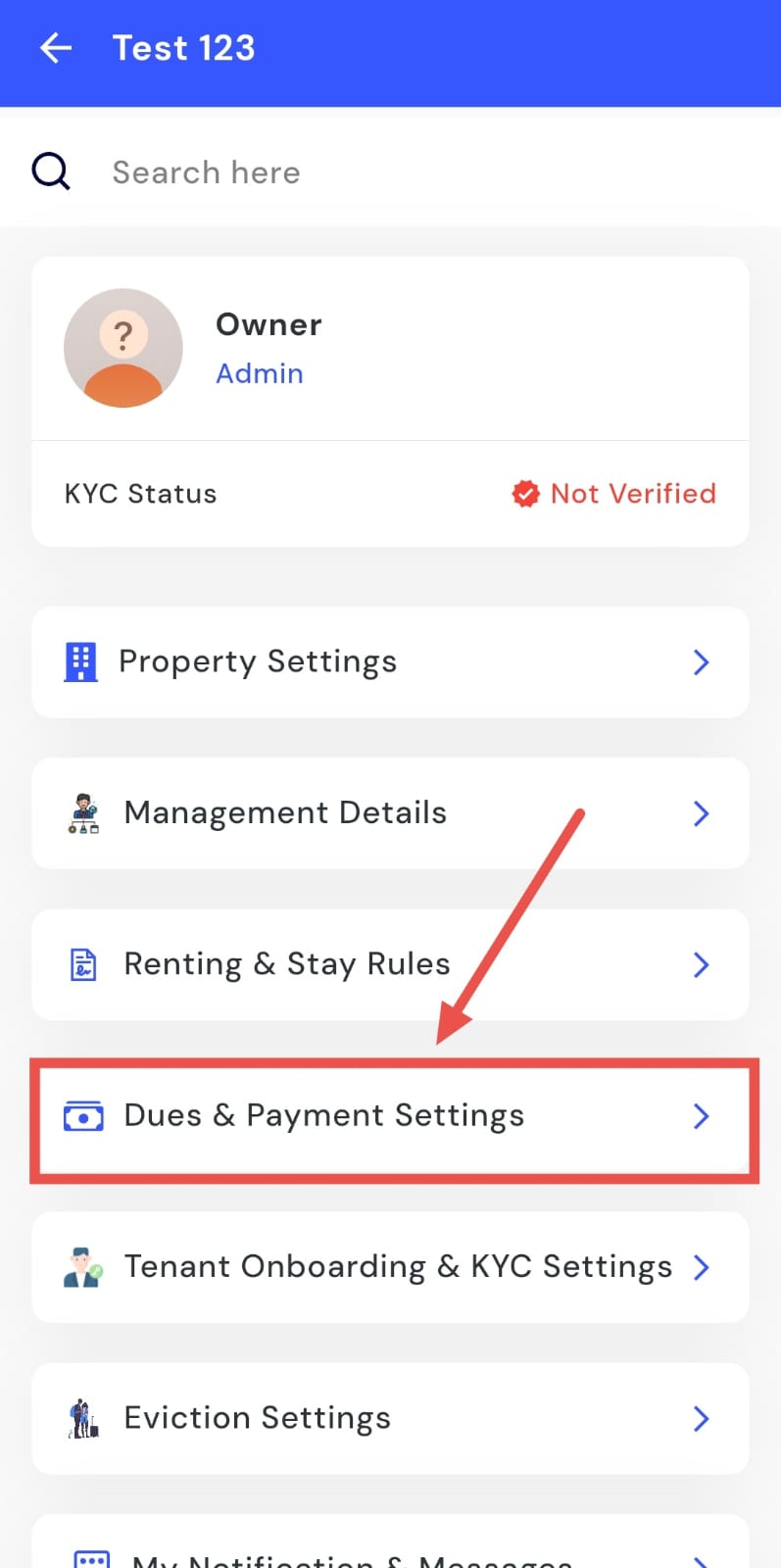
Step 2: Go to Dues & Payment Settings\
Once your profile screen appears, select Dues & Payment Settings to access all payment-related configurations.
-
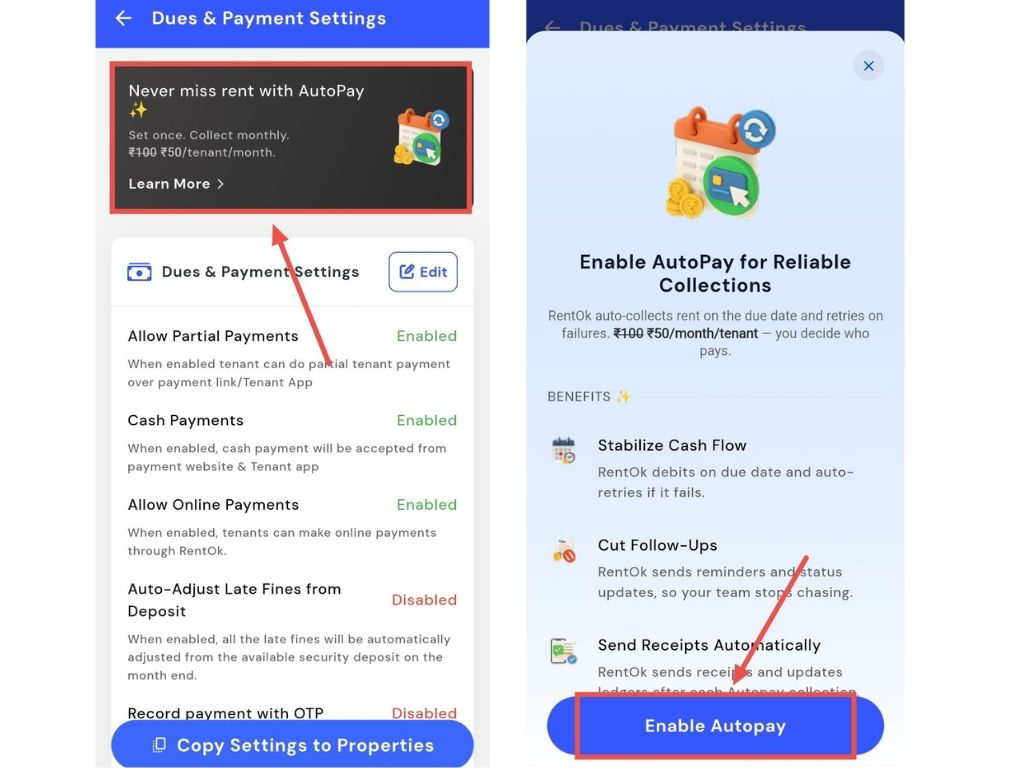
Step 3: Enable AutoPay
You’ll see a black box labelled “Never miss rent with AutoPay.” Click on it, then choose Enable AutoPay to begin the setup process.
-
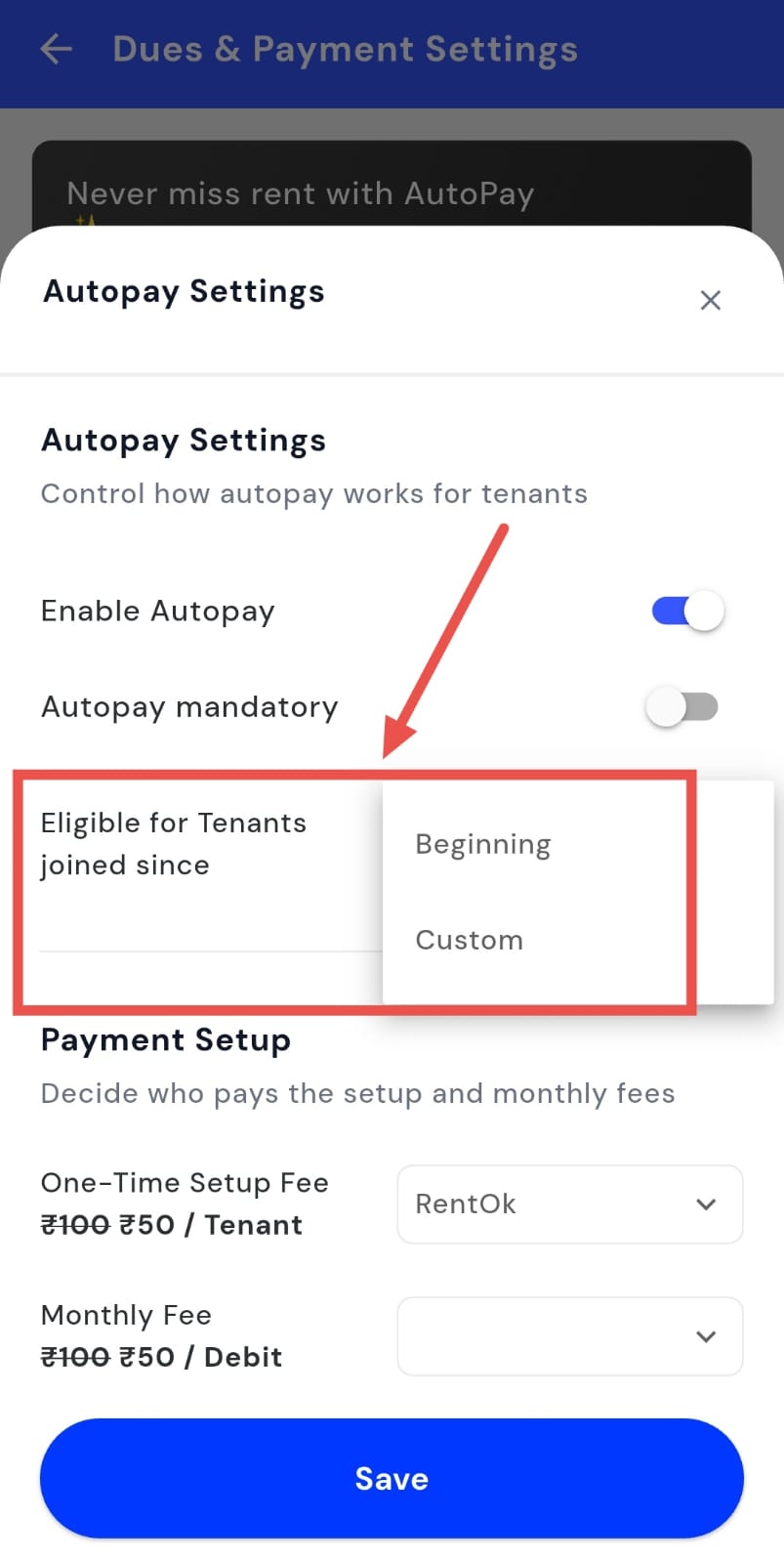
Step 4: Set Rules & Eligibility
Decide whether AutoPay should apply to all tenants or only to those joining after a specific date. Adjust the rules as required.
-
Step 5: Choose Who Pays the Fees For the one-time setup fee, select Paid by RentOK. Then, decide whether the monthly AutoPay fee will be covered by the Owner or the Tenant.
-
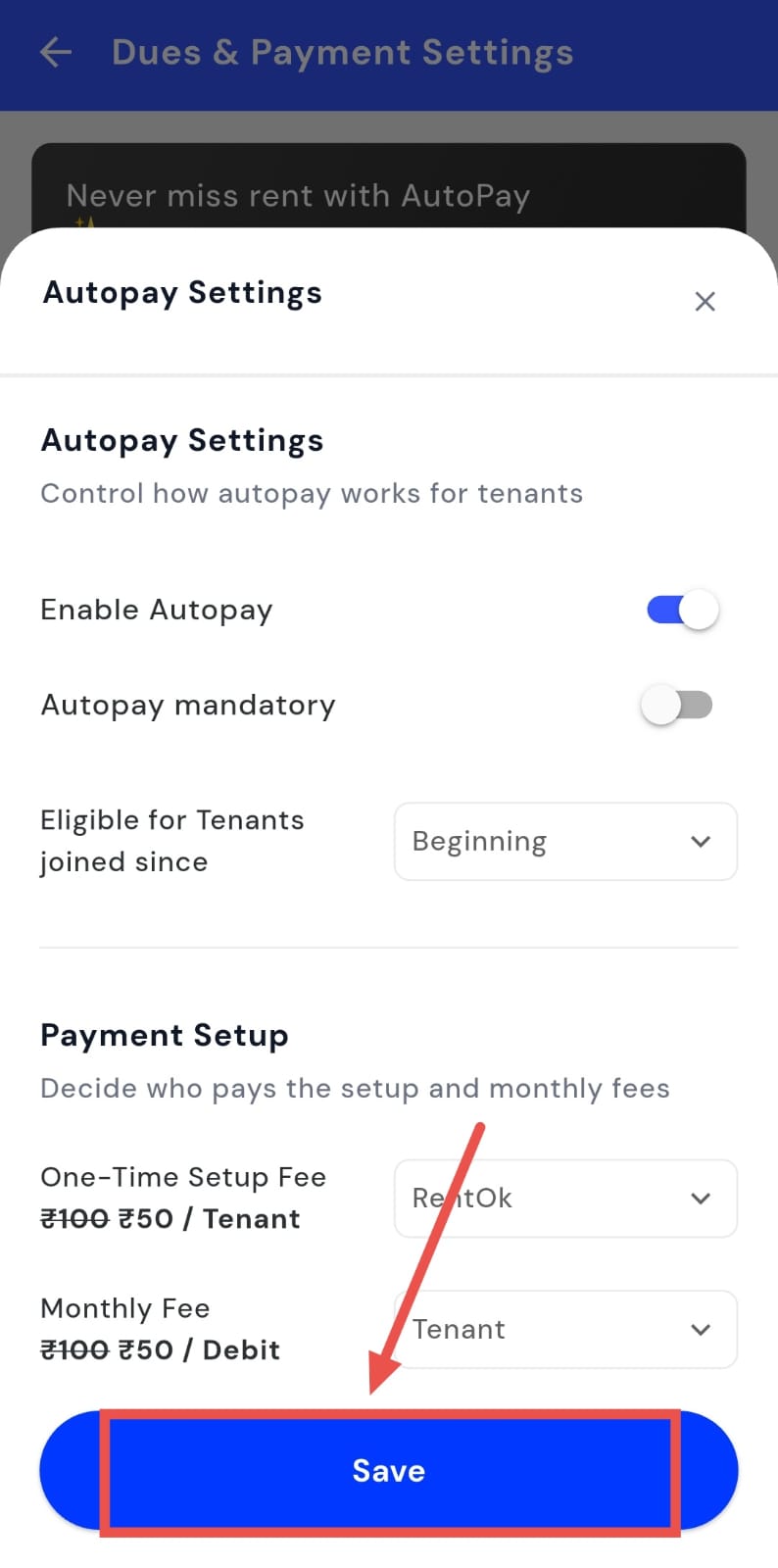
Step 6: Save Settings After confirming all preferences, click Save to enable AutoPay for your property. The setup will take effect immediately.
New Stay Type Control for Tenants – Choose Long or Short Stay Yourself
We’ve added more flexibility while adding tenants. Now, you can decide whether a tenant falls under a Long-term or Short-term stay, regardless of their actual stay duration.
See what’s new →
Highlights -
Full Control: When adding a new tenant, you can manually set their stay type as either Long-term or short-term, with no automatic restrictions. -
-
Custom Categorization: Even if a tenant’s stay duration doesn’t fit the typical long or short-term definition, you can categorize them based on your own operational needs.
-
Improved Data Accuracy: Ensures your property reports, collections, and dashboards reflect accurate data based on how you define your tenants.
-
Seamless Integration: The selected stay type directly impacts payment collection patterns, reports, and occupancy tracking.
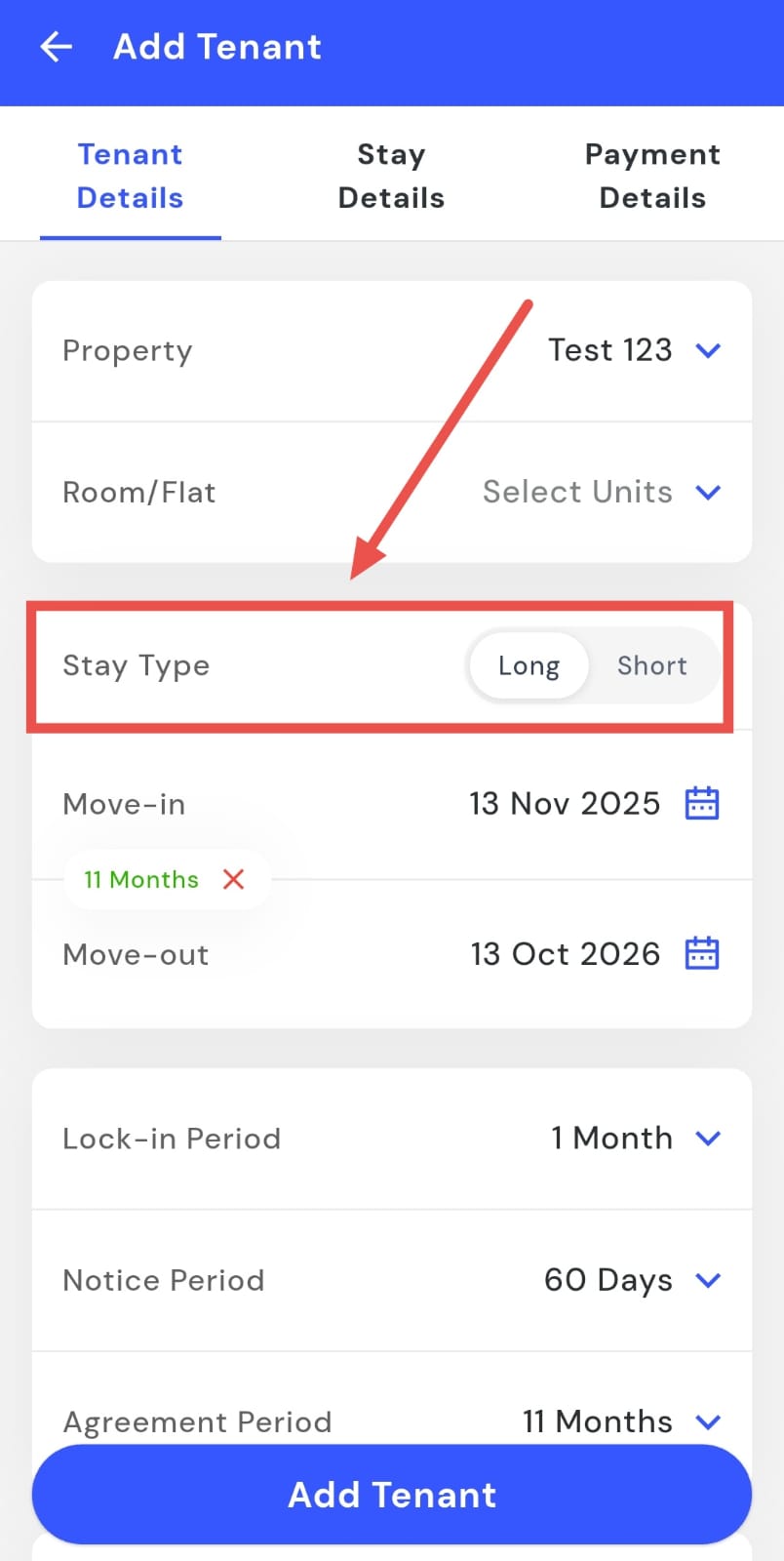
One example: “A tenant has stayed for just 10 days, but you want to treat the record as long-term for internal tracking - simply select ‘Long-term’ while adding them, and RentOK will display them under long-term tenants in all reports.”
💡 Why it matters: This gives managers more control over how tenants are tracked, billed, and displayed in reports. It helps maintain cleaner data, accurate reporting, and better differentiation between short-stay and long-stay tenants.*
Coming Up Next
Move-in / Move-out Checklists:
We are actively working on a comprehensive new module to track property inventory (like ACs, fans, furniture) during tenant move-ins and move-outs. This will be released in an upcoming update.
Thank You
Have doubts or any feedback? Chat with us in-app (Help → send us message). We’re building for you, and every suggestion counts!