RentOk Release Note - 25th Dec, 2025
Release note 25th Dec, 2025
Hello! As the year comes to a close, we're excited to launch three major updates: a new way to understand tenant satisfaction, a special year-end recap just for you, and a powerful tool to streamline your admissions process for the new year.
🌟 Review Module - Collect valuable feedback from your tenants
We're launching a brand new Review Module to help you create, schedule, and send feedback forms to your tenants. Understand what's working and what isn't, directly from the people who matter most.
See what’s new →
Highlights
-
Create Custom Forms: Build your own feedback forms with different question types like star ratings, 0-10 scores (NPS), multiple choice, and text answers.
-
Use Pre-Built Templates: Get started instantly with default templates for common feedback areas like Food, Hygiene, Check-in Experience, and Wi-Fi.
-
Schedule Campaigns: Automatically send review requests on a recurring basis – daily, weekly, or monthly – to specific groups of tenants.
-
View All Responses: All feedback is collected in one simple dashboard, showing you exactly who responded and what they said.
How to Create and Manage Review Templates
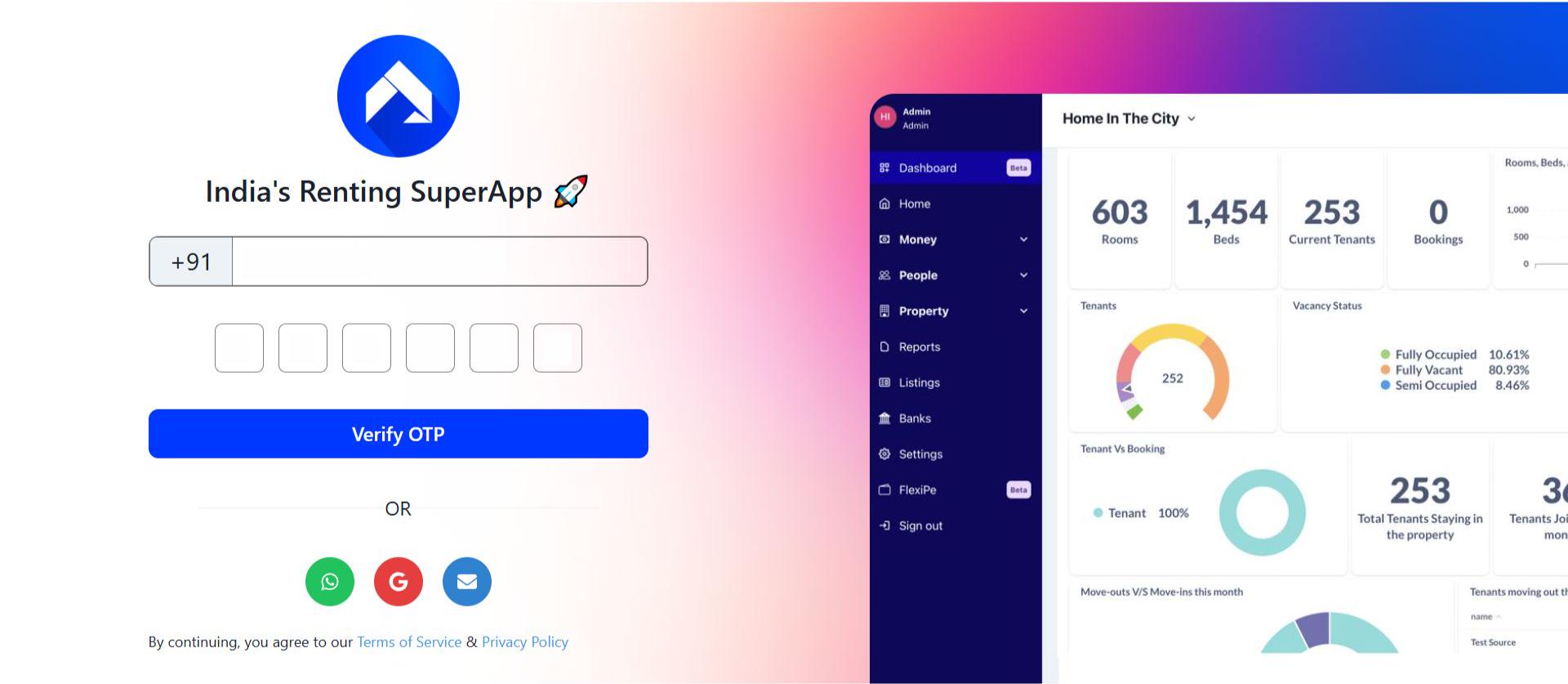
- Step 1: Log in to the web version Open the web version of the app and enter your credentials to log in.
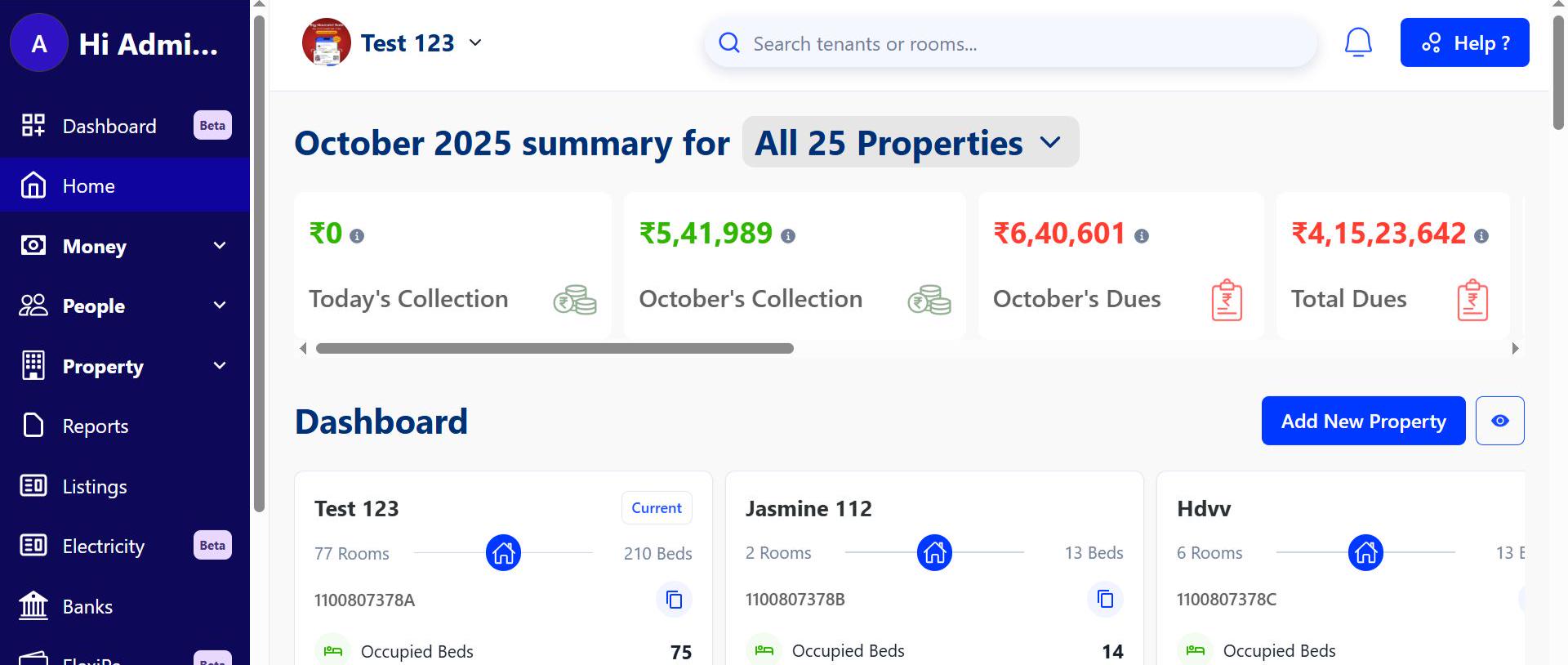
- Step 2: Go to the Home page After logging in, the home page gives you an overview of your account.
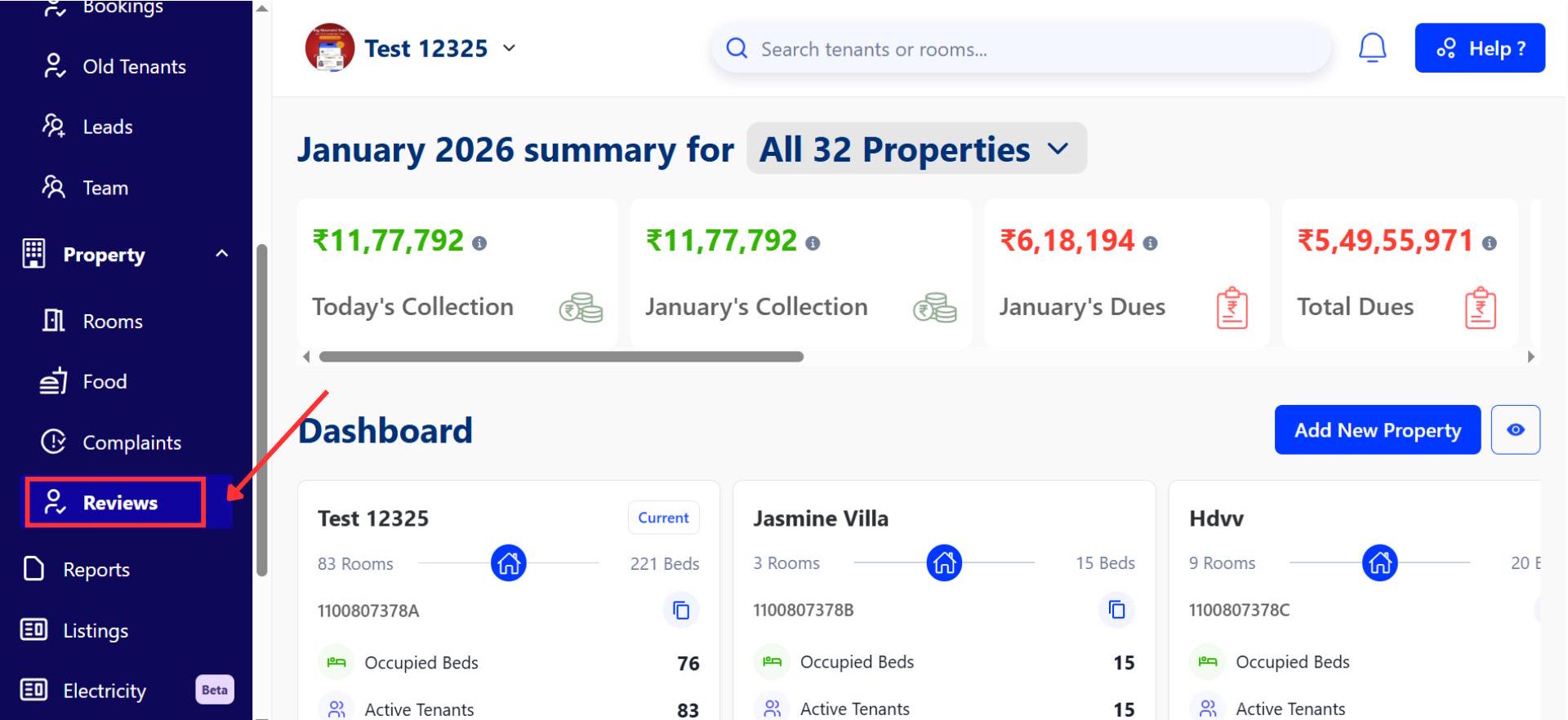
- Step 3: Open the Reviews Section From the top menu, go to Properties. Inside Properties, navigate to the Reviews section to continue.
- Step 4: Access review forms After going to Reviews, you’ll land on a page where you can create and manage your review forms.
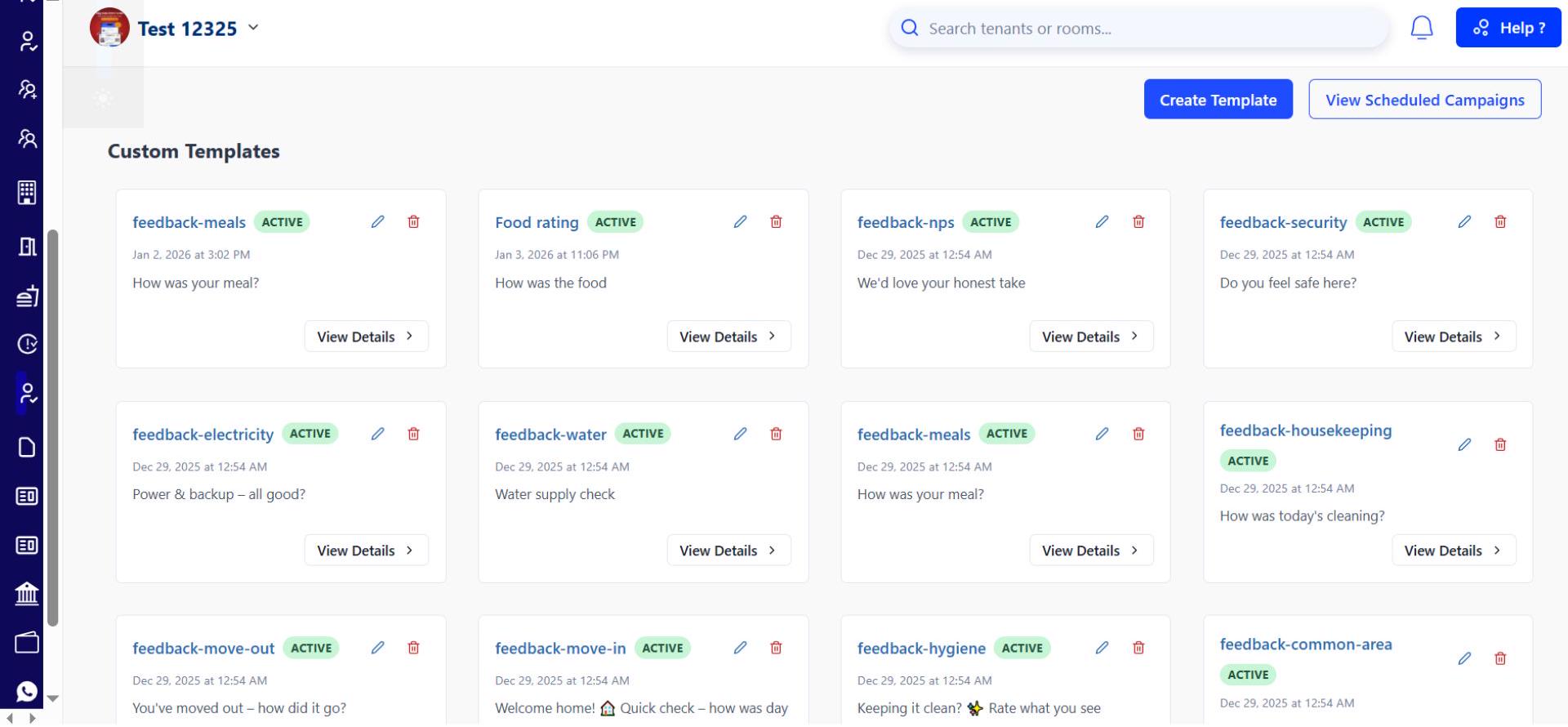
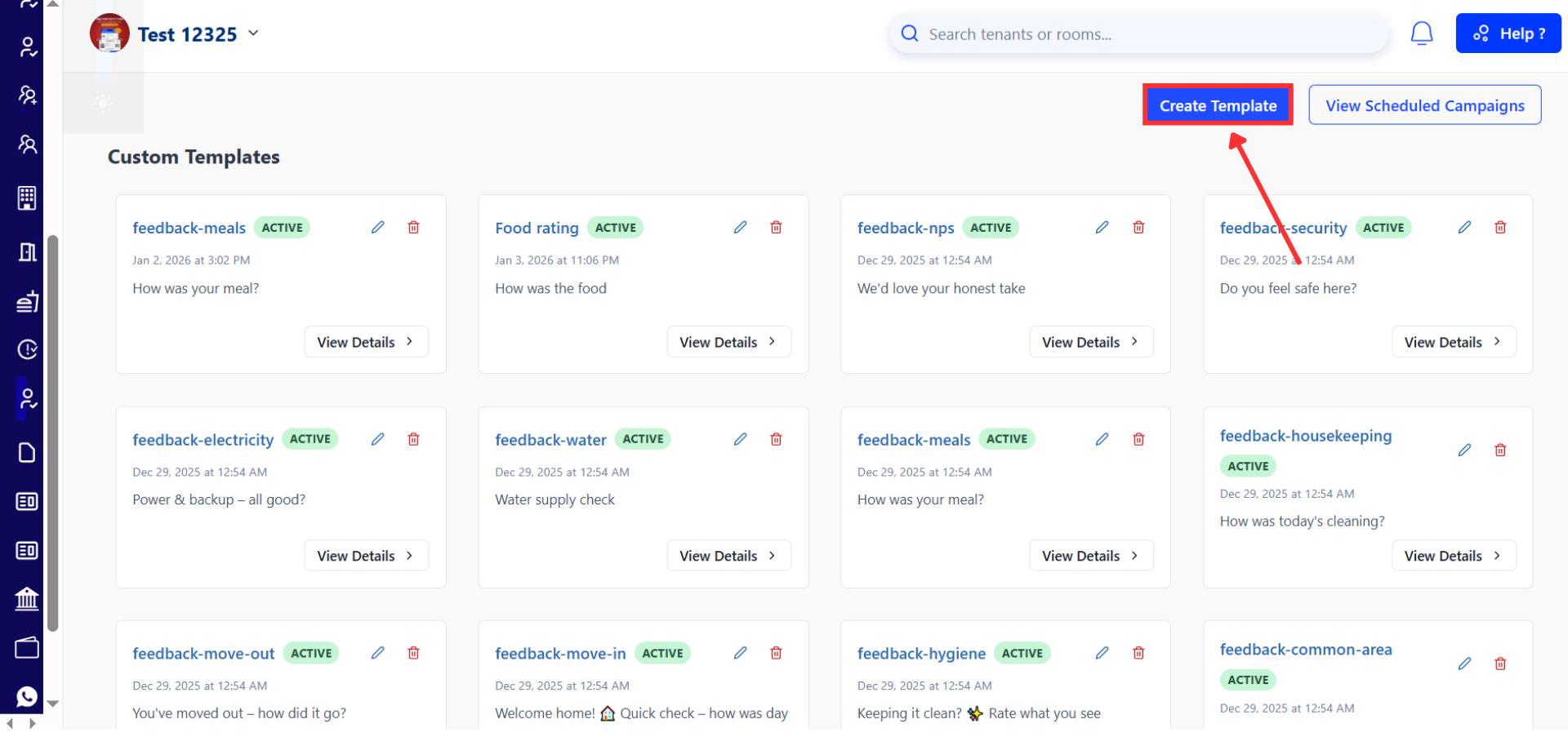
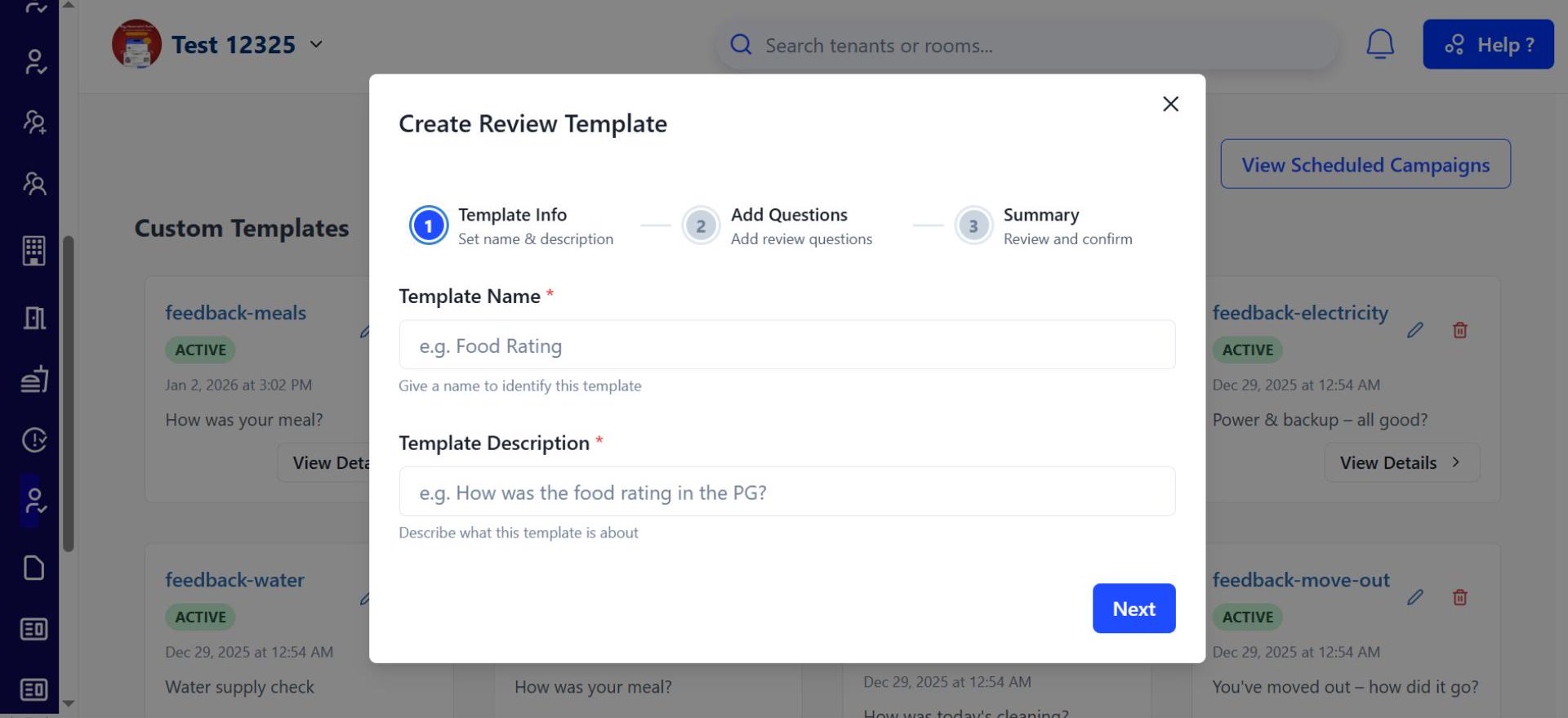
- Step 5: Create a New Template Click on Create Template. Enter the template name and a short description, then proceed to the next step.
-
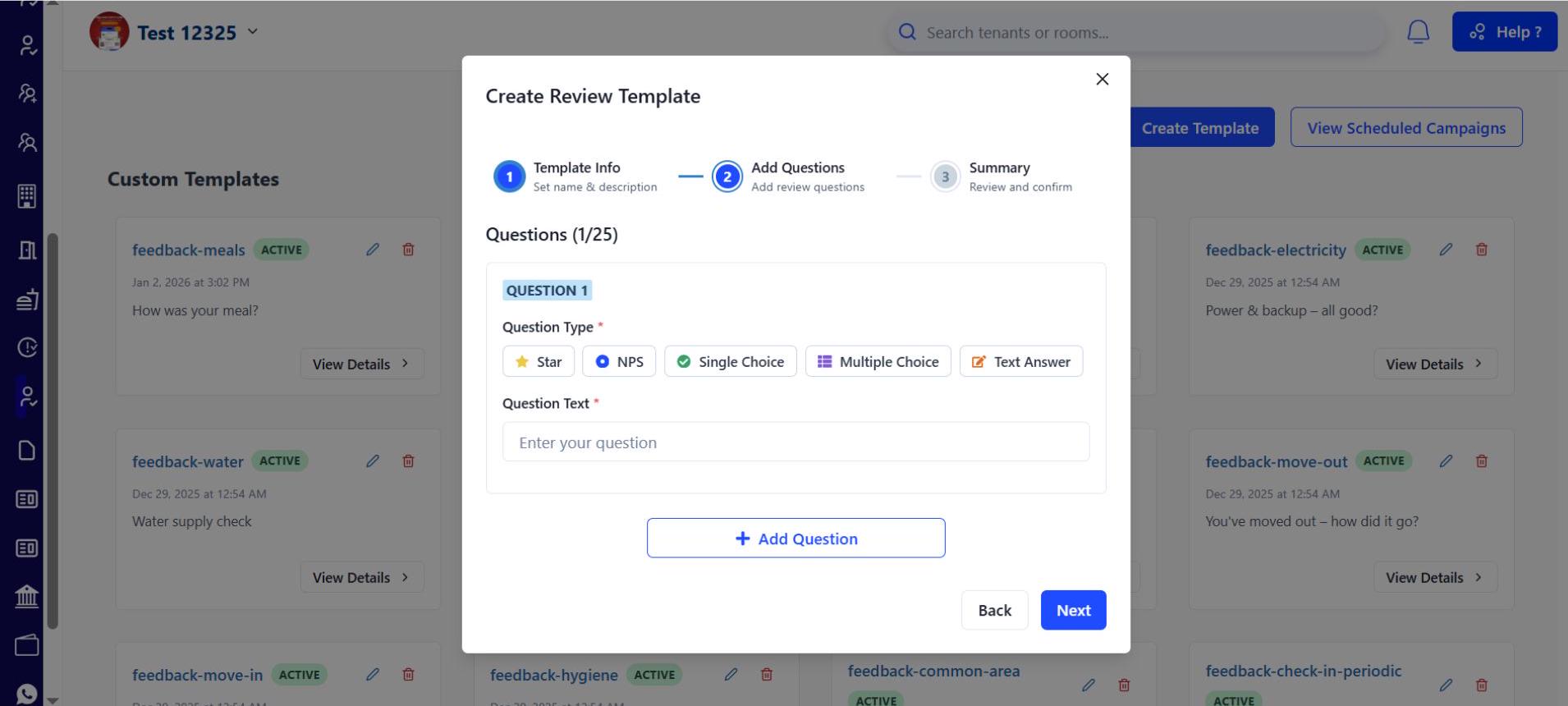
Step 6: Add Questions In the next screen, add questions to your template. You can choose from five question types:
-
Star Rating
-
NPS
-
Single Choice
-
Multiple Choice
-
Text Answer
-
You can add up to 25 questions in total. Use the Add Question option to include each new question.
- Step 7: Review the Template Once all questions are added, click Next. You’ll be taken to the template summary page, where you can review all details.
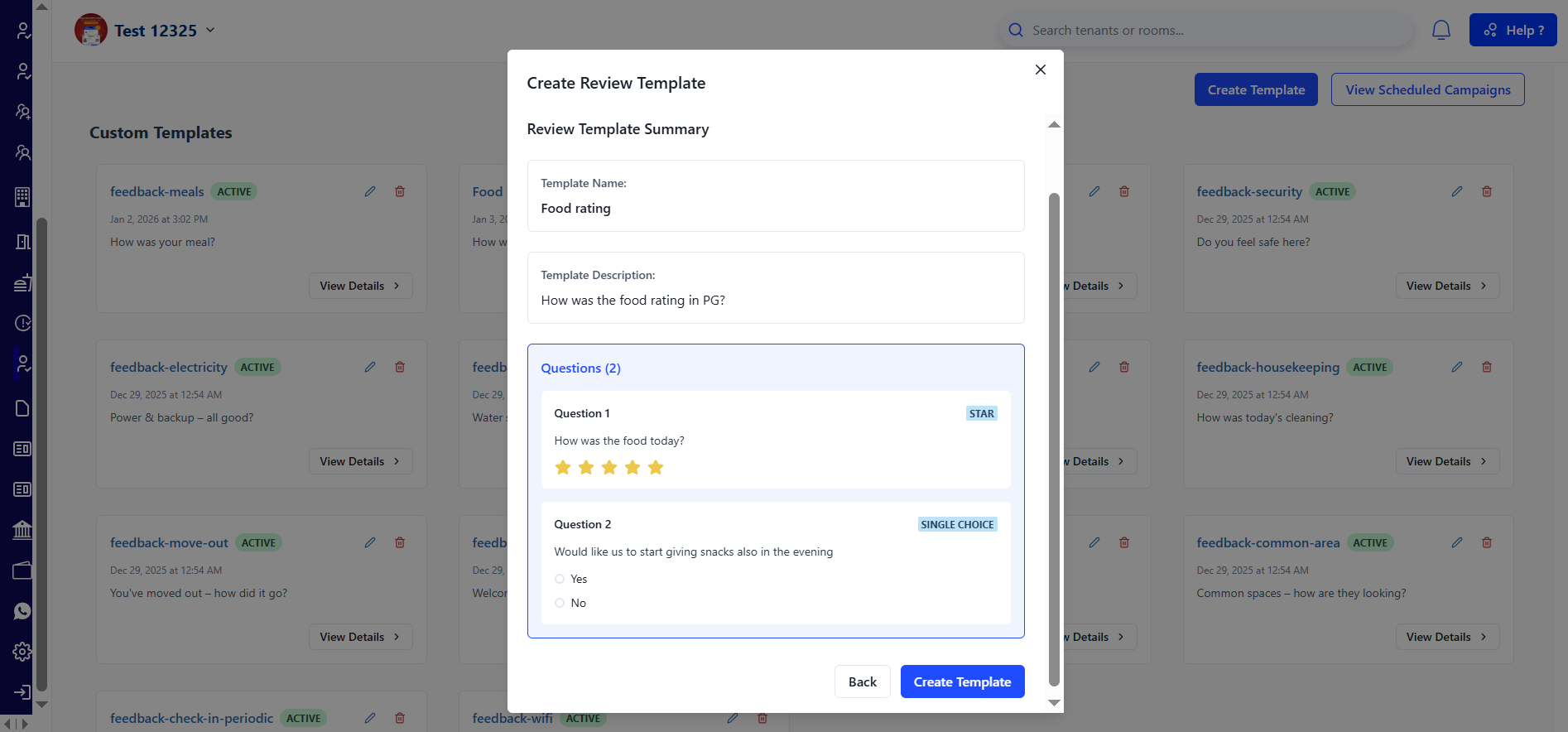
- Step 8: Create or Edit the Template If everything looks correct, click Create Template. If you need to make changes, you can go back and edit any section before creating it.
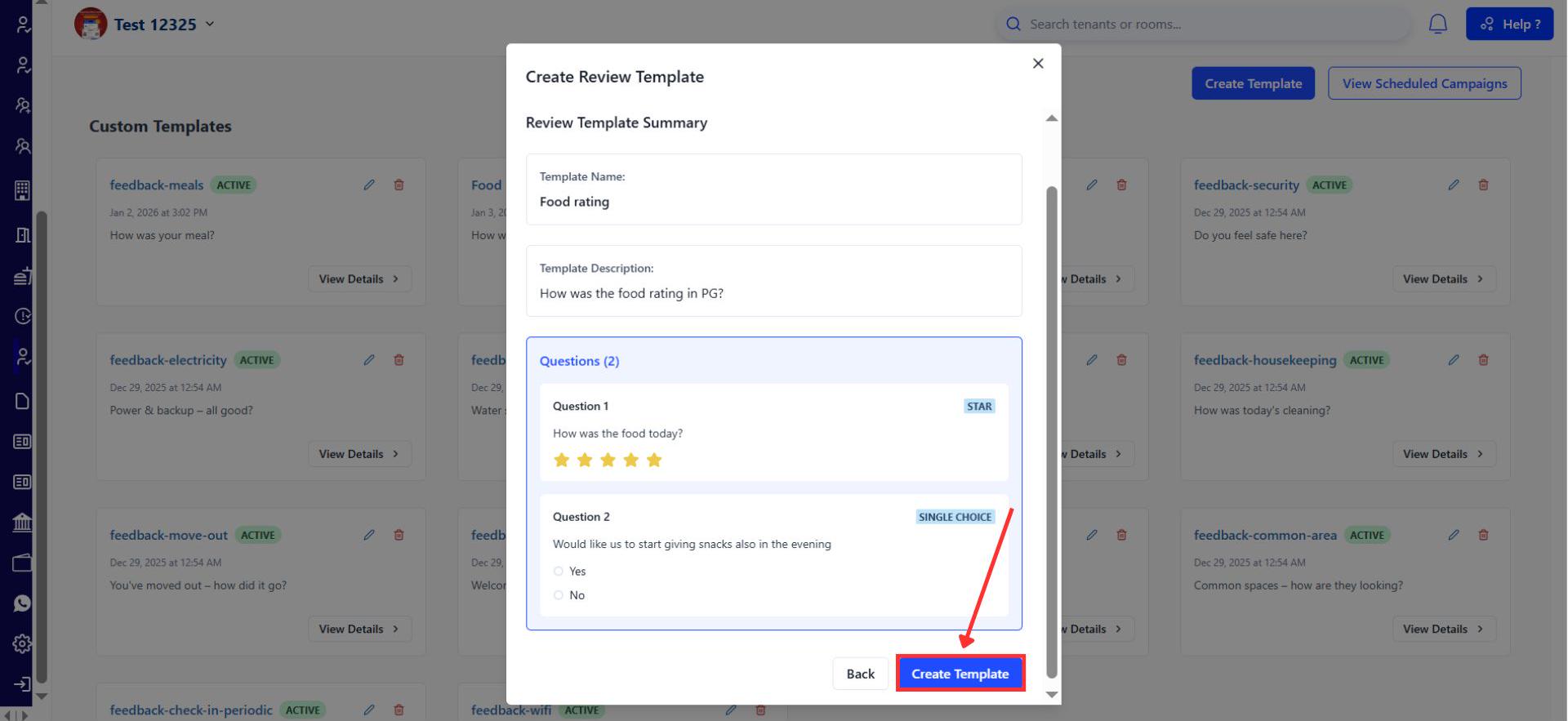
- Step 9: Use Pre-built Templates (Optional) You also have the option to choose from the available pre-built templates if you prefer not to create one from scratch.
How to View and Manage Scheduled Campaigns
- Step 10: View Scheduled Campaigns Go to View Scheduled Campaigns to see all the review campaigns you have scheduled.
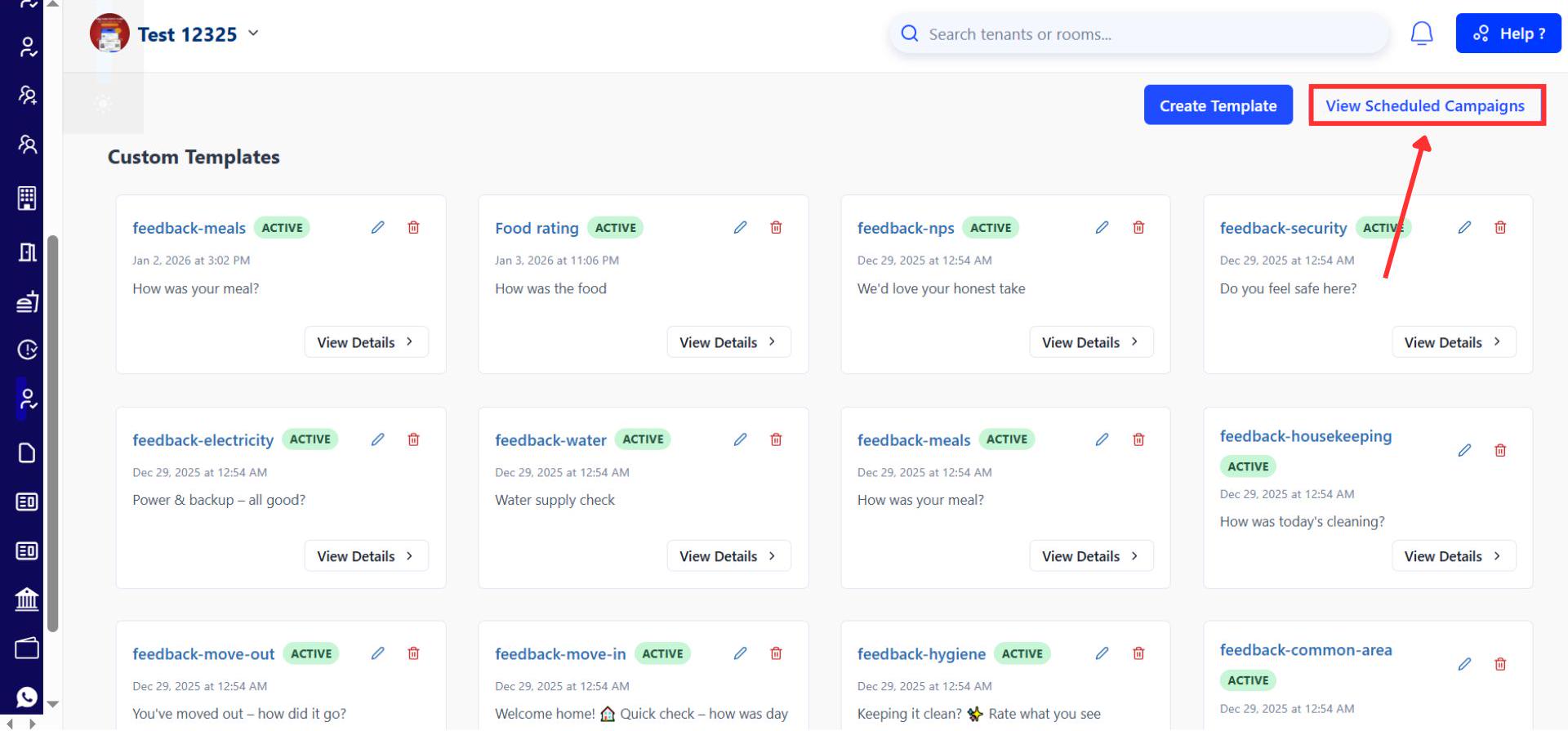
- Step 11: Edit or Delete a Campaign From the list, you can delete a campaign using the Delete option or click the Edit (pen icon) to make changes.
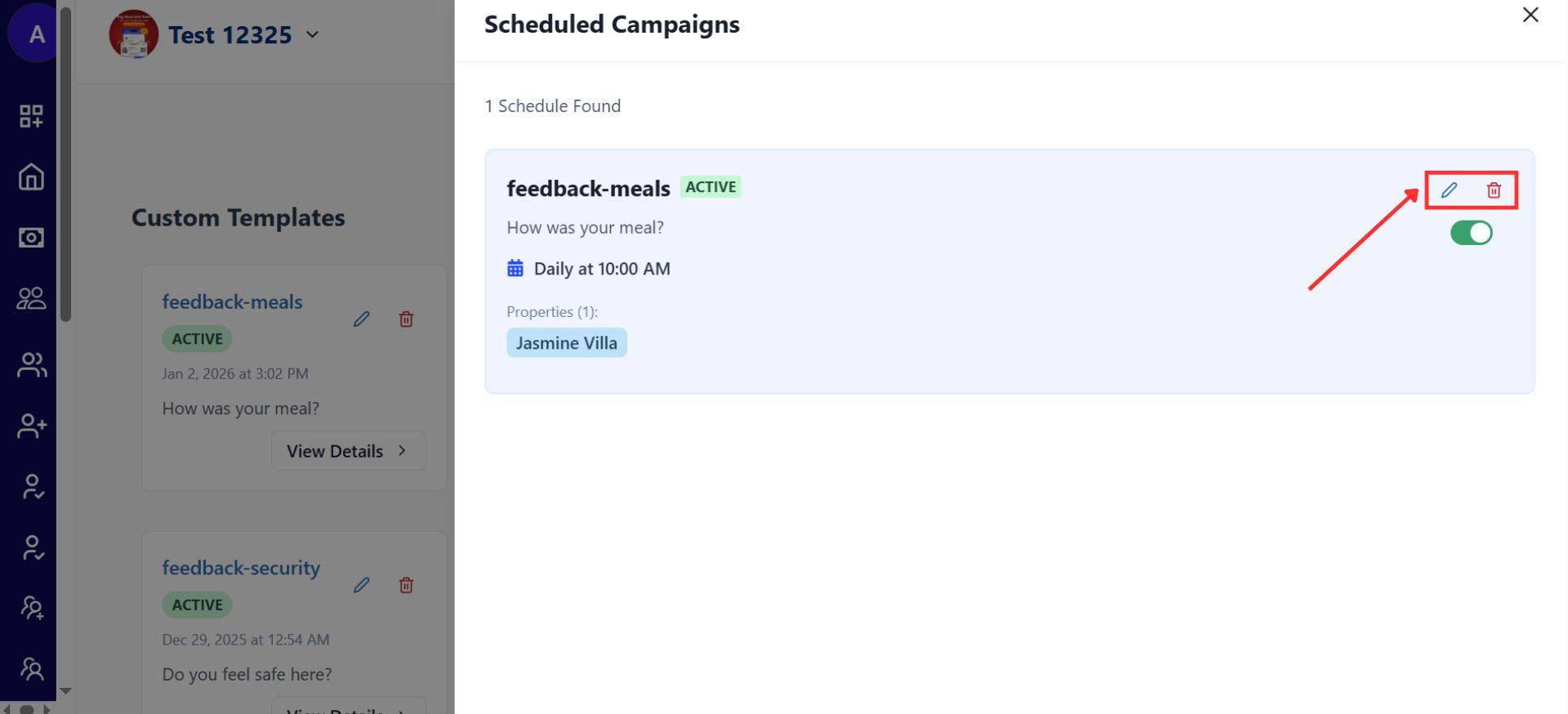
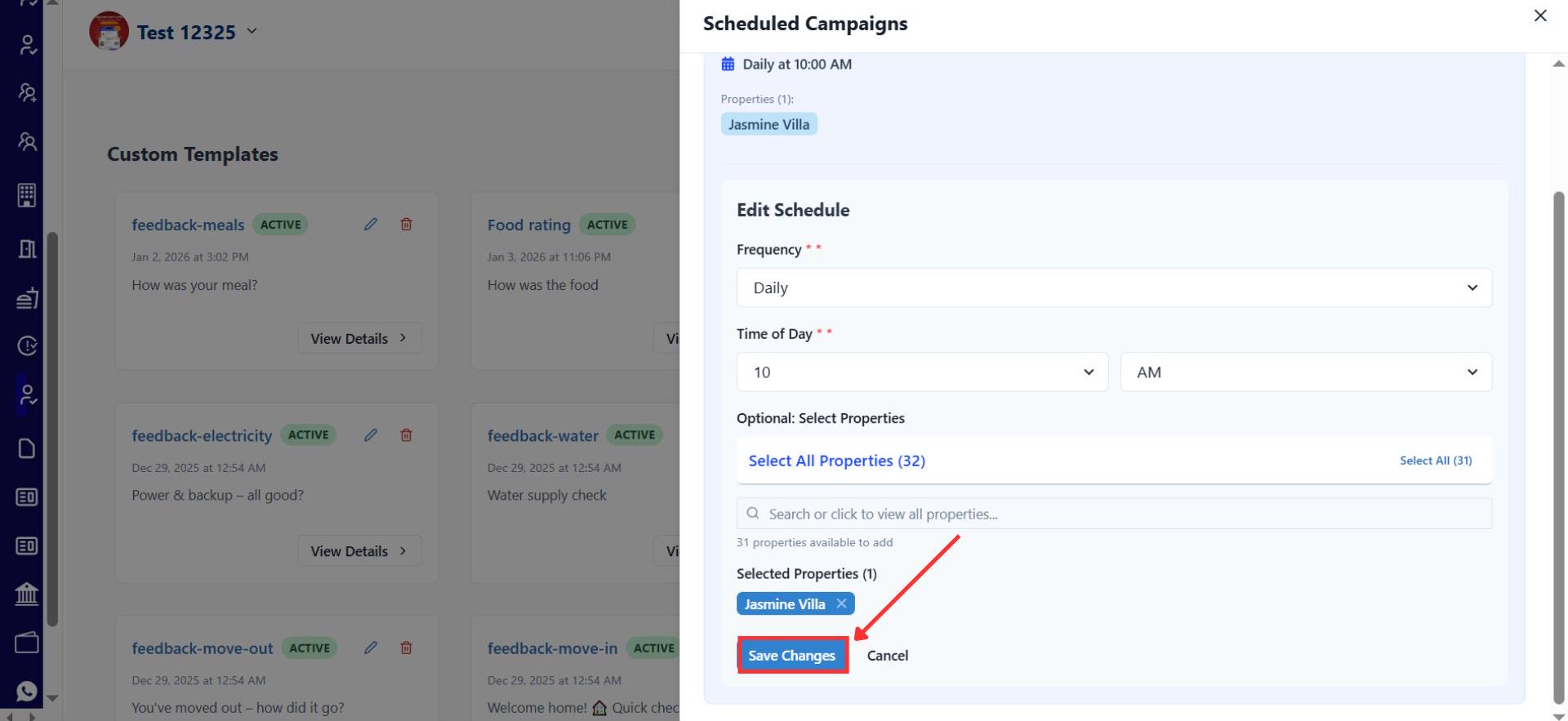
- Step 12: Update Campaign Settings In the Edit screen, you can set the frequency, choose the time of day, select the properties, and configure how the review form is shared.
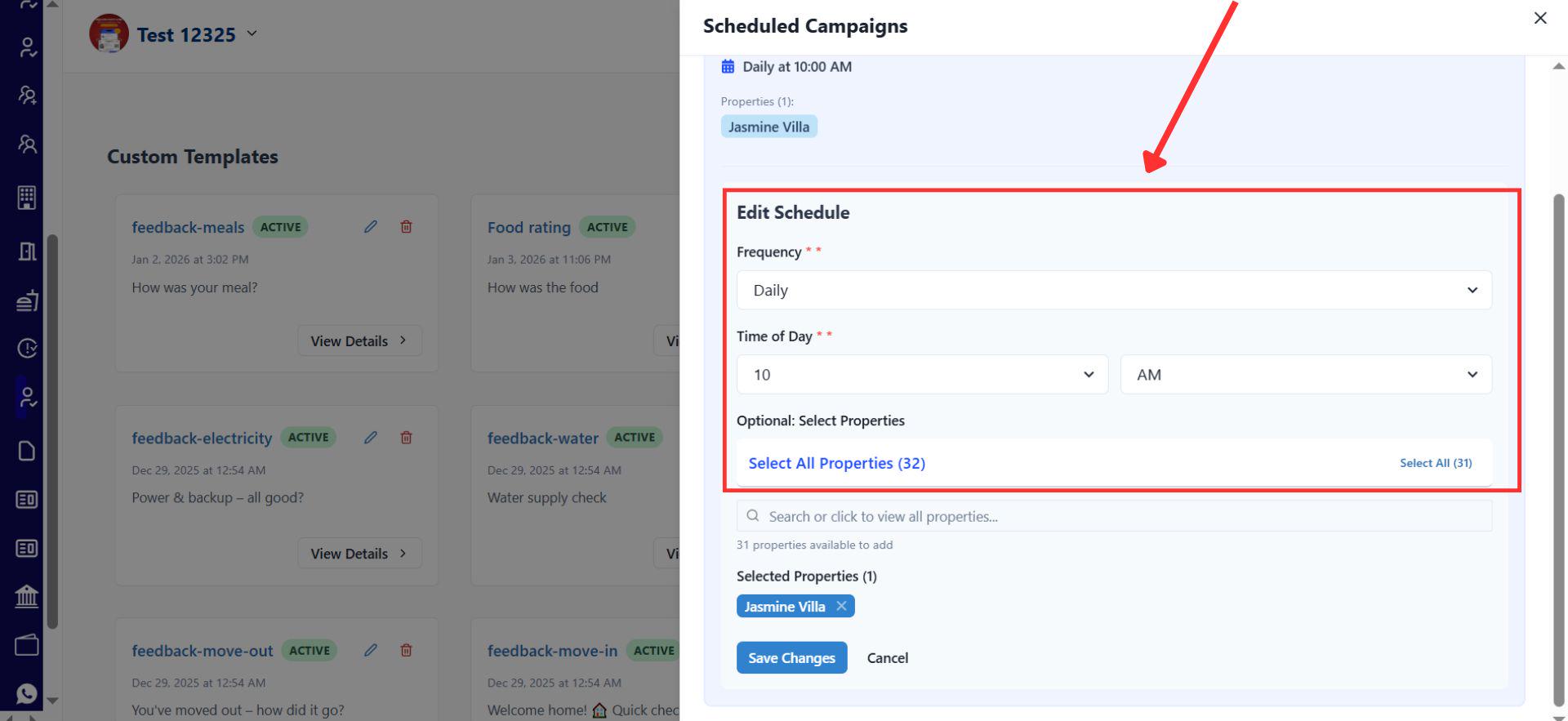
- Step 13: Save Changes After making the required updates, click Save Changes to apply them.
| 💡 Why it matters: This tool helps you systematically understand tenant satisfaction, identify areas for improvement, and make data-driven decisions to enhance your service quality. |
|---|
Ab tenants se feedback lena hua aur bhi aasan.
⏪ RentOk Wrapped 2025 - Your Year in Review!
Get ready to celebrate your success! RentOk Wrapped is a personalized, shareable video recap showcasing your business's growth and key milestones from the past year, similar to Spotify Wrapped.
See what’s new →
Highlights
-
Personalized Video: See your journey in a beautifully animated video with key stats about your property's performance.
-
Celebrate Your Growth: The recap highlights your growth story and our partnership throughout the year.
-
Easily Shareable: Get a unique link to share your "Wrapped" video with your team, partners, or on social media.
-
A Thank You from Us: It's our way of saying thank you for your trust and for making the rental community stronger.
🚀 Unified Joining Flow - Your Property's Digital Front Door
This is a single, smart link for your property that handles the entire new tenant journey-from their first inquiry to booking a bed. Think of it as a digital brochure and an admissions portal, all in one.
See what’s new →
Highlights
-
One Unique Link: Every property gets its own unique link (e.g., yourproperty.rentok.com) to share anywhere.
-
Capture Every Lead: Anyone who enters their number is automatically saved as a lead in your RentOk account.
-
Showcase Available Rooms: Prospective tenants can browse all your available room types, view photos, and see amenities.
-
Book Visits & Reserve Beds: Leads can schedule a property visit or directly reserve a bed by paying a token amount online.
How to try
-
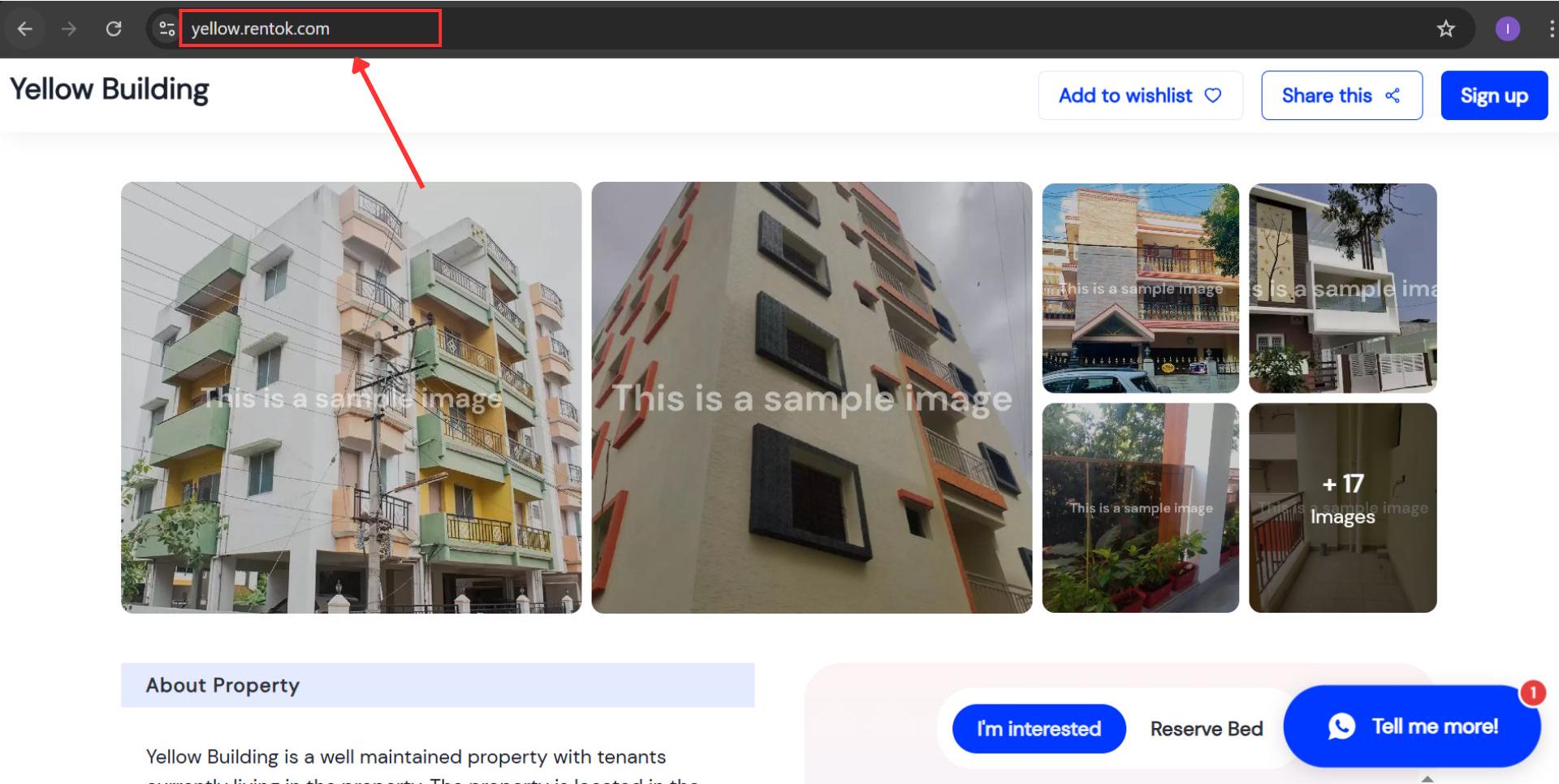
Step 1: Open the Property Link Open the property link in your browser: yourproperty.rentok.com.
-
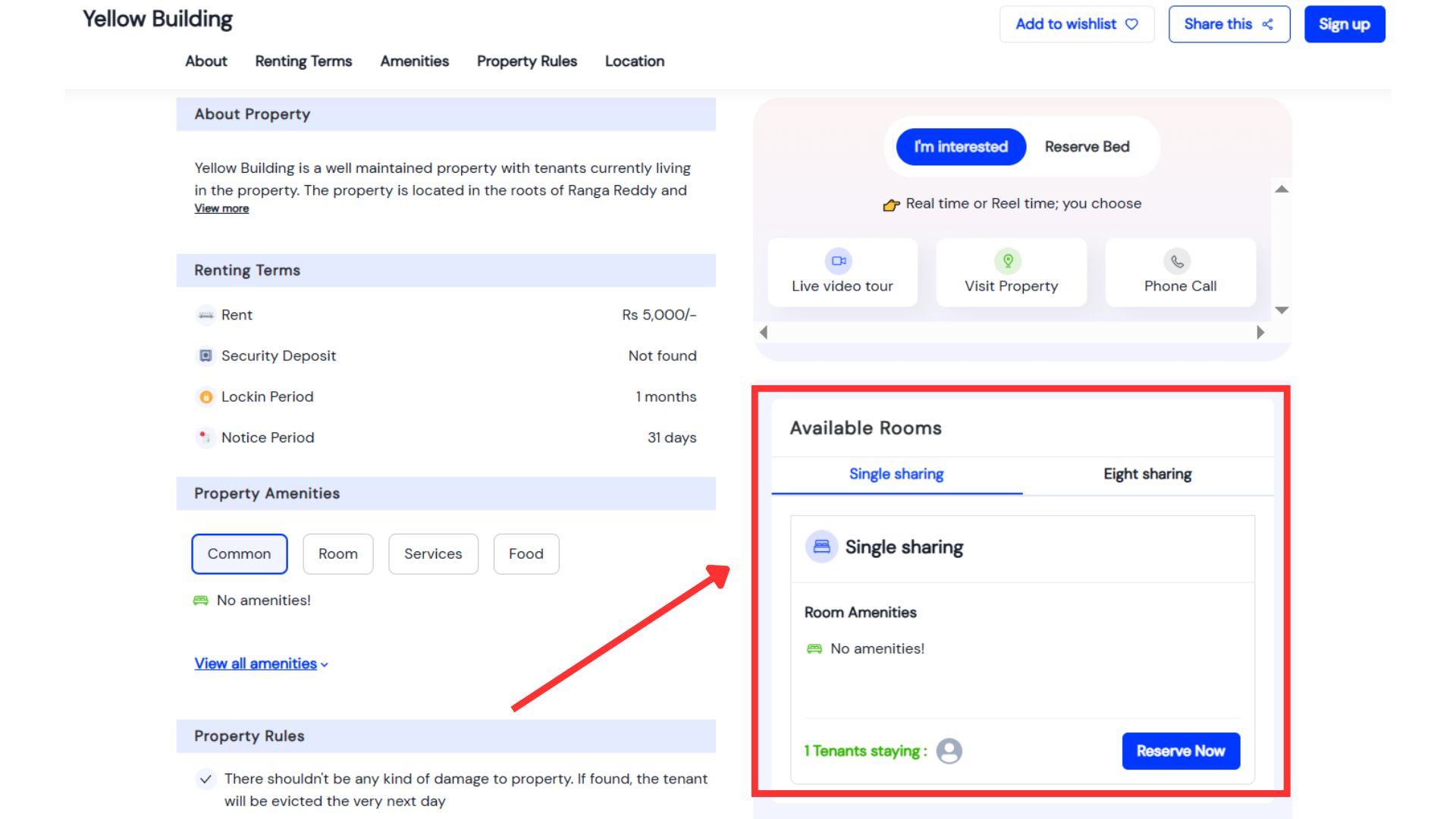
Step 2: Explore the Property Website The link opens a dedicated website for that specific property. Here, you can view all essential details related to the property in one place.
- Step 3: Take Action from the Website From this page, you can book a live video tour, schedule a property visit, make a phone call, reserve a bed directly, or simply mark your interest in the property.
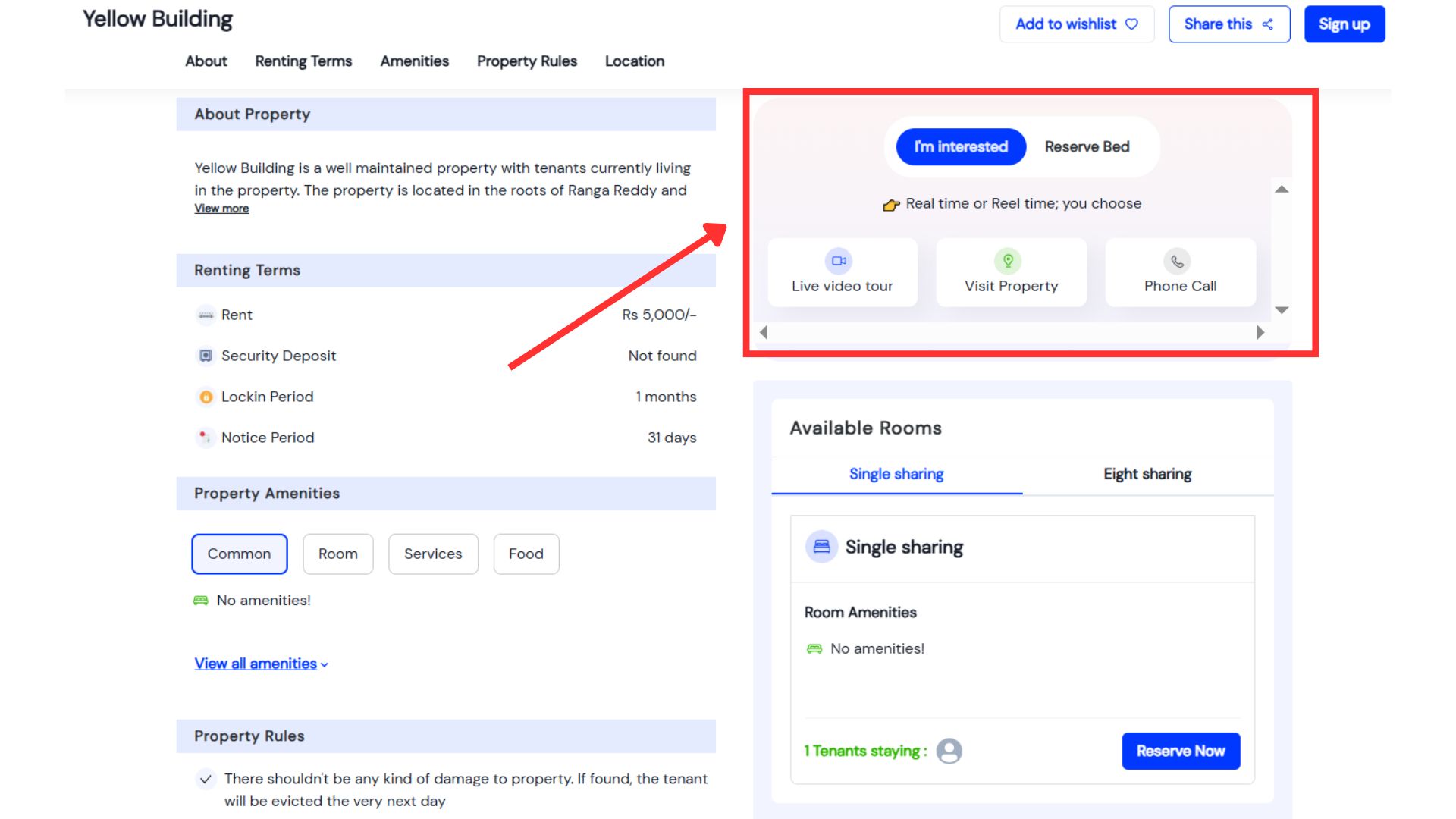
- Step 4: View Property Details Scroll down to find complete information about the property, including an overview, renting terms, amenities, house rules, location details, and nearby landmarks.
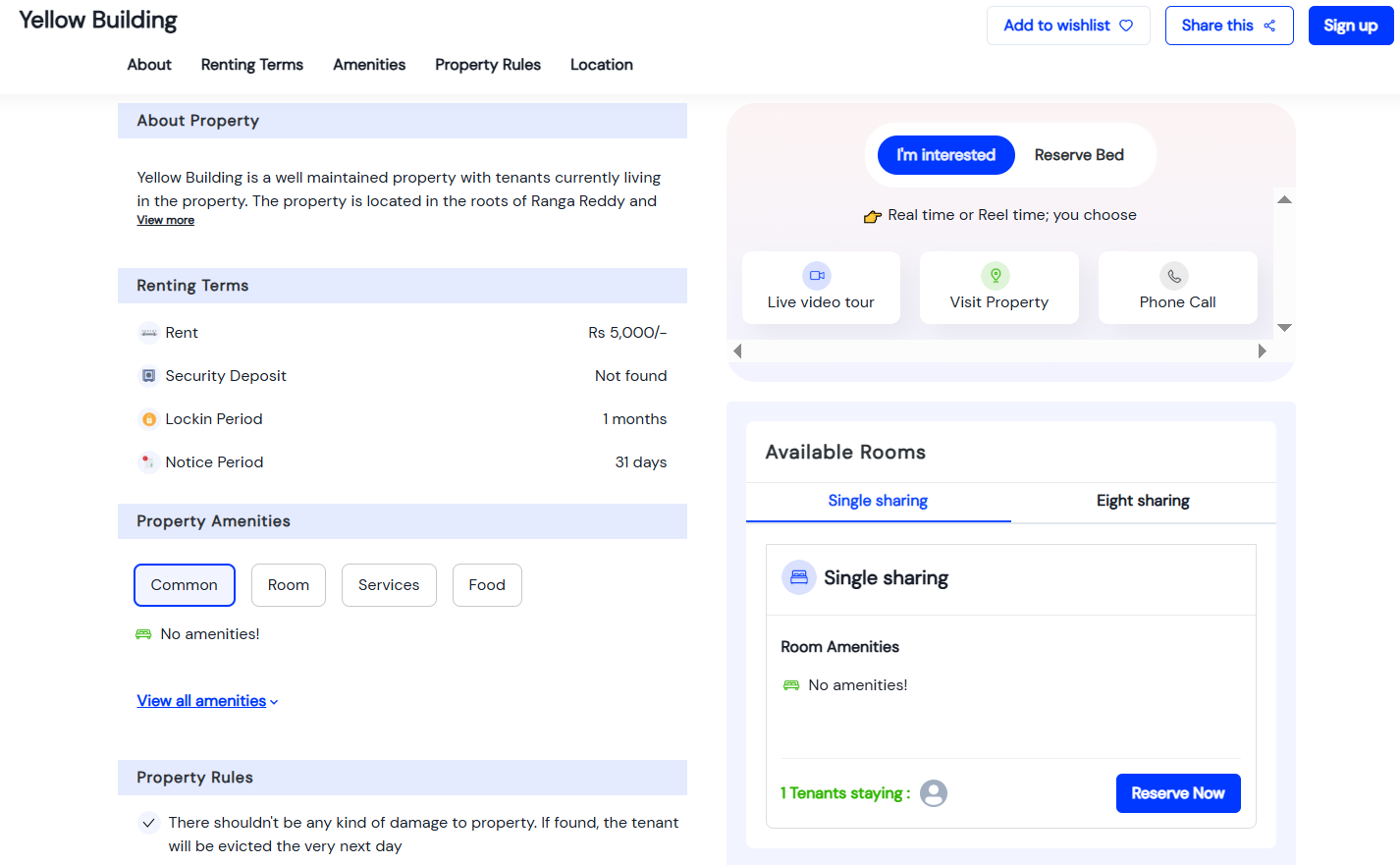
- Step 5: Check Available Rooms On the same page, you can see all available room types. You can also add rooms to your wishlist for later reference.
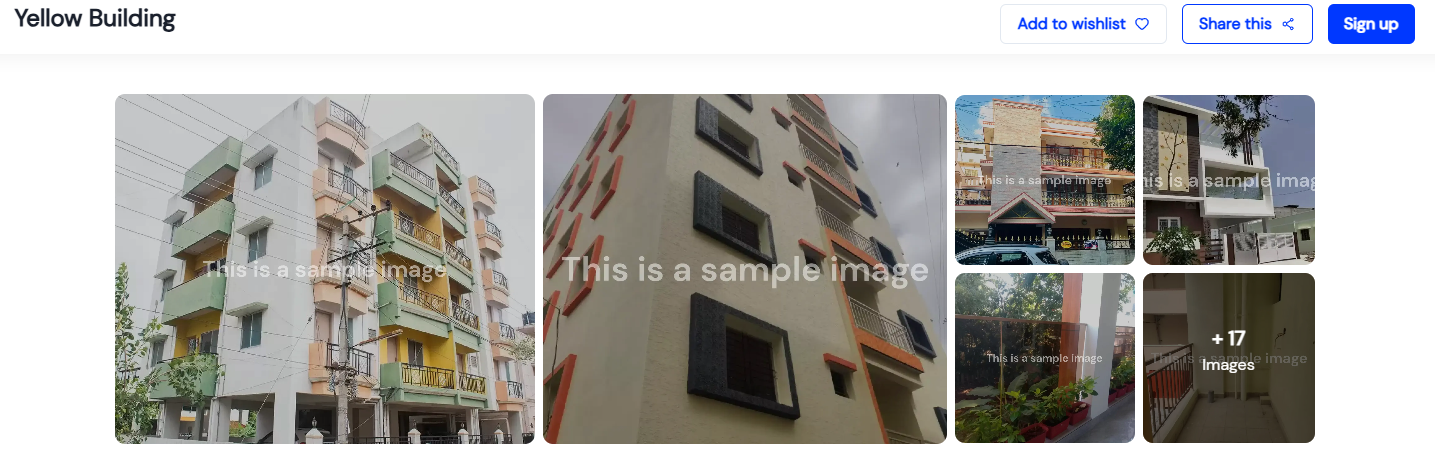
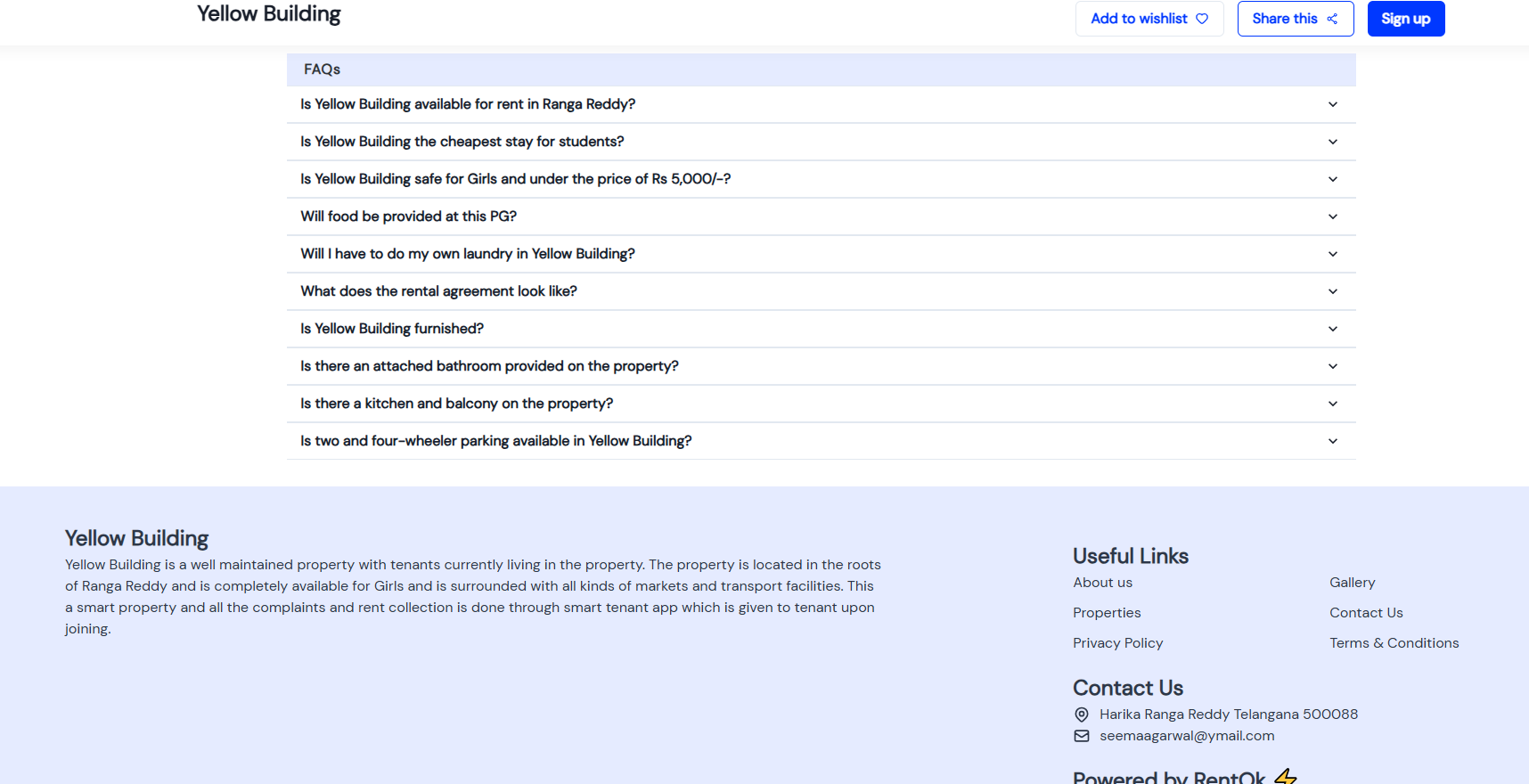
- Step 6: Browse Images and Support Information You can view property images, go through frequently asked questions, and find contact details related to the property.
| 💡 Why it matters: This streamlines your entire admission process. It captures every potential lead automatically, reduces manual follow-ups, and provides a professional, modern booking experience for your future tenants. |
|---|
Thank You
Have doubts or any feedback? Chat with us in-app (Help → send us message). We’re building for you, and every suggestion counts!
Happy New Year!